
[EN] Frequently Asked Questions (FAQ)
Who should I contact if I have forgotten my password?
Depending on your account type, there are different steps you need to take to get a new password. The easiest way to determine your group is to check whether you log in using the left-hand “Login für Studierende und Lehrende über SSO” (1) or the right-hand “Login Personen ohne TUBS-ID, Gäste und Administrierende” (2).
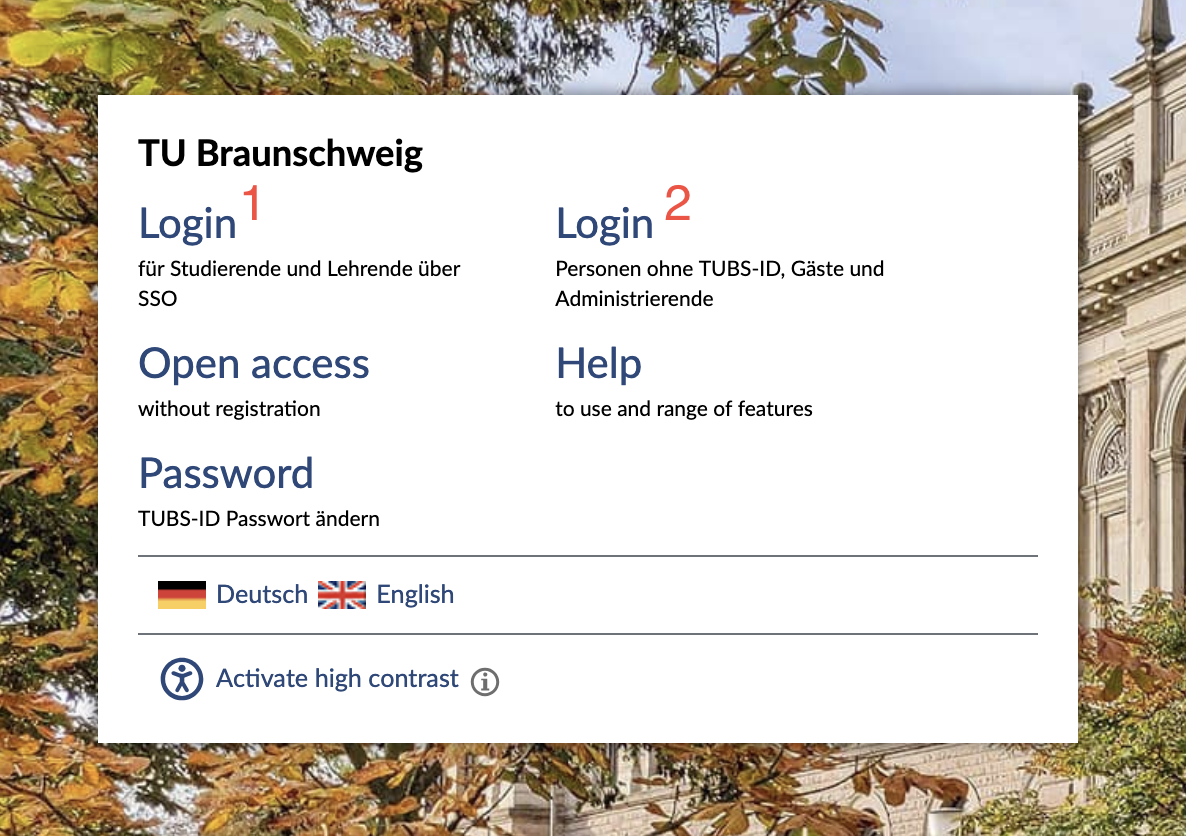
Before resetting your password, please check that you are logging in via the correct login link. This often solves the problem.
1. Students, teachers, and guests who log in via TUBS-ID can have a new password set by GITZ. The password will then change for all services for which you use the TUBS ID.
If you have not provided your mobile phone number, please contact IT Service Desk.
2. Administrators and external accounts without a TUBS ID, as well as test accounts, can have their passwords reset by sending an email to Stud.IP Support. The password for these accounts is unrelated to all other TU services.
What should I do if Stud.IP is unavailable?
Stud.IP generally runs very reliably. However, if the system experiences problems, you can find further information about the outage on the GITZ status page. This does not apply if the error has just occurred or if the problem is not related to the system itself.
If you cannot find a corresponding entry on the status page, please first check whether you can access Stud.IP using a different browser or device. If the problem only occurs with a specific browser or on a specific device, please clear your browser's cache. This often solves connection problems.
Do not hesitate to contact Stud.IP Support if you are unsure whether the problem is actually only occurring for you and there is no indication of a malfunction on the status page.
Stud.IP has switched to a black-and-white color scheme
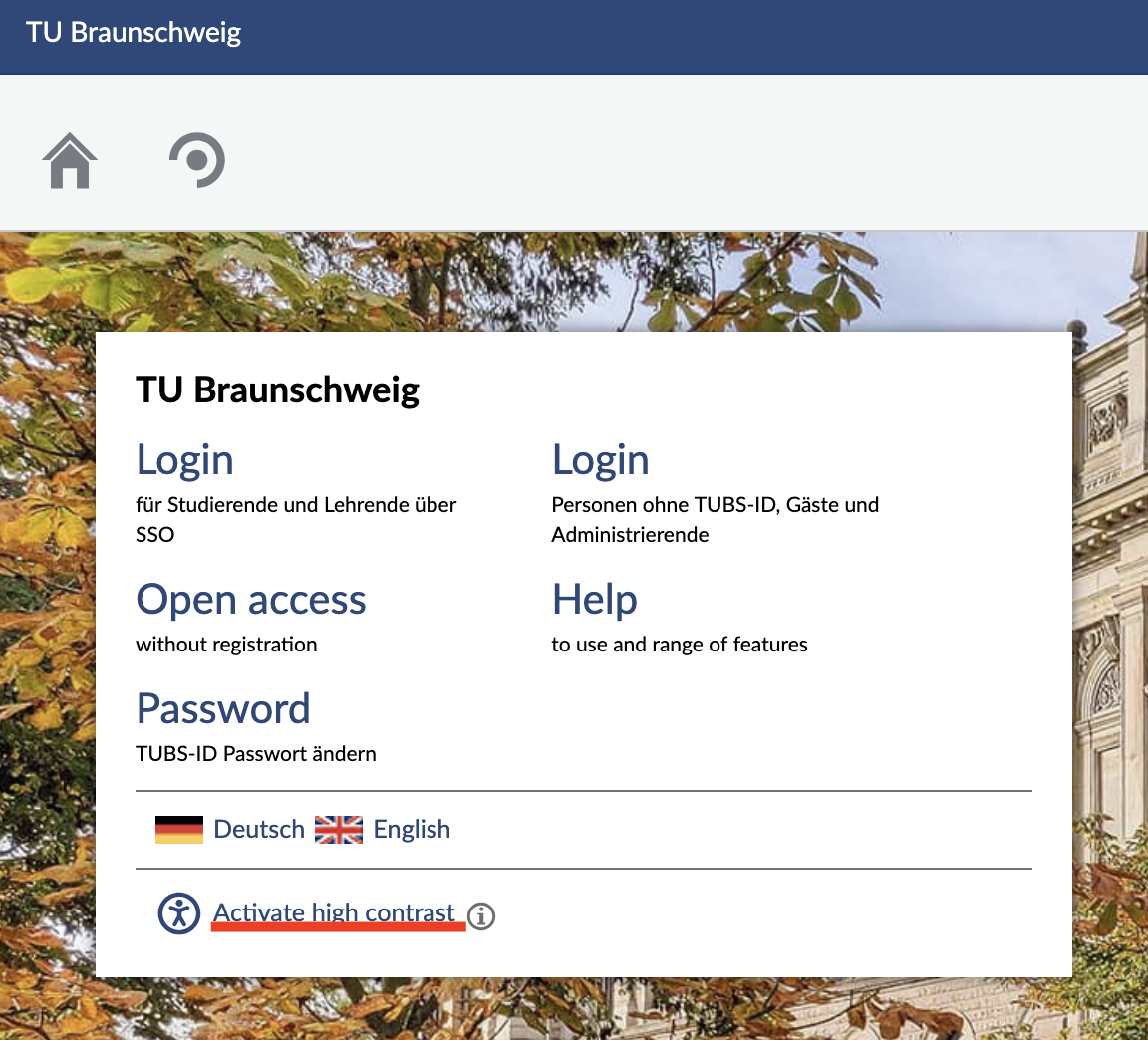
Stud.IP offers a high-contrast mode. This allows people with visual impairments or color blindness to use the system without any problems. If you see Stud.IP in black and white, you are in this mode.
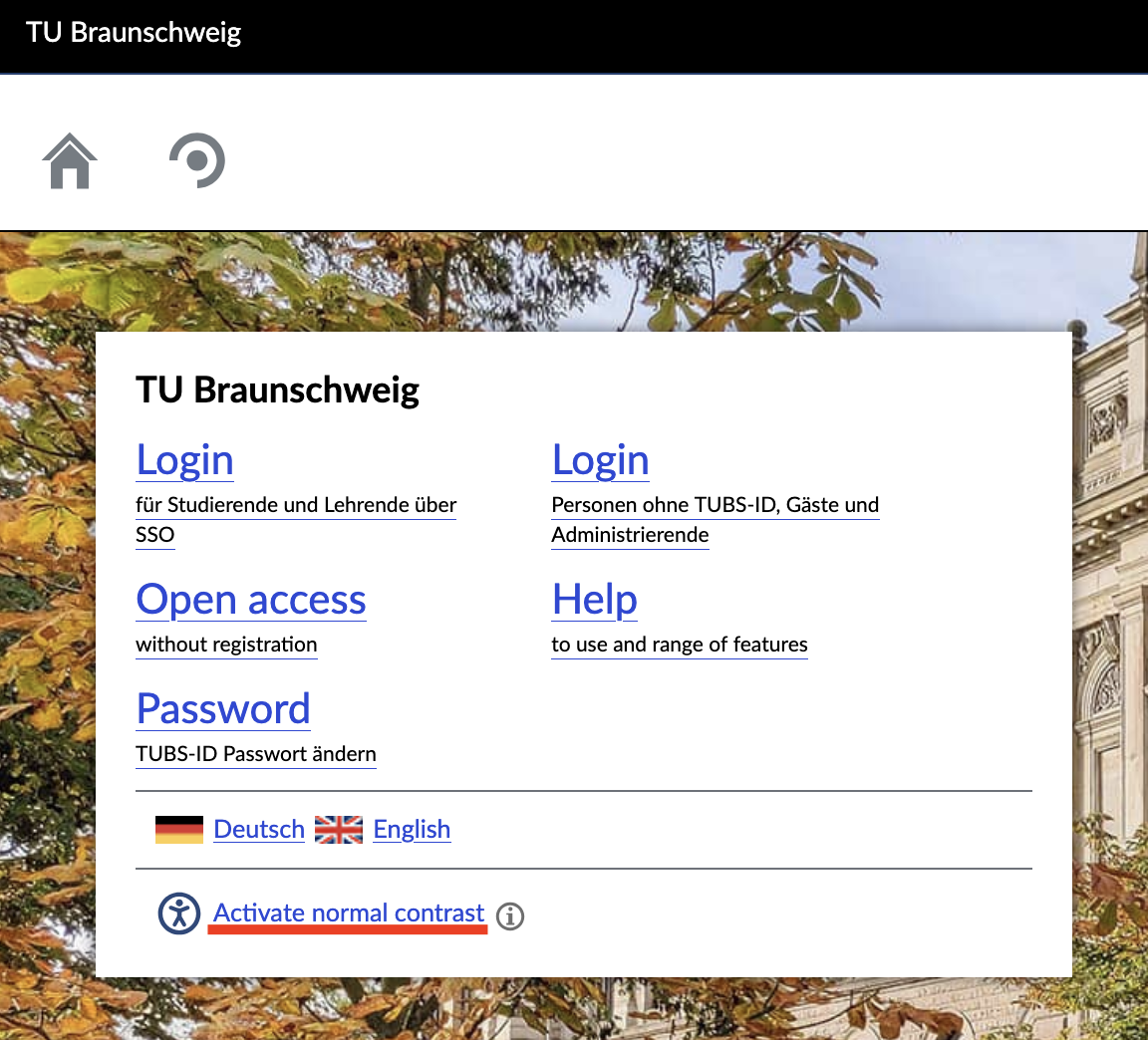
To activate this mode, click on “Activate high contrast” on the login page. In the same place, you can deactivate it again by clicking on “Activate normal contrast.”
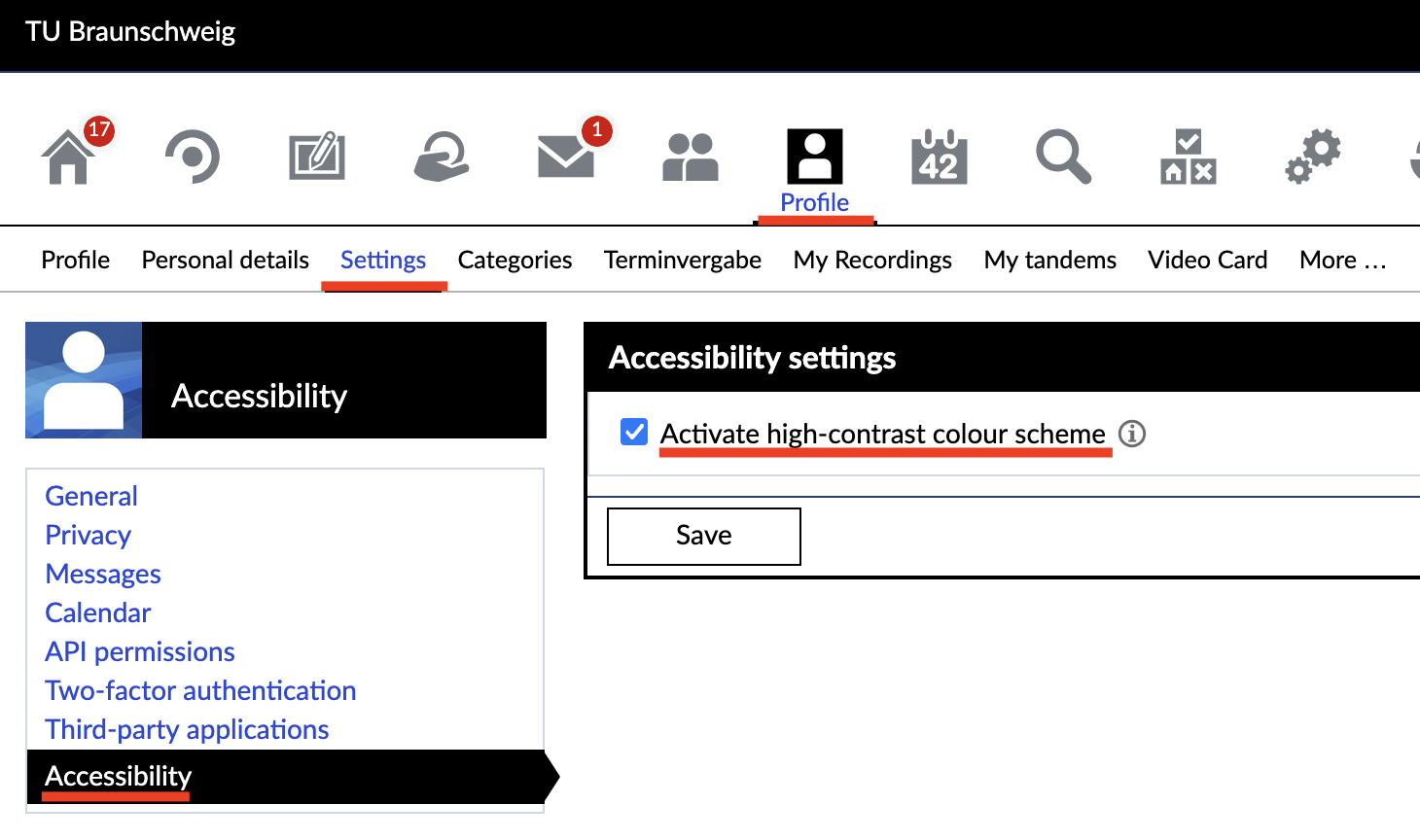
If you are already logged in, you can change this setting via the “Profile” button. Select the “Settings” option in the upper selection of “Profile” and then ‘Accessibility’ on the left-hand side. The option “Activate high-contrast colour scheme” opens, which is already selected. Remove the check mark and click on “Save.” The color scheme will then change back to blue and white.
When accessing Stud.IP, an anime image appears briefly before the login page opens. Is the connection still secure?
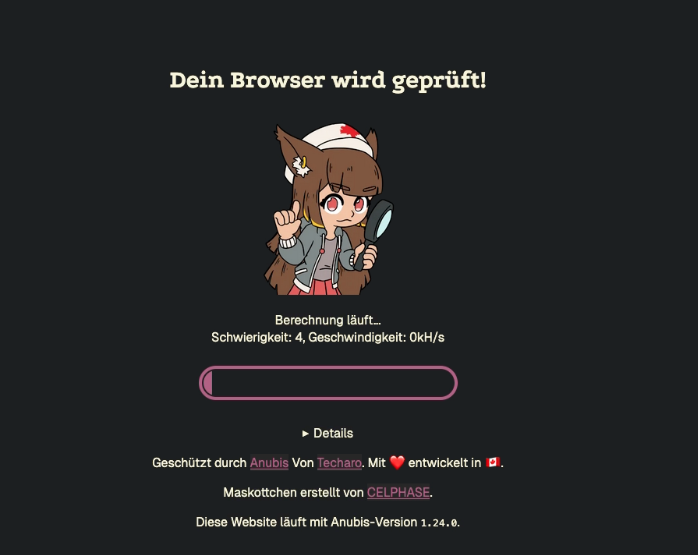
Yes, the image is part of the Anubis web firewall. This helps to keep bots from accessing the network and contributes to our IT security.
Sometimes the image may not disappear immediately, and the browser may get stuck on Anubis. If that happens, please reload the page. If that doesn't work, try using a different browser or try again later.
No comments to display
No comments to display