PassKey
KeePassXC
Systemrequierments:Adding a passkey for Duo in KeePassXC
This page explains how to create a passkey for Duo and save it in KeePassXC. The setup is done using the KeePassXC Browser extension.
Requirements:
1.
KeePassis musstinstalled
2. beYou installt.
database that you can open
3. A supported browser must be available.
4.

IfKeePassXC noBrowser databaseextension hasis yet been createdinstalled in KeePass,the this must be done first.browser
Open theKeePassXC and unlock your database settings.with your master password.
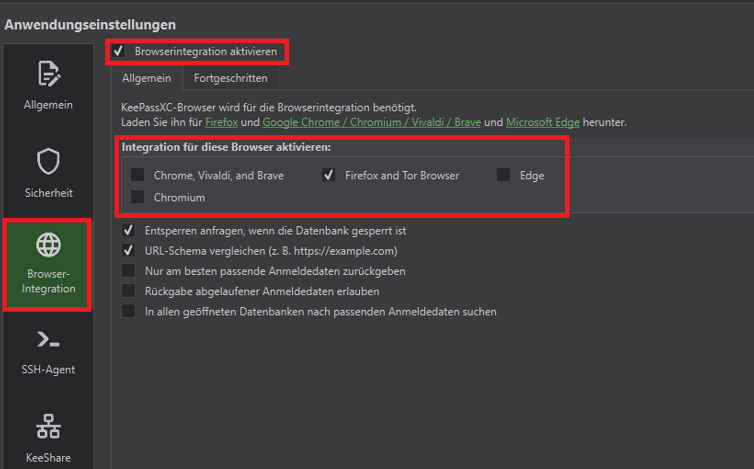
Now enable browser integration in KeePassXC. To do this, open the settings by clicking the gear icon.

SelectSwitch to the „Browserintegration“section option“Browser-Integration” on the left. There, enable “Browser-Integration aktivieren” and enable the top checkbox („Browserintegration aktivieren“). Thenthen select the browser ofin yourwhich choice.you want to use KeePassXC-Browser.
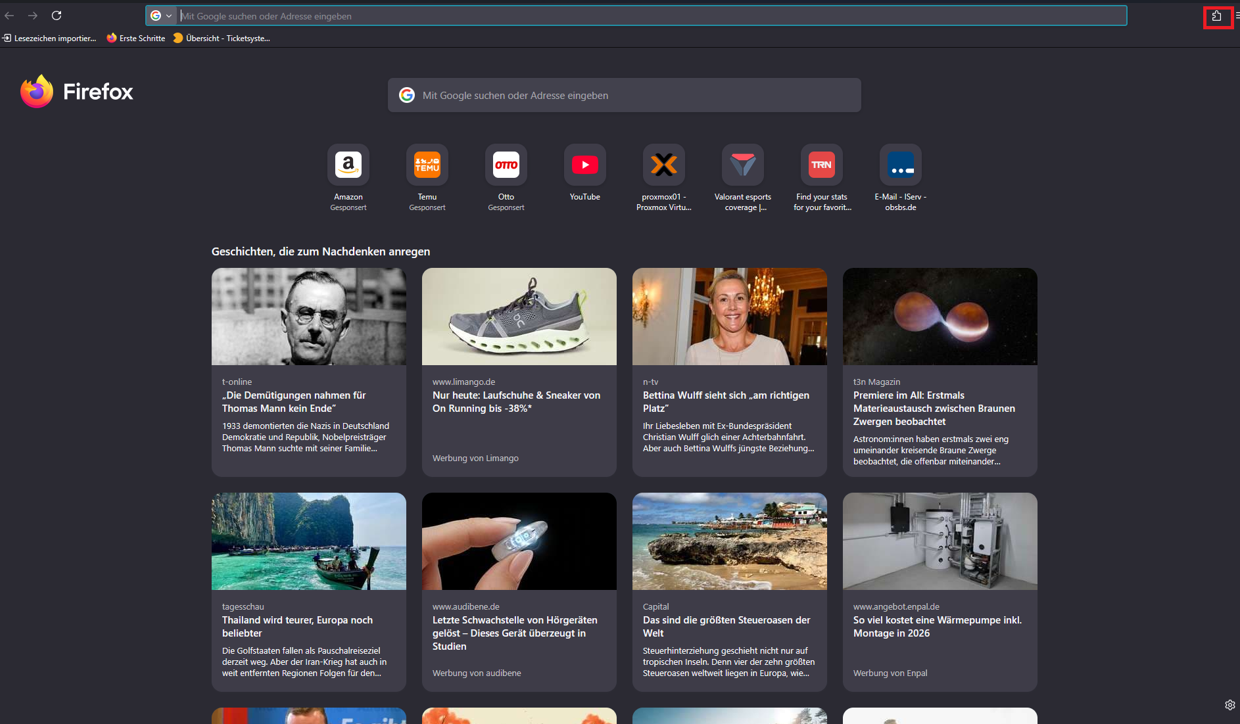
Next,Then continue in the selected browser. First, addInstall the KeePassextension plugin“KeePassXC-Browser” there if it is not already installed.
Search for KeePassKeePassXC-Browser inand theclick add-ons.“Hinzufügen”.
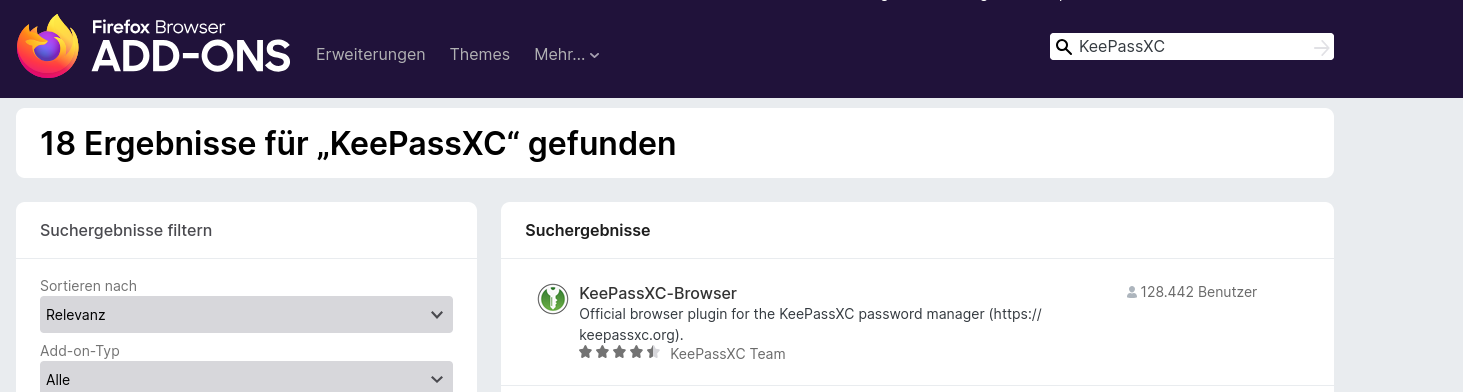
TheThen KeePassclick window should then appear similar to this. The appearance may vary depending on the browser used.“Hinzufügen”.

Click „Hinzufügen“.

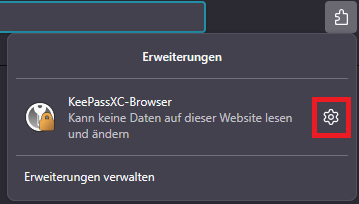
After adding,installation, click the puzzle icon in the top right of the browser and then click the gear icon (settings).to open the extension settings.
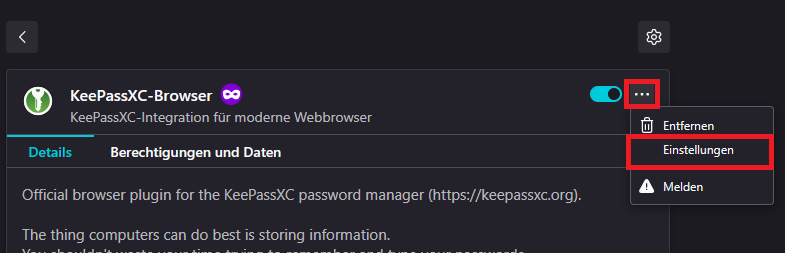
Then open the settings of the browser extension. To do this, click the threemenu dotson the right and openthen theclick „Einstellungen““Einstellungen”.
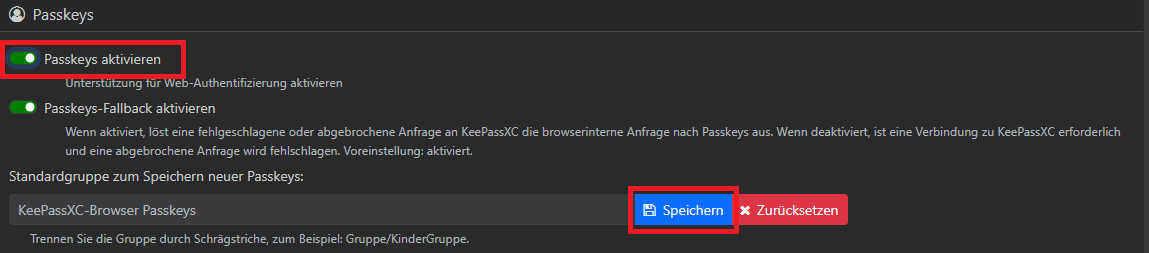
InScroll in the settings, scroll downsettings to the „Passkeys““Passkeys” section. EnableThere, passkeysenable there“Passkeys aktivieren” and then save the changes.change.
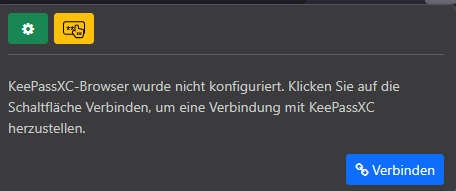
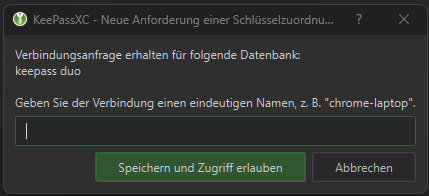
Next,Then connect the browser toadd-on KeePasswith byKeePassXC. openingTo do this, open the extension and clickingclick „Verbinden““Verbinden”.
Then selectassign a name of your choice in KeePassKeePassXC and click „Speichern““Speichern”.
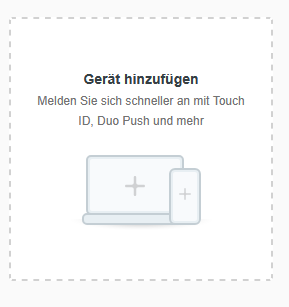
Next,Now open Duo and add a new device. To do this, log in to the Duo portal as described on the device management page(Geräteverwaltung). Then click “Geräte hinzufügen”.
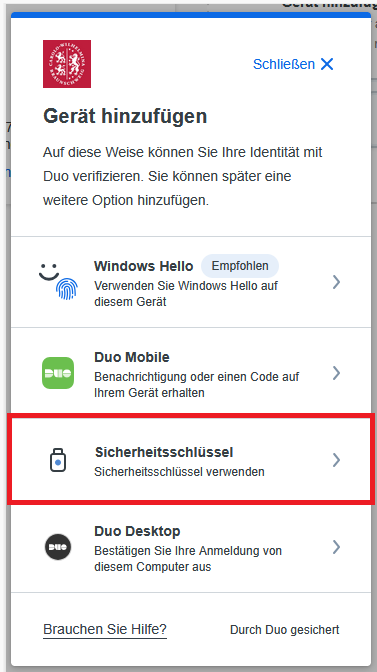
In the „“Gerät hinzufügen“hinzufügen” window, select the „Sicherheitsschlüssel“option option.“Sicherheitsschlüssel”.
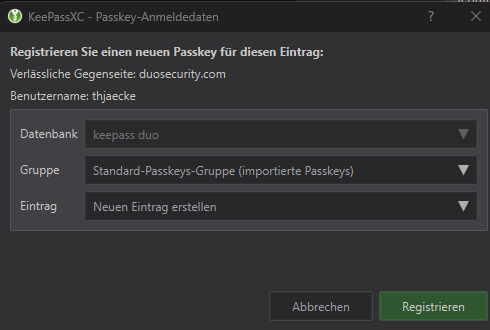
Then clicka „EinemKeePassXC bestehendenwindow Eintragwill hinzufügen“.open. There, you can either add the passkey to an existing entry or create a new entry. Then confirm the registration.
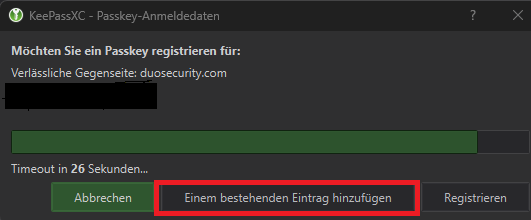
After that,Then click „Registrieren““Registrieren”.
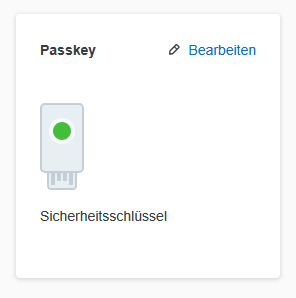
AAfter successful setup, the new passkey shouldwill nowbe appeardisplayed on the leftdevice side,management whichpage. If you wish, you can bethen renamedadjust ifthe desired.name via “Bearbeiten”.