Using a second Factor (Duo App, Desktop App, HW Token)
The Connection to OWA and SSO is the Same. OWA is just used an example here. So if you have problems to sign in on your SSO you may also follow these steps.
Using the DUO App (on mobile device)
OWA
|
|
Please open the link https://mail.tu-braunschweig.de and log in as usual with your TUBS ID and password.
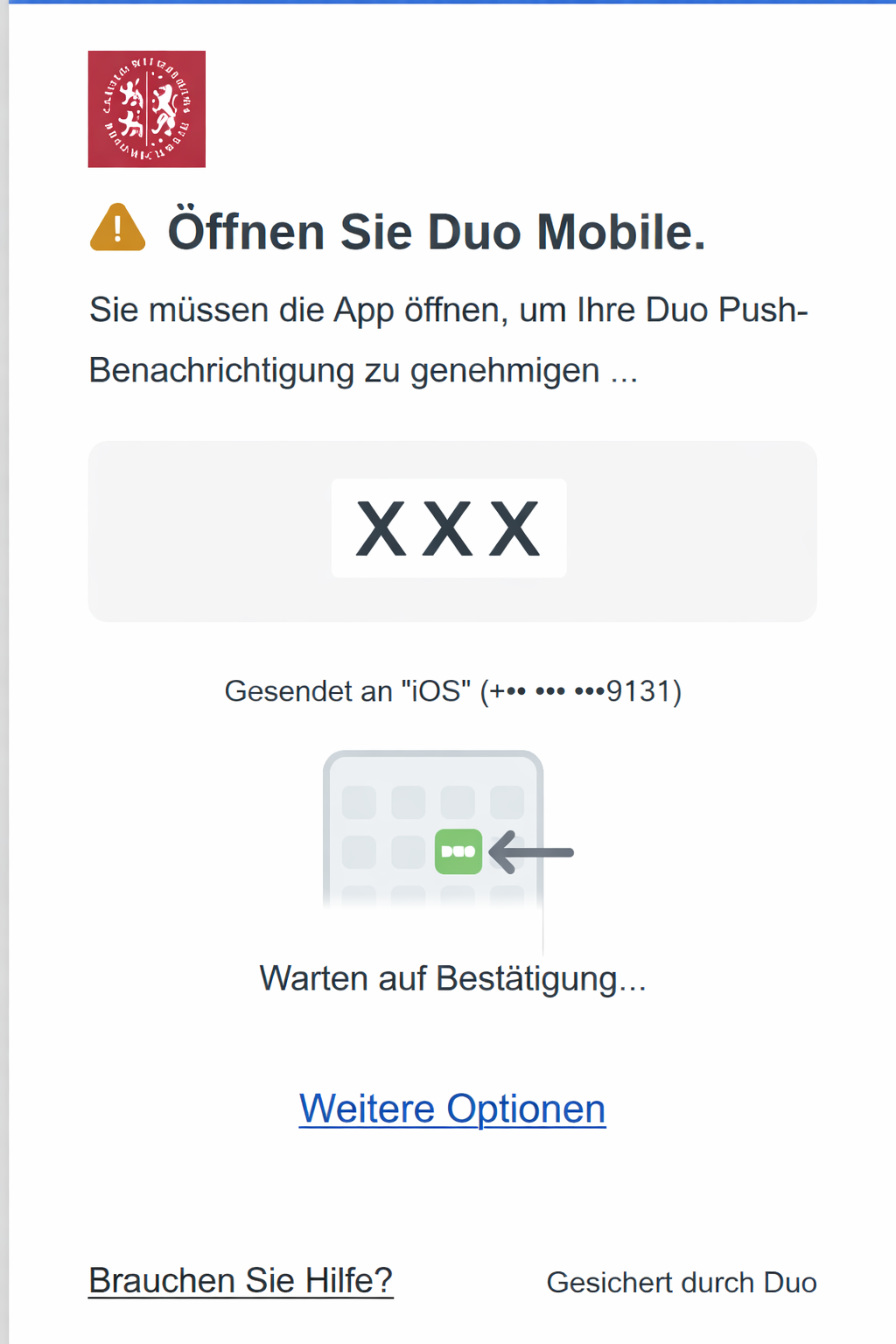
Next, you will see a notification that Duo has sent a push notification to the registered device.
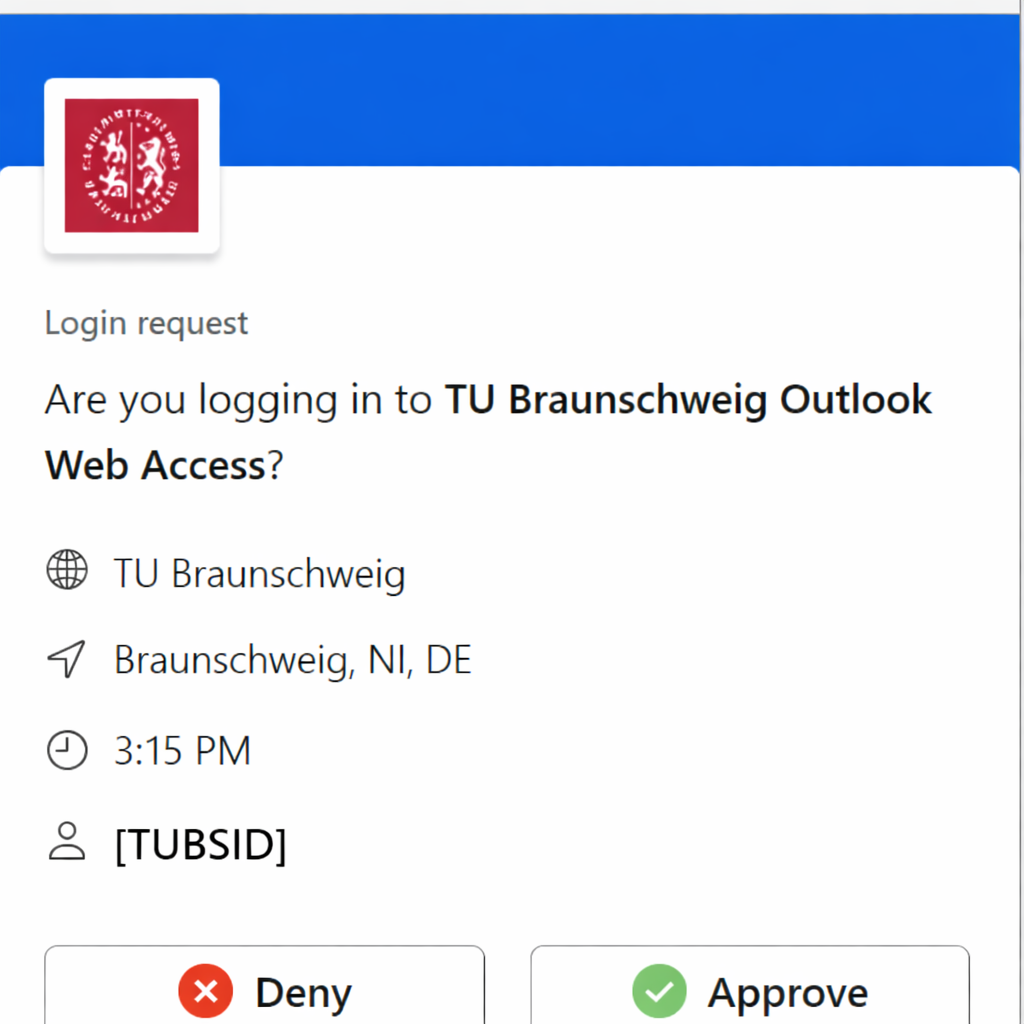
Verify the accuracy in the Duo app, paying particular attention to the requesting application (OWA/VPN/etc.) and to your TUBS ID in the field "<Ihre Kennung>" in the lower area next to the Person icon. |
VPN
|
|
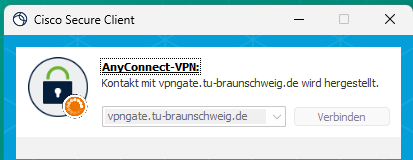
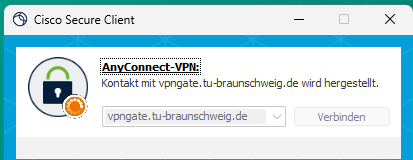
To use two-factor authentication for VPN login, you must log in to a different VPN gateway than before. This means that in the field that currently displays "SSL VPN" or "vpngate.tu-bs.de" (or similar), you must enter vpngate.tu-braunschweig.de
|
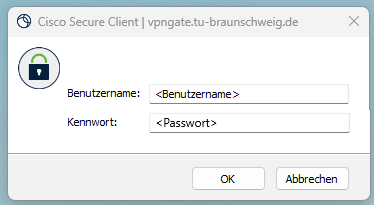 |
When using the Duo app, you only need to enter your password. Then, a push notification is sent to the app, which you must confirm within the app. (See above, as with OWA.) |
Use of the DUO Desktop Application
To setup the Duo Desktop Application click here.
OWA
|
|
You may open the link https://mail.tu-braunschweig.de and register with your TUBS ID and the attached password.
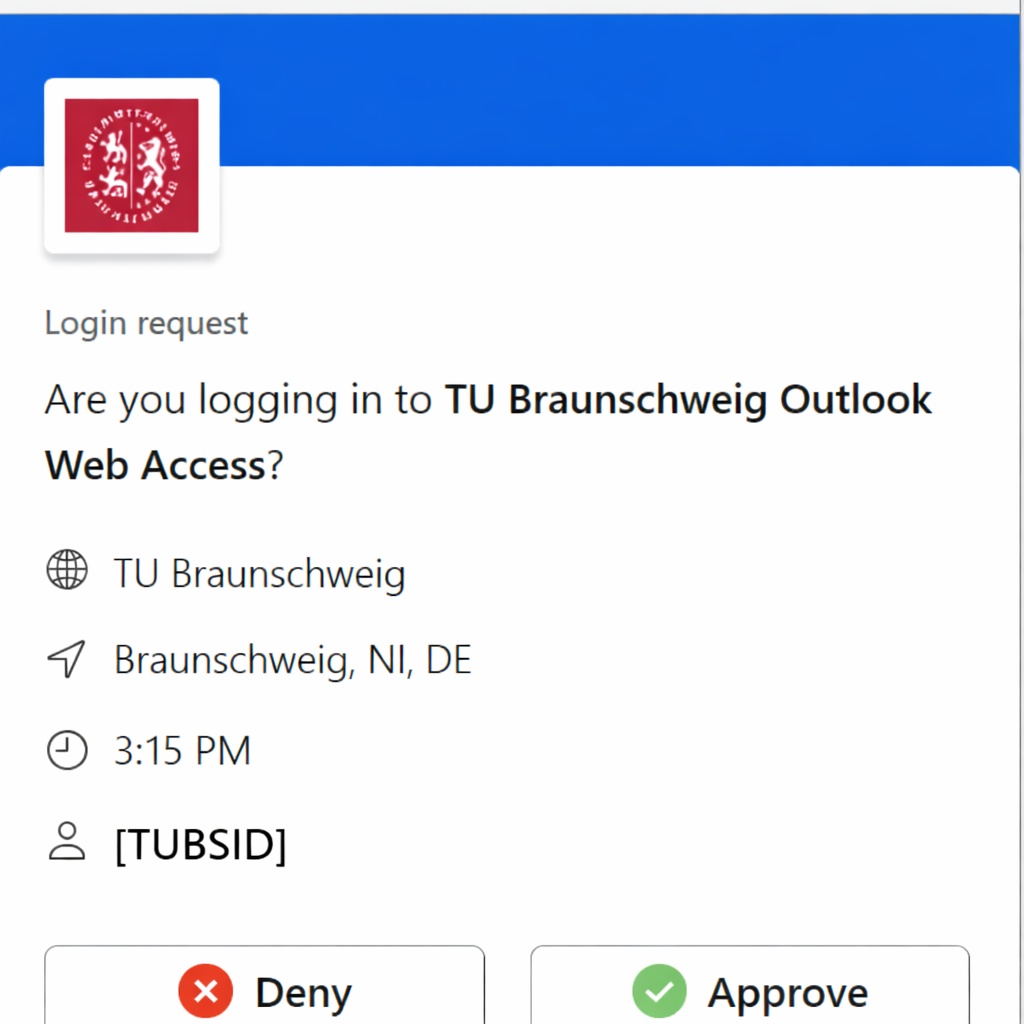
Make Sure the Data is correct before approving! |
|
|
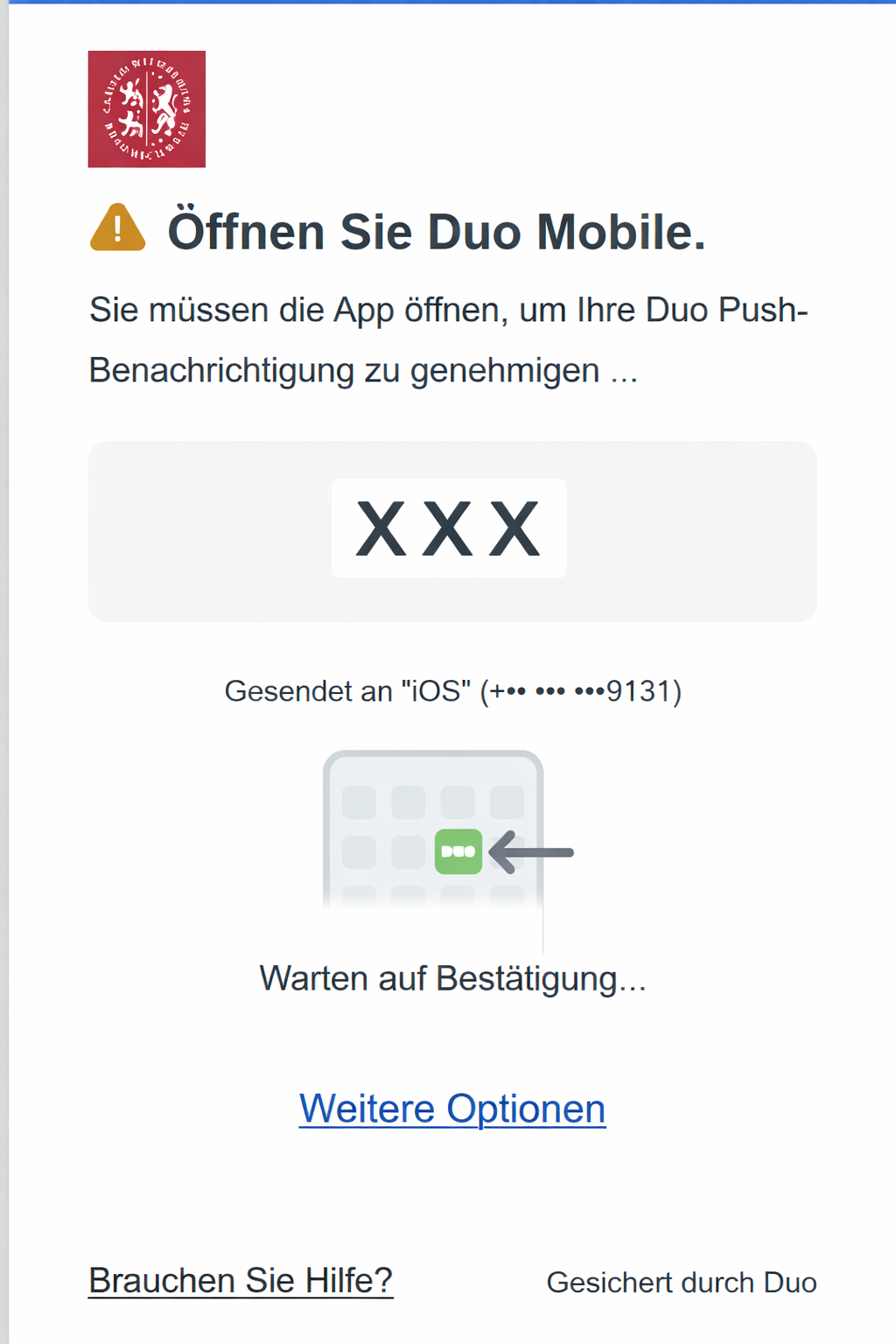
If Duo Push is already setup just click "Weitere Optionen" and select Duo Desktop App |
VPN
|
|
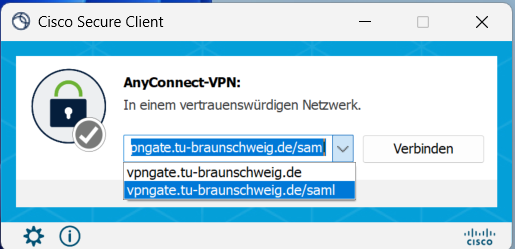
If you want to connect to the VPN with help of your Duo Desktop App, you may connect via the VPN gateway "vpngate.tu-braunschweig.de/saml" to connect to the network of the TU Brunswig |
|
|
After you will choose the option Duo Desktop as second factor and approve the correctness of your data by clicking "Approve". |
|
|
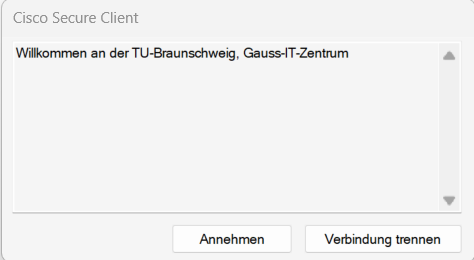
At last you will click "Annehmen" to automatically connect with the VPN. Done! |
Use of the HW-Tokens
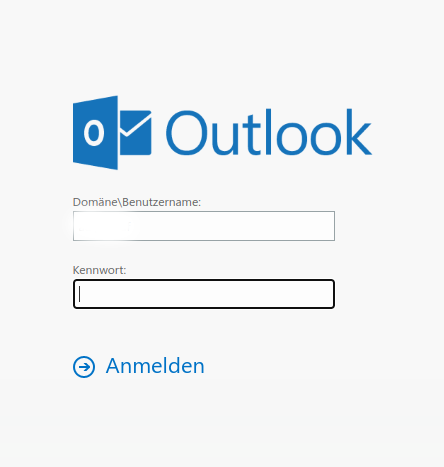
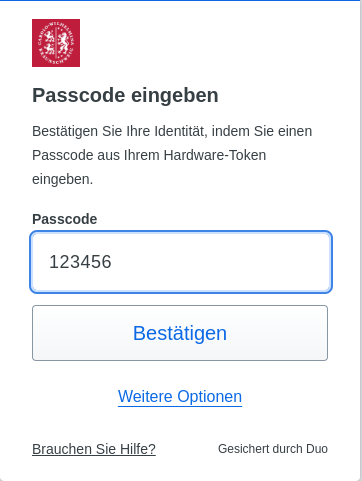
Users who have received a hardware token (Duo Token) don't need to do anything further to use the second factor. It has already been linked to the TUBS ID and can be used immediately for logging into OWA, SSO, and VPN (via vpngate.tu-braunschweig.de, see below). Users who want to use the Duo Mobile App can find instructions here for first-time setup.
OWA
 |
|
 |
|
VPN
|
|
To use two-factor authentication for VPN login, you must log in to a different VPN gateway than before. This means that in the field that currently displays "SSL VPN" or "vpngate.tu-bs.de" (or similar), you must enter vpngate.tu-braunschweig.de
|
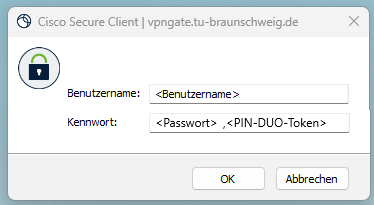 |
When prompted for your password, enter your password followed by a comma and then the generated PIN. |