
Setting up the app (mobile device)
For the use of 2FA, we recommend the Duo Mobile app (mobile phone) from the manufacturer "Duo Security LLC" or corresponding Duo hardware tokens (if no company mobile phone is available) for employees.
Other FIDO keys (e.g., YubiKeys) are also possible. This guide is not currently designed for setting up these alternatives.
Windows Phones and Blackberries are excluded; these devices are not supported.
Requirements
Is your device compatible with the Duo Mobile app? If in doubt, please double-check.
The current version (as of March 3, 2023) of Duo Mobile supports iOS 14.0 or later and Android 10 or later. For the most up-to-date information, please visit the manufacturer's (Duo Security LLC) website: https://guide.duo.com/#supported-devices

You can download the app here:
Apple iOS: https://apps.apple.com/us/app/duo-mobile/id422663827
Google Android: https://play.google.com/store/apps/details?id=com.duosecurity.duomobile&hl=de
How to register a mobile device with Duo
To use the Duo app, you must first complete an activation process and configure two-factor authentication. Refer to the instructions "Activating 2FA for employees and students of TU Brunswig" for guidance. If you do not receive an automatic email from Cisco Duo after 30-45 minutes, follow these steps.
|
|
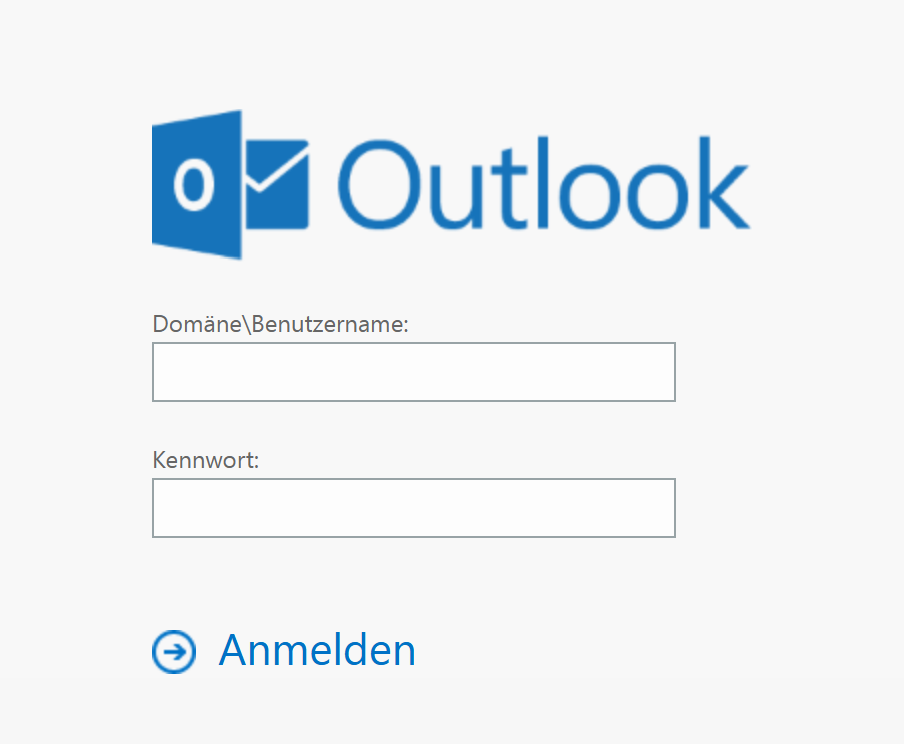
Please open the link https://mail.tu-braunschweig.de and log in normally with your username and password. |
|
|
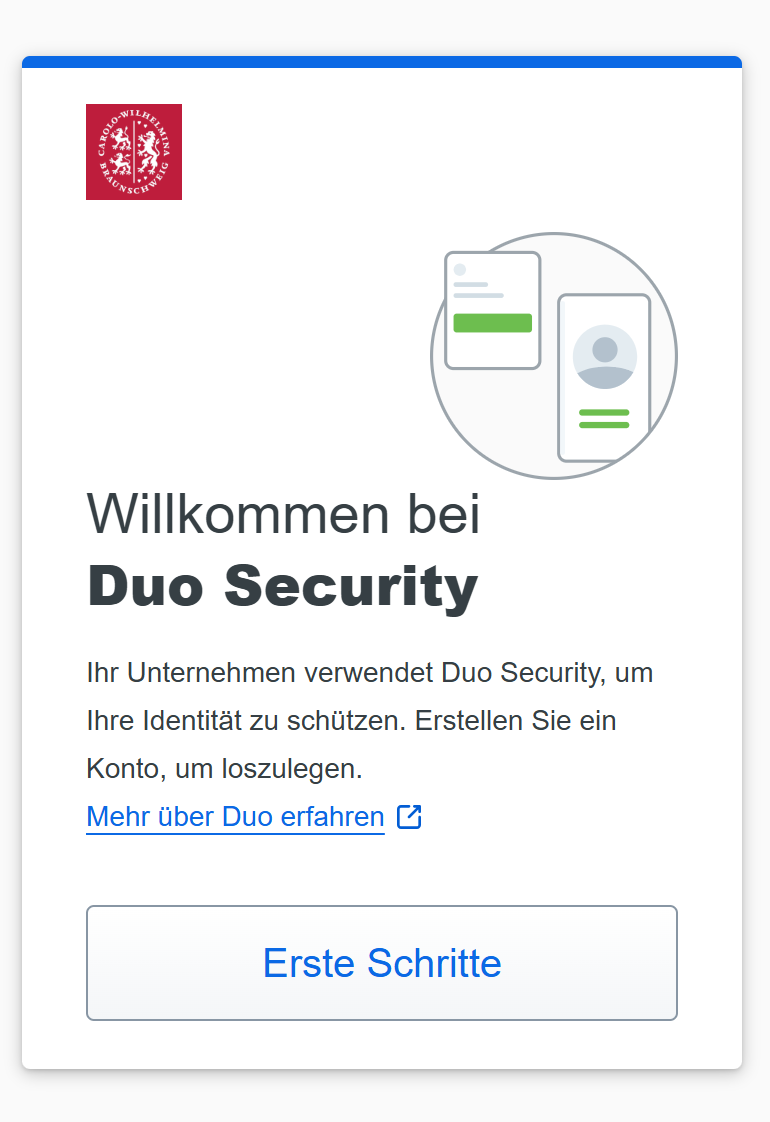
Click the [Erste Schritte] button. |
|
|
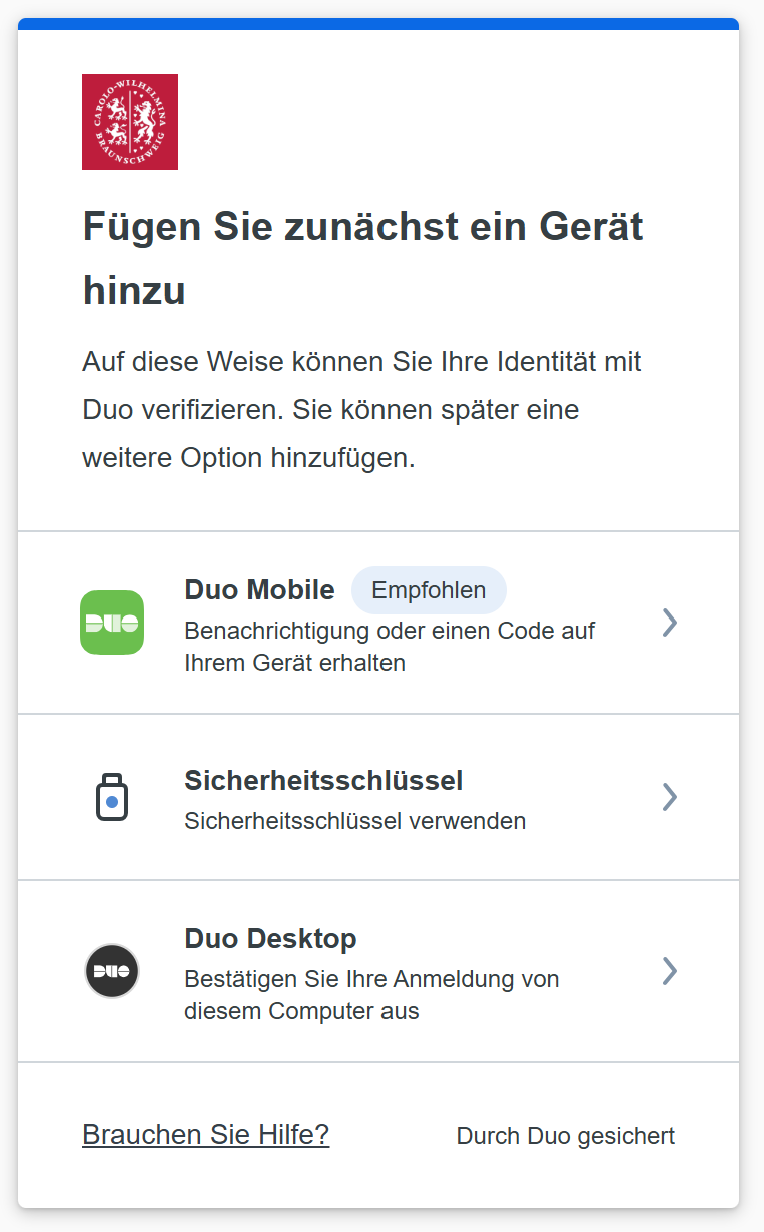
Choose the recommended option [Duo Mobile]. On your Apple device, you may be offered Touch ID/Face ID at this point. If you choose this option, you will initially only be able to log in with this device. We therefore strongly recommend setting up the Duo Mobile App, as you can use it to confirm other logins, such as VPN (VPN gateway "vpngate.tu-braunschweig.de"). |
|
|
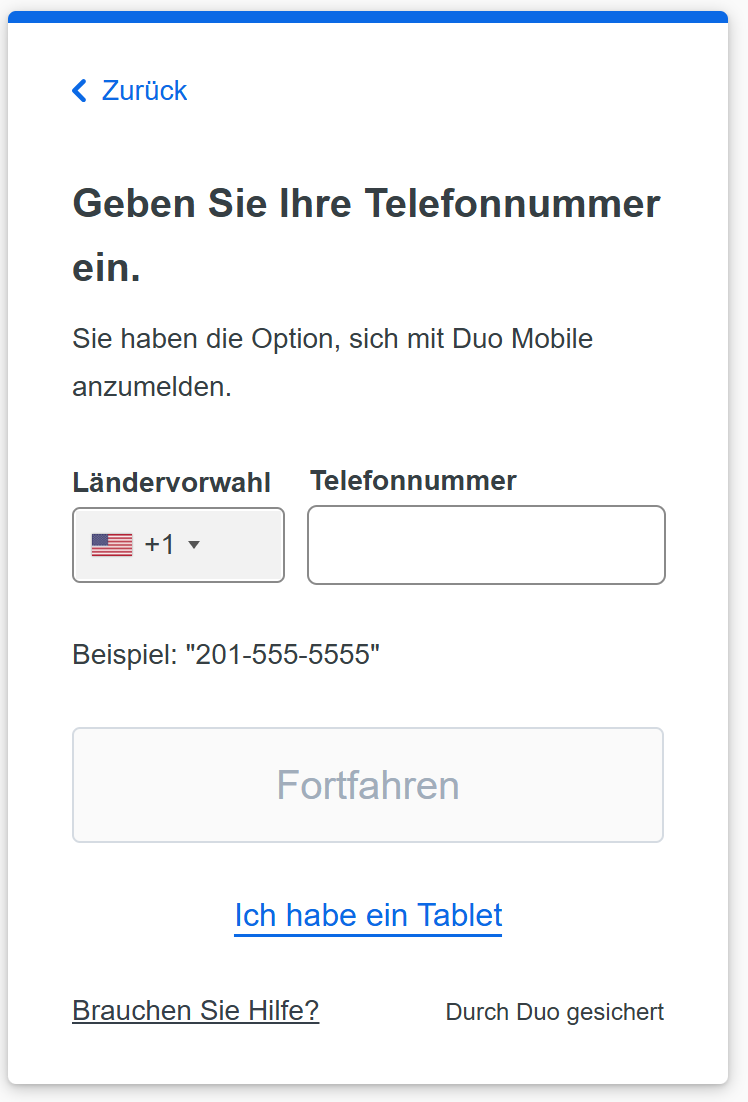
If you choose DUO Mobile, enter your smartphone's phone number here.
Alternatively, if you don't want to use a mobile |
|
|
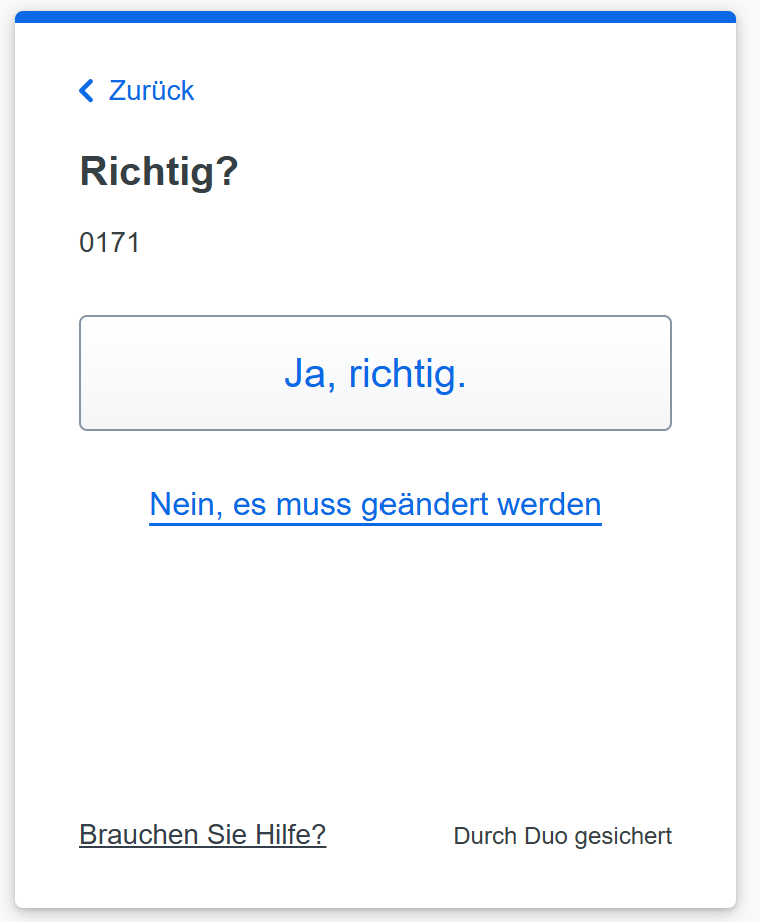
Please double-check your mobile phone number and confirm it with [Ja richtig] if it is correct. |
|
|
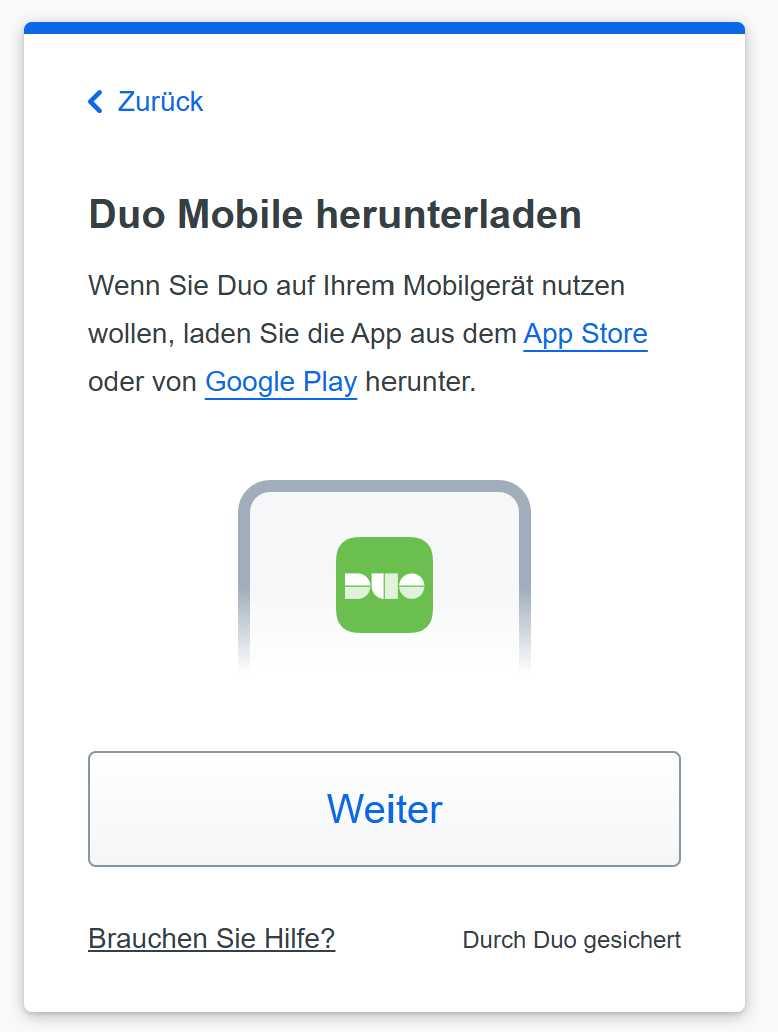
If you haven't already installed the DUO Mobile app on your smartphone, follow the instructions and install the DUO Mobile app on your personal or work phone. After successful installation, click [Weiter]. Enter your mobile phone number and confirm it with [Ja Richtig] if it is correct. |
If you have not used the DUO app before, please follow the steps below (otherwise skip this step).
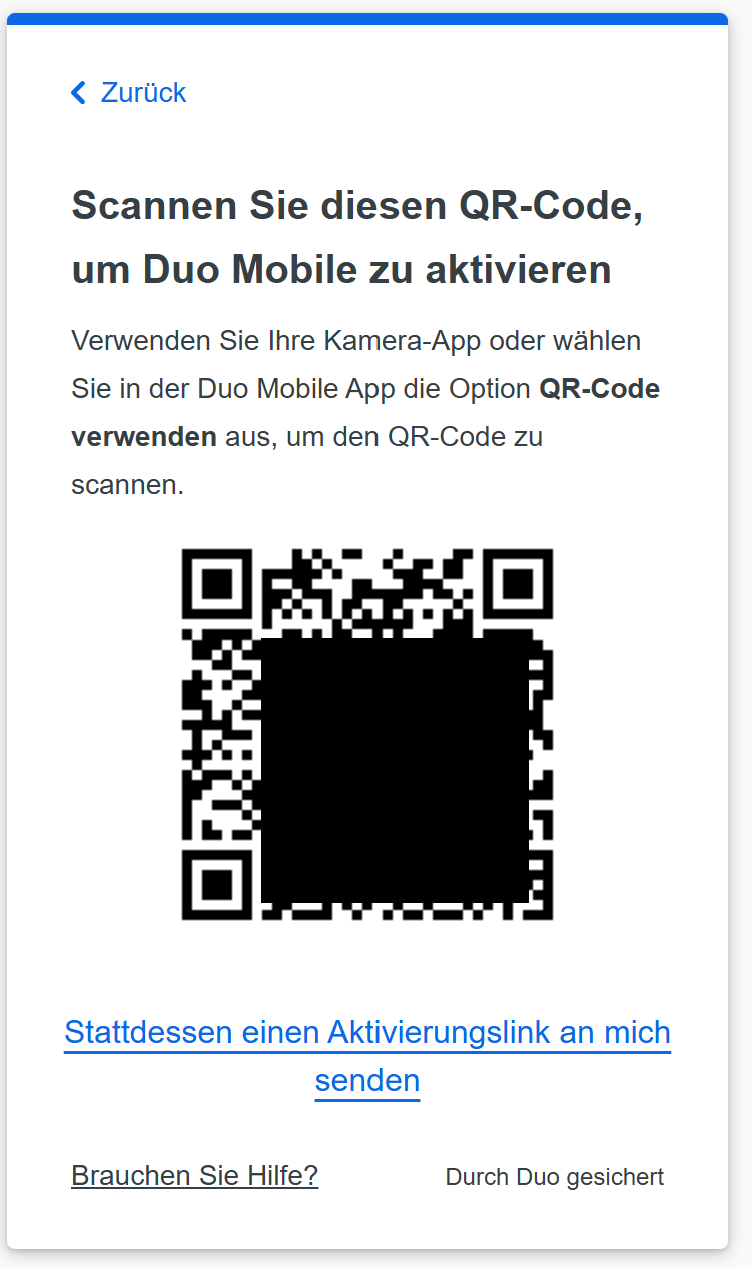 |
A window will then open displaying a QR code. Please leave this window open and switch to the Duo Mobile app on your smartphone. |
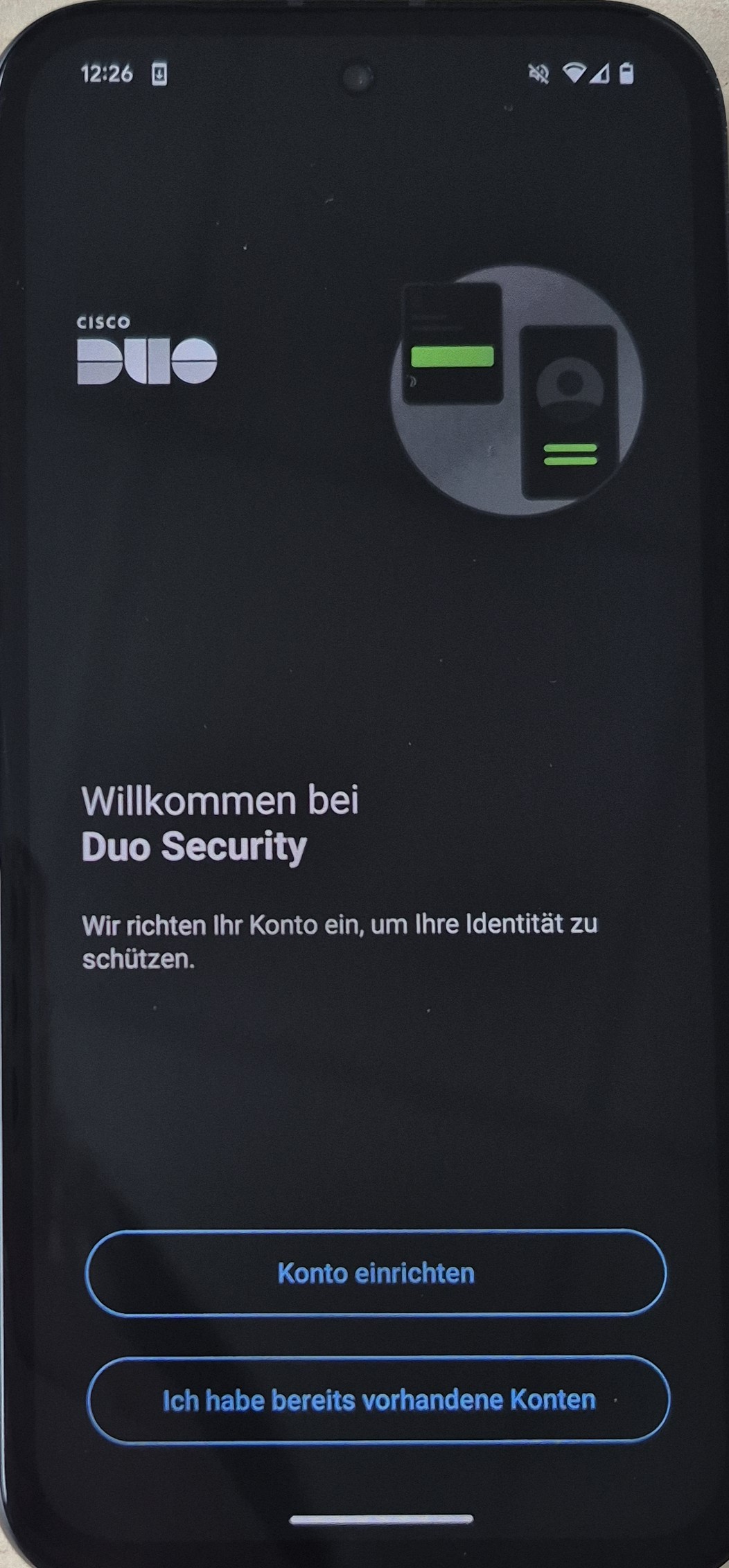 |
Choose [Konto einrichten]. |
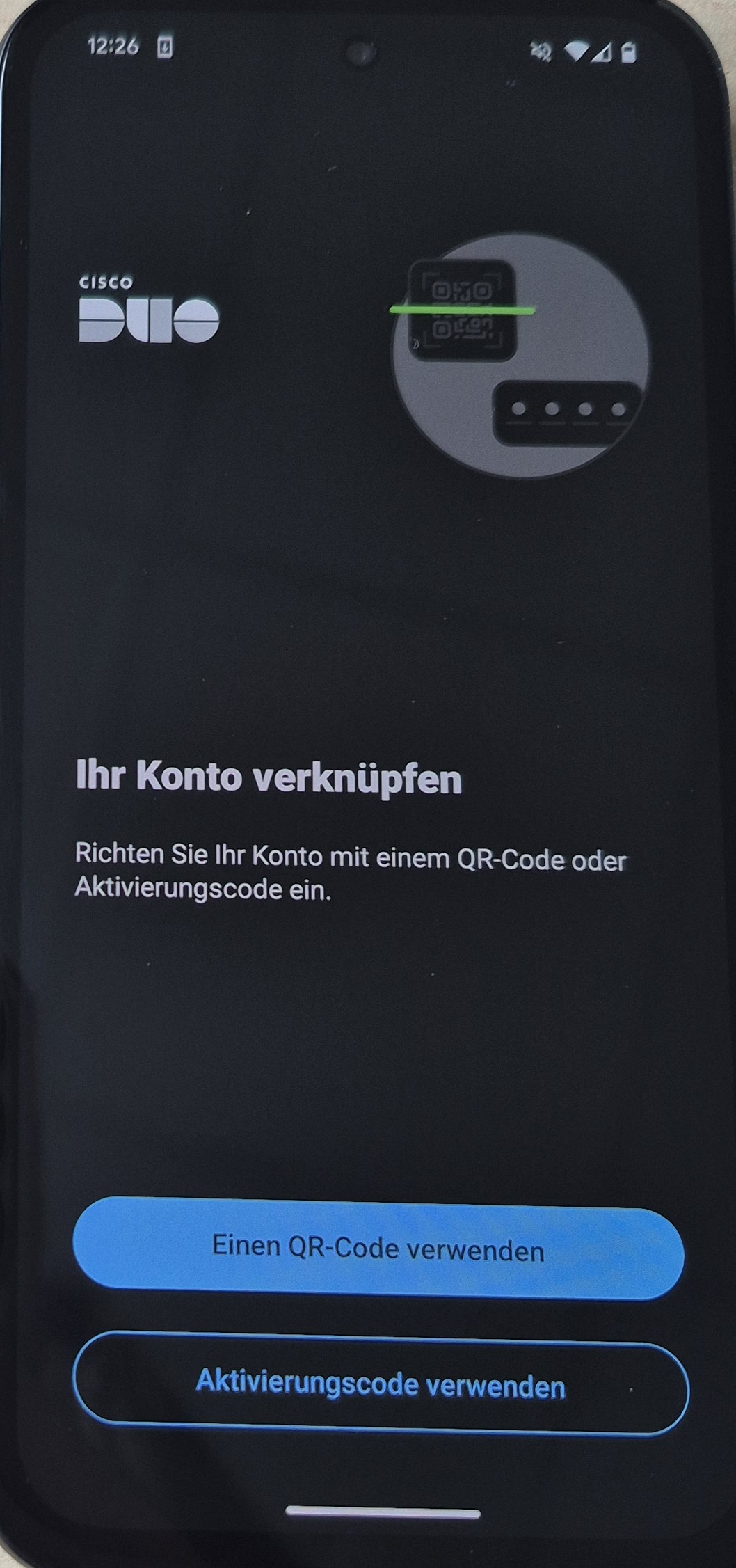 |
Select [Einen QR-Code verwenden] to scan the QR code. |
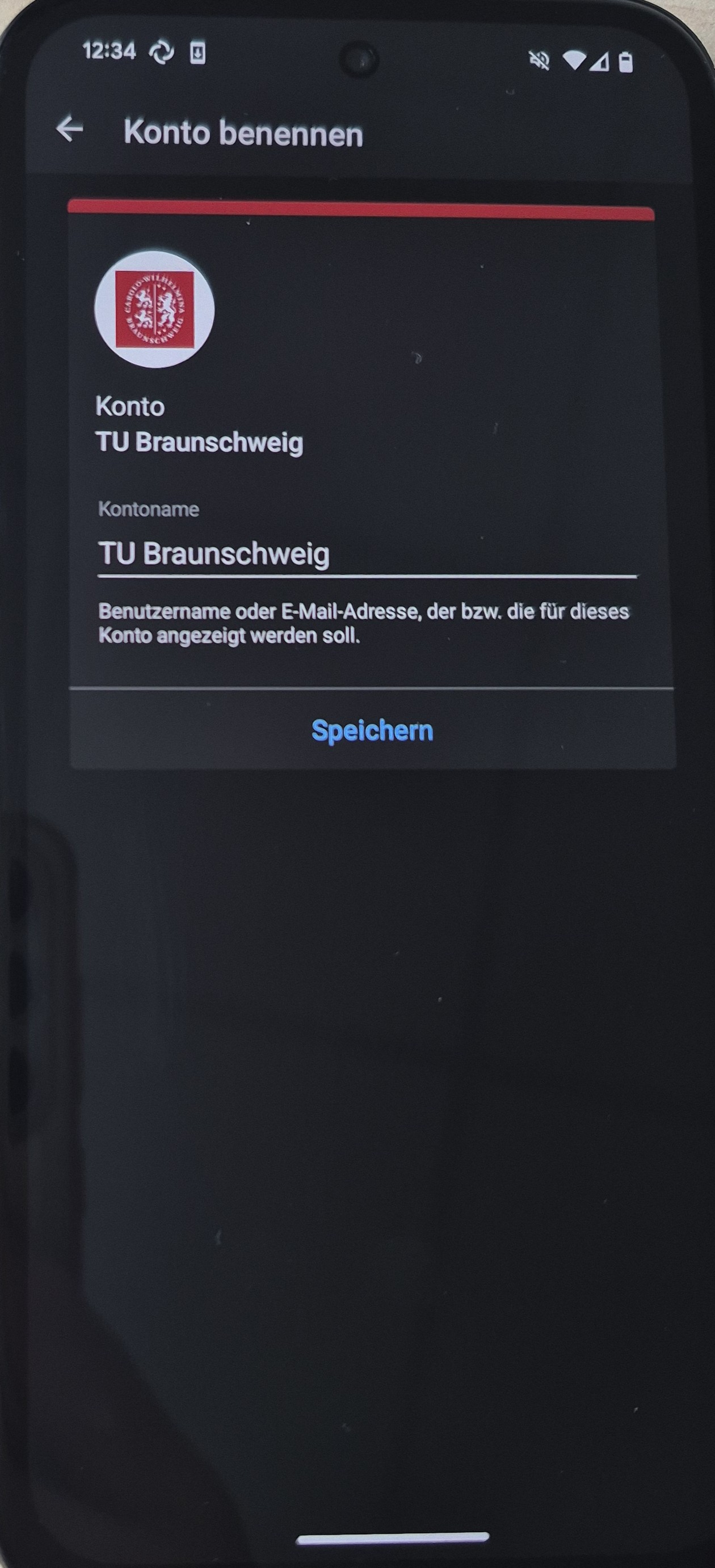 |
click [Speichern]. |
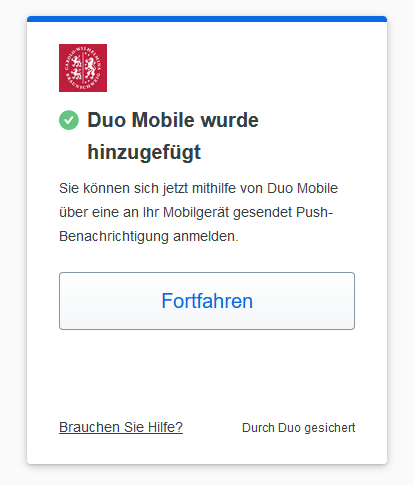 |
click [Fortfahren]. Done! |
If you already have the DUO app and have linked another account, please follow these steps to set up the second factor for TU Brunswig:
|
A window will then open displaying a QR code. Please leave this window open and switch to the Duo Mobile app on your smartphone. |
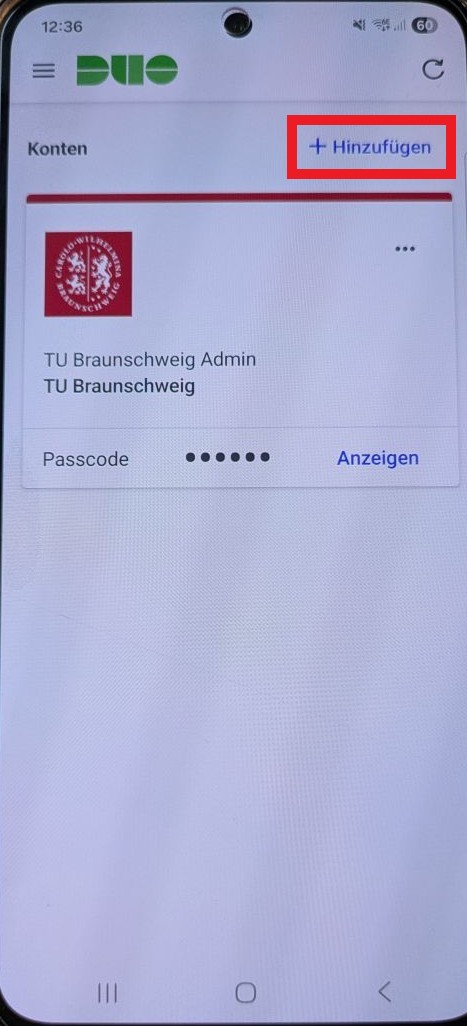 |
Click [+Hinzufügen]. |
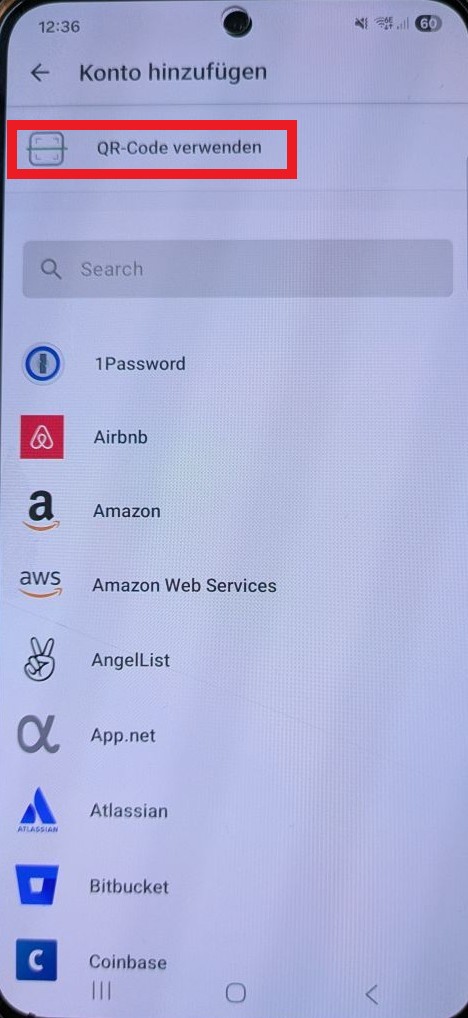 |
Choose [QR Code verwenden]. |
|
|
|
Click [Fortfahren]. Done! |