
Manage devices, add a new mobile device, or add a desktop application.
Please register with OWA (or the SSO) using the following link: https://mail.tu-braunschweig.de
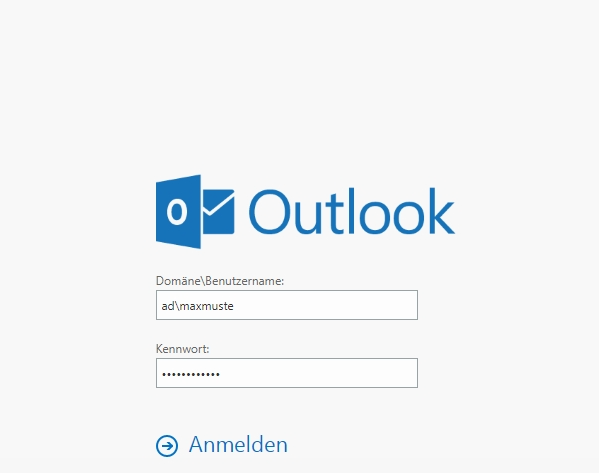
To log in, enter your TUBS ID in the format ad\TUBS-ID and your password, then click [Anmelden].
Afterward, you will be prompted for 2FA; please click [Weitere Optionen].
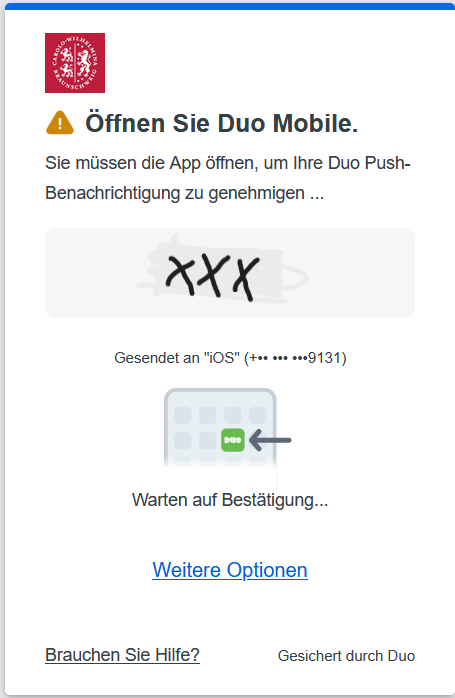
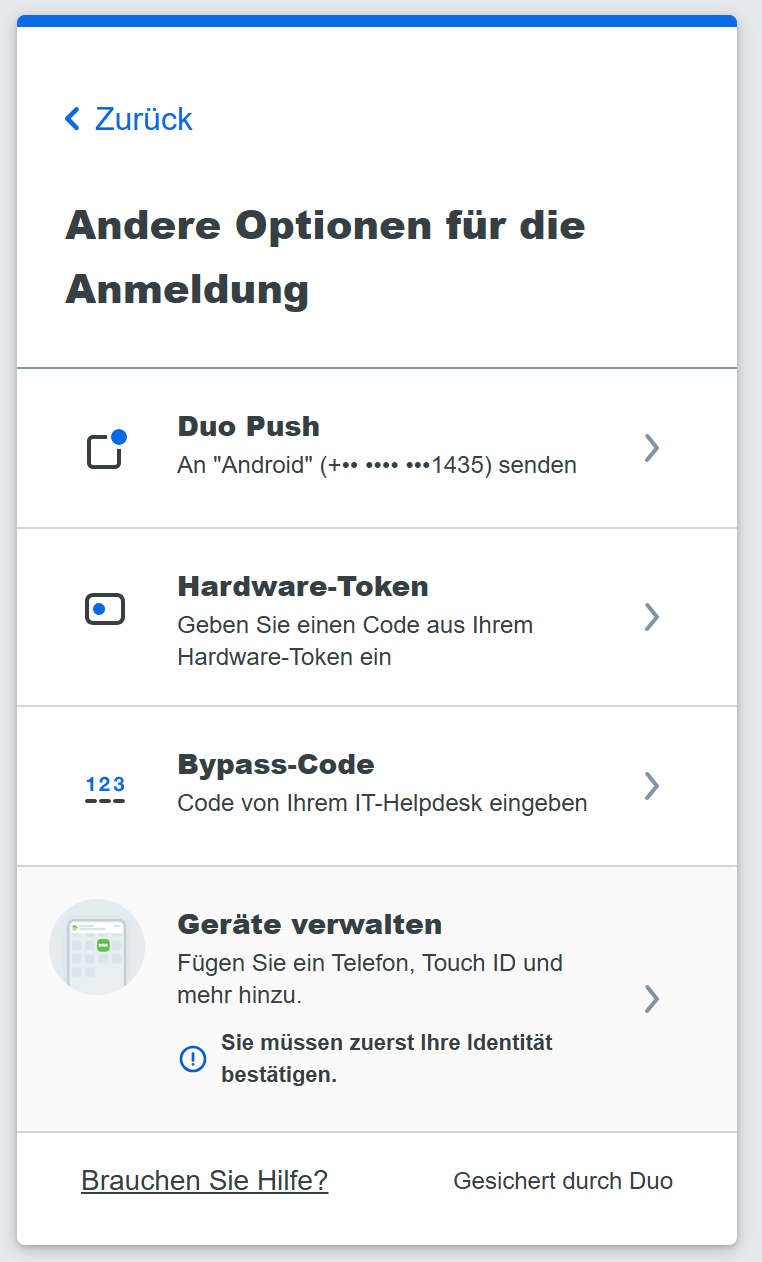
Click on [Geräte verwalten].
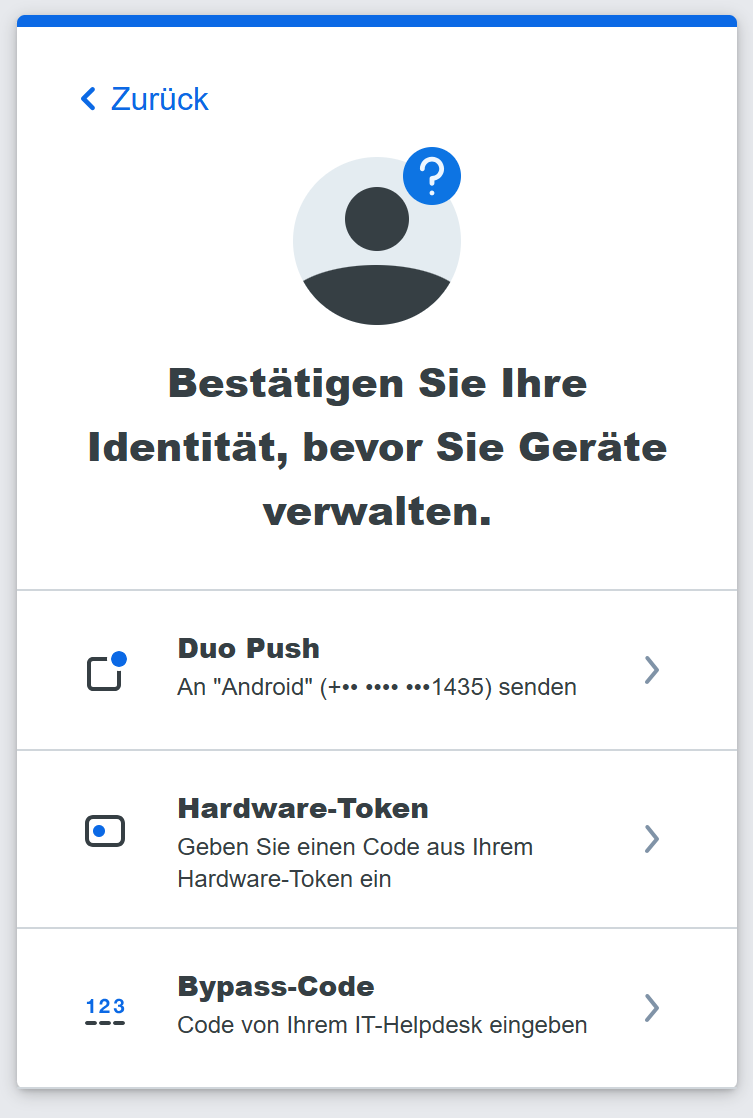
Confirm your identity using your preferred second factor.
After that, you will be taken to the portal where you can manage your devices and add a new device.
Note: To add a new device, you will need another second active factor.
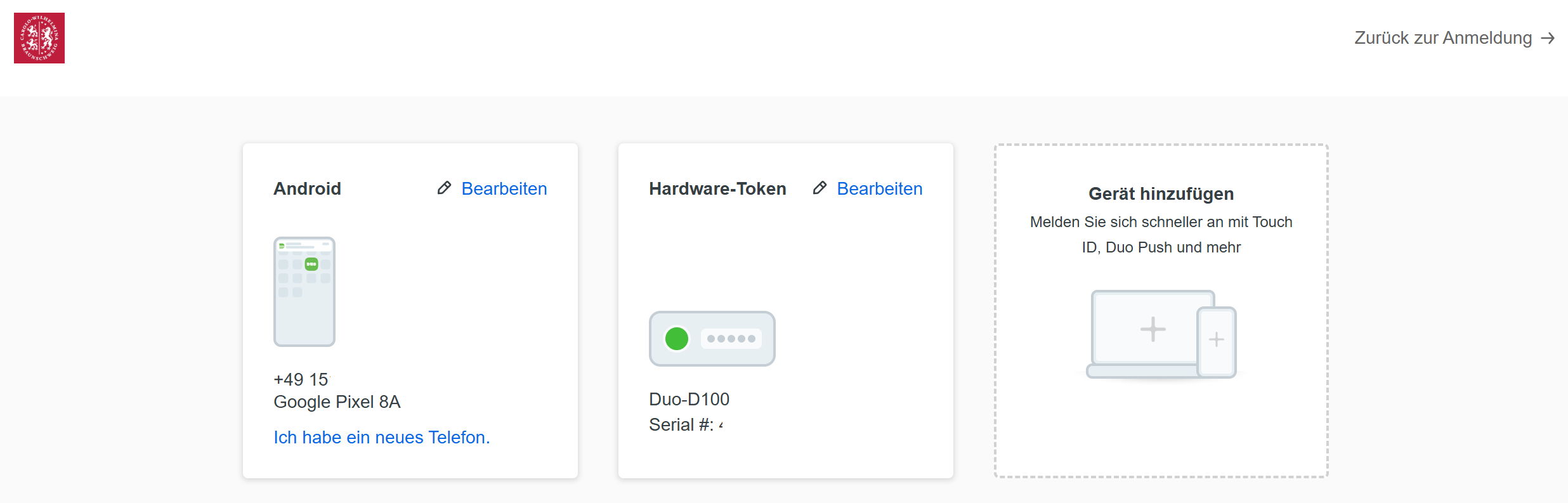
To add the desktop application, it must be installed and open on your computer. The desktop application does not currently work on Linux devices.
If you already have the DUO app and have linked another account, please follow these steps to set up the second factor for TU Brunswig:
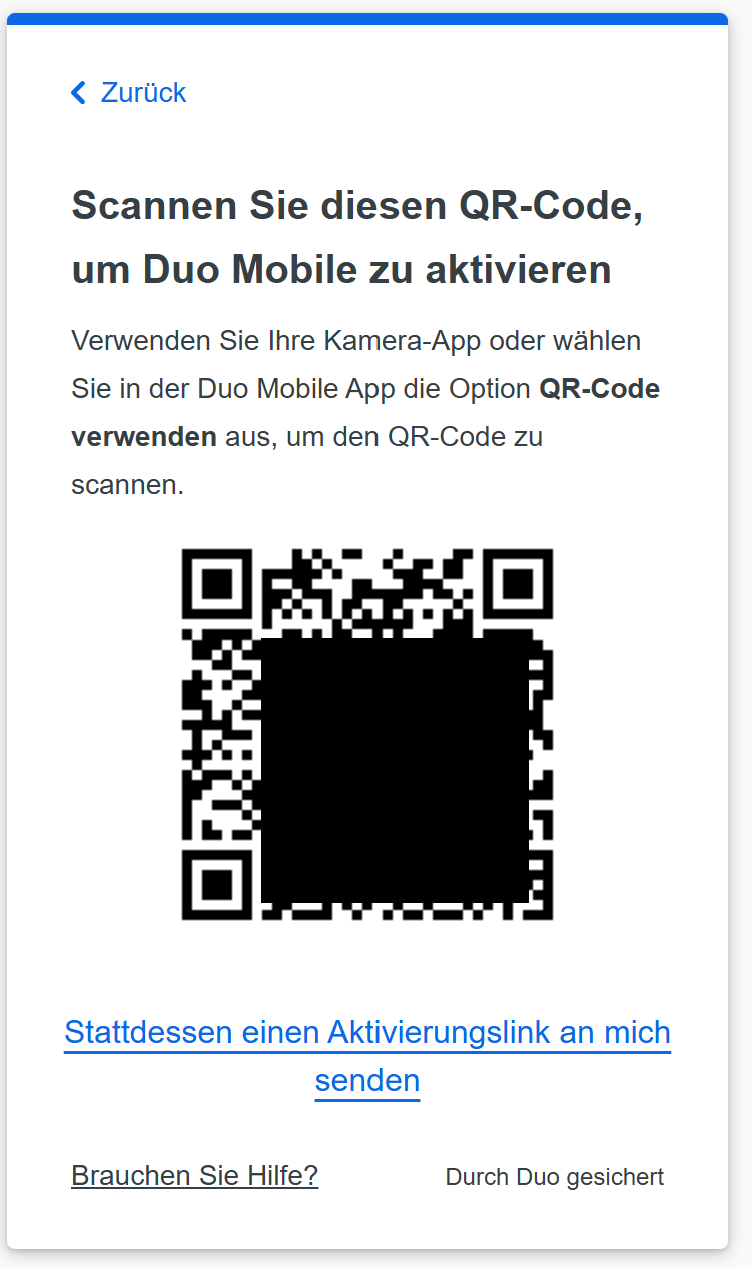 |
A window will then open displaying a QR code. Please leave this window open and switch to the Duo Mobile app on your smartphone. |
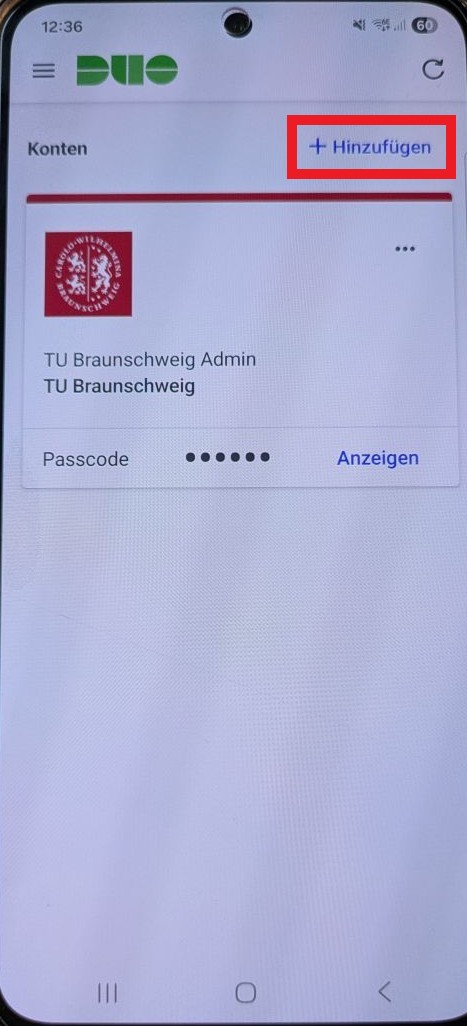 |
Click [+Hinzufügen]. |
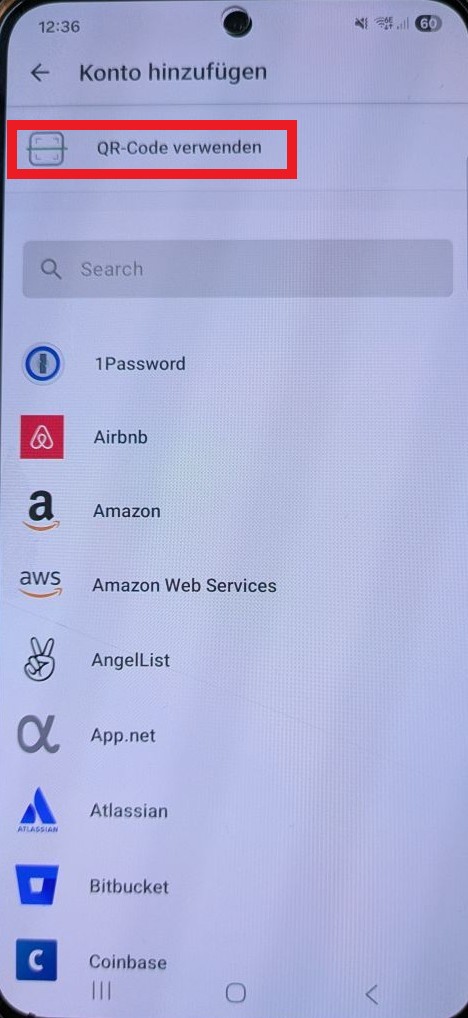 |
Choose [QR Code verwenden]. |
|
|
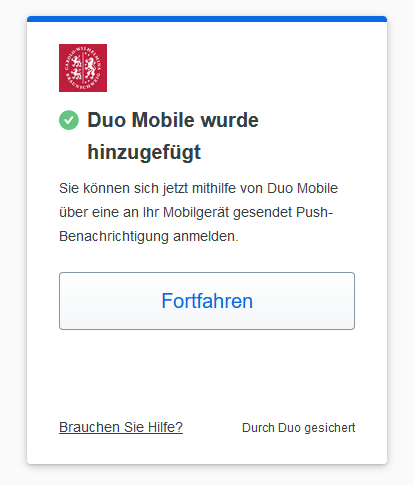 |
Click [Fortfahren]. Done! |