
Activation of 2 FA for employees and students of TU Brunswig
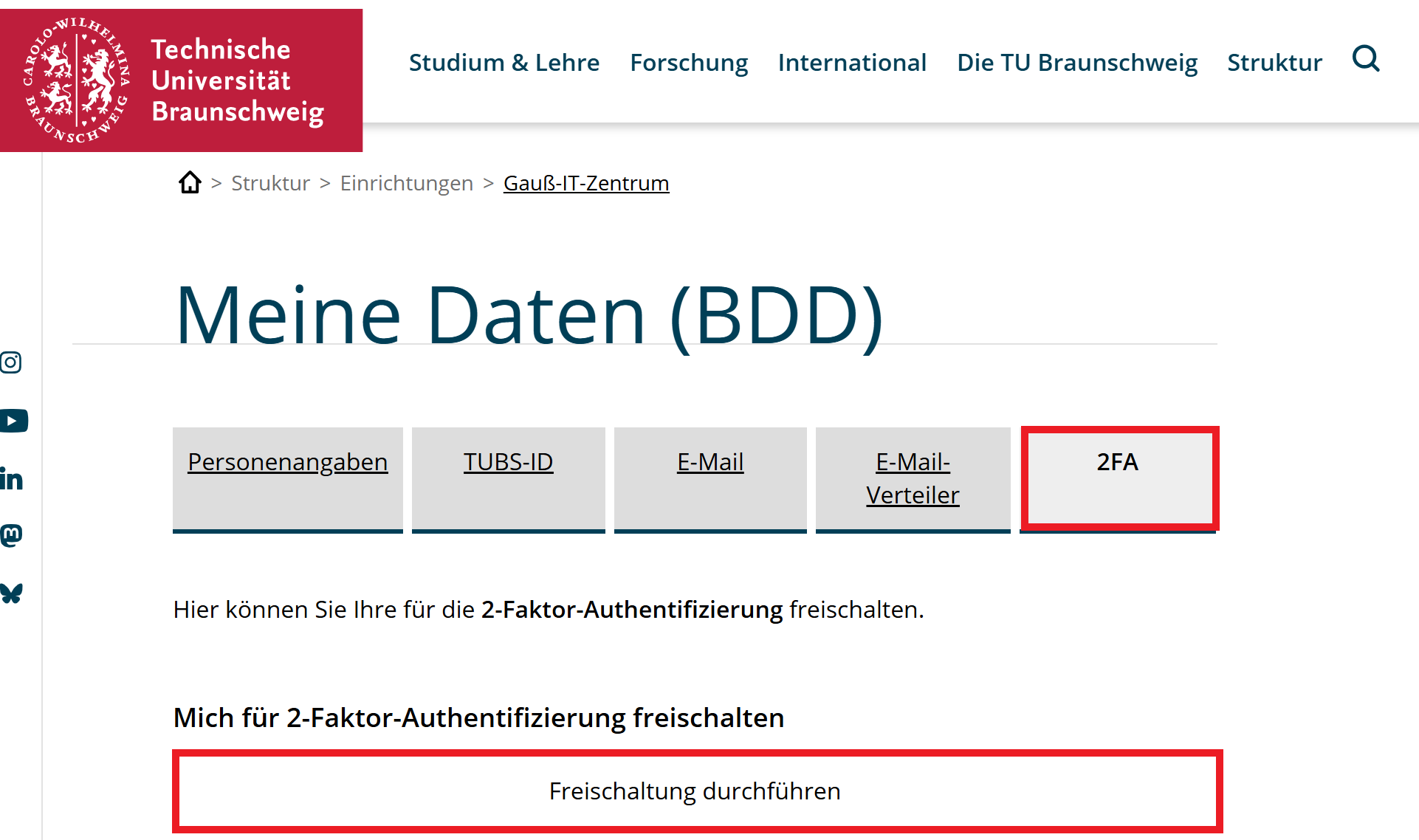
Here click the button "Freischaltung durchführen" (activation)
You have been unlocked for the second factor.
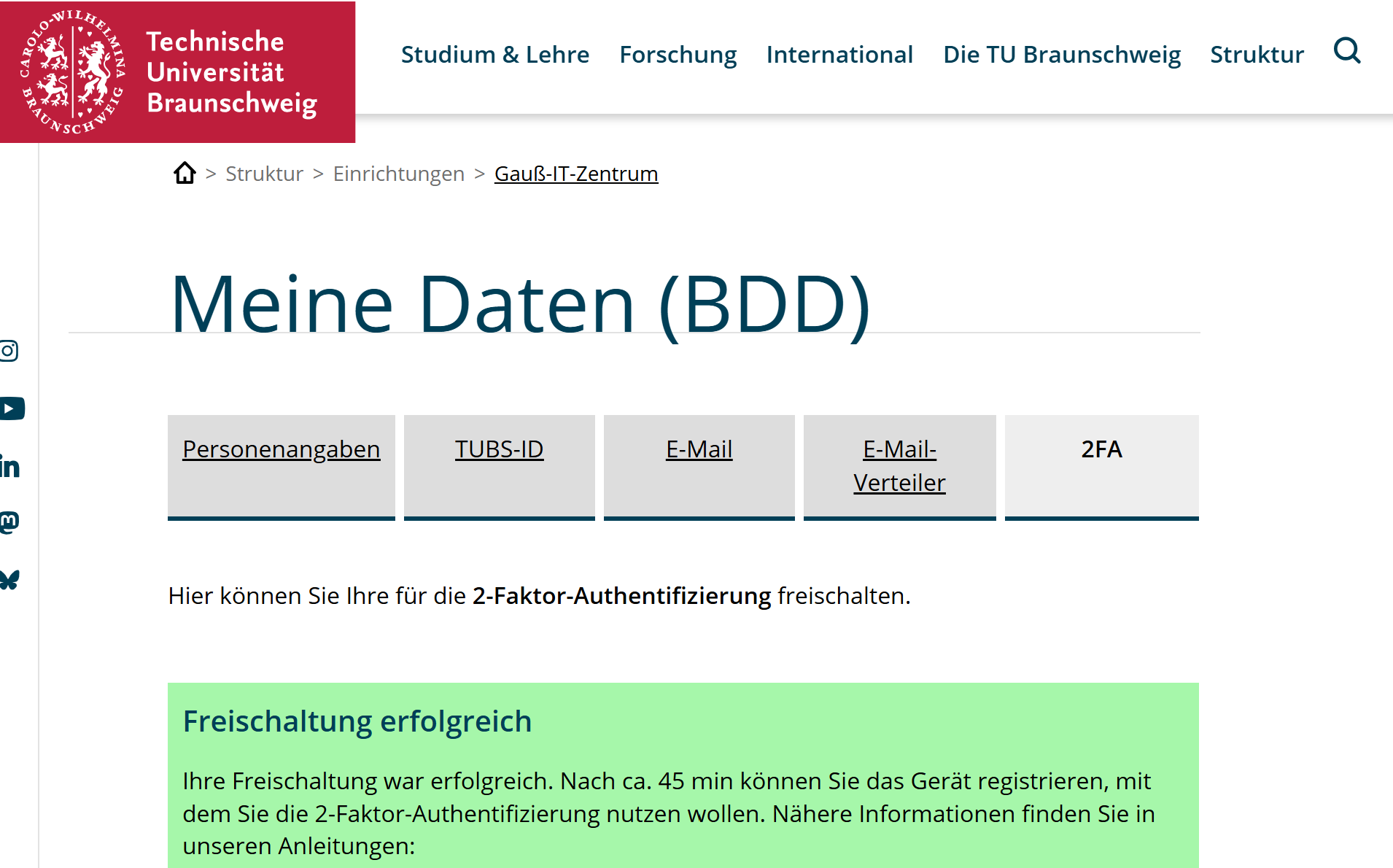
Approximately 30 to 45 minutes after activation in "Meine Daten (BDD)", an automated email will be sent to you informing you that DUO has been rolled out.
It's possible that the sent email won't arrive in the Outlook app, but can only be accessed via OWA. See the "FA einrichten" instructions.
To add your device, please follow the instructions in the email (see also: Instructions "FA einrichten").
Currently, two-factor authentication is active when using OWA (Outlook Web Access), VPN, and SSO. For VPN, please use the VPN gateway, vpngate.tu-braunschweig.de.
The second factor can be generated via an app on your mobile phone or the desktop application. If you have a centrally managed device, please email it-service-desk@tu-braunschweig.de for the desktop application, and it will be made available to you. (The DUO desktop application does not currently work as a second factor for VPN; a different second factor is required for that.)
If neither of these options is possible, you can also request a token. Please send an email to 2fa@tu-braunschweig.de. We will add and issue these hardware tokens directly after you register. Between the registration for 2FA and the issuance of the token, no login via OWA, SSO or the VPN gateway vpngate.tu-braunschweig.de is possible.
Other FIDO keys (e.g., YubiKeys) are also possible. This guide is not currently designed for setting up these alternatives.
Further documentation on the various procedures can be found at: https://guide.duo.com/?ljs=de