Two-factor-authentication (2FA) with duo (english version)
- General information about 2-factor authentication
- Activation of 2 FA for employees and students of TU Brunswick
- Set up desktop application
- Setting up the app (mobile device)
- PassKey
- Using a second Factor (Duo App, Desktop App, HW Token)
- Manage devices, add a new mobile device, or add a desktop application.
- FAQ (2FA)
General information about 2-factor authentication
What exactly is two-factor authentication?
Two-factor authentication, also known as 2FA, is a security procedure that secures logins by combining two different, independent factors. These factors must come from different categories, such as knowledge (password/PIN), biometrics (fingerprint), or possession (DUO token). At TU Brunswig, we will offer the DUO app for mobile devices and a desktop application for laptops/computers.
Why is 2FA being introduced at TU Brunswig?
Primarily, the second factor increases the security of the IT infrastructure. The protection of TU Brunswig's IT systems will be improved, thereby increasing the confidentiality, integrity, and availability of data. The goal is to make it more difficult for unauthorized individuals to access user accounts.
The university's executive board has decided to implement a two-factor authentication solution. Among the reasons for its implementation are the observed misuse of the central email system for sending phishing and spam emails through unauthorized access to email accounts, as well as the use of stolen credentials for online fraud. This will prevent the leakage of information from file systems and databases. At TU Brunswig, we will offer the DUO app for mobile devices and a desktop application for laptops/computers.
How does 2FA work at TU Brunswig?
First, the user is activated via the BDD during the optional second-factor phase. After a maximum of 45 minutes, the user can either log in to OWA (Outlook Web Access) or click the link in the activation email and complete the setup process, e.g., for their mobile device. For more detailed explanations/descriptions, there is a guide in the books (Two-Factor Authentication (2FA) with DUO). Once the user has completed this process, the second factor can be used, or rather, the second factor is ready for use.
If the mobile device is outdated or other reasons prevent its use, the user can switch to the desktop application or a hardware token.
The following systems are currently secured with 2-factor authentication:
- Outlook Web Access (OWA)
- Virtual Private Network (VPN)
- Single Sign-On (SSO)
Activation of 2 FA for employees and students of TU Brunswick
All employees at TU Braunschweig now have a second factor enabled for their personal TUBSID. Manual activation is no longer necessary.
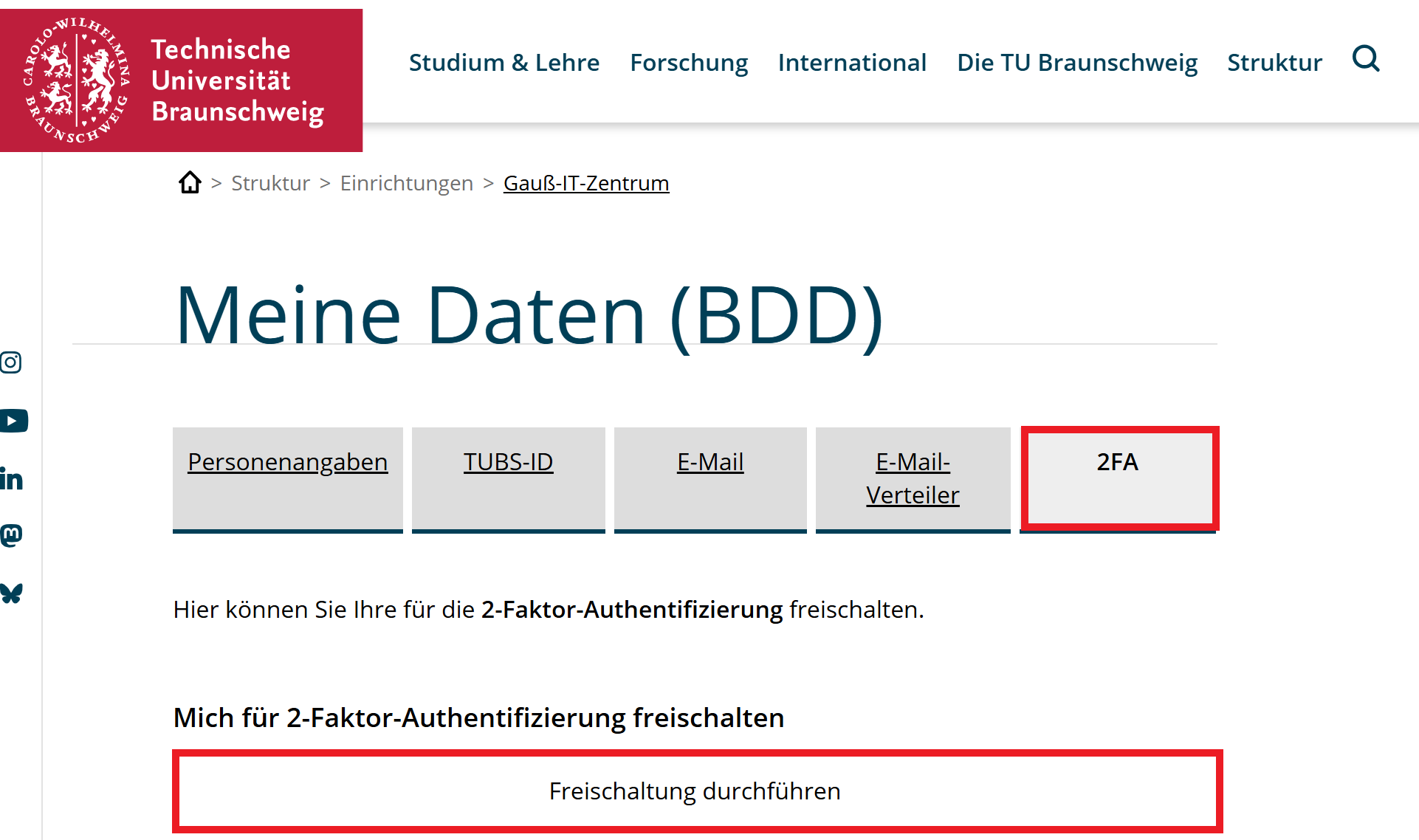
Students who wish to participate in the tet phase of the 2FA project, user IDs must be activated via "My Data (BDD)". To do this, log in to BDD with your TUBS ID and password, and then open the 2FA tab.
Here click the button "Freischaltung durchführen" (activation)
You have been unlocked for the second factor.
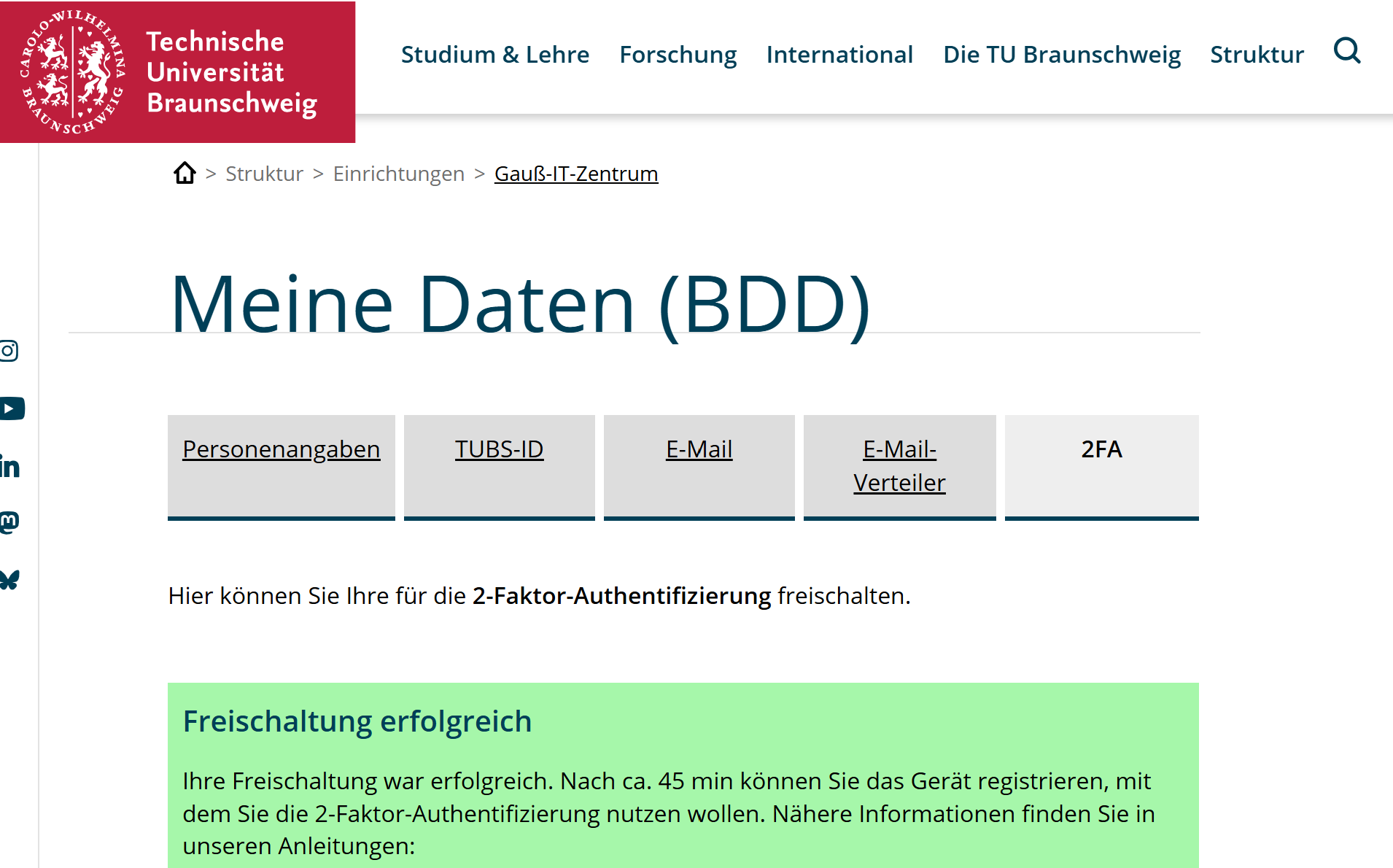
Approximately 30 to 45 minutes after activation in "Meine Daten (BDD)", an automated email will be sent to you informing you that DUO has been rolled out. The mail can arrive via Outlook, Thunderbid or the Mail Apps on a mobil device.
If the Mail won't arrive in an hour, sign in on the OWA or the SSO and follow the instructions for the setup of the DUO Desktop Application or the DUO Mobile App. It is not mandatory for the second Factor to use the mail.
To add your device, please follow the instructions in the email or also the other instructions in this book.
Currently, two-factor authentication is active when using OWA (Outlook Web Access), VPN, and SSO. For VPN, please use the VPN gateway, vpngate.tu-braunschweig.de. If you want to use the DUO Desktop Application to login to the VPN you have to use this gateway: vpngate.tu-braunschweig.de/saml
The second factor can be generated via the DUO Desktop application, a hardware token (if applicable), or a mobile app. If you have a centrally managed device, please email it-service-desk@tu-braunschweig.de for the desktop application, and it will be made available to you. The DUO Desktop application is the most practical option, as it runs in the background of your work device (which you should have with you for work or studies anyway) and is therefore always available and cannot be forgotten (unlike the token or mobile device). For this reason, we recommend using the DUO Desktop application on Windows or Mac devices for TU Braunschweig employees (the application is not yet available for Linux). For students, we recommend the DUO Mobile App for their mobile devices, as logins often occur on other devices, and the DUO Desktop application would not work because it is activated for the device and not the account. Here are the instructions for setting up the DUO Desktop application, and here are the instructions for the DUO Mobile App.
If you have a company mobile phone, you can use it as a second factor without any problems, which is why you will not be provided with a hardware token.
You also have the option of requesting a token. To do so, please send an email to 2fa@tu-braunschweig.de. We will add and issue these hardware tokens directly after registration. Between registering for 2FA and receiving the token, login via OWA, SSO, or the VPN gateway vpngate.tu-braunschweig.de will not be possible. Furthermore, these tokens are not sustainable and you must carry them with you at all times, otherwise login is not possible. Additionally, the tokens are very environmentally harmful because they cannot be repaired, nor can the batteries be replaced. Therefore, they become electronic waste and are not recommended by us.
Other FIDO keys (e.g., YubiKeys) are also possible. We will set them up if possbile but we will not further support them and neither will we explain them further in our Instructions.
Further documentation on the various procedures can be found at: https://guide.duo.com/?ljs=de
Set up desktop application
For the deployment of the DUO Desktop application, please contact it-service-desk@tu-braunschweig.de for devices centrally managed by GITZ. For decentralized facilities, please contact your IT coordinator for installation instructions. For self-administered workstations and BYOD devices (including student devices), you will need to install the application yourself on your work computer, for which you will need administrator rights.
To install the application yourself on your work computer, you can find a download link from DUO here: https://duo.com/docs/checksums#duo-desktop
The DUO Desktop application can be used as a second factor for logging into the VPN.
Currently, the DUO desktop application is not available for Linux; it only runs on macOS and Windows. A support request with the vendor is pending. We recommend using passkeys for this.
Requirements
- The operating system must be up to date.
- The system password must be set.
- BitLocker must be enabled.
- And the firewall must be enabled.
How to register the desktop application
To add the desktop application as a second factor, please refer to the guide "Manage devices, add a new mobile device or desktop application".
Setting up the app (mobile device)
In this aswell as all other tutorials the phone used has an Android OS, some Parts may differ from IoS
For the use of 2FA, we recommend the Duo Mobile app (mobile phone) from the manufacturer "Duo Security LLC".
Windows Phones and Blackberries are excluded; these devices are not supported.
Requirements
Is your device compatible with the Duo Mobile app? If in doubt, please double-check.
The current version (as of June 25, 2026) of Duo Mobile supports iOS 17.0 or later and Android 11 or later. For the most up-to-date information, please visit the manufacturer's (Duo Security LLC) website: https://guide.duo.com/#supported-devices

You can download the app here:
Apple iOS: https://apps.apple.com/us/app/duo-mobile/id422663827
Google Android: https://play.google.com/store/apps/details?id=com.duosecurity.duomobile&hl=de
How to register a mobile device with Duo
To use the Duo app, you must first complete an activation process and configure two-factor authentication. Refer to the instructions "Activating 2FA for employees and students of TU Brunswig" for guidance. If you do not receive an automatic email from Cisco Duo after 30-45 minutes, follow these steps.
|
|
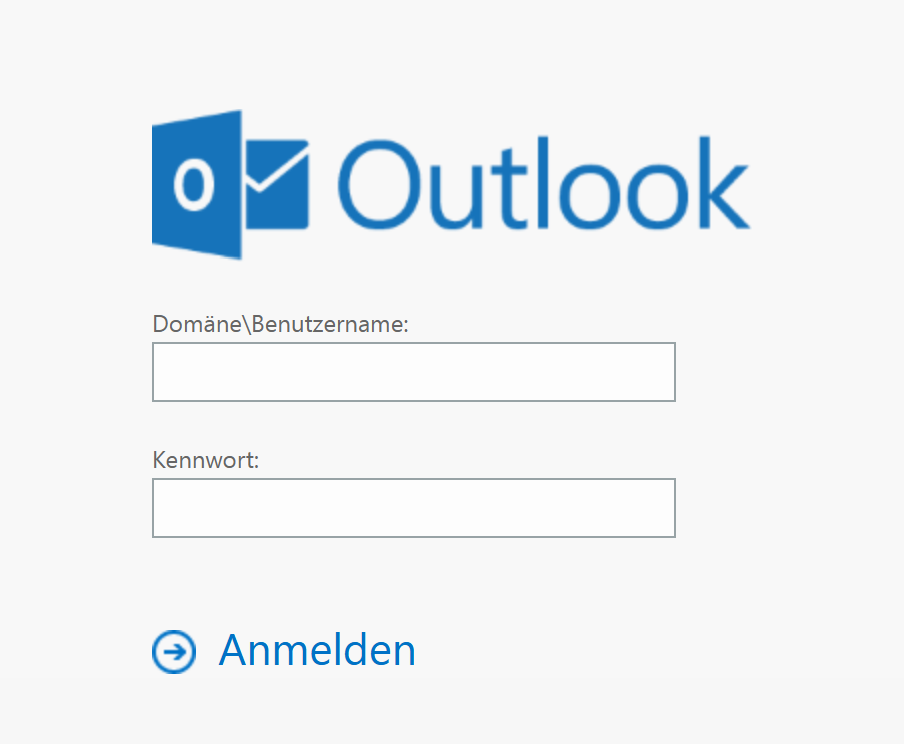
Please open the link https://mail.tu-braunschweig.de and log in normally with your username and password. |
|
|
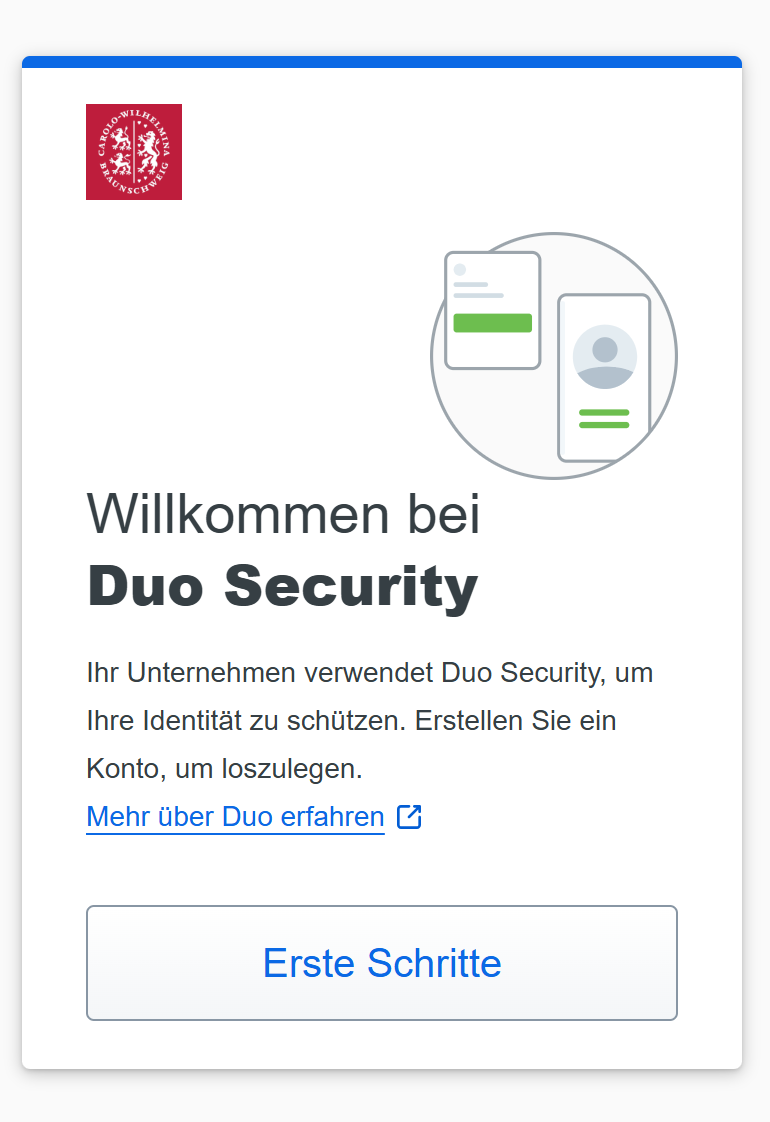
Click the [Erste Schritte] button. |
|
|
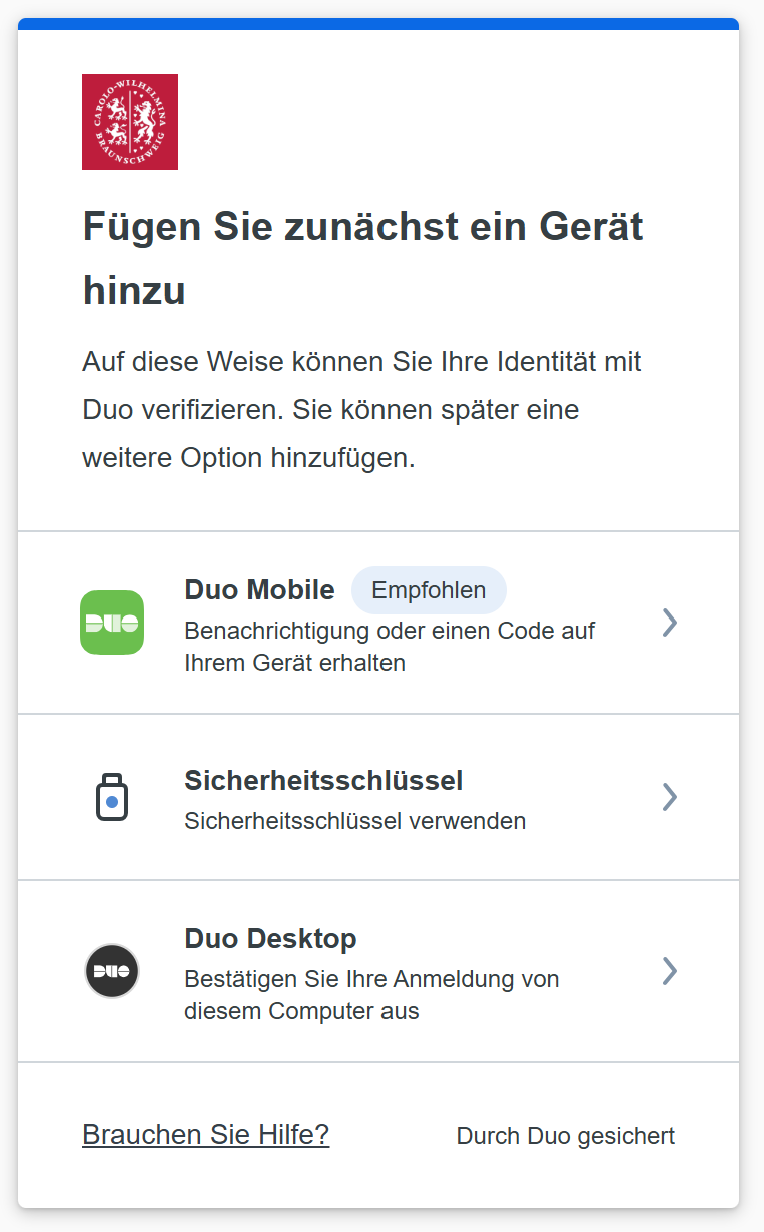
Choose the recommended option [Duo Mobile]. On your Apple device, you may be offered Touch ID/Face ID at this point. If you choose this option, you will initially only be able to log in with this device. We therefore strongly recommend setting up the Duo Mobile App, as you can use it to confirm other logins, such as VPN (VPN gateway "vpngate.tu-braunschweig.de"). |
|
|
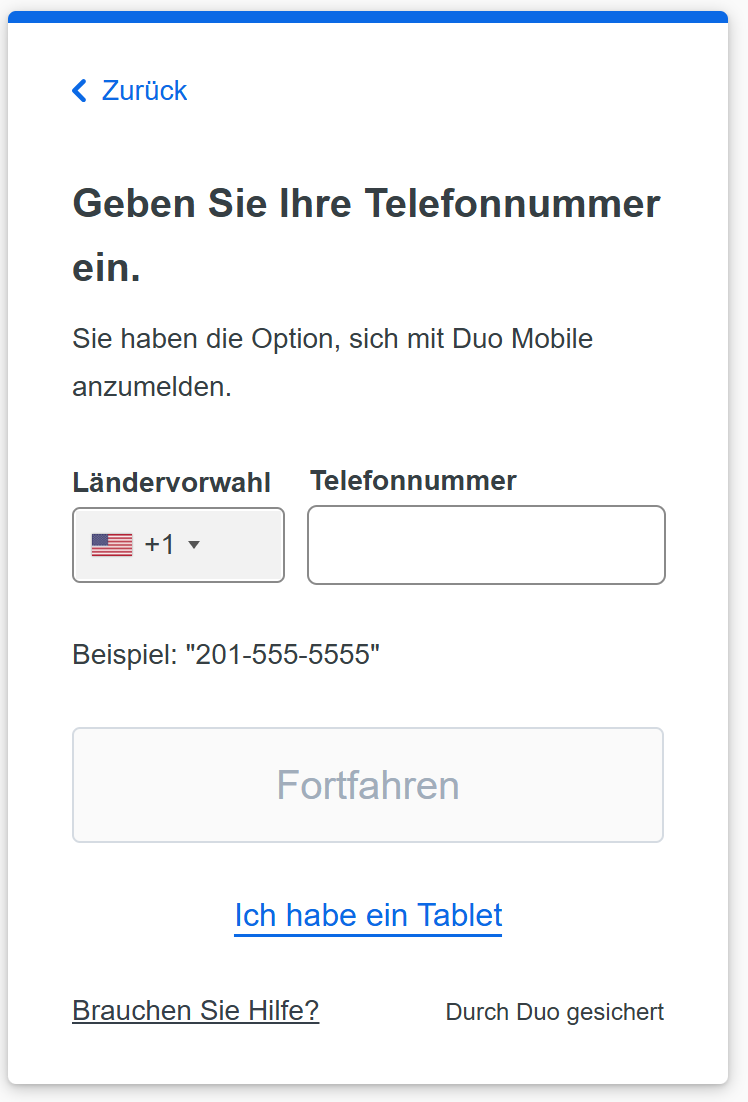
If you choose DUO Mobile, enter your smartphone's phone number here.
Alternatively, if you don't want to use a mobile phone or add another account on the same phone, you can add a tablet. To do this, click "Ich habe ein Tablet" and skip the next screen. Simply continue with the instructions. |
|
|
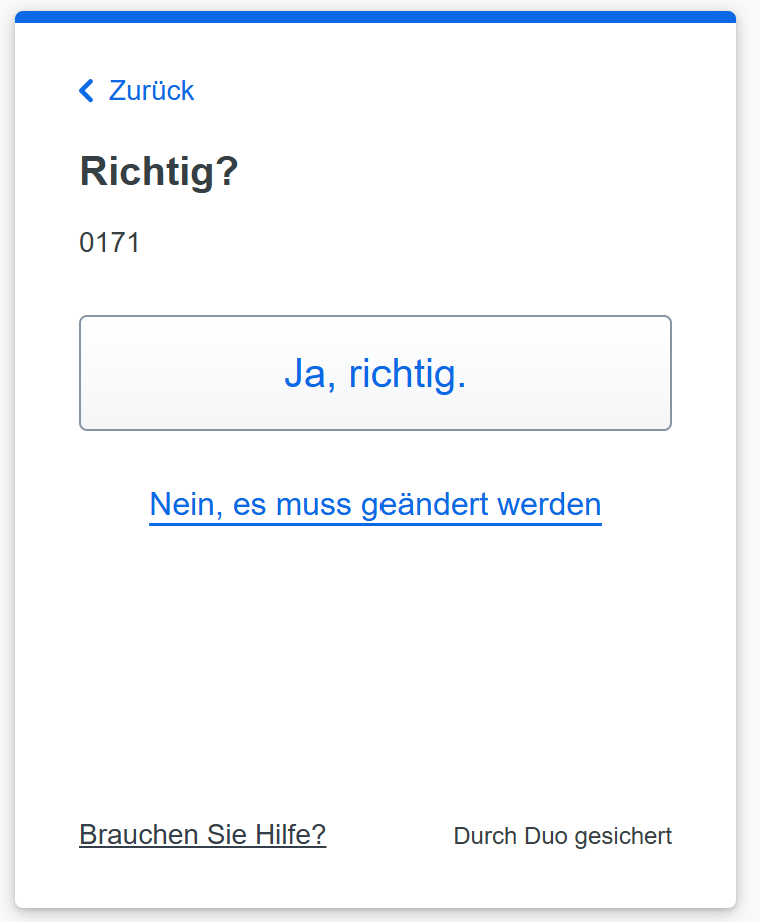
Please double-check your mobile phone number and confirm it with [Ja richtig] if it is correct. |
|
|
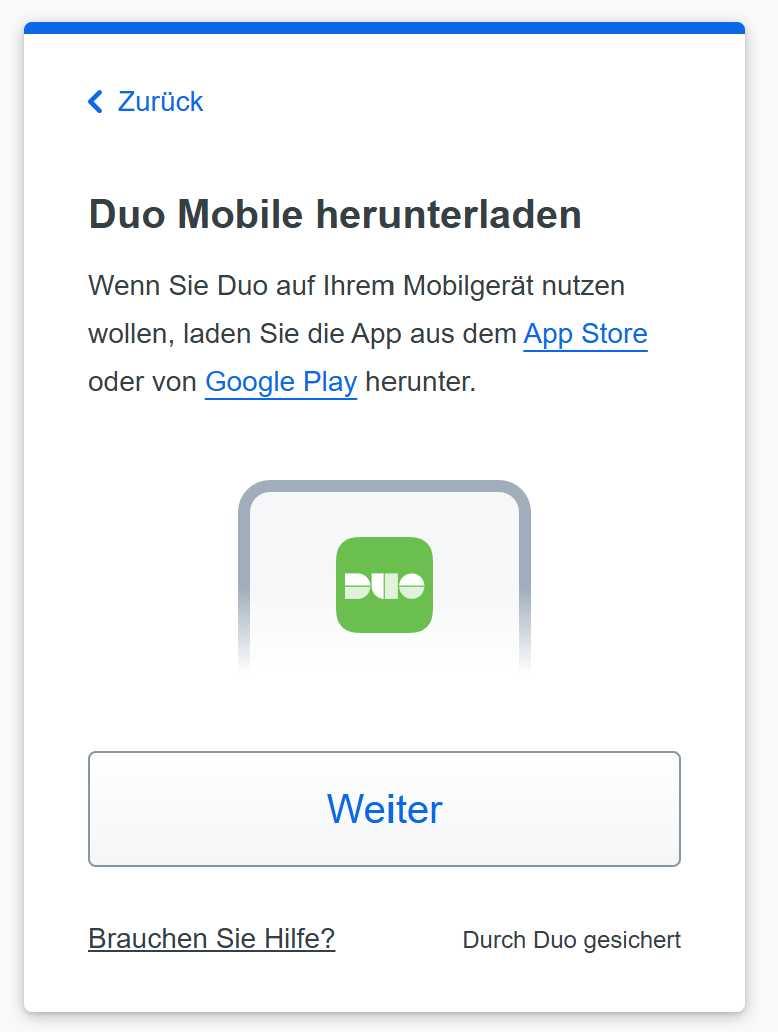
If you haven't already installed the DUO Mobile app on your smartphone, follow the instructions and install the DUO Mobile app on your personal or work phone. After successful installation, click [Weiter]. Enter your mobile phone number and confirm it with [Ja Richtig] if it is correct. |
If you have not used the DUO app before, please follow the steps below (otherwise skip this step).
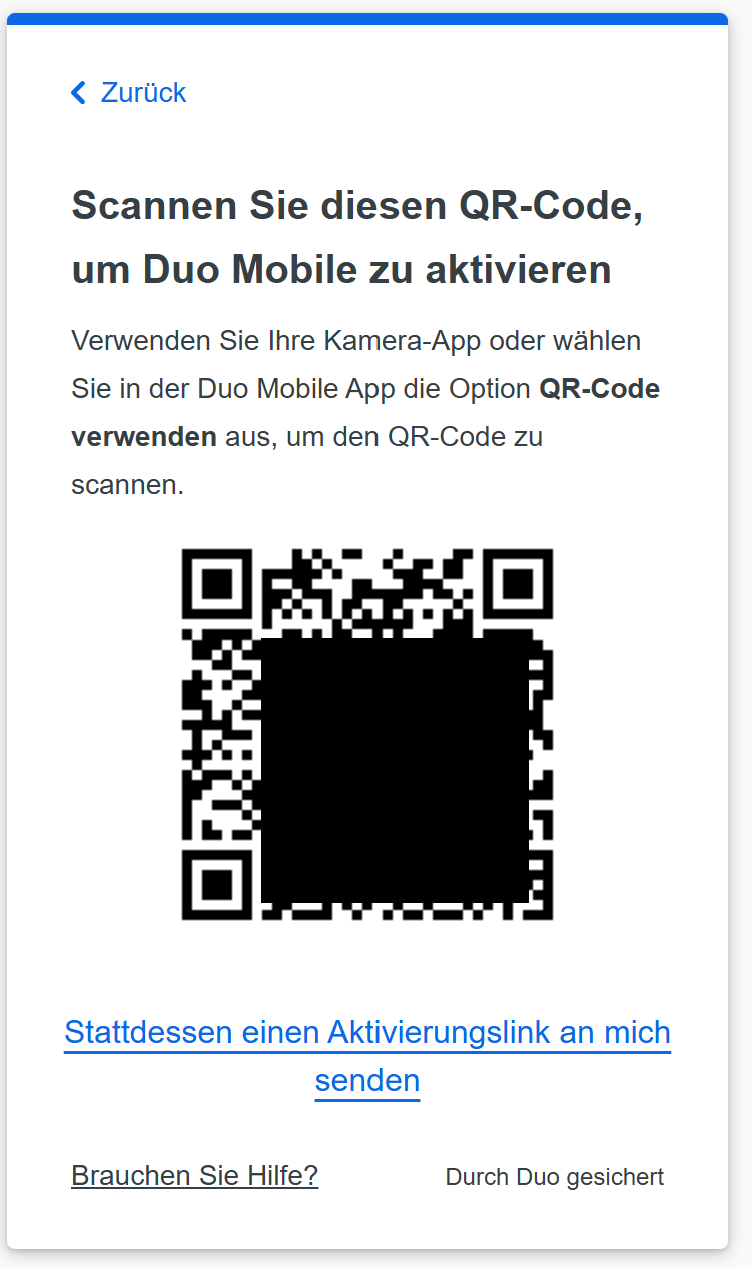 |
A window will then open displaying a QR code. Please leave this window open and switch to the Duo Mobile app on your smartphone. |
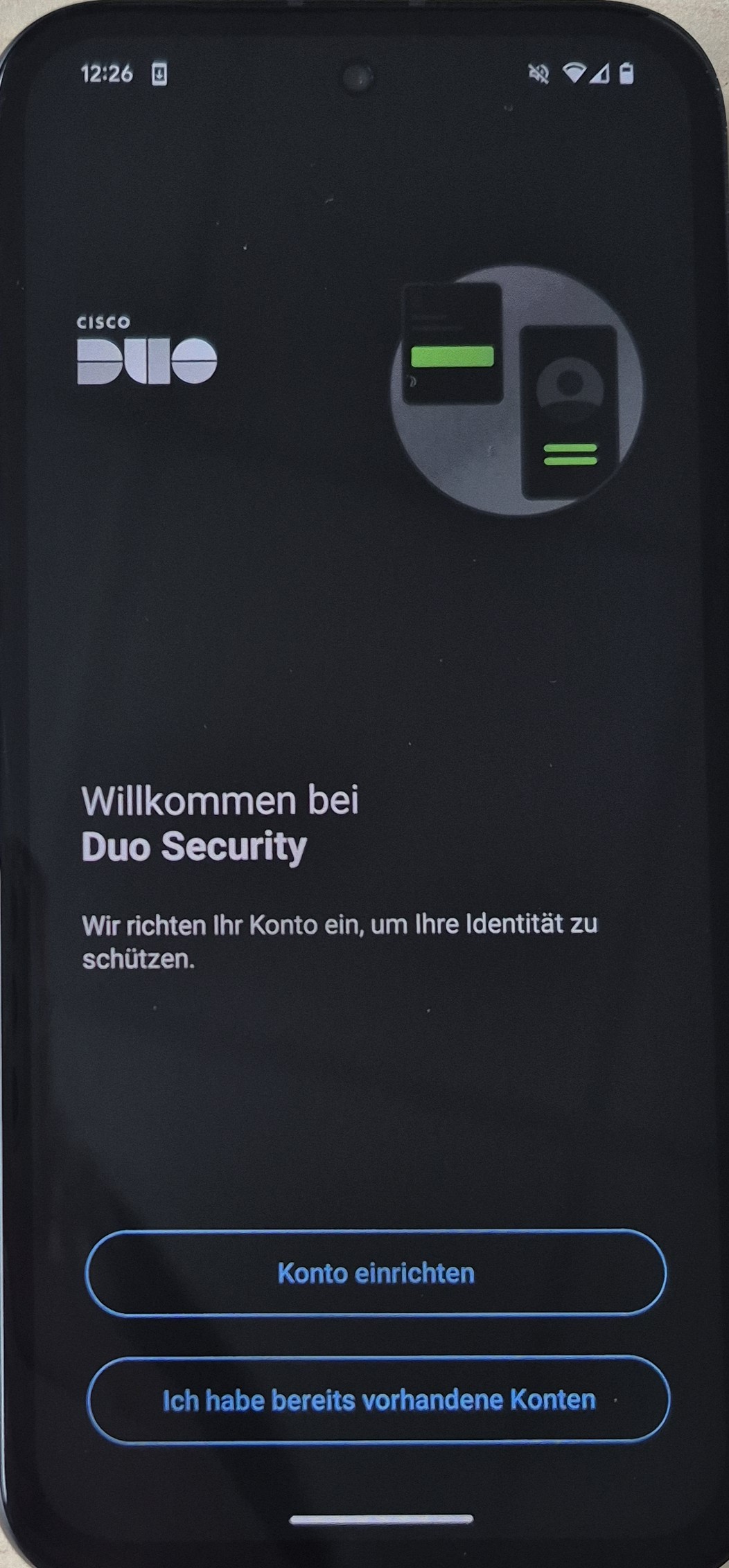 |
Choose [Konto einrichten]. |
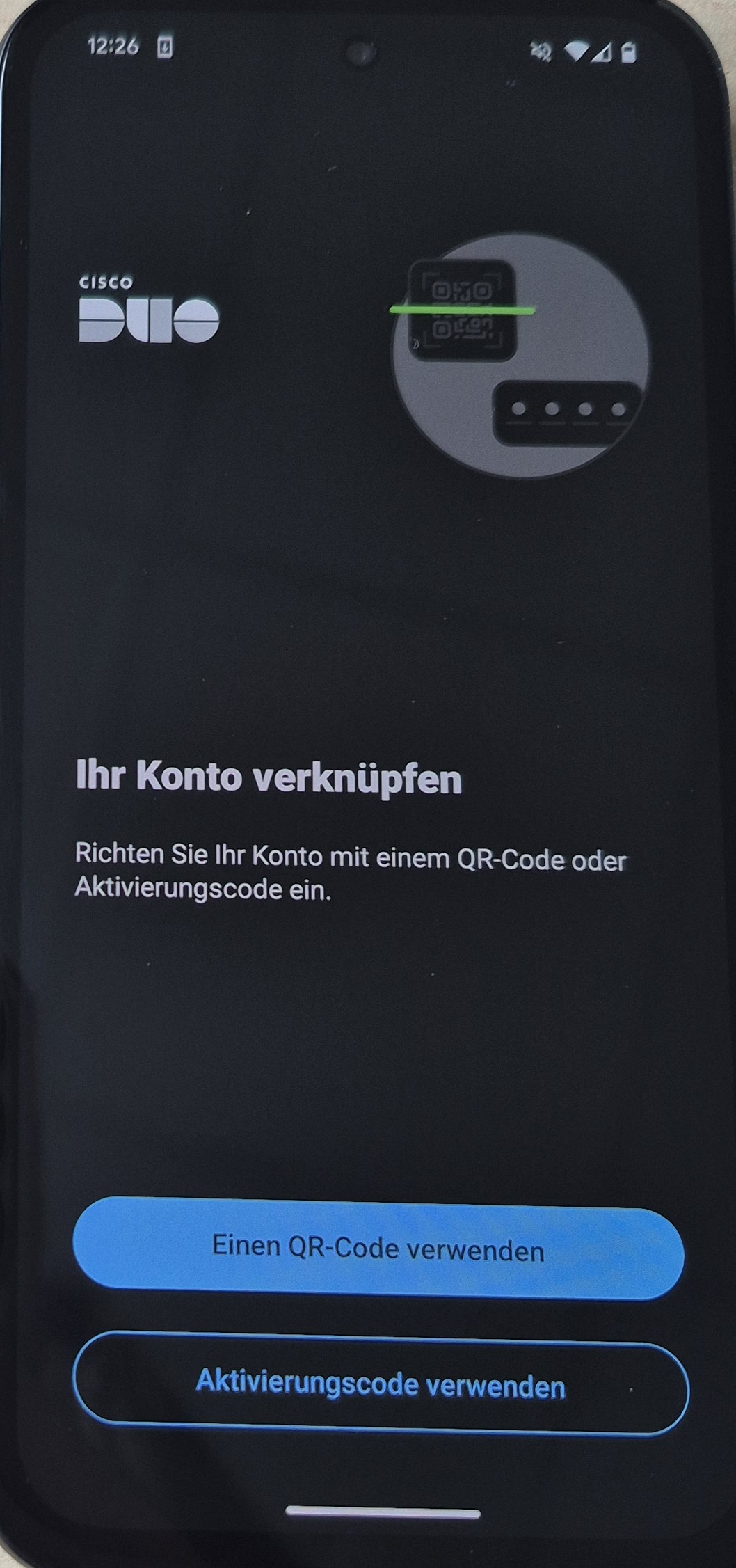 |
Select [Einen QR-Code verwenden] to scan the QR code. |
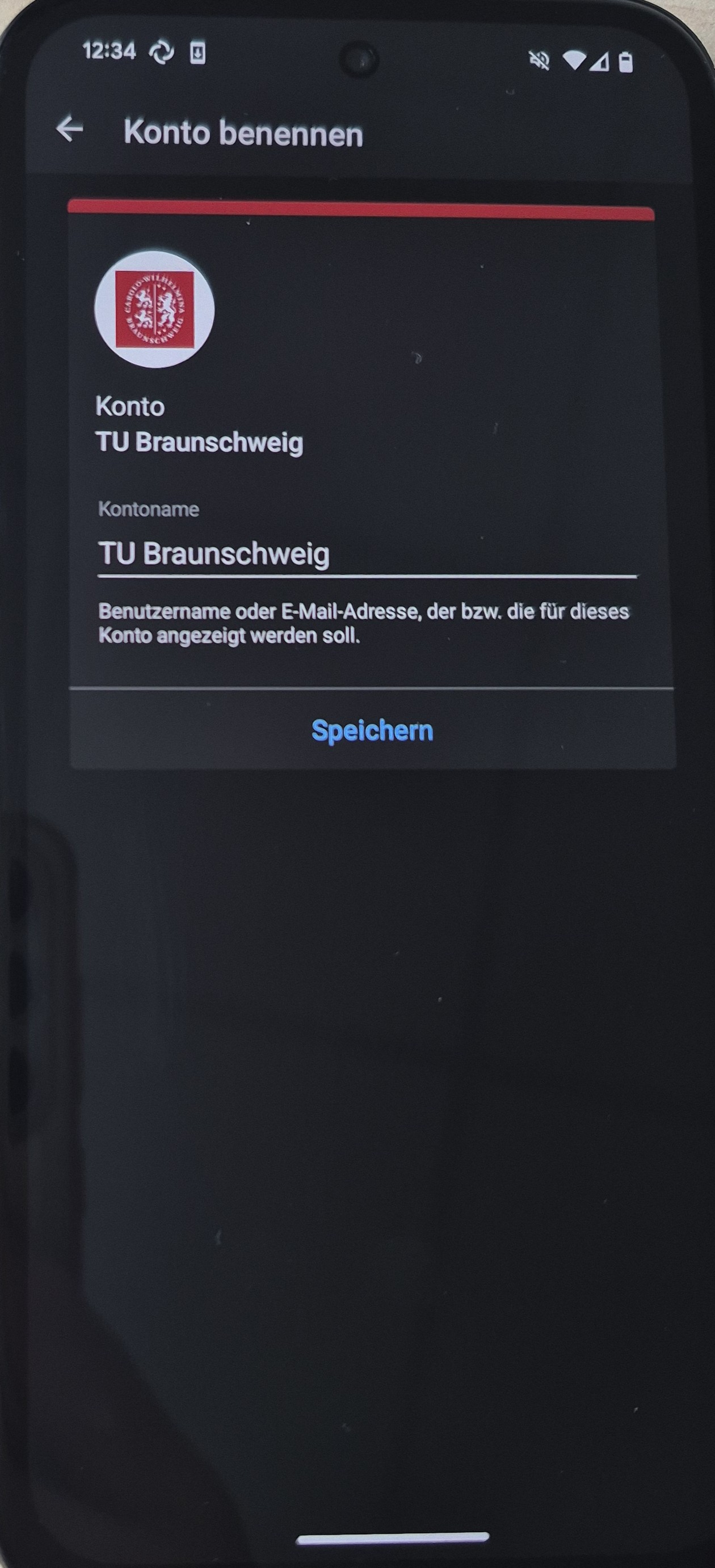 |
click [Speichern]. |
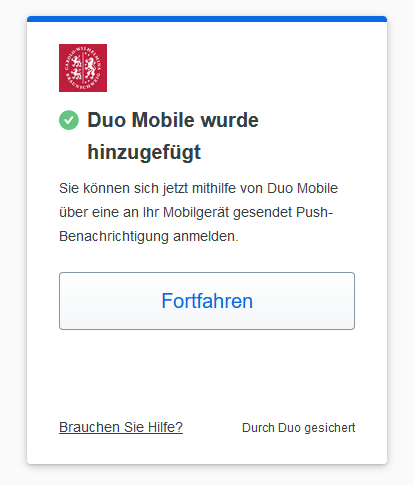 |
click [Fortfahren]. Done! |
If you would like to add another device clicke here.
PassKey
KeePassXC
Adding a passkey for Duo in KeePassXC
This page explains how to create a passkey for Duo and save it in KeePassXC. The setup is done using the KeePassXC Browser extension.
Requirements:
1. KeePassXC is installed
2. You have a KeePassXC database that you can open
3. A supported browser must be installed and available
4. The KeePassXC Browser extension is installed in the browser
Open KeePassXC and unlock your database with your master password.
Now enable browser integration in KeePassXC. To do this, open the settings by clicking the gear icon.

Switch to the section “Browser-Integration” on the left. There, enable “Browser-Integration aktivieren” and then select the browser in which you want to use KeePassXC-Browser.
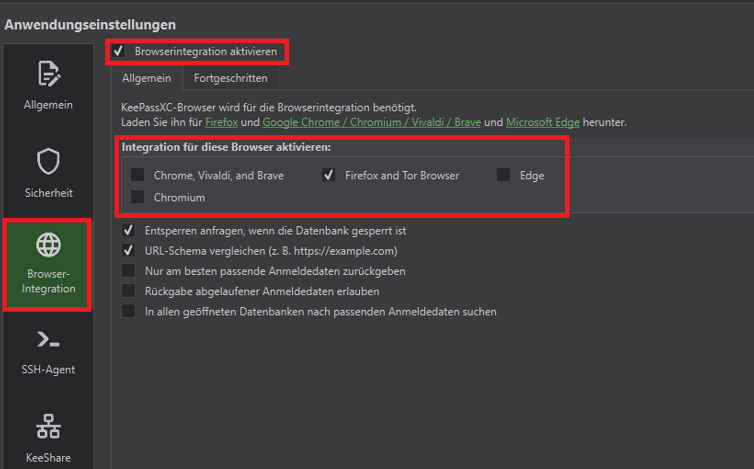
Then continue in the selected browser. Install the extension “KeePassXC-Browser” there if it is not already installed.
Search for KeePassXC-Browser and click “Hinzufügen”.
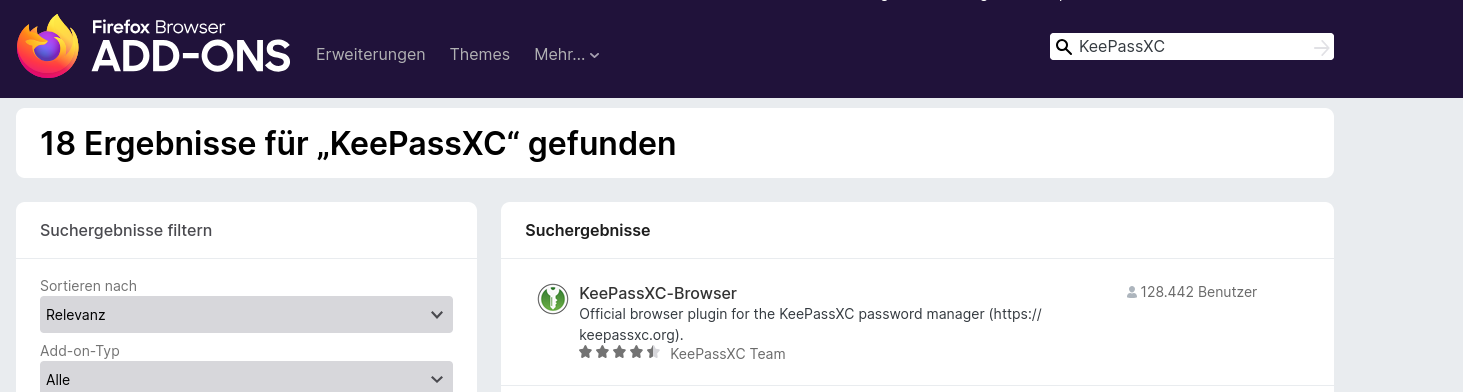
Then click “Hinzufügen”.

After installation, click the puzzle icon in the top right of the browser and then click the gear icon to open the extension settings.
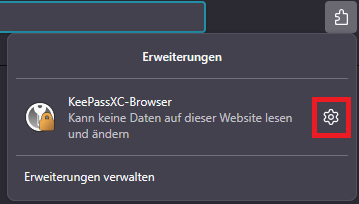
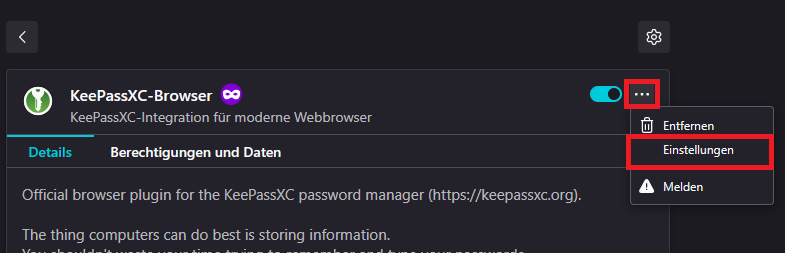
Then open the settings of the browser extension. To do this, click the menu on the right and then click “Einstellungen”.
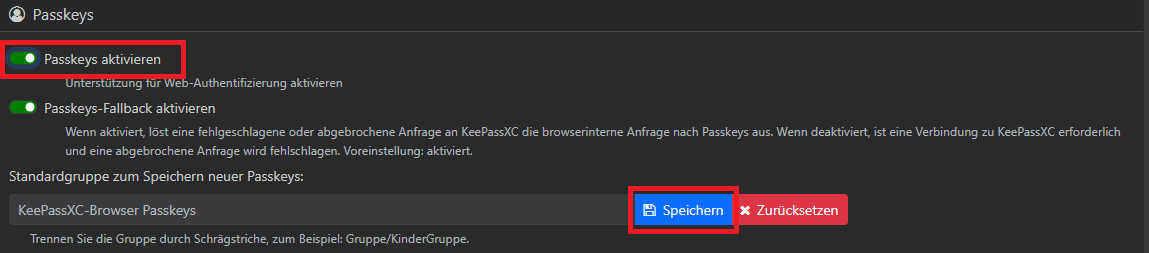
Scroll in the settings to the “Passkeys” section. There, enable “Passkeys aktivieren” and then save the change.
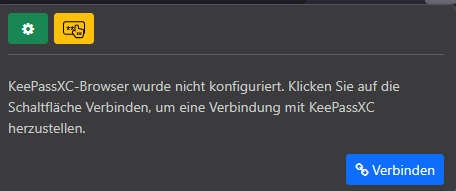
Then connect the browser add-on with KeePassXC. To do this, open the extension and click “Verbinden”.
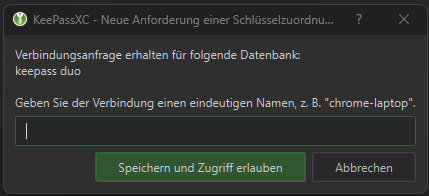
Then assign a name of your choice in KeePassXC and click “Speichern”.
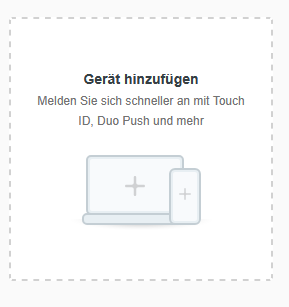
Now open Duo and add a new device. To do this, log in to the Duo portal as described on the device management page(Geräteverwaltung). Then click “Geräte hinzufügen”.
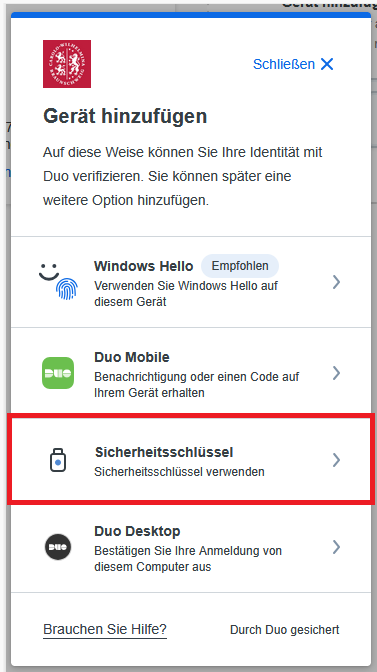
In the “Gerät hinzufügen” window, select the option “Sicherheitsschlüssel”.
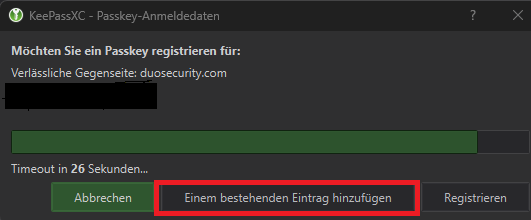
Then a KeePassXC window will open. There, you can either add the passkey to an existing entry or create a new entry. Then confirm the registration.
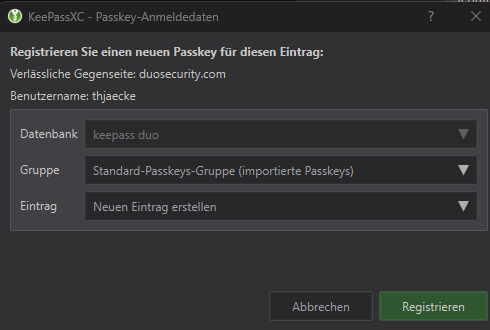
Then click “Registrieren”.
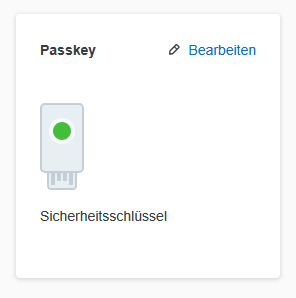
After successful setup, the new passkey will be displayed on the device management page. If you wish, you can then adjust the name via “Bearbeiten”.
MacOS
Under macOS, the procedure is as follows:
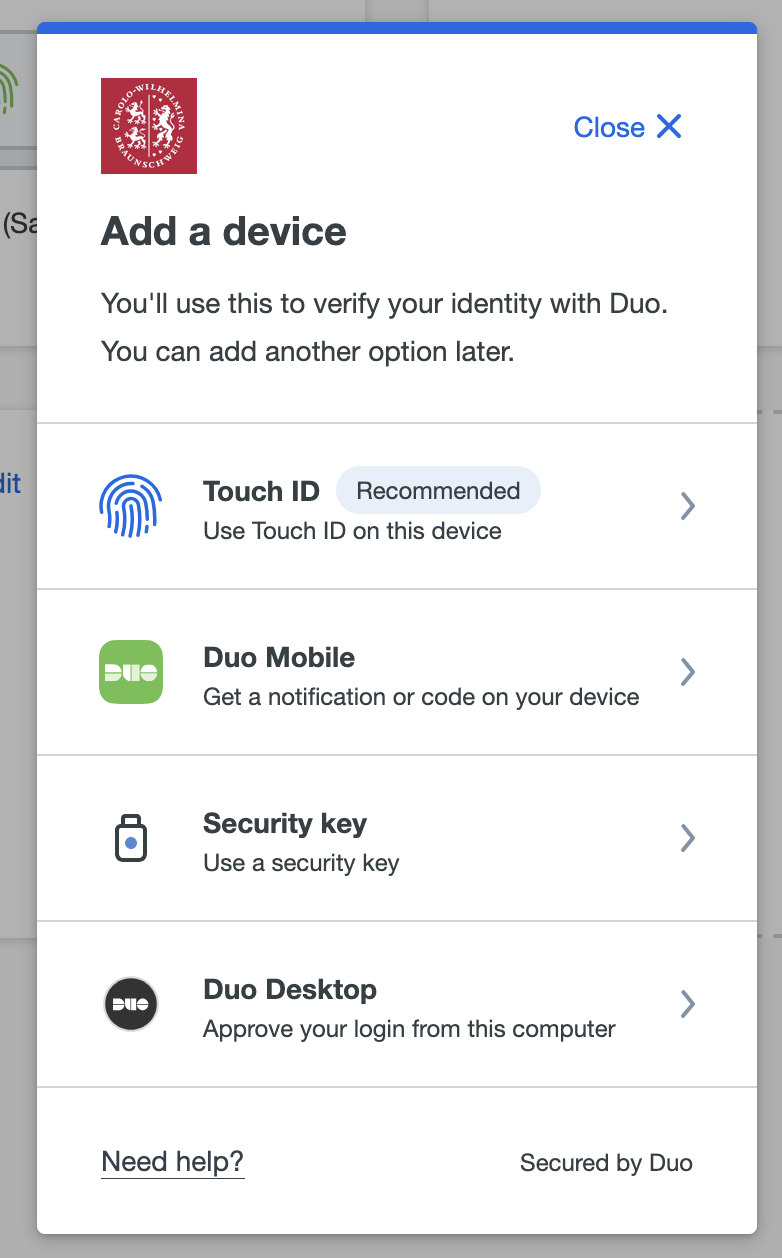
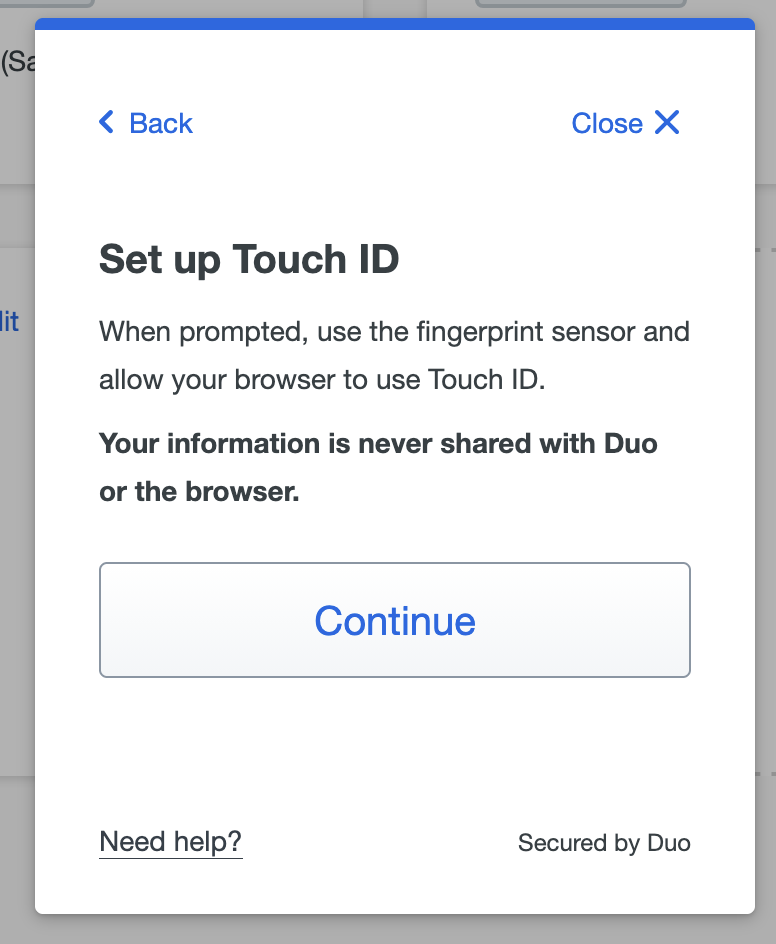
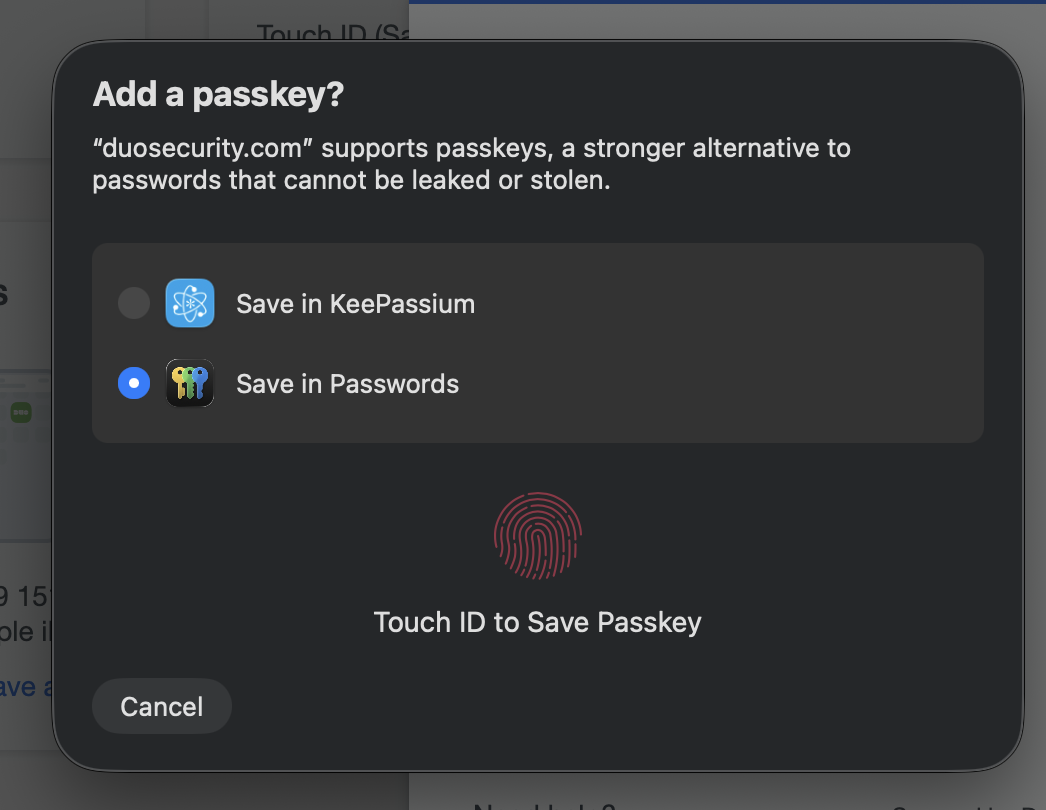
If you choose to store it in Apple Passwords and are logged in with an Apple ID, you can also use the passkey on other devices with the same Apple ID. This also applies in the reverse order when setting it up on an iPhone and using it on a Mac.
Using a second Factor (Duo App, Desktop App, HW Token)
The Connection to OWA and SSO is the Same. OWA is just used an example here. So if you have problems to sign in on your SSO you may also follow these steps.
Use of the DUO Desktop Application
To setup the Duo Desktop Application click here.
OWA
|
|
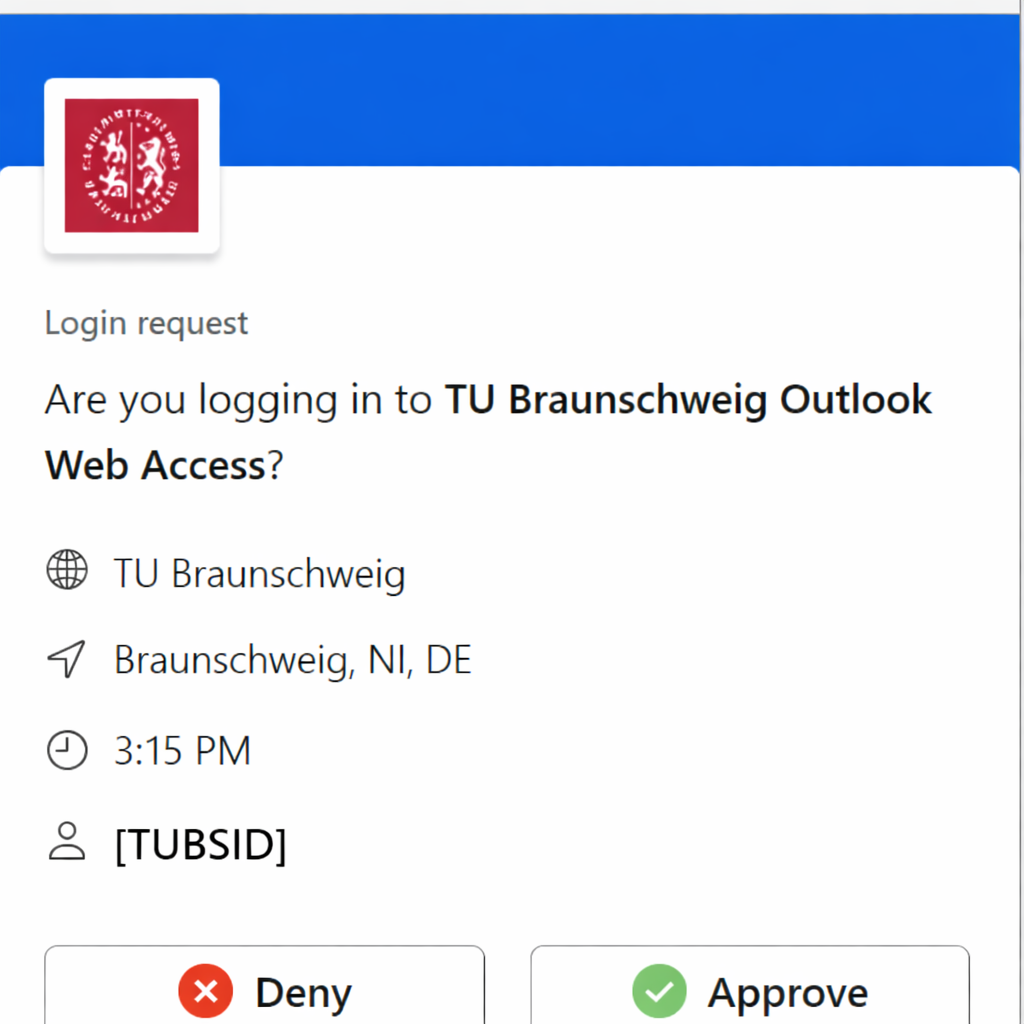
You may open the link https://mail.tu-braunschweig.de and register with your TUBS ID and the attached password.
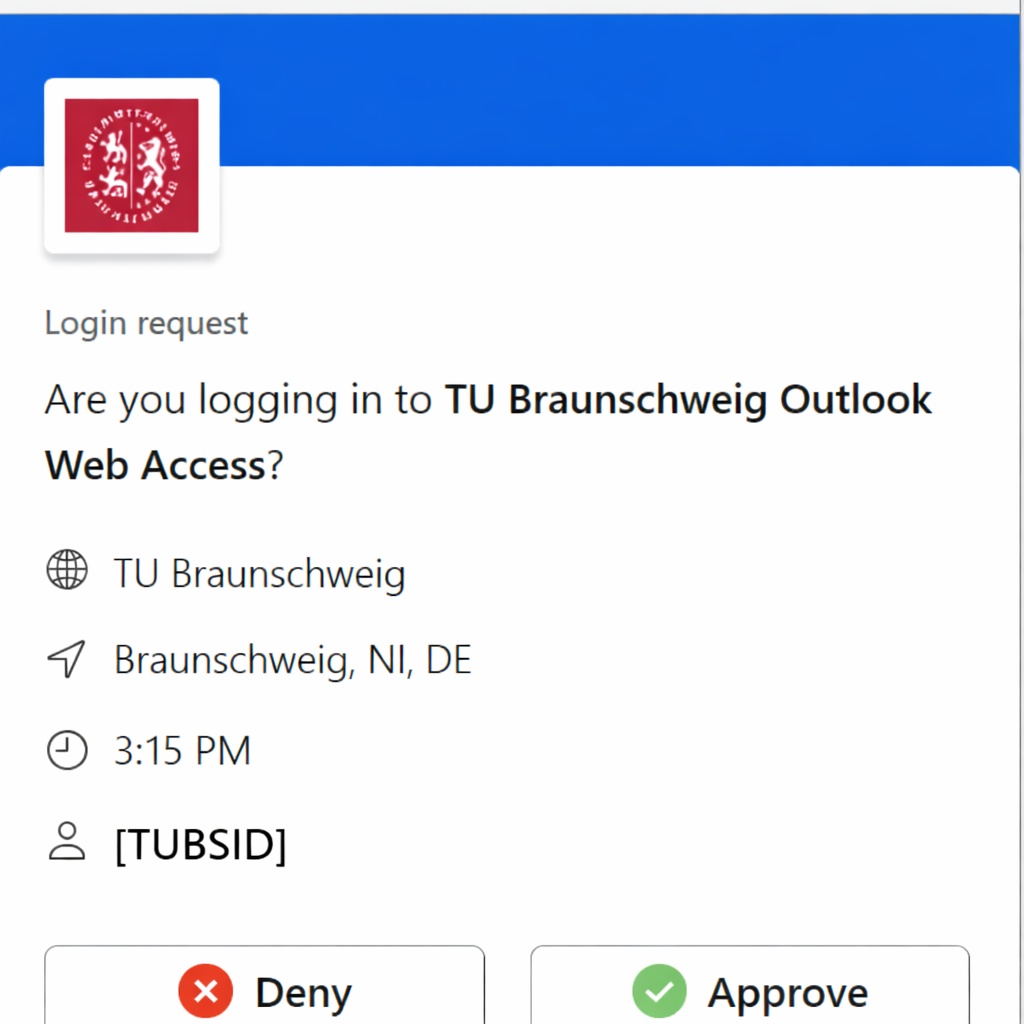
Make Sure the Data is correct before approving! |
|
|
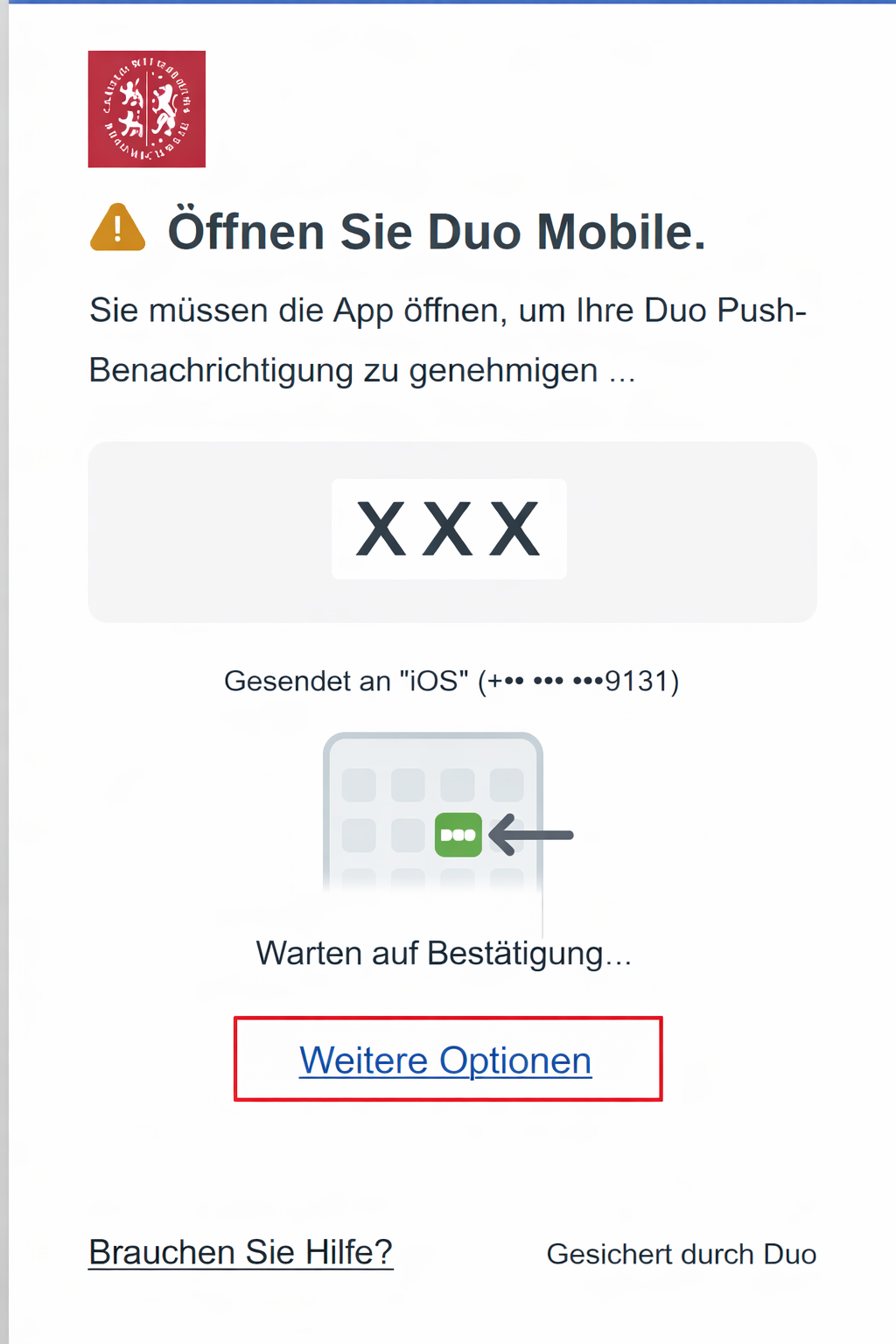
If Duo Push is already setup just click "Weitere Optionen" and select Duo Desktop App |
VPN
|
|
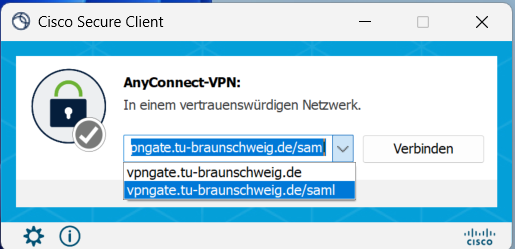
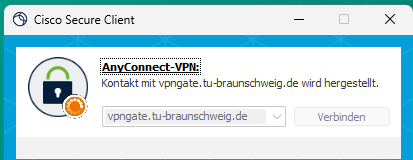
If you want to connect to the VPN with help of your Duo Desktop App, you may connect via the VPN gateway "vpngate.tu-braunschweig.de/saml" to connect to the network of the TU Brunswig |
|
|
After you will choose the option Duo Desktop as second factor and approve the correctness of your data by clicking "Approve". |
|
|
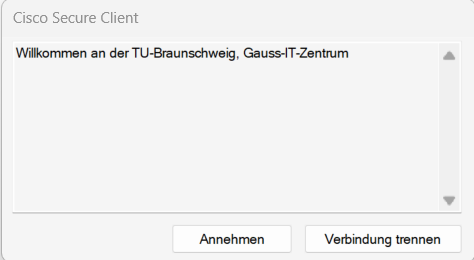
At last you will click "Annehmen" to automatically connect with the VPN. Done! |
Use of the HW-Tokens
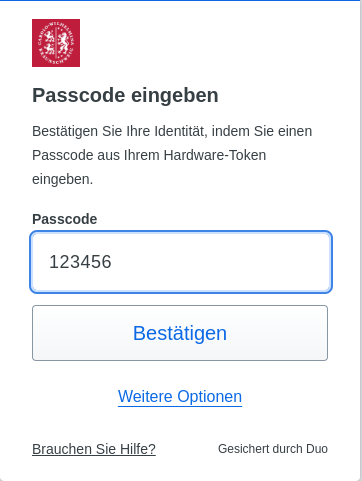
Users who have received a hardware token (Duo Token) don't need to do anything further to use the second factor. It has already been linked to the TUBS ID and can be used immediately for logging into OWA, SSO, and VPN (via vpngate.tu-braunschweig.de, see below). Users who want to use the Duo Mobile App can find instructions here for first-time setup.
OWA
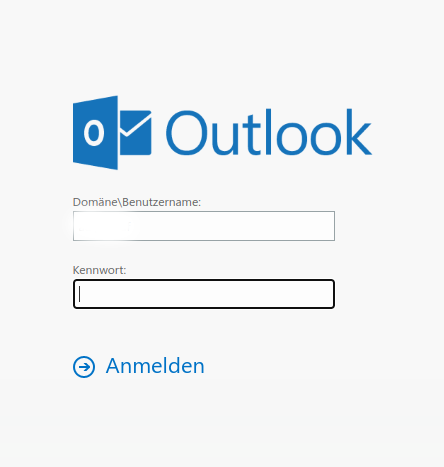 |
|
 |
|
VPN
|
|
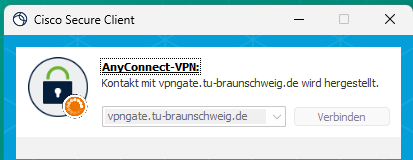
To use two-factor authentication for VPN login, you must log in to a different VPN gateway than before. This means that in the field that currently displays "SSL VPN" or "vpngate.tu-bs.de" (or similar), you must enter vpngate.tu-braunschweig.de
|
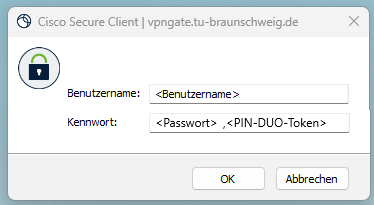 |
When prompted for your password, enter your password followed by a comma and then the generated PIN. |
Using the DUO App (on mobile device)
OWA
|
|
Please open the link https://mail.tu-braunschweig.de and log in as usual with your TUBS ID and password.
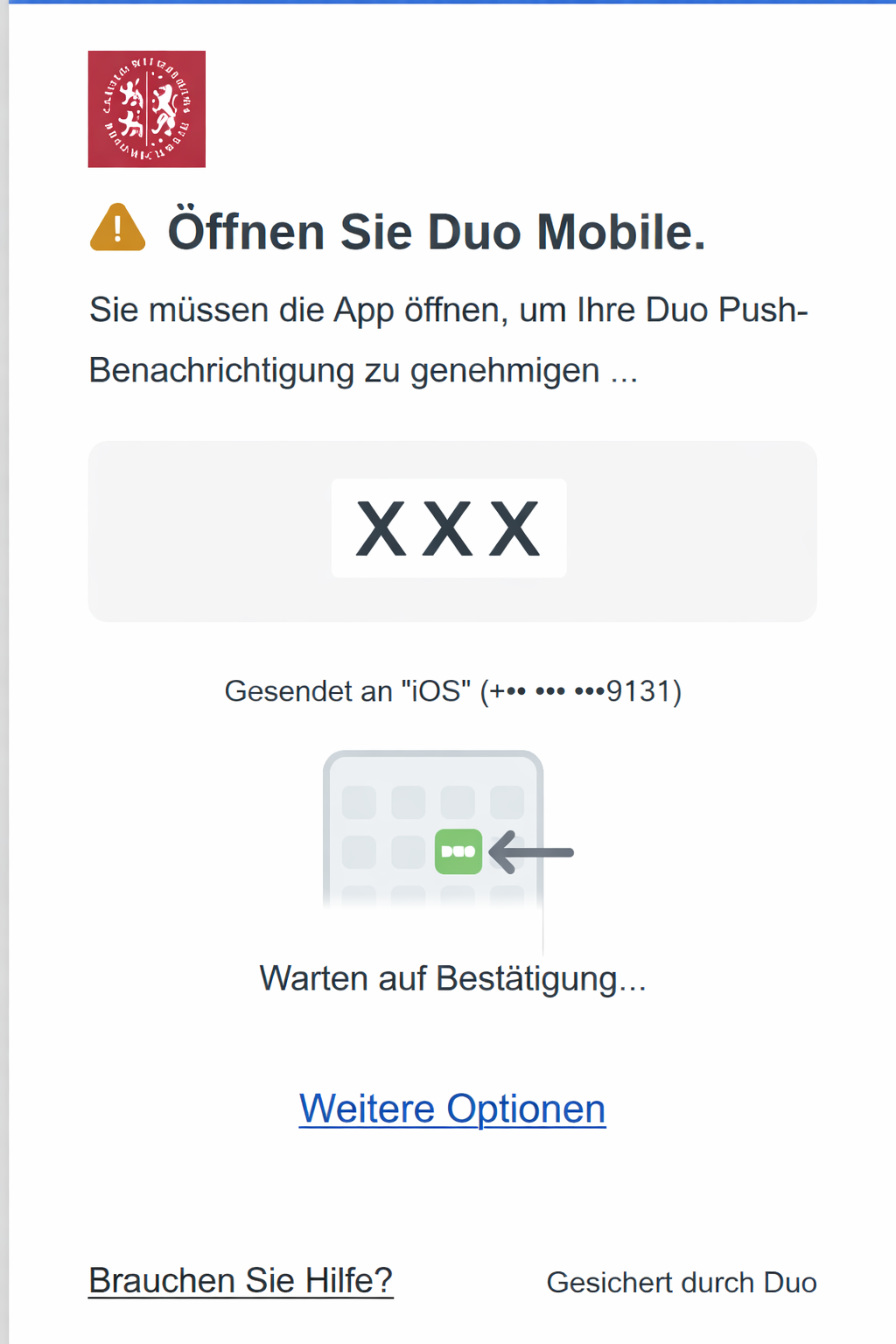
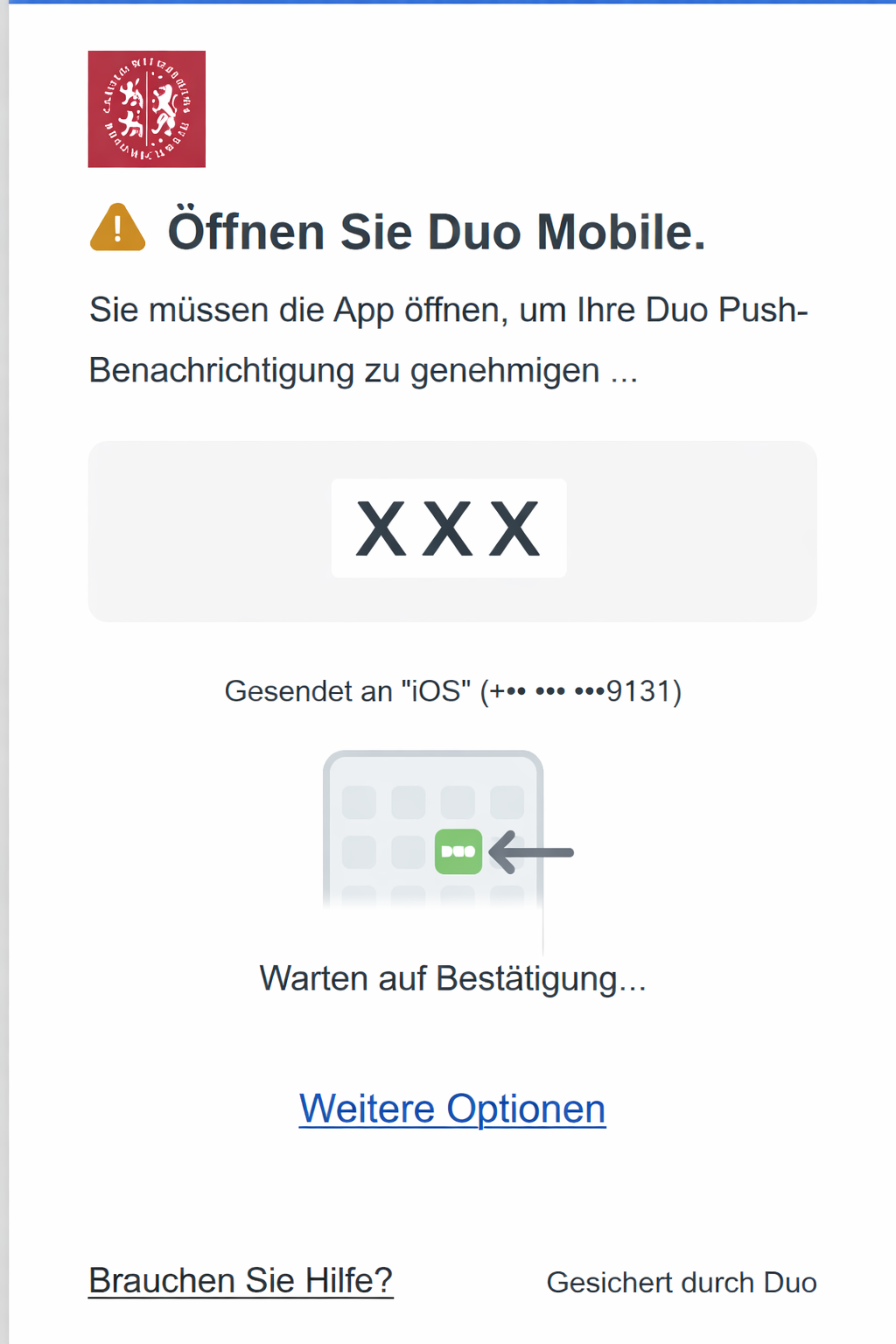
Next, you will see a notification that Duo has sent a push notification to the registered device.
|
|
|
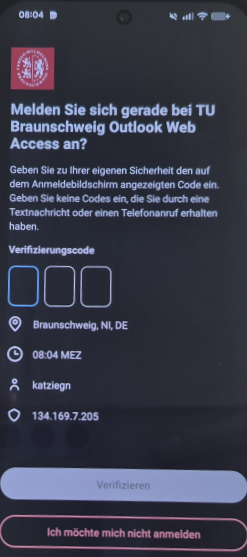
Once you open the Duo Mobile App on your device you will have to enter the shown code and click verify. Done! Make Sure the shown Data is correct. |
VPN
|
|
To use two-factor authentication for VPN login, you must log in to a different VPN gateway than before. This means that in the field that currently displays "SSL VPN" or "vpngate.tu-bs.de" (or similar), you must enter vpngate.tu-braunschweig.de
|
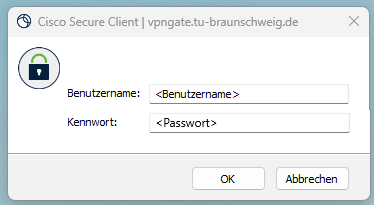 |
When using the Duo app, you only need to enter your password. Then, a push notification is sent to the app, which you must confirm within the app |
Manage devices, add a new mobile device, or add a desktop application.
Please register with OWA (or the SSO) using the following link: https://mail.tu-braunschweig.de
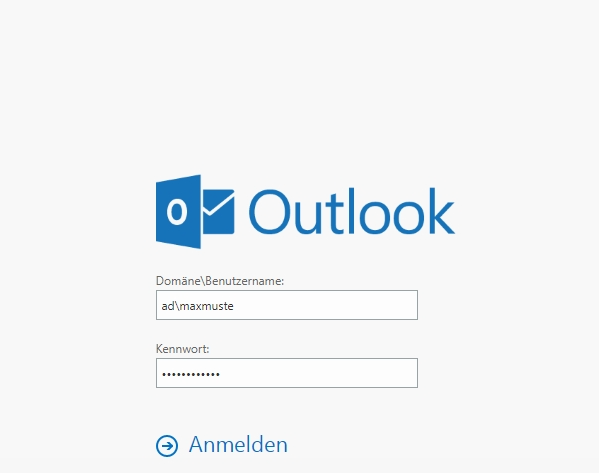
To log in, enter your TUBS ID in the format ad\TUBS-ID and your password, then click [Anmelden].
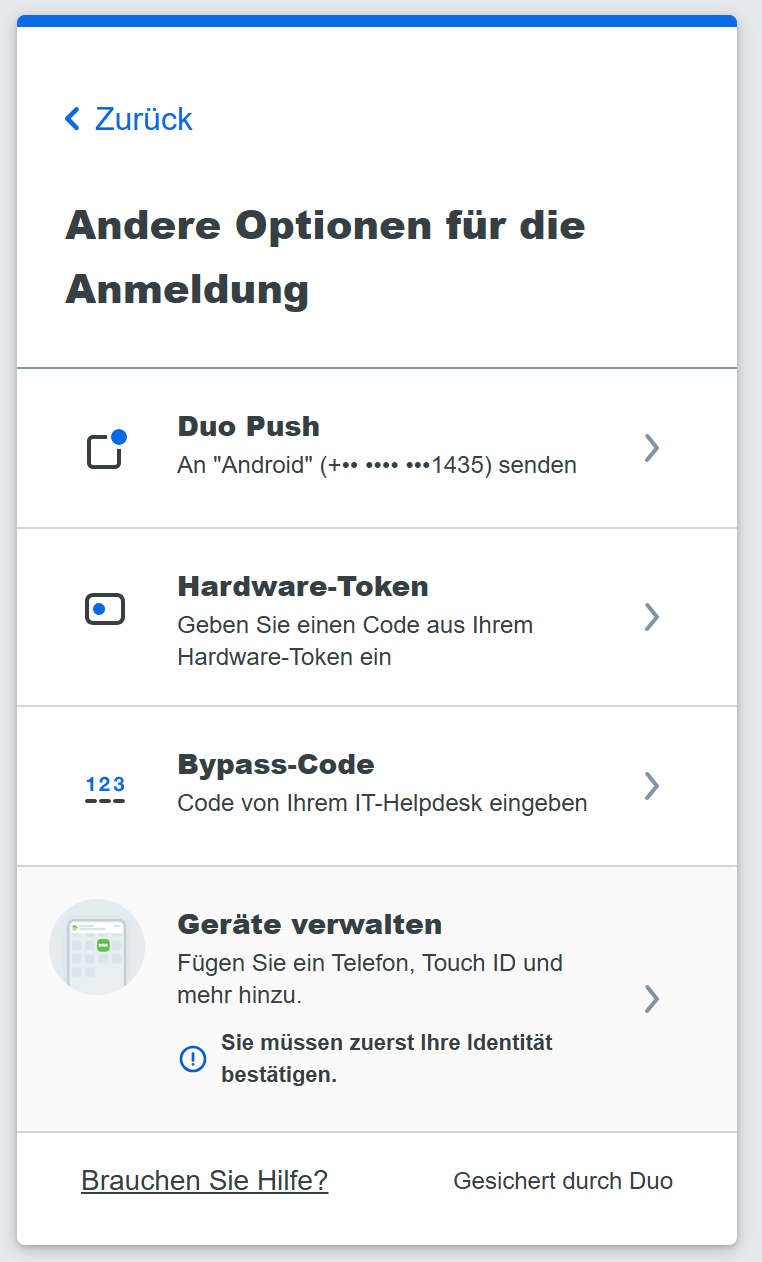
Afterward, you will be prompted for 2FA; please click [Weitere Optionen].
Click on [Geräte verwalten].
Confirm your identity using your preferred second factor.
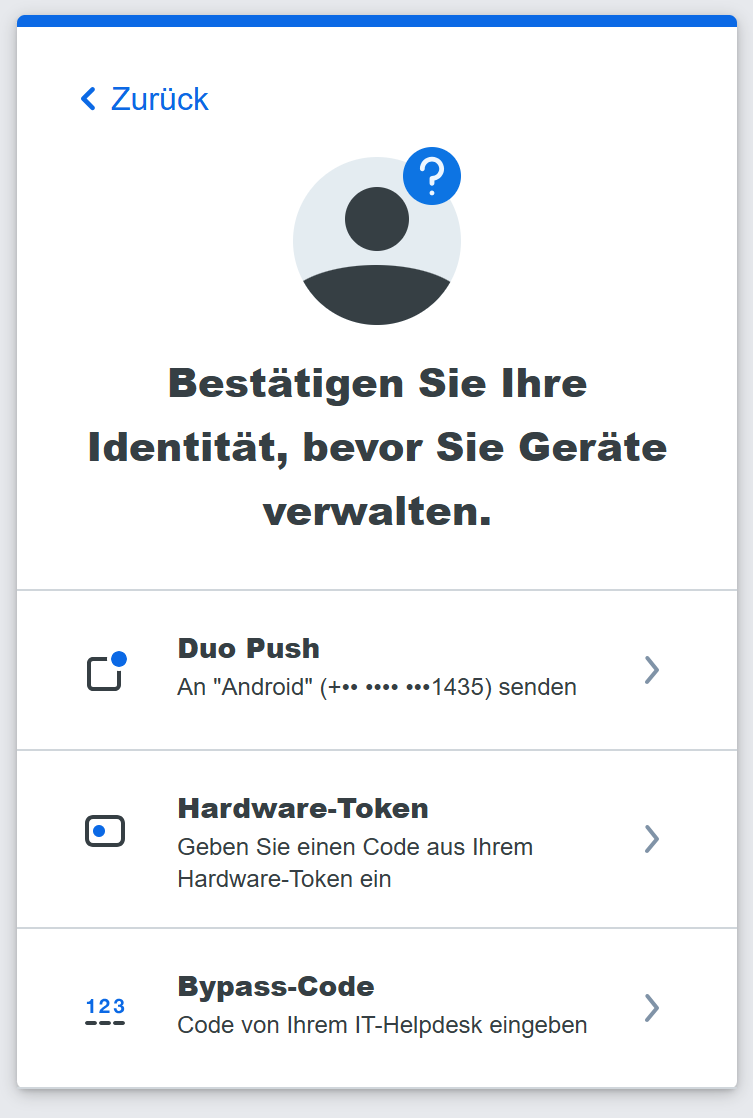
After that, you will be taken to the portal where you can manage your devices and add a new device.
Note: To add a new device, you will need another second active factor.
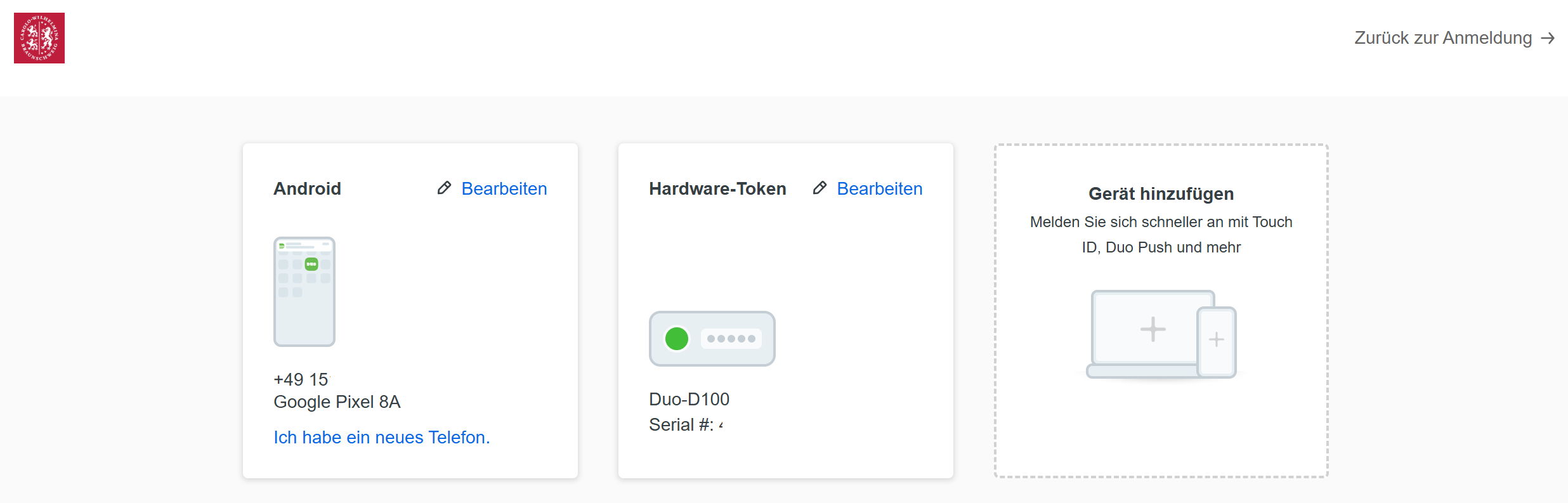
To add the desktop application, it must be installed and open on your computer. The desktop application does not currently work on Linux devices.
If you already have the DUO app and have linked another account, please follow these steps to set up the second factor for TU Brunswig:
|
A window will then open displaying a QR code. Please leave this window open and switch to the Duo Mobile app on your smartphone. |
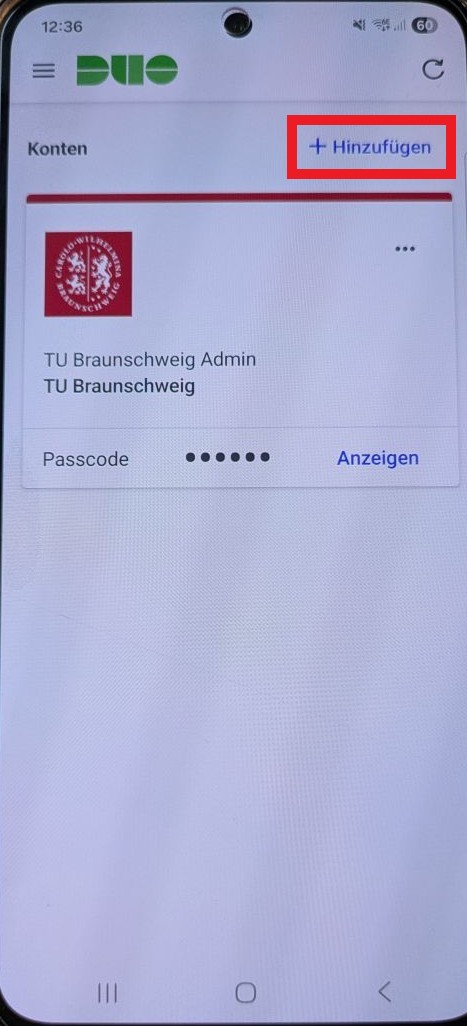 |
Click [+Hinzufügen]. |
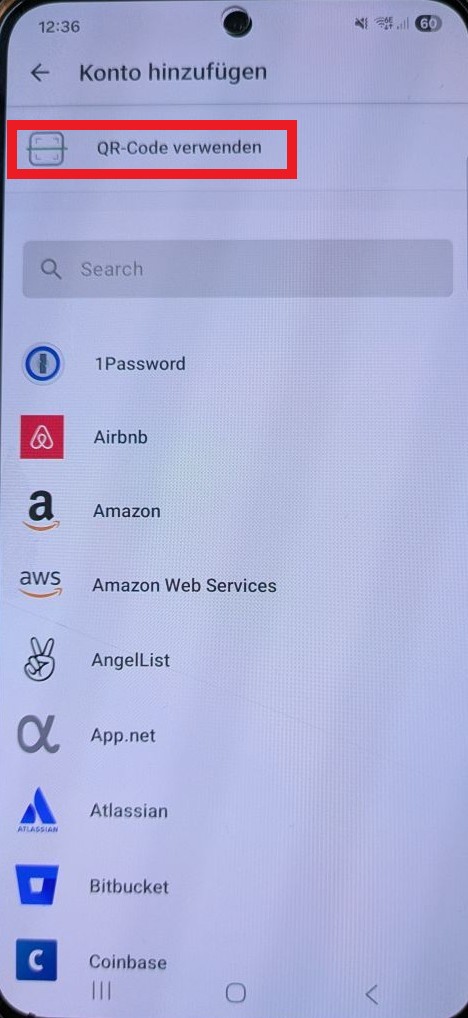 |
Choose [QR Code verwenden]. |
|
|
|
Click [Fortfahren]. Done! |
FAQ (2FA)
What should I do if I encounter a problem with authentication?
If you do not receive a push notification on your cell phone, please check whether your cell phone is in sleep mode or airplane mode. Push notifications are not sent in these modes. Simply open the app and see if you can authenticate yourself there.
Also, make sure your phone has mobile data, otherwise the Duo app will not work.
What should I do if I've locked myself out of Duo?
To be unlocked, you need to go to the IT Service Desk with a valid ID. The staff will then unlock your account.
How does the transfer to a new mobile device work?
If you have the option (such as with a Google Pixel) to easily transfer your data to the new mobile device (and you're also keeping your SIM card), all you need to do is launch the app on the new device and follow the prompts. Your account will be transferred automatically.
Otherwise, don't uninstall the DUO app on your old mobile device right away. In the settings, there's an option called "Mit neeuem Telefon verbinden" that allows you to generate a QR code.
Finally, you can also perform a new onboarding process for the device. To do this (similar to the first time), log in to OWA and, on the OWA screen (after entering your username/password), select "Weitere Optionen" followed by "Geräte verwalten" If the phone number of the new device (i.e., the SIM card) remains the same, the old device will be overwritten.
Can I add multiple mobile devices to my 2FA account?
Yes, that's possible. See the instructions.
How can I set up a second TU BS account in the Duo app?
You cannot use one mobile number for two accounts. Simply select the "Tablet verwenden" option and follow the steps. Then you can set up the second TU BS account in the Duo app.
How can I access my second mobile device?
If you have registered multiple mobile devices and want to access the one listed second, for example, you can enter <password> followed by <push2> in the VPN password field. <push2> represents the second element. To see which phone is listed where, log in to OWA and click on "weitere Optionen" where the second factor is requested.
For OWA or SSO, you can go to [Weitere Optionen] and select the desired device.
How can I install the desktop application on Linux devices?
Unfortunately, this is not currently possible.
Does the application collect anonymized user data?
No anonymized user data is collected in the application; this feature has been disabled.
Can i connect to VPN via a second Factor?
Yes it's now possbile to connect to VPN with a one time login via SSO, more here.
Which Version of iOS or Android do I need to install the Duo Mobile App on my phone?
For iOS you need Version 16.0 or later and for Android Version 11 or later to install an use the Duo Mobile Application.
Are Mail Apps like outlook, thunderbird etc. also affected by 2FA?
No, only the OWA is affected with a second factor the Apps do not change after your 2FA setup
Can i use another second factor App other than Duo Mobile on my phone?
No you cannot use a any other Application on your phone.
What do I have to do when i lose my phone or my Token?
When losing you phone or your Hardware Token, you'll have to come to the IT Service Desk in person with your ID on you to get a one time use Bypass Code or if you're still willing to use it to get another Token.
If your Token is not working anymore or the battery is out please take it with you when optaining a new one.
Can I connect a YubiKey to the VPN?
Yes, it's possible to use a YubiKey as a second factor via the gateway: vpngate.tu-braunschweig.de/saml.
Please note that no support is offered for using personal YubiKeys.
Can I edit my devices with only the DUO Desktop Application?
Yes.
Is it possbile to use passkeys?
Yes it is possible to use and configure passkeys on your own.
How do I add a second passkey?
Log in to OWA or SSO with the device where the passkey works and navigate to the Cisco DUO self-service area. There, please add a new device. This time, however, do not use Windows Hello, but select “Security Key” and use the QR code function. This is the top option. Scan this QR code with your mobile phone camera and follow the instructions on the device. You can then also authenticate with the passkey from the second device.