[EN] What changes with regard to videos will apply in the upcoming version of Stud.IP?
Playlists
In the upcoming version of Stud.IP, videos will be organised into playlists, which will significantly improve navigation and clarity within a course.
In the current version of Stud.IP, videos are assigned to an Opencast series. An Opencast series can be linked to several courses in Stud.IP. Videos are permanently associated with an Opencast series, which means that the permissions and publication / visibility of videos are largely determined by this assignment.
In the upcoming version of Stud.IP, videos will be organised into playlists within a Stud.IP course. A video can appear in several playlists without being moved or duplicated in Opencast. The order, visibility and sharing settings can be managed for each playlist.
Consequently, in the current version of Stud.IP, series are Opencast-based, relatively fixed containers, whilst playlists in the upcoming version of Stud.IP are Stud.IP-based, more flexible compilations of videos.
Create playlists and add videos
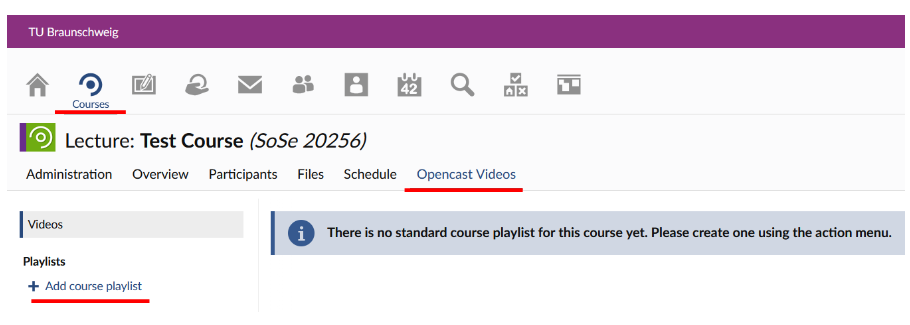
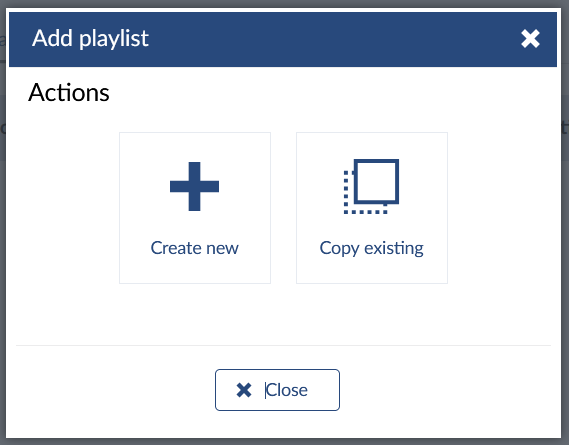
By clicking on "+ Add course playlist", you can create a new playlist or copy an existing one in the dialogue box that opens.
Note: It is a good idea to include the course name and the semester in the playlist name, as this will ensure that, when you later assign individual videos to playlists and all your playlists are displayed for selection, you will be able to assign the playlist unambiguously.
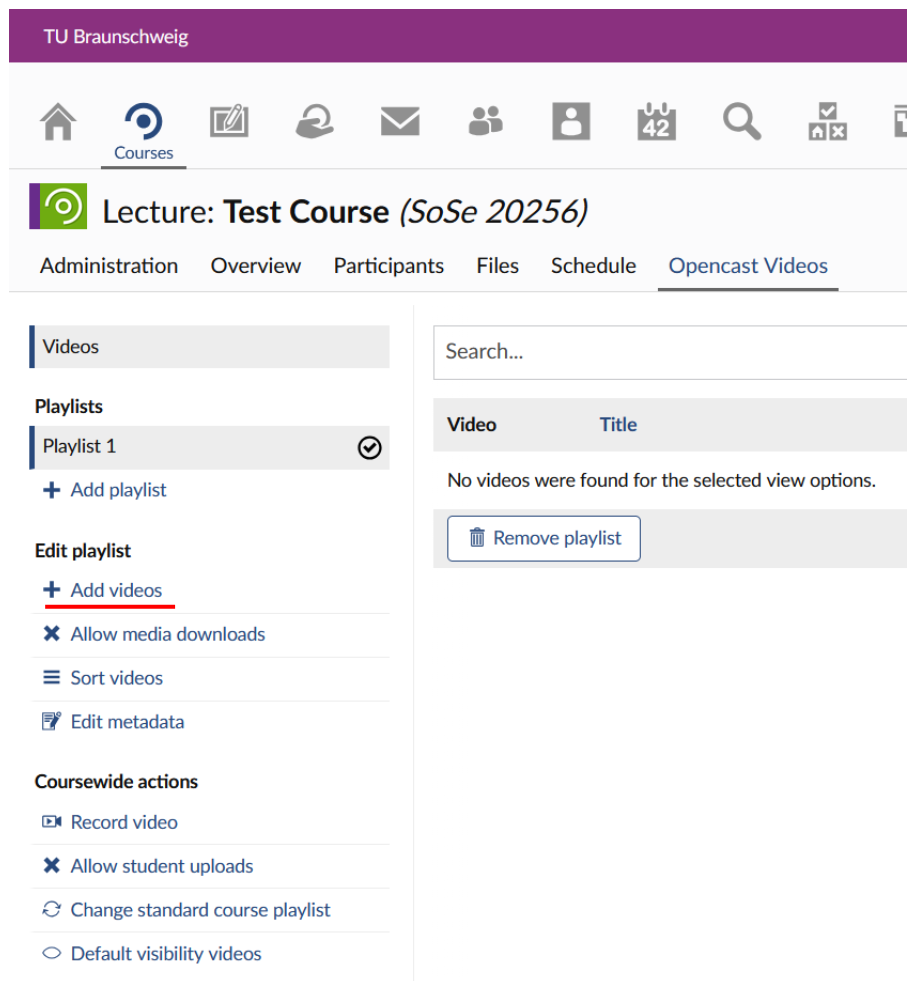
A new playlist called "Playlist 1" has been created.
You can now add videos to the playlist by clicking on "Add videos":
In the dialogue box that opens, you can now add videos from three different sources:
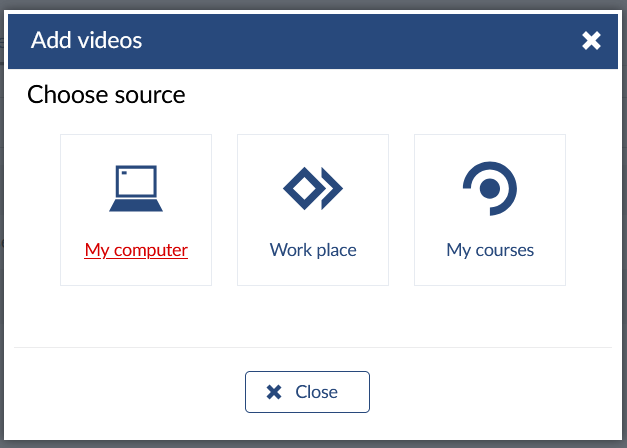
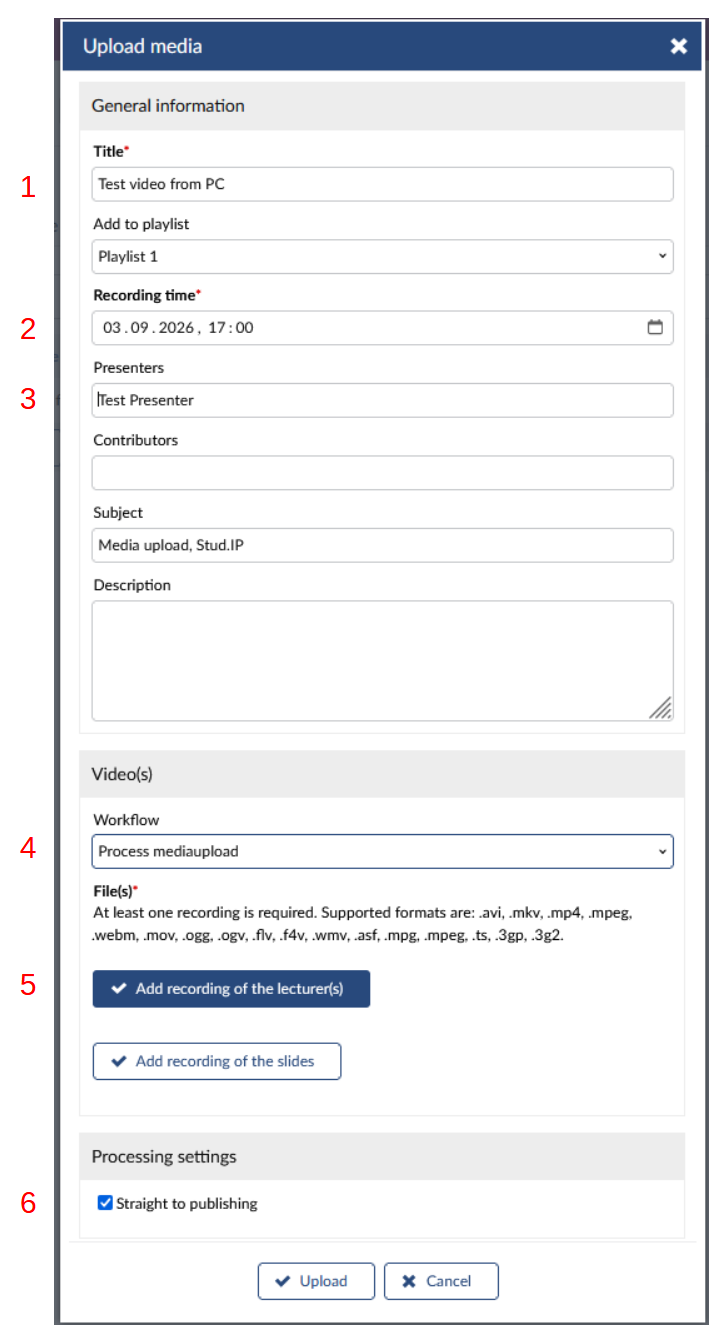
The following section describes how to upload a video from your computer (see the screenshot below):
Clicking "Upload" will then add the video to your playlist. It may take a while for the video to be processed and made available for playback in Stud.IP.
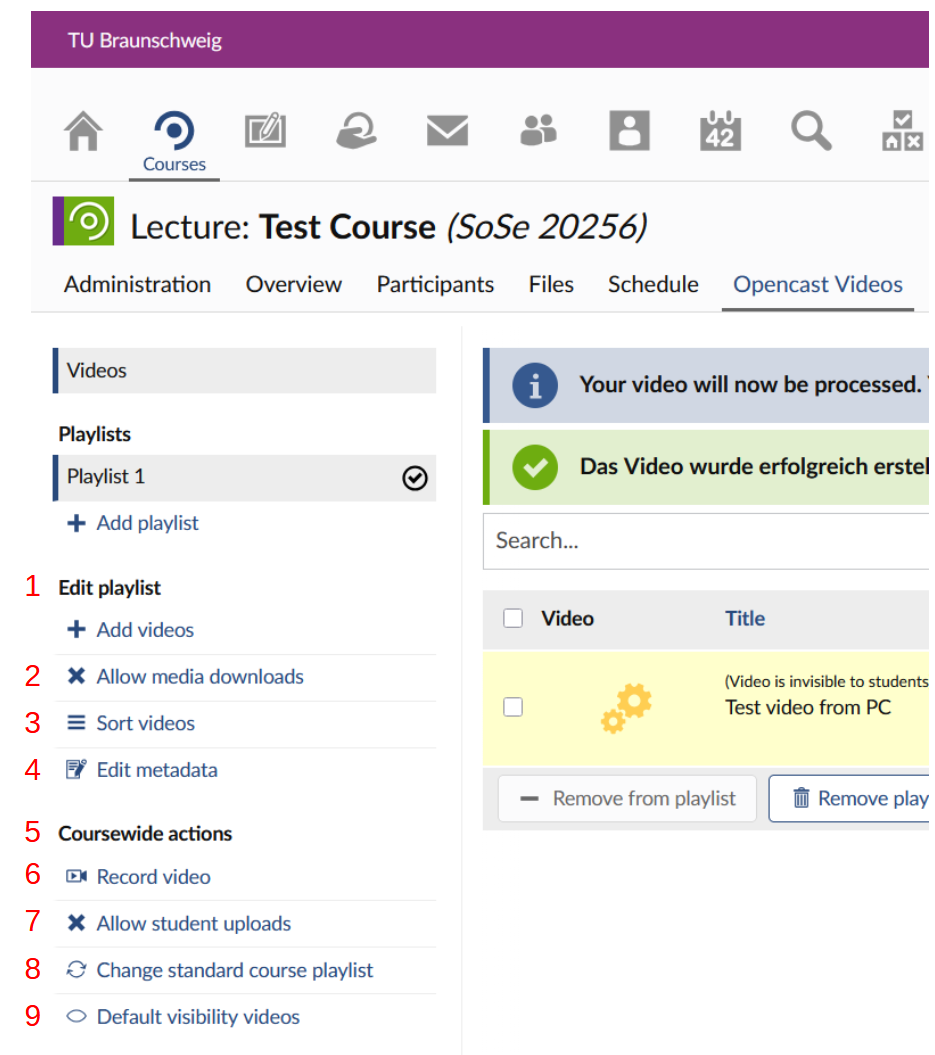
Further actions for course videos
In your events, you can carry out further actions under the "Opencast Videos" tab (see the screenshot below):
Actions for individual videos
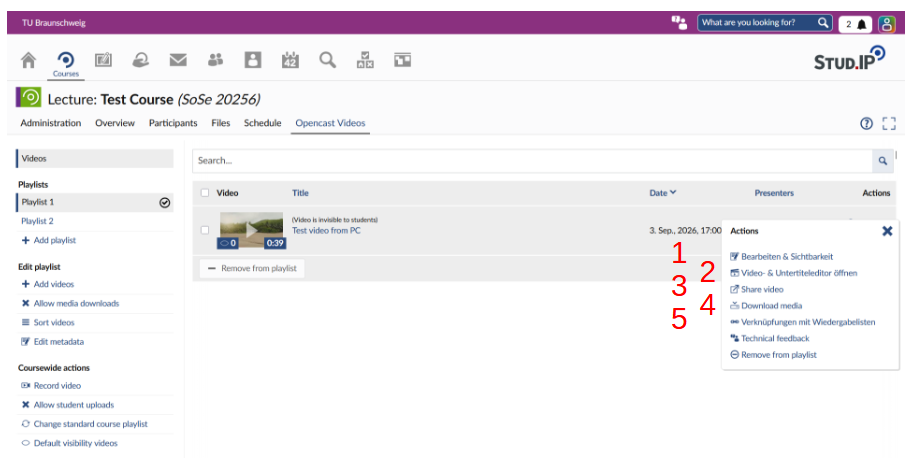
By clicking on the three dots arranged vertically one above the other on the right-hand side of a video row, you can carry out actions for each of your individual videos (see the screenshot below):
Important note: the scheduled visibility feature for videos is currently not working properly. Please set your video to visible or invisible manually, without timestamp. Here you can edit your video in a video editor Here you can share your video, for example by granting individual users read or write permissions Here you can download your video, in different resolutions if required Here you can add your video to more playlists