# Manage devices, add a new mobile device, or add a desktop application.

Please register with OWA **(or the SSO)** using the following link: [https://mail.tu-braunschweig.de](https://mail.tu-braunschweig.de)

[![kiKYsVOsPP9PBiWW-owa-anmelden.png](https://books.rz.tu-bs.de/uploads/images/gallery/2026-01/scaled-1680-/HLZZDwY9Hjie5fTL-kikysvospp9pbiww-owa-anmelden.png)](https://books.rz.tu-bs.de/uploads/images/gallery/2026-01/HLZZDwY9Hjie5fTL-kikysvospp9pbiww-owa-anmelden.png)

To log in, enter your TUBS ID in the format ad\\TUBS-ID and your password, then click **\[Anmelden\]**.

Afterward, you will be prompted for 2FA; please click **\[Weitere Optionen\]**.

[![619a4f21-a442-4700-bb81-b15d0bfd0e9f.png](https://books.rz.tu-bs.de/uploads/images/gallery/2026-02/scaled-1680-/tYlS2x1kGcVeQFor-619a4f21-a442-4700-bb81-b15d0bfd0e9f.png)](https://books.rz.tu-bs.de/uploads/images/gallery/2026-02/tYlS2x1kGcVeQFor-619a4f21-a442-4700-bb81-b15d0bfd0e9f.png)

Click on **\[Geräte verwalten\]**.

[![YDpu3p50MyQmM4nZ-push-benachrichtigung2.PNG](https://books.rz.tu-bs.de/uploads/images/gallery/2026-01/scaled-1680-/M8tzb8dCFfyWn08R-ydpu3p50myqmm4nz-push-benachrichtigung2.PNG)](https://books.rz.tu-bs.de/uploads/images/gallery/2026-01/M8tzb8dCFfyWn08R-ydpu3p50myqmm4nz-push-benachrichtigung2.PNG)

Confirm your identity using your preferred second factor.

[![Ovk8ovza6PQ2IqhW-push-benachrichtigung3.PNG](https://books.rz.tu-bs.de/uploads/images/gallery/2026-01/scaled-1680-/JFgQhefpOX73wCBK-ovk8ovza6pq2iqhw-push-benachrichtigung3.PNG)](https://books.rz.tu-bs.de/uploads/images/gallery/2026-01/JFgQhefpOX73wCBK-ovk8ovza6pq2iqhw-push-benachrichtigung3.PNG)

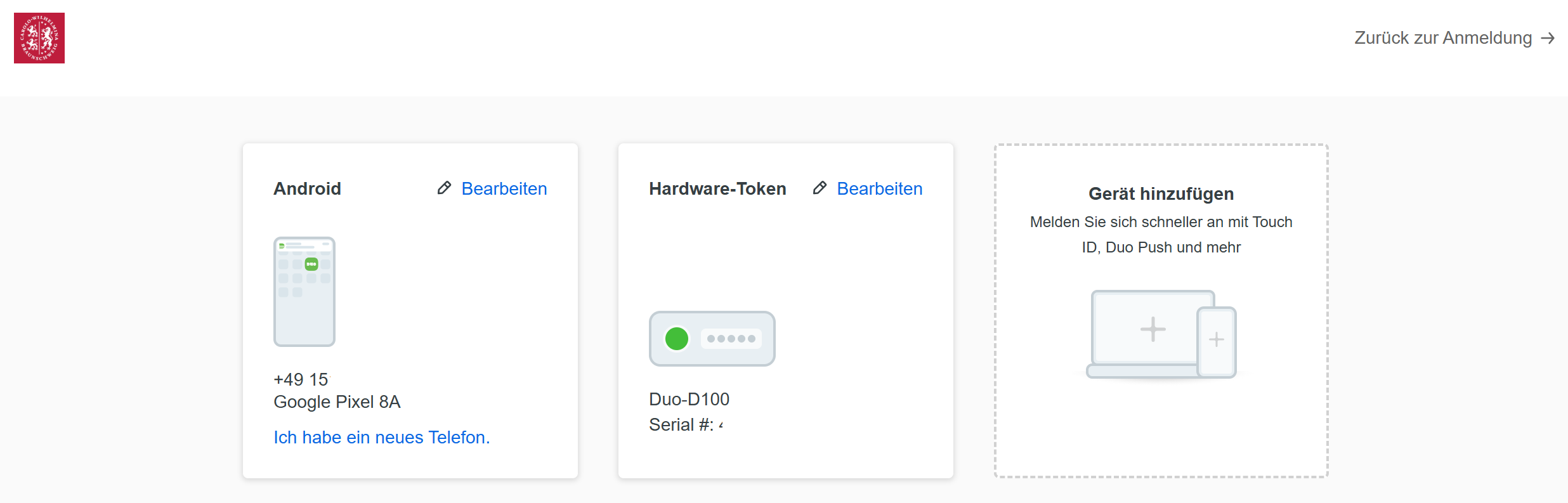
After that, you will be taken to the portal where you can manage your devices and add a new device.

<p class="callout danger">Note: To add a new device, you will need another second active factor.</p>

[![XxzNvZQTnWVWZOiw-push-benachrichtigung4.PNG](https://books.rz.tu-bs.de/uploads/images/gallery/2026-01/scaled-1680-/W6IhbEPQVsRxVZc3-xxznvzqtnwvwzoiw-push-benachrichtigung4.PNG)](https://books.rz.tu-bs.de/uploads/images/gallery/2026-01/W6IhbEPQVsRxVZc3-xxznvzqtnwvwzoiw-push-benachrichtigung4.PNG)

<p class="callout info">To add the desktop application, it must be installed and open on your computer. The desktop application does not currently work on Linux devices.</p>

If you already have the DUO app and have linked another account, please follow these steps to set up the second factor for TU Brunswig:

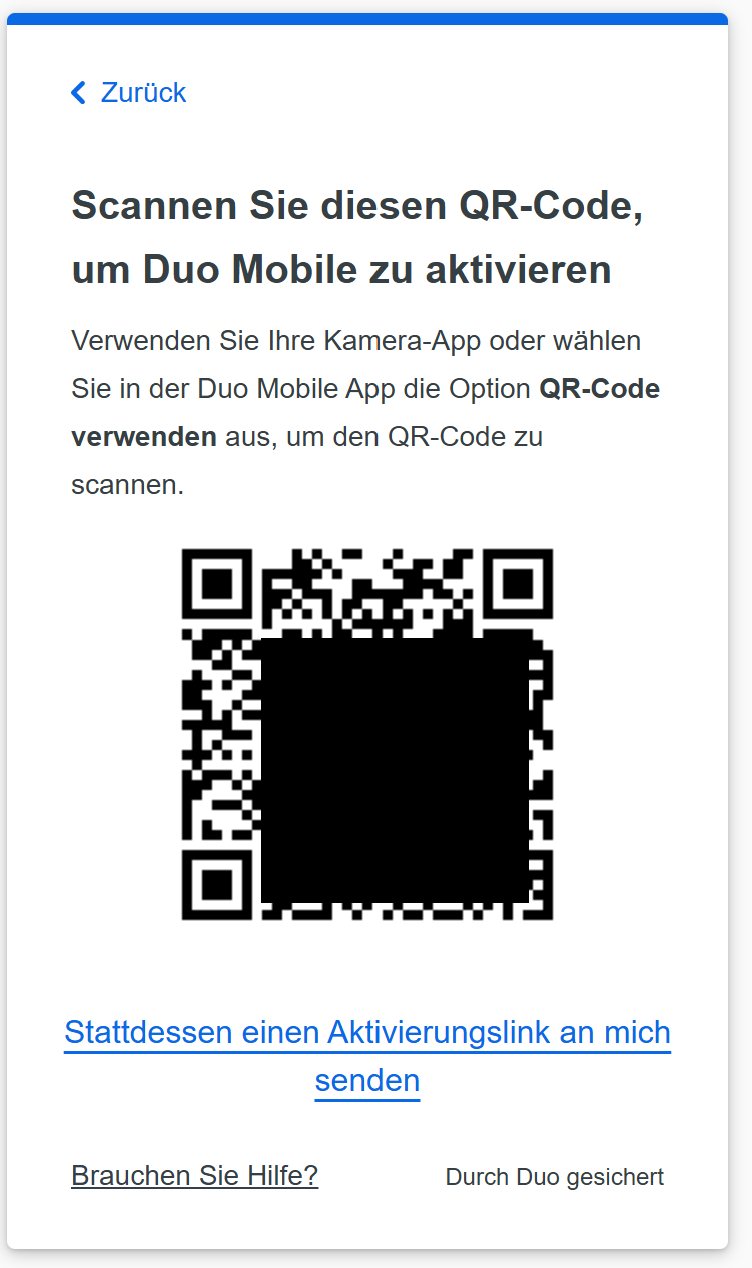
<table border="1" id="bkmrk-anschlie%C3%9Fend-%C3%B6ffnet-" style="border-collapse: collapse; width: 100%; border-width: 1px; border-style: hidden;"><tbody><tr><td>[![2FA_Owa_7.png](https://books.rz.tu-bs.de/uploads/images/gallery/2025-11/scaled-1680-/WKggg0Vp59MvKvD9-2fa-owa-7.png)](https://books.rz.tu-bs.de/uploads/images/gallery/2025-11/WKggg0Vp59MvKvD9-2fa-owa-7.png)</td><td>A window will then open displaying a QR code. Please leave this window open and switch to the **Duo Mobile app** on your smartphone.

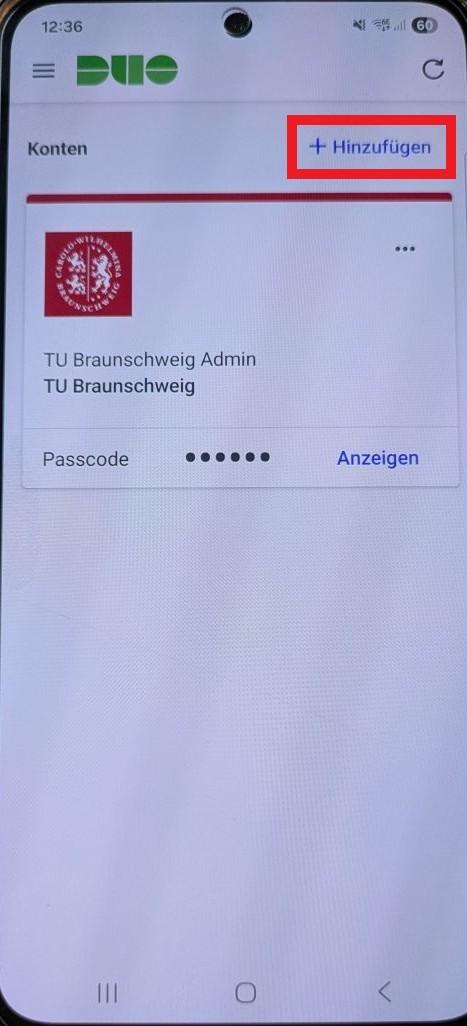
</td></tr><tr><td>[![2FA_App1.jpg](https://books.rz.tu-bs.de/uploads/images/gallery/2025-11/scaled-1680-/h2pZqIIQ4QTZgLwQ-2fa-app1.jpg)](https://books.rz.tu-bs.de/uploads/images/gallery/2025-11/h2pZqIIQ4QTZgLwQ-2fa-app1.jpg)  
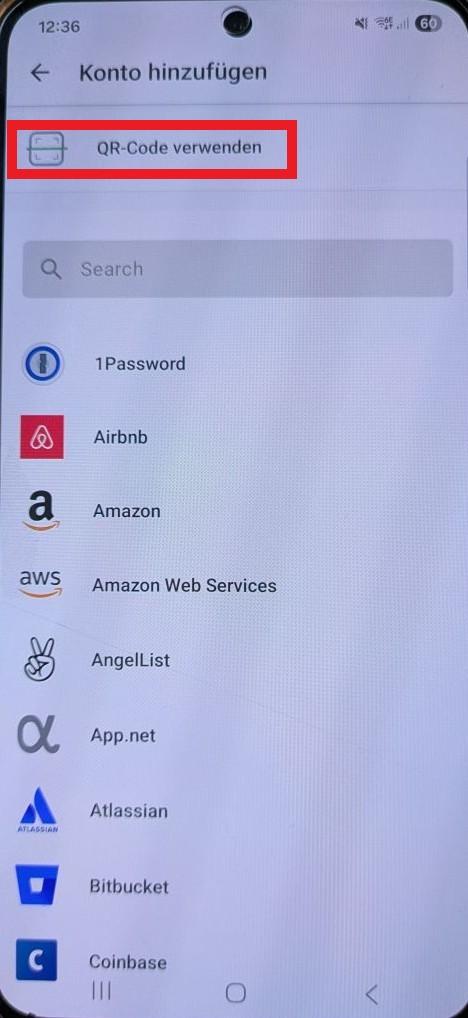
</td><td>Click **\[+Hinzufügen\]**.</td></tr><tr><td>[![2FA_App2.jpg](https://books.rz.tu-bs.de/uploads/images/gallery/2025-11/scaled-1680-/9h13O7DKyRvA7xc0-2fa-app2.jpg)](https://books.rz.tu-bs.de/uploads/images/gallery/2025-11/9h13O7DKyRvA7xc0-2fa-app2.jpg)</td><td>Choose **\[QR Code verwenden\]**.</td></tr><tr><td>  
</td><td>- Scan the QR code displayed in your web browser with the **DUO Mobile app**.

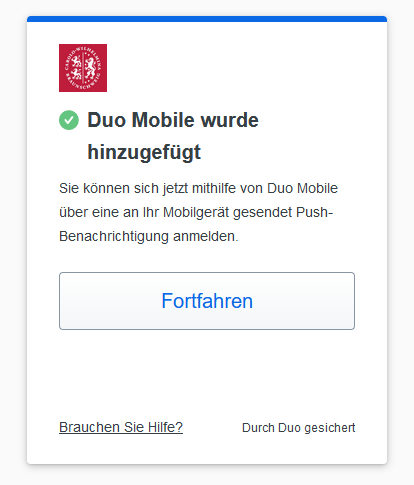
</td></tr><tr><td>[![2024-05-29_12_43_32-Duo_Security___Gerätemanagement___Mozilla_Firefox.png](https://books.rz.tu-bs.de/uploads/images/gallery/2024-05/scaled-1680-/HYm5WxKEcnCPnpmc-2024-05-29-12-43-32-duo-security-geratemanagement-mozilla-firefox.png)](https://books.rz.tu-bs.de/uploads/images/gallery/2024-05/HYm5WxKEcnCPnpmc-2024-05-29-12-43-32-duo-security-geratemanagement-mozilla-firefox.png)</td><td>Click \[**Fortfahren**\]. Done! </td></tr></tbody></table>