Stud.IP messages do not replace your email inbox. Important information—for example, from the Office of Student Registration or the library—is always sent to your official TU email address. In addition, some instructors will respond to your messages via email. These responses will also only appear in your email inbox. Many departments do not check messages in Stud.IP and can therefore only be reached via email. Therefore, it is important that you check your email regularly. You can find more information about emails here: [https://books.rz.tu-bs.de/books/e-mail](https://books.rz.tu-bs.de/books/e-mail)
## Subscribing to the Calendar Your **timetable** is located under the “Planner” tab in the top menu. There you can see your schedule for this semester. You can also add your own events to this weekly overview. To do so, click “New entry” on the left. [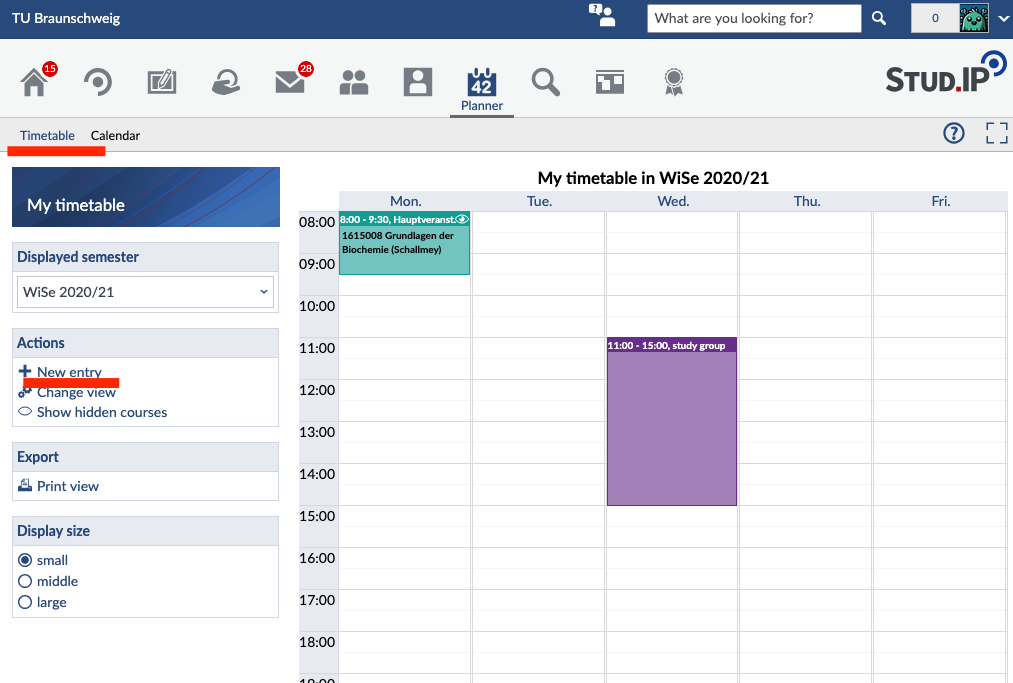](https://books.rz.tu-bs.de/uploads/images/gallery/2026-07/1R0nTnvpkhDIImCe-image028.png) In the **cale**ndar, you can view the exact dates and times of your events. To create a link that lets you sync your calendar with an external calendar app, click “Share calendar” and then “Link to this calendar.” This way, you can keep track of your semester schedule and quickly see which dates are scheduled and which ones have been canceled. [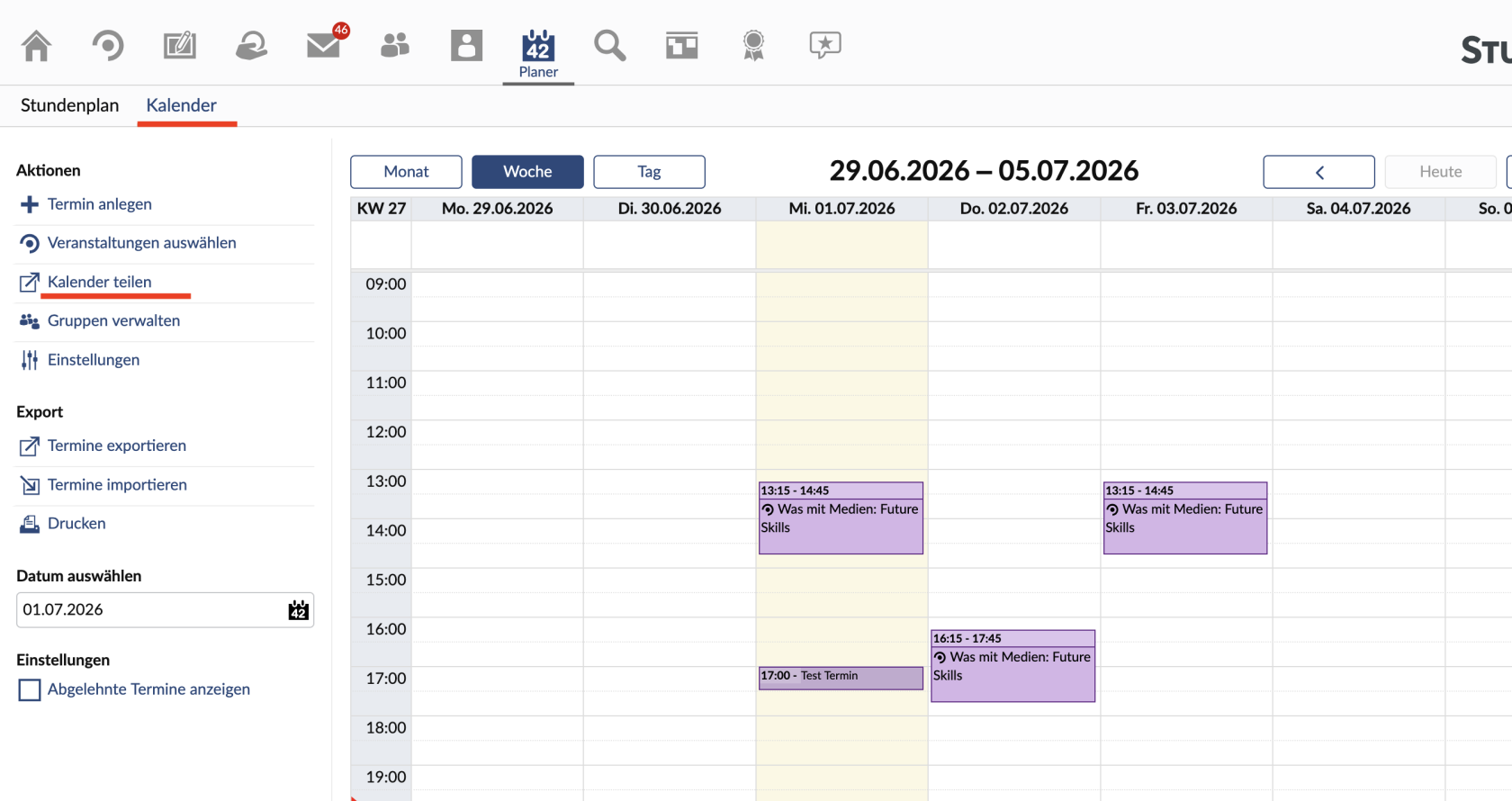](https://books.rz.tu-bs.de/uploads/images/gallery/2026-07/n2ewe0EuiQykFOEW-image009.png) ## Blubber Blubber is the chat feature in Stud.IP. You can use it to “blubber” (think: to babble) with other users. Under the „Community“ tab, you’ll find the Global Blubber. All members of TU Braunschweig can access it. You can use it to discuss topics that interest you, share polls, or ask questions about studying in Braunschweig. In the menu on the left, you can also switch between the global Blubber and the Blubbers of your courses. The posts there are only visible within the respective course and can be used for teaching purposes. Teaching staff decides whether Blubber is available in a course. [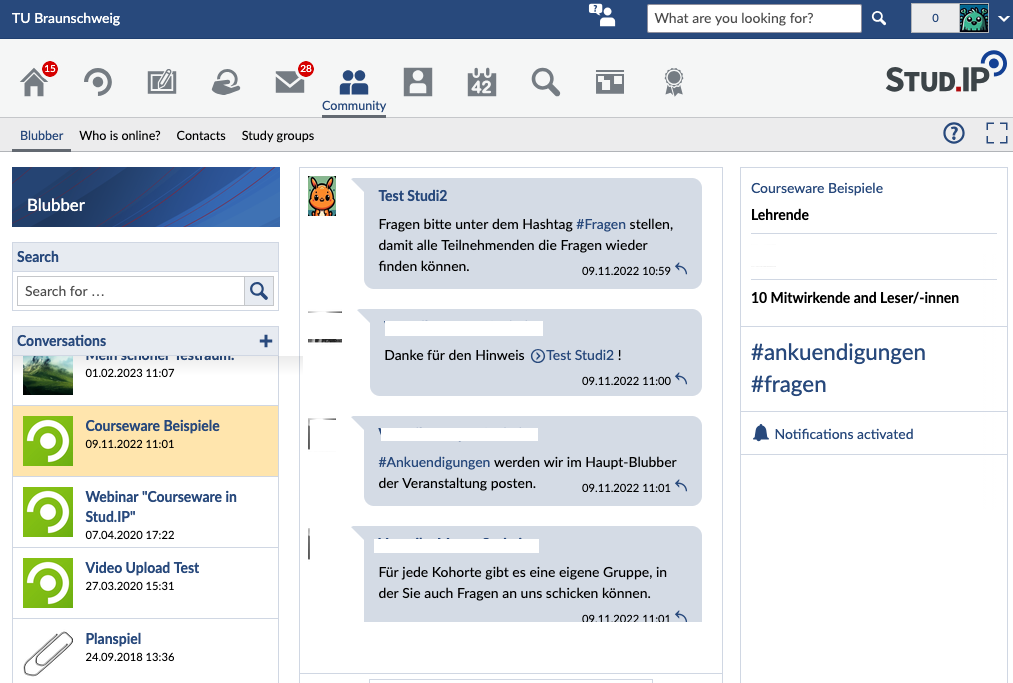](https://books.rz.tu-bs.de/uploads/images/gallery/2026-07/LK5LsLM83HVE9cRt-image029.png) New messages appear instantly without you having to refresh the page. In addition to short texts, you can also share images, videos, and other files. To do so, click the upload button or drag and drop the file into the chat window.Please note that posts that violate the values of TU Braunschweig will not be tolerated. Such content will be removed without comment.
## Announcements Announcements can be found on the Stud.IP start page after you log in. In addition to important information about the platform, you’ll find information about events and offers from university-affiliated organizations. The start page also features advertising banners placed by university-affiliated organizations. Announcements and advertising banners are subject to set rules. [We’ve compiled these rules for you here.](https://books.rz.tu-bs.de/books/studip/page/en-announcements-and-banners) [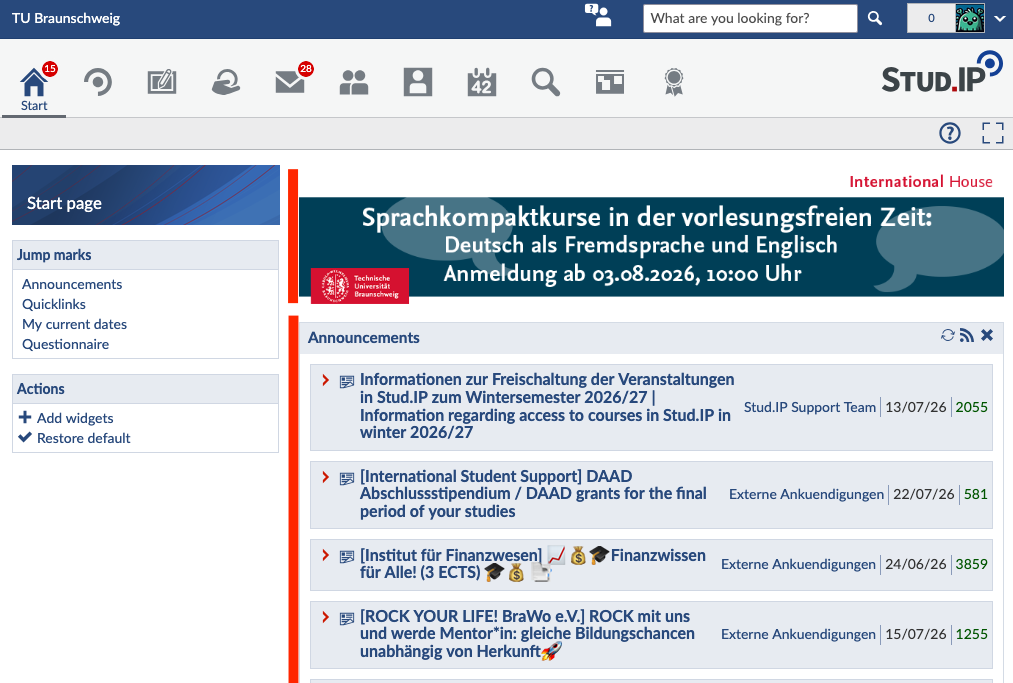](https://books.rz.tu-bs.de/uploads/images/gallery/2026-07/W4jqILqlO0NNY3RZ-image030.png) ## Notice Board The notice board is open to everyone at TU Braunschweig. You can use it to buy, sell, or give away items such as books, electronics, concert tickets, or furniture. You’ll also find carpool opportunities, study groups, and housing listings there. Additionally, you can participate in surveys or find inspiration for your thesis. Important: Please follow the rules posted directly on the notice board. [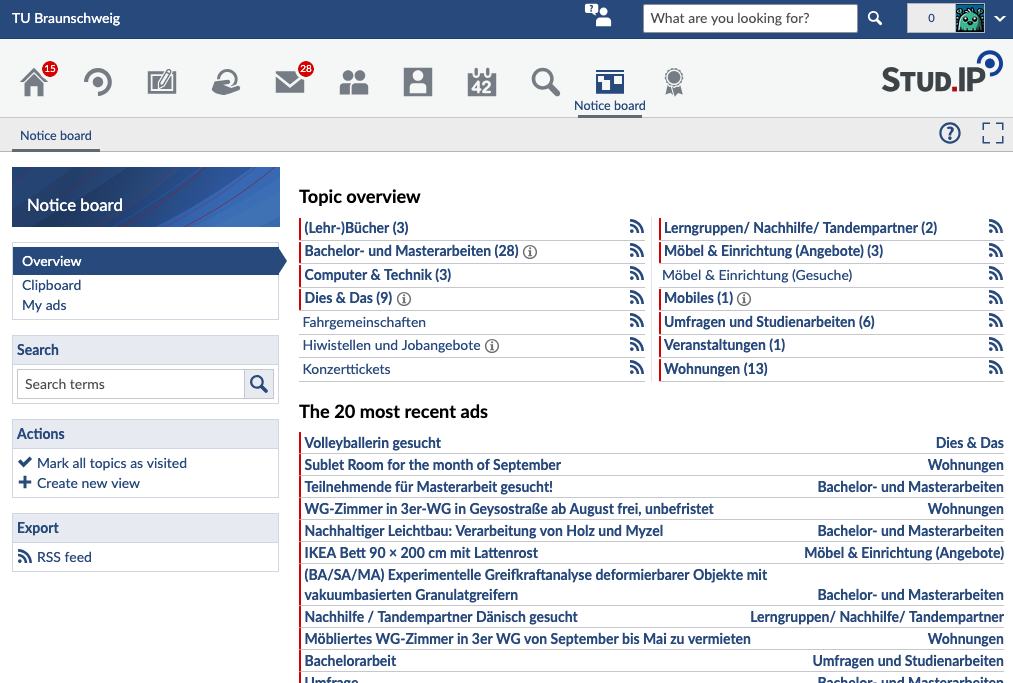](https://books.rz.tu-bs.de/uploads/images/gallery/2026-07/elOIRiSAjq0s0ywI-image031.png) ## Office Hours Teaching staff can offer office hours on their Stud.IP profile. Many are already using this feature. If you’d like to schedule an office hour appointment, you can do so on the teaching staff member’s profile under “Terminvergabe“. If this tab isn’t displayed, the teaching staff member isn’t using this feature. [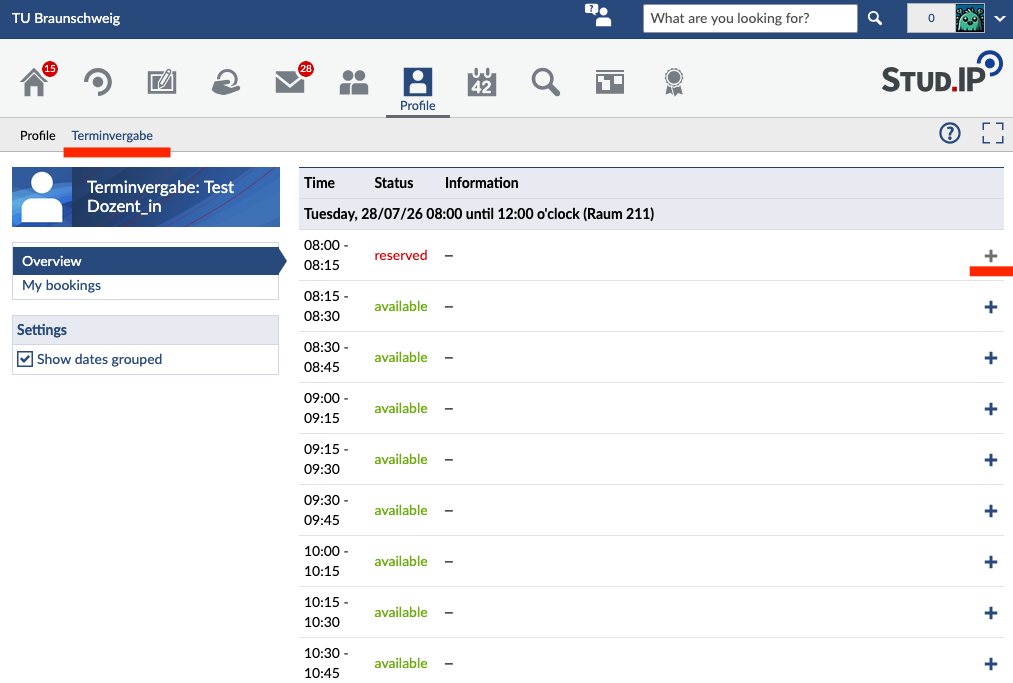](https://books.rz.tu-bs.de/uploads/images/gallery/2026-07/9ZFdY7GxxQmCKmV9-image032.png) You can book a new appointment by clicking the + on the right. Enter the reason you'd like to book the appointment in the pop-up window. [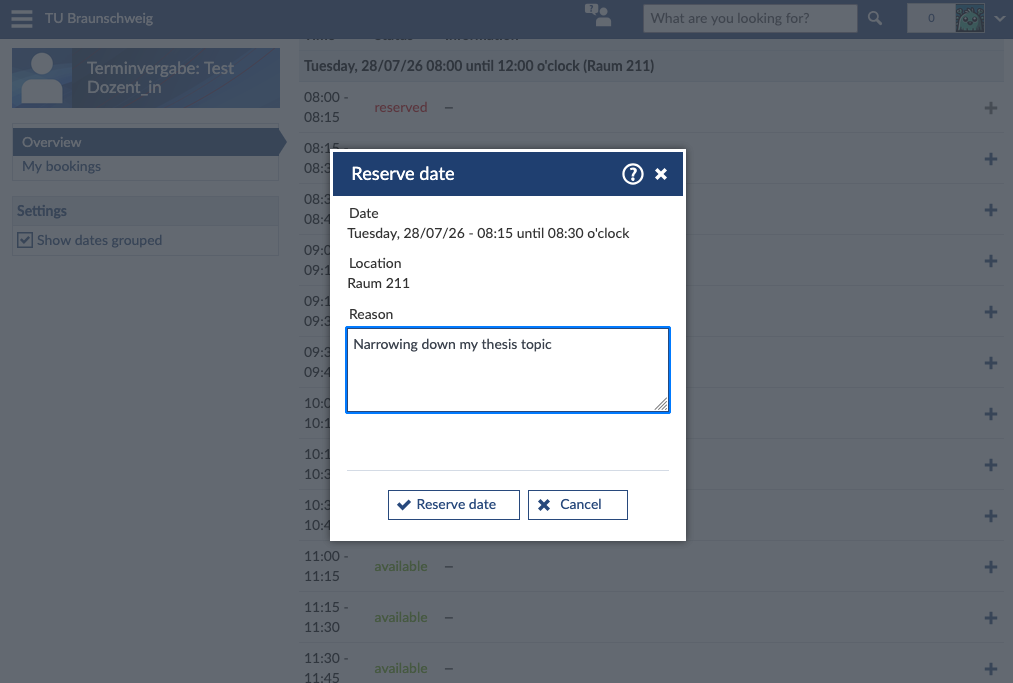](https://books.rz.tu-bs.de/uploads/images/gallery/2026-07/B2Qzu1TFKrUS8zLw-image033.png) Once you've clicked “Reserve Appointment,” the appointment is booked for you and is no longer available to other students. However, this does not apply if the teaching staff has explicitly stated that multiple people can participate in an appointment at the same time. You can delete the appointment at any time by clicking the trash can icon next to your booking.