Hinweis: Aus TUConnect übertragene Inhalte können wie gehabt nicht überschrieben werden. Wir arbeiten aktuell daran, diese Inhalte ebenfalls zweisprachig zu übertragen.
## Neues in der Courseware Die Courseware wurde um einige praktische Funktionen erweitert, die Ihnen die Navigation erleichtern. Inhaltlich bleibt jedoch fast alles unverändert. ### Verknüpfung von Lernmaterialien Sie können jetzt direkt über das Inhaltsverzeichnis einer Courseware auf alle Lernmaterialien der Lehrveranstaltung zugreifen. Klicken Sie dazu auf das Symbol für das Inhaltsverzeichnis, wählen Sie den Reiter „Lernmaterialien“ und sehen Sie alle verfügbaren Materialien auf einen Blick. Das spart den Umweg über die Courseware-Übersichtsseite, wenn Sie zwischen den Lehrmaterialien wechseln. [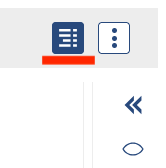](https://books.rz.tu-bs.de/uploads/images/gallery/2026-09/S7oCQt3wzfKWVYwg-bildschirmfoto-2026-09-08-um-16-01-40.png) Andere Lernmaterialien in derselben Lehrveranstaltung lassen sich jetzt direkt in Ihren Inhalten verlinken. Das ist besonders praktisch, wenn Sie Materialien zu unterschiedlichen Themen als einzelne Courseware anlegen und diese dann miteinander verknüpfen möchten. Um diese Funktion zu nutzen, fügen Sie einen Link-Block in die Courseware ein und wählen als „Art des Links“ „Lernmaterial in der Veranstaltung“ aus. [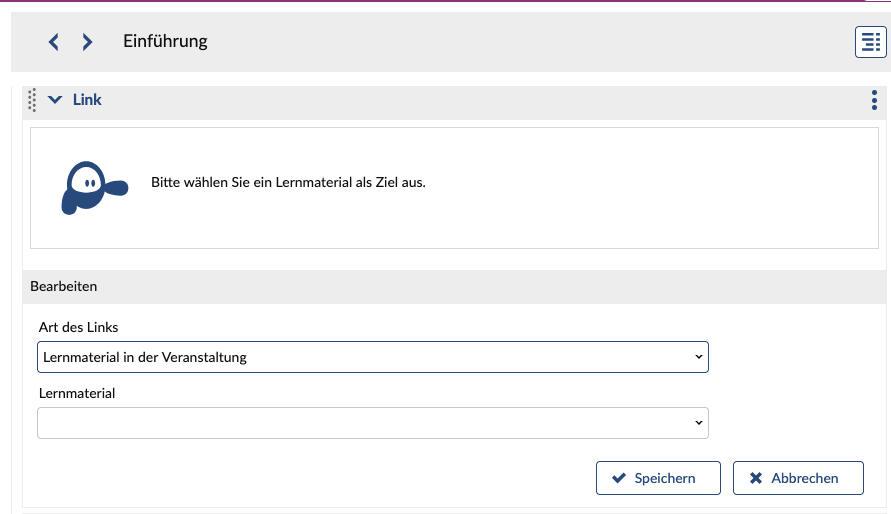](https://books.rz.tu-bs.de/uploads/images/gallery/2026-09/7CoZ8FCGvGOrM0Ha-bildschirmfoto-2026-09-08-um-16-03-07.png) ### Sichtbarkeiten und Bearbeitungsrechte Die Verwaltung von Rechten und Sichtbarkeiten wurde überarbeitet und ist jetzt intuitiver. Sie finden sie nun auf der Übersichtsseite der Lernmaterialien in „Courseware“ im Hauptmenü „Aktionen“ (gekennzeichnet mit den drei Punkten). [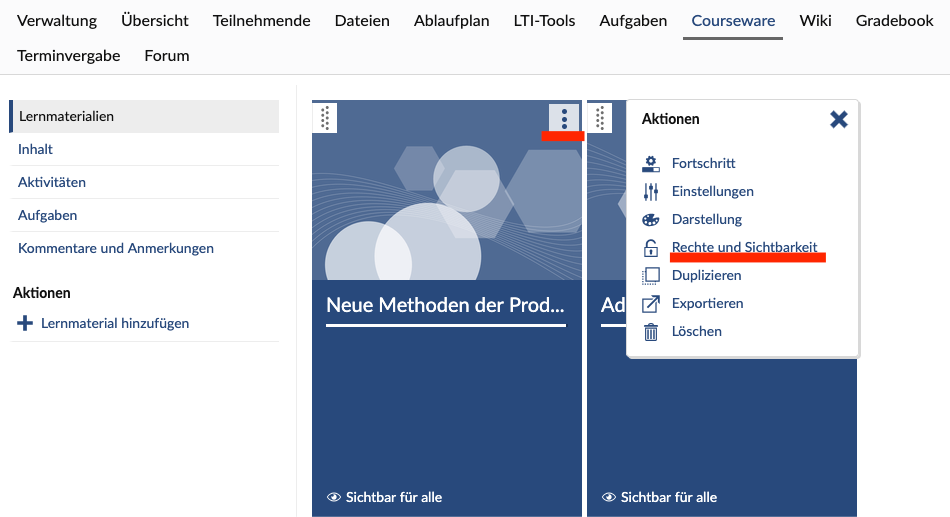](https://books.rz.tu-bs.de/uploads/images/gallery/2026-09/HD7g5uH9AC31KB8w-bildschirmfoto-2026-09-08-um-15-46-23.png) In dem Menü „Rechte und Sichtbarkeit“ können Sie festlegen, wer die Courseware sehen und bearbeiten darf. Wählen Sie in dem Fenster „Ausgewählte Studierende“ oder „Gruppen“, können Sie im nächsten Schritt die betroffenen Personen bzw. Gruppen auswählen. „Alle Studierenden“ meint hier alle für die Veranstaltung angemeldeten Studierenden. [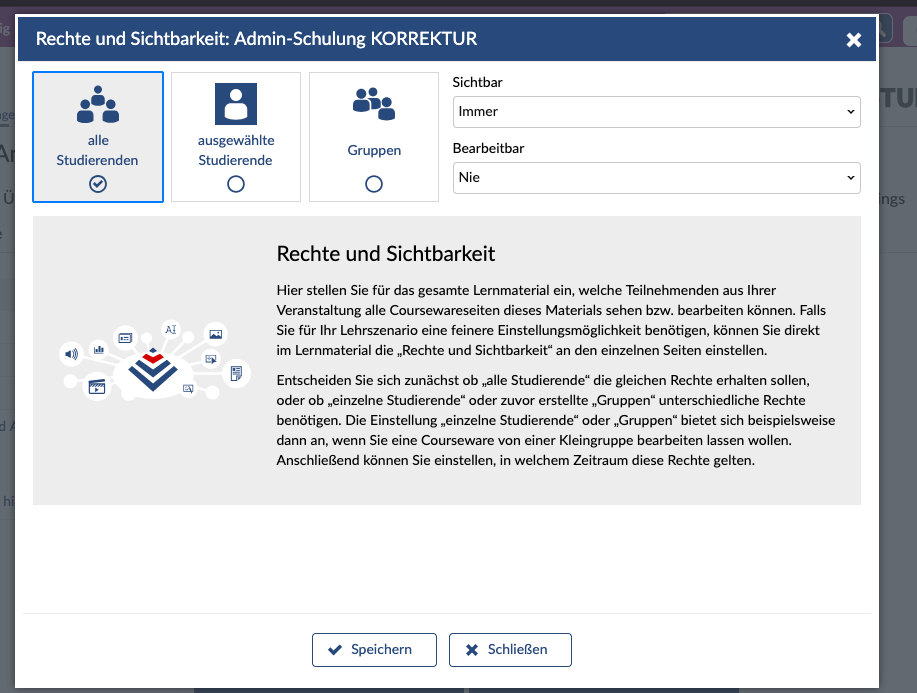](https://books.rz.tu-bs.de/uploads/images/gallery/2026-09/4U21Xy0YwhHpakRg-bildschirmfoto-2026-09-08-um-15-48-35.png) ### Blubber-Block in der Courseware Sie können jetzt einen Blubber-Block in Ihre Courseware einfügen, um eine neue Diskussion direkt in Ihren Lernmaterialien zu starten. Der Blubber der Veranstaltung und der Blubber-Block in der Courseware können parallel genutzt werden, es finden aber getrennte Diskussionen statt. [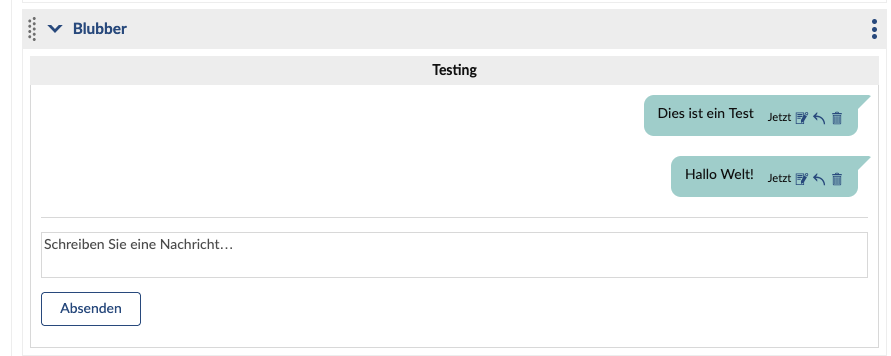](https://books.rz.tu-bs.de/uploads/images/gallery/2026-09/VediR5lhi4GdtBp8-bildschirmfoto-2026-09-08-um-16-04-36.png)Hier gibt es aktuell noch Probleme: Wenn Sie eine Person mit @ im Courseware-Blubber anschreiben, erhält diese eine Benachrichtigung, verlinkt ist dort aber aktuell noch der Veranstaltungs-Blubber, nicht der Courseware-Blubber. Wir arbeiten an der Problemlösung.
### Lernmodul-Block Mit dem Lernmodulblock können Sie nun direkt in der Courseware kleine Lernspiele wie Memory, Lückentexte oder interaktive Videos erstellen. Sie finden die Lernmodulblöcke in der Blockauswahl der Courseware mit dem Präfix „LMB". [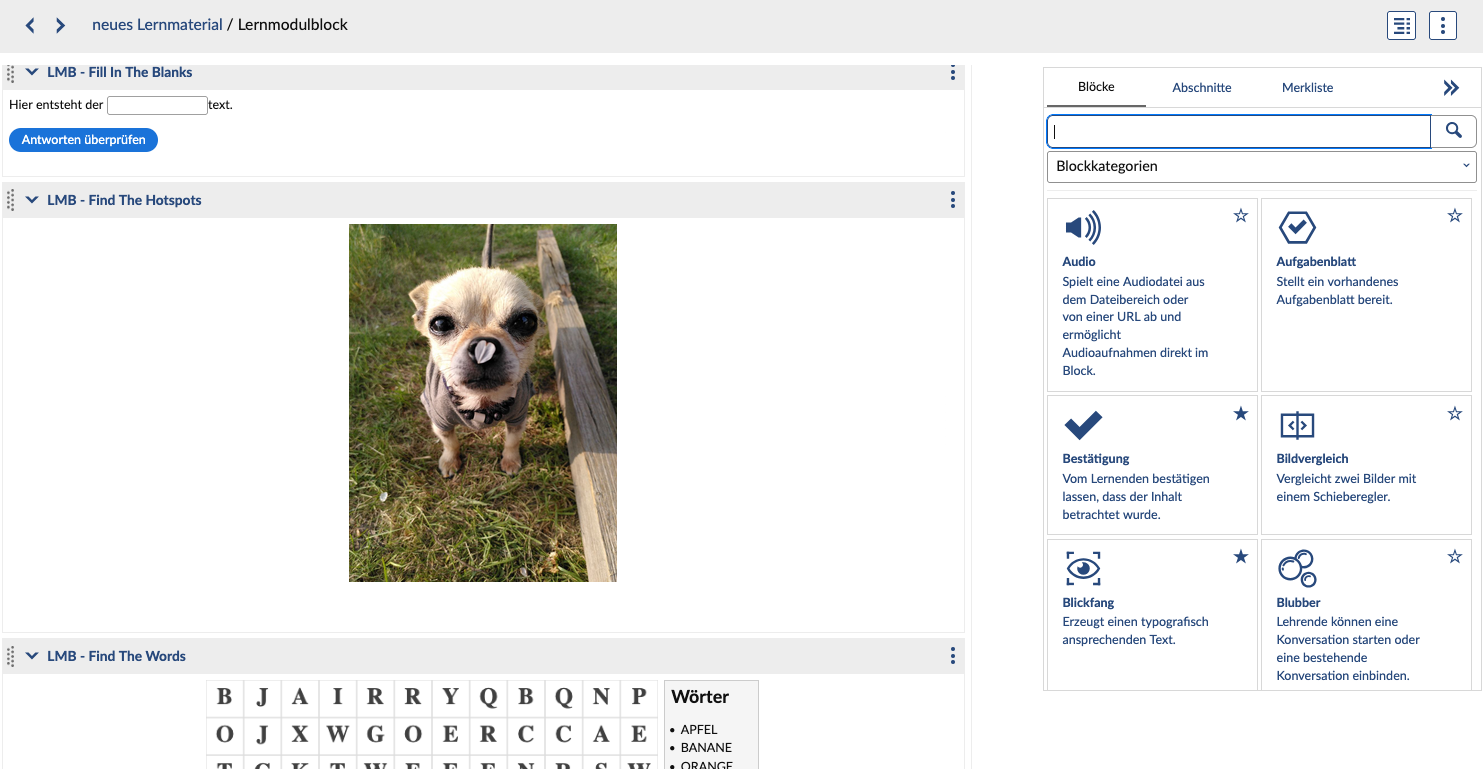](https://books.rz.tu-bs.de/uploads/images/gallery/2026-10/nU2Im13zxZ0l8blm-bildschirmfoto-2026-10-01-um-14-08-55.png)Lernmodule können im Reiter "Lernmodule" nun über zwei Wege erstellt werden: Einmal über den "Stud.IP H5P Editor" (hier baut Stud.IP eigene Module ähnlich zu H5P) und einmal über den "Editor" (hier werden H5P Module gebaut). Diese Lernmodule können aber nicht in die Courseware eingebaut und nur in dem Reiter selbst bearbeitet werden.
Lernmodule müssen nach dem Update neu in die Courseware eingebunden werden, weil sich die URL geändert hat.
### Peer Review in der Courseware Mit der neuen Peer-Review-Funktion können Teilnehmende ihre Aufgaben gegenseitig bewerten. Um dies einzuschalten, gehen Sie im Menü „Courseware“ links im Menü auf „Aufgaben“ und erstellen eine Aufgabe. Der Assistent führt Sie durch die nötigen Schritte. Nachdem die Aufgabe angelegt wurde, können Sie im Menü „Aufgaben“ auf den Titel Ihrer Aufgabe klicken. Daraufhin sehen Sie, an welche Studierenden die Aufgabe verteilt wurde. Darunter oder links im Menü können Sie das Peer-Review-Verfahren aktivieren und weitere Einstellungen dazu vornehmen. [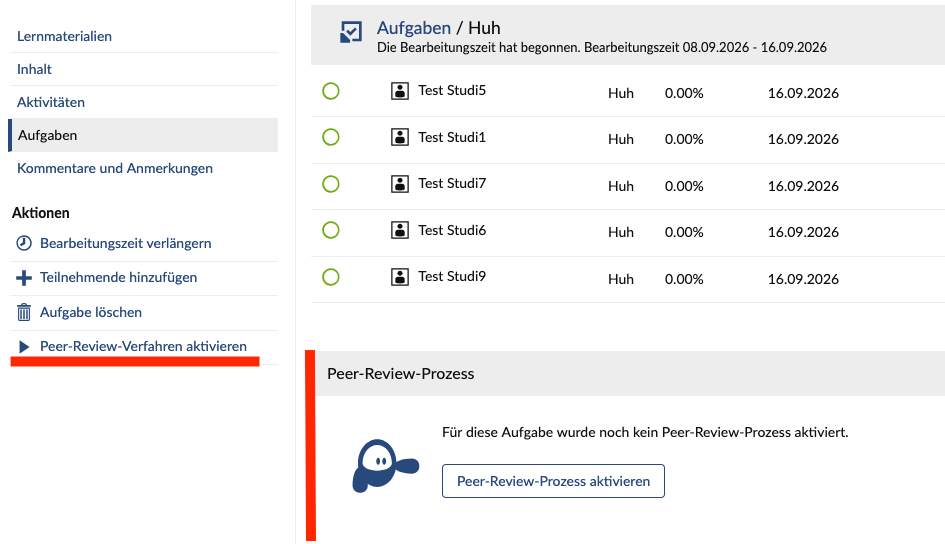](https://books.rz.tu-bs.de/uploads/images/gallery/2026-09/yHYwffJQTUWG9dIH-bildschirmfoto-2026-09-08-um-16-27-46.png) Die Reviewphase beginnt automatisch einen Tag nach Ende der Abgabefrist. Die Zeiträume für Aufgaben und Reviews können jeweils zu vollen Tagen festgelegt werden. Die Reviews werden einen Tag nach Ende des Review-Zeitraums für die jeweilige Person sichtbar.Nach Beginn des Reviewzeitraums können manuelle Paarungen nicht mehr geändert werden. Reviews können während des Reviewzeitraums beliebig oft geändert werden.
## Von ViPS zu Aufgaben ViPS hat einen neuen Namen bekommen und heißt jetzt „Aufgaben“. In Ihrer Veranstaltung finden Sie die Funktion unter der Kachel „Aufgaben und Prüfungen“. [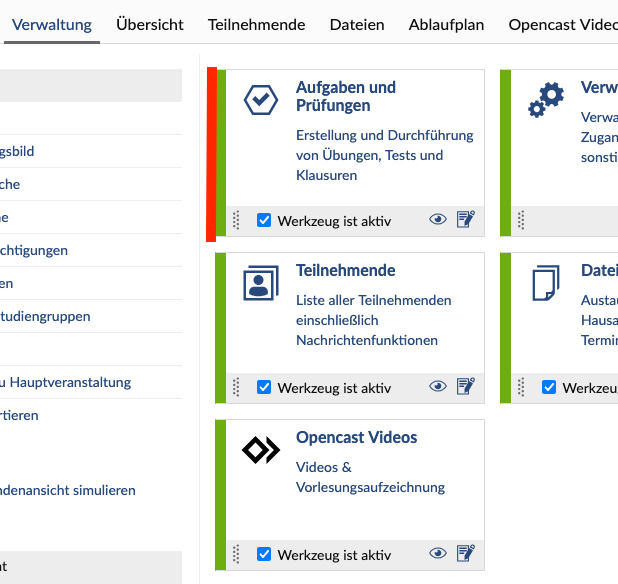](https://books.rz.tu-bs.de/uploads/images/gallery/2026-09/PA8yhTDp0MaddBGr-bildschirmfoto-2026-09-08-um-16-30-51.png) Der Funktionsumfang ist gleich geblieben, sodass Sie wie gewohnt Online-Aufgaben, Testfragen und ganze Übungsklausuren erstellen und verwalten können.Wichtig: Stud.IP ist auch weiterhin nicht als Prüfungssystem an der TU zugelassen.
Sie können Abgaben und Ergebnisse bequem administrieren und verschiedene Aufgabentypen nutzen (Multiple Choice, Freitext, Lückentext usw.). Aufgaben lassen sich zu Aufgabenblättern zusammenstellen, und geschlossene Aufgabenformate werden automatisch bewertet. Bei der Erstellung eines Aufgabenblatts finden Sie die Aufgaben nun wie bei Courseware und dem Wiki im Inhaltsverzeichnis. ## Ein neues Forum Das Forum wurde in Stud.IP 6 komplett neu gestaltet. Sie können Themen jetzt effizienter bündeln und mit Kategorien arbeiten. Neben dem neuen Kachel-Layout steht weiterhin die klassische Listenansicht zur Verfügung. Ein Thema dient als Überordner für mehrere Diskussionen, und mehrere Themen lassen sich optional in Kategorien gruppieren. Die Themenübersicht in der linken Sidebar ist gleichzeitig die Startseite des Forums – so haben Sie alles im Blick. Neue Diskussionen starten Sie einfach über „+ Eine Diskussion starten“. [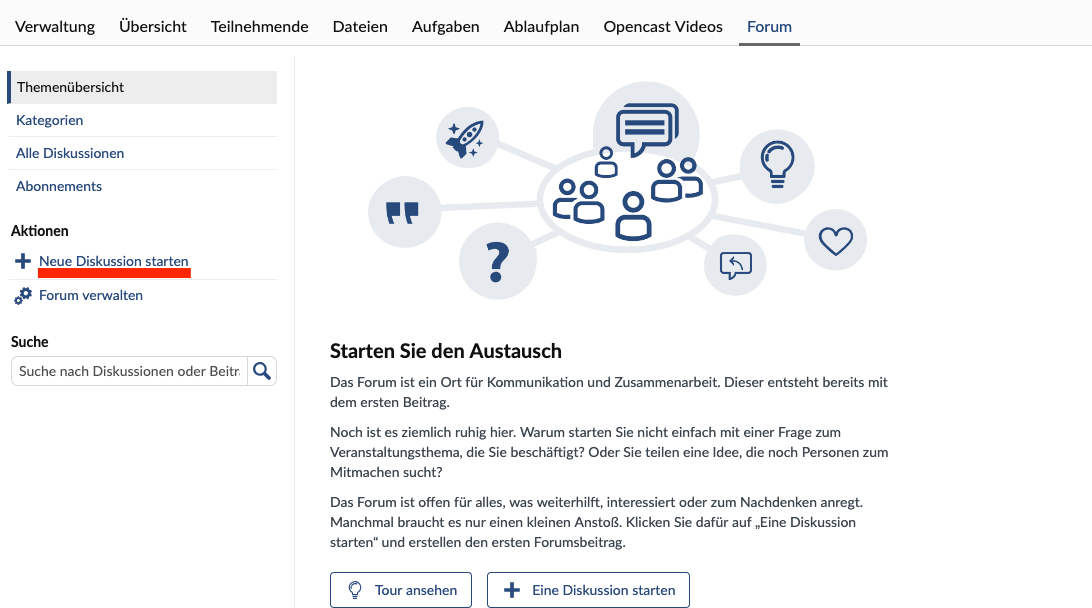](https://books.rz.tu-bs.de/uploads/images/gallery/2026-09/D6Cz4Z0CRhvbXEuP-bildschirmfoto-2026-09-08-um-16-53-24.png) ## Etherpads Die bisher bereitgestellte Version des Etherpads wird in den kommenden Monaten abgeschaltet. Da die Inhalte nicht automatisch übertragen werden können, müssen Sie Ihre Etherpads selbstständig in die neue Version umziehen. Nur so können Sie nach dem Wintersemester 2026/27 weiterhin darauf zugreifen. Sie erkennen die alte Version daran, dass sie in der Veranstaltung mit „Etherpad (alt)“ gekennzeichnet ist. [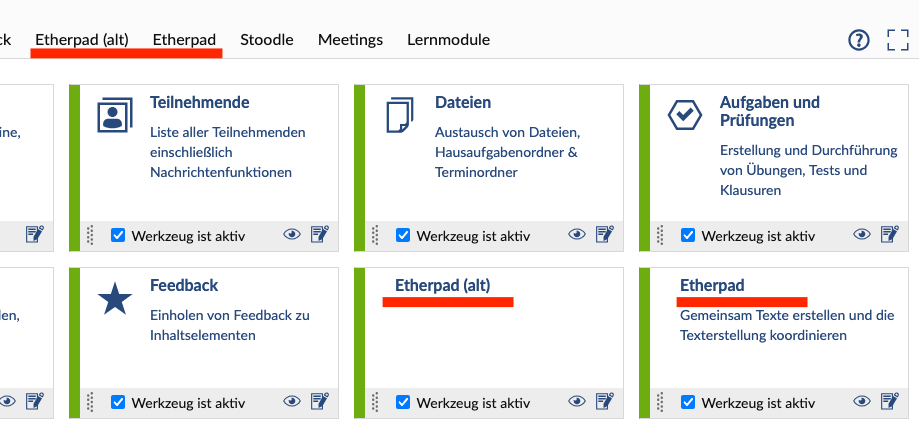](https://books.rz.tu-bs.de/uploads/images/gallery/2026-10/eA8rQGkswEImv8We-bildschirmfoto-2026-10-01-um-13-49-54.png)Nach dem Wintersemester 2026/27 sind Etherpads nur noch für Personen verfügbar, die in Stud.IP eingeloggt sind. Wenn Sie Inhalte mit externen Personen teilen möchten, empfehlen wir Ihnen, stattdessen eine Dokumentenfreigabe über die Nextcloud einzurichten oder HedgeDoc in der Academic Cloud zu nutzen.
Bei Fragen zum Etherpad wenden Sie sich gerne an den [IT Service Desk.](https://www.tu-braunschweig.de/it/it-service-desk)
## PDF-Werkzeuge im Dateibereich PDF-Dateien lassen sich direkt im Dateibereich korrigieren, annotieren und kommentieren. Die bearbeitete Version wird als neue Version gespeichert, sodass vorherige Versionen erhalten bleiben. Klicken Sie einfach auf den Namen der PDF-Datei und wählen Sie dann „PDF-Werkzeuge“ aus. [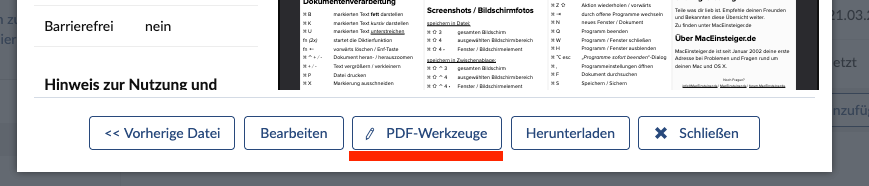](https://books.rz.tu-bs.de/uploads/images/gallery/2026-09/ElnqvVbVq9URhHja-bildschirmfoto-2026-09-08-um-16-58-26.png)Wichtig: Diese Funktion ist aktuell kaputt und wird von unserem Dienstleister bearbeitet
## Studiengruppen neu gedacht Studiengruppen wurden in Stud.IP 6 deutlich überarbeitet und bieten jetzt mehr Flexibilität. Der Anlegeassistent wurde überarbeitet, und Sie können dort jetzt auch die zugehörige Veranstaltung, Studiengänge, Schlagworte und einen Avatar eingeben.[Wie Studiengruppen angelegt werden, ist in diesem Artikel erklärt. ](https://books.rz.tu-bs.de/books/studip/page/de-studiengruppen-in-studip)
Studiengruppen erhalten ein Ablaufdatum, das aber auch unbegrenzt sein darf. Um dies umzusetzen, wird das Feld für das Ablaufdatum einfach freigelassen. Standardmäßig wird das Ende des nächsten Semesters eingestellt. Vier Wochen vor Ablauf werden Sie benachrichtigt, damit Sie das Datum bei Bedarf ändern können. Nach dem Ablauf wird die Gruppe automatisch gelöscht. ### Verknüpfung mit Veranstaltungen Sie können Studiengruppen mit einer oder mehreren Veranstaltungen verknüpfen, um zu zeigen, dass die Gruppe den Inhalt einer bestimmten Vorlesung bearbeitet. Eine Lehrveranstaltung kann mehrere Studiengruppen haben, und eine Studiengruppe kann mehreren Veranstaltungen zugeordnet werden. Um verknüpft zu werden, müssen sowohl die Verantwortlichen der Lehrveranstaltung als auch die Gruppengründer\*innen der Studiengruppe zustimmen. Öffnen Sie in Ihrer Veranstaltung „Verwaltung“ und wählen Sie im linken Menü „Verknüpfte Studiengruppen“, um Studiengruppen hinzuzufügen. In der Studiengruppe finden Sie die Funktion an der gleichen Stelle unter „Verknüpfte Veranstaltungen“. [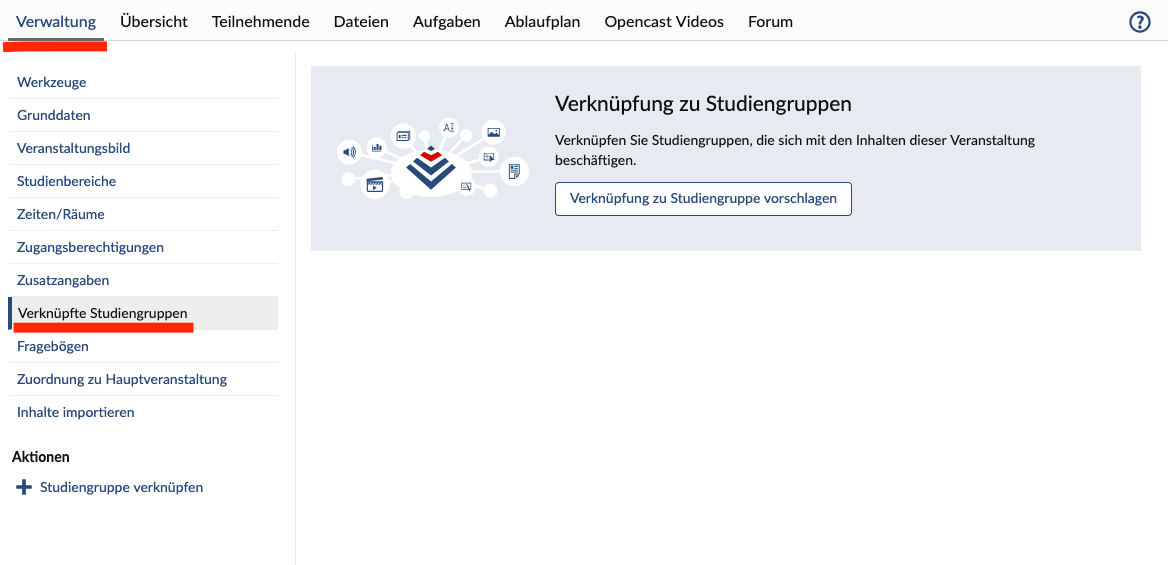](https://books.rz.tu-bs.de/uploads/images/gallery/2026-09/ZDKwDutPZYHOR6sy-bildschirmfoto-2026-09-08-um-17-03-52.png) ## PerLe und CloCked PerLe musste am 30. September komplett aufgrund einer Inkompatibilität mit Stud.IP 6 abgeschaltet werden. Als Ersatz arbeiten wir an Szenarien mit Blubber und Courseware. CloCked läuft im WiSe 2026/27 nur noch eingeschränkt und wird zum SoSe 2027 komplett abgeschaltet. Aufgaben und die Peer-Review-Funktion in Courseware decken die meisten bisherigen Einsatzszenarien von CloCked ab. ## Opencast [Für Informationen zu den Veränderungen in Opencast klicken Sie bitte hier. ](https://books.rz.tu-bs.de/books/studip/page/de-was-andert-sich-in-der-kommenden-studip-version-in-bezug-auf-videos) ## Weitere allgemeine Änderungen Die Login-Seite wurde optisch überarbeitet und enthält nun eine FAQ, die bei der richtigen Wahl des Logins hilft. Wichtige Systemankündigungen können nun auch ohne Login gelesen werden. In der Dateiverwaltung können Studierende standardmäßig keine Dateien mehr in den Hauptordner einer Veranstaltung hochladen. Möchten Sie diesen Upload freigeben, können Sie das unter „Ordner bearbeiten“ einstellen. Die Funktion „Evaluationen“ wurde in Stud.IP 6 eingestellt. Als Alternative können Sie Evaluationen komfortabel mit der Funktion „Fragebogen“ erstellen. Der Assistent zum Erstellen von Sprechstunden wurde überarbeitet und ist nun übersichtlicher. Neu ist auch die Option, Termine innerhalb eines Blocks nur fortlaufend vergeben zu können. Das Wiki ermöglicht jetzt die gleichzeitige Bearbeitung von Einträgen durch mehrere Personen. Die bisherigen Warnmeldungen zu anderen Nutzenden und möglichem Datenverlust entfallen damit.Um eine Planungssicherheit für alle Nutzendengruppen zu gewährleisten, wird das Stud.IP-Update jährlich am letzten Mittwoch im September durchgeführt. Die genauen Daten [sind auf unserer Webseite verfügbar](https://www.tu-braunschweig.de/studip).
## Stud.IP Support Von A wie Anmeldeverfahren bis Z wie Zeiten und Räume ändern – bei allen Fragen rund um Stud.IP steht Ihnen unser Support per E-Mail und Telefon gerne zur Verfügung!📧 E-Mail:
Bevor Sie Ihr Passwort zurücksetzen, prüfen Sie bitte, ob Sie sich über den korrekten Login-Link einloggen. Oft kann das das Problem bereits lösen.
1. Studierende, Lehrende und Gäste, die sich über die [TUBS-ID](https://books.rz.tu-bs.de/books/benutzerkonto/page/tubs-id-ihr-account-am-gauss-it-zentrum) anmelden, können sich ein [neues Passwort beim GITZ](https://books.rz.tu-bs.de/books/benutzerkonto/page/passwort-vergessen) setzen lassen. Das Passwort ändert sich dann für alle Dienste, für die Sie die TUBS-ID nutzen.. 2. Administrierende sowie externe Accounts ohne TUBS-ID und Testaccounts können ihre Passwörter per E-Mail an den [Stud.IP-Support](mailto:studip@tu-braunschweig.de) zurücksetzen lassen. Das Passwort für diese Accounts ist unabhängig von allen anderen TU-Diensten. #### **Was mache ich, wenn Stud.IP nicht erreichbar ist** Stud.IP läuft in der Regel sehr zuverlässig. Sollte das System doch einmal Probleme haben, finden Sie auf der[ Statusseite des GITZ](https://status.rz.tu-braunschweig.de/) weitere Informationen zu dem Ausfall. Ausnahmen sind, wenn der Fehler gerade erst aufgetreten ist oder das Problem nicht am System selbst liegt. Wenn Sie keinen entsprechenden Eintrag auf der Statusseite finden, prüfen Sie bitte zunächst, ob Sie Stud.IP über einen anderen Browser oder ein anderes Gerät erreichen können. Tritt das Problem nur mit einem bestimmten Browser oder auf einem bestimmten Gerät auf, leeren Sie bitte den Cache Ihres Browsers. Oft löst das bereits Verbindungsprobleme. Zögern Sie nicht, sich beim Support zu melden, wenn Sie sich nicht sicher sind, ob das Problem tatsächlich nur bei Ihnen auftritt und auf der Statusseite kein Hinweis auf eine Störung zu finden ist. #### **Stud.IP hat sich auf ein schwarzweisses Farbschema umgestellt** Stud.IP verfügt über einen Modus mit hohen Kontrasten. Dadurch können auch Menschen mit Sehschwächen oder Farbfehlsichtigkeiten das System problemlos nutzen. Falls Sie Stud.IP in der schwarzweissen Variante sehen, befinden Sie sich in diesem Modus. Sie können diesen Modus auf der Login-Seite mit einem Klick auf „Hohen Kontrast aktivieren“ einschalten. An derselben Stelle können Sie ihn mit „Normalen Kontrast aktivieren“ wieder deaktivieren. [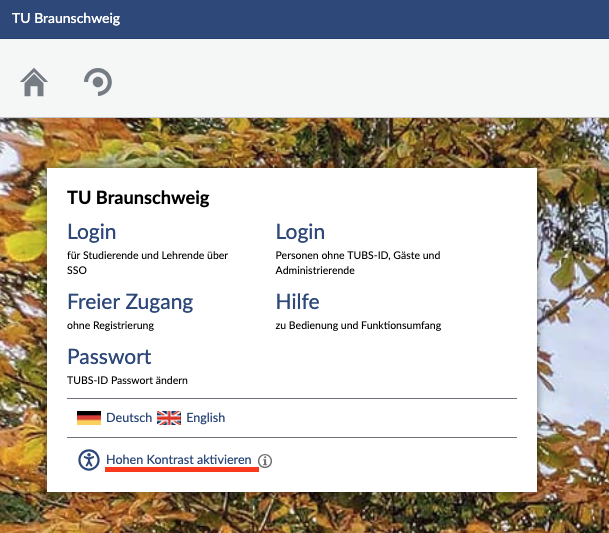](https://books.rz.tu-bs.de/uploads/images/gallery/2026-03/GNAT5YHaU3axawaB-bildschirmfoto-2026-02-24-um-14-56-47.png)[ 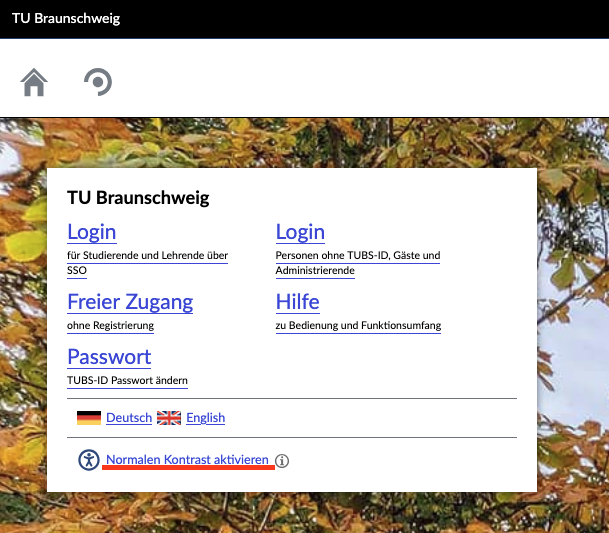](https://books.rz.tu-bs.de/uploads/images/gallery/2026-03/HMwDayKIwnqm92UO-bildschirmfoto-2026-02-24-um-14-57-16.png) Wenn Sie bereits eingeloggt sind, können Sie diese Einstellung über die Schaltfläche „Profil“ ändern. Wählen Sie in der oberen Auswahl von „Profil” die Option „Einstellungen” aus und dann auf der linken Seite „Barrierefreiheit”. Es öffnet sich die Option „Kontrastreiches Farbschema aktivieren“, die bereits ausgewählt ist. Entfernen Sie den Haken und klicken Sie auf „Speichern“. Das Farbschema wechselt dann zurück zu blau-weiss. [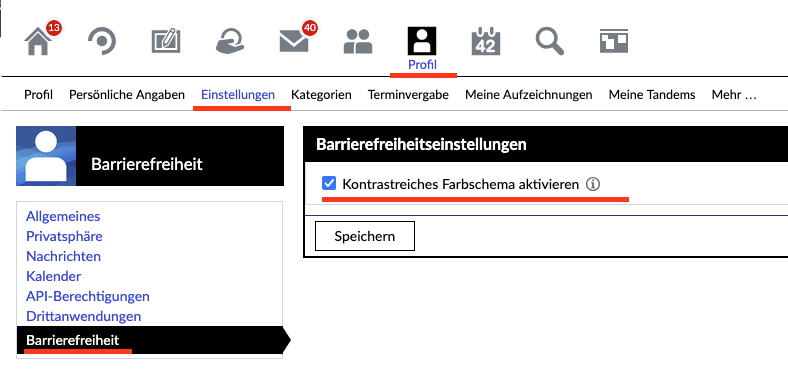](https://books.rz.tu-bs.de/uploads/images/gallery/2026-03/ji4kUD74kszgeB3s-bildschirmfoto-2026-02-24-um-14-55-37.png) #### **Beim Aufruf von Stud.IP erscheint kurz ein Anime-Bild, bevor sich die Login-Seite öffnet. Ist die Verbindung noch sicher?** 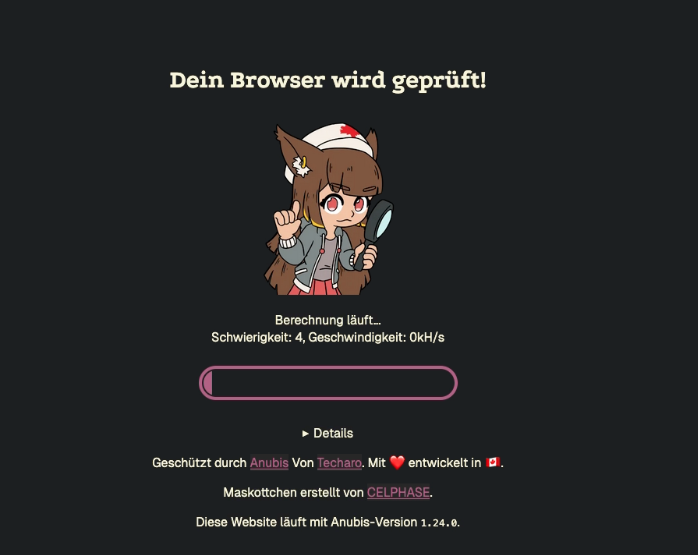 Ja. Das Bild gehört zur Web-Firewall Anubis. Sie schützt Stud.IP davor, dass Bots auf das System zugreifen, und trägt damit zur IT-Sicherheit bei.Manchmal kann es vorkommen, dass die Grafik nicht direkt verschwindet und der Browser bei Anubis hängen bleibt. In diesem Fall laden Sie bitte die Seite neu. Falls das nicht funktioniert, versuchen Sie es mit einem anderen Browser oder zu einem späteren Zeitpunkt noch einmal.
# [DE] Ankündigungen und Banner [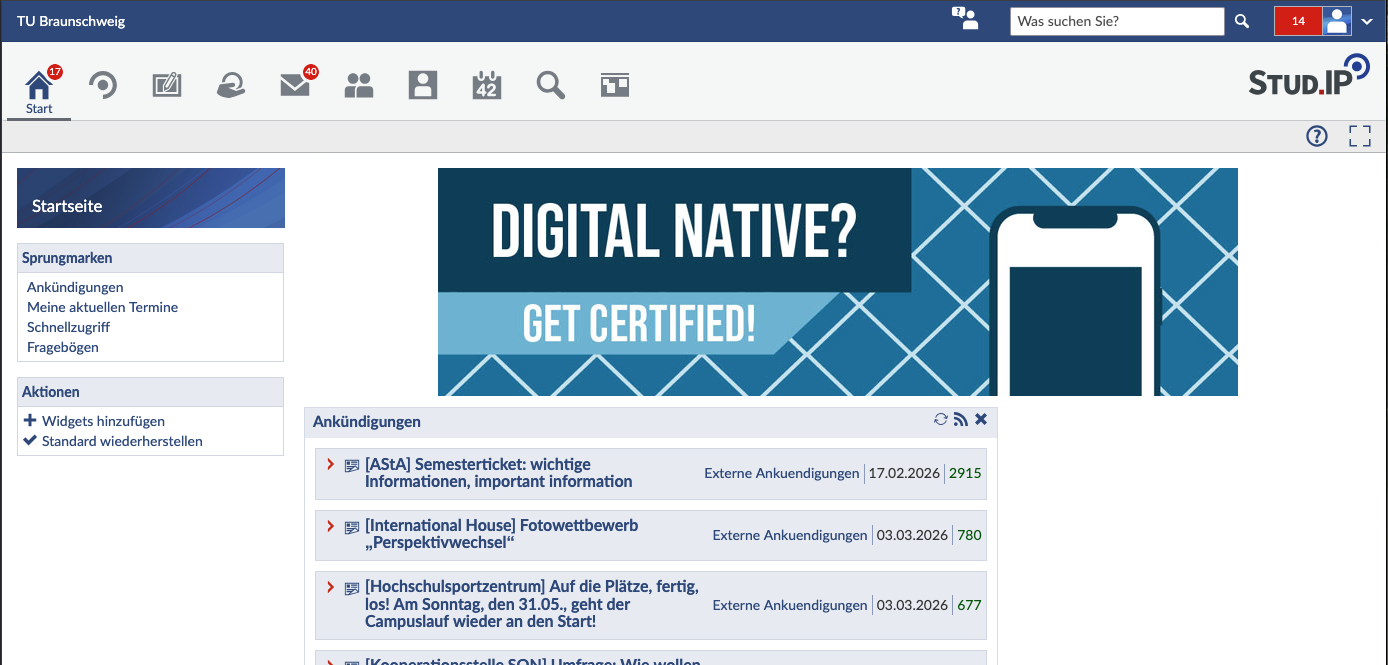](https://books.rz.tu-bs.de/uploads/images/gallery/2026-03/CH9gEoBkutPFHFTQ-bildschirmfoto-2026-03-04-um-16-17-08.png) Auf der Startseite von Stud.IP besteht die Möglichkeit, Ankündigungen und Banner zu veröffentlichen, um beispielsweise auf Veranstaltungen aufmerksam zu machen. ### Ankündigungen Schicken Sie eine E-Mail oder Support-Anfrage an den [Stud.IP-Support](mailto:studip@tu-braunschweig.de) mit den folgenden Angaben: - **Titel** der Ankündigung - **Kurzbeschreibung** bzw. Ankündigungstext - **Zeitraum** (Start- und Enddatum), in dem die Ankündigung geschaltet werden soll - Eine **englische Übersetzung** des Ankündigungstitels & -texts Der Stud.IP-Support prüft Ihr Anliegen und kümmert sich um die Veröffentlichung. #### Regeln für Ankündigungen **1. Pro Einrichtung nur eine aktive Ankündigung** - Die Einrichtung ist im Titel in eckigen Klammern gekennzeichnet. - Zu Semesterbeginn darf jede Einrichtung nur eine Ankündigung gleichzeitig laufen lassen. - Bei mehreren Themen bündeln Sie diese in einem Beitrag oder staffeln Sie sie zeitlich (z. B. Ankündigung 2 startet erst, wenn Ankündigung 1 abgelaufen ist). **2. Zielgruppe** - Die Ankündigung muss für eine größere Gruppe von Studierenden und/oder Mitarbeitenden relevant sein bzw. eine breit zugängliche Teilnahme ermöglichen. - Restplätze in Seminaren sind von Ankündigungen ausgeschlossen. **3. Inhaltlicher Bezug** - Eine klare Verbindung zum Studium oder zur Universität ist erforderlich. - Kommerzielle Angebote werden nicht veröffentlicht. **4. Veranstalter** - Nur Hochschulangehörige oder universitätsnahe Initiativen dürfen Ankündigungen einstellen. - Externe Unternehmen sind ausgeschlossen. **5. Anzahl der Ankündigungen pro Veranstaltung** - Für eine größere Veranstaltung (z. B. Messe, Tagung) ist nur eine Ankündigung auf der Startseite zulässig. - Einzelne Workshops oder Vorträge können im Text genannt oder separat im Schwarzen Brett unter „Veranstaltungen“ veröffentlicht werden. **6. Politische Ankündigungen** - Auf der Startseite werden keine politischen Ankündigungen veröffentlicht. - Alternativ können Sie das Schwarze Brett nutzen. **7. Jobangebote** - Jobangebote werden nicht als Ankündigung veröffentlicht. - Nutzen Sie hierfür bitte externe Stellenportale (z. B. den Stellenmarkt der TU Braunschweig). **8. Links** - Nur Verweise auf eigene Institutseiten oder interne Stud.IP-Module (z. B. Umfragen, Veranstaltungen) sind gestattet. - Externe Social-Media-Links (Facebook, Twitter o. Ä.) werden nicht freigeschaltet.Bei Unklarheiten entscheidet der Stud.IP-Support abschließend, ob Ihre Ankündigung den Vorgaben entspricht.
### Banner Schicken Sie eine E-Mail oder Support-Anfrage an den [Stud.IP-Support](mailto:studip@tu-braunschweig.de) mit folgenden Angaben: - **Beschreibung / Name** des Banners - **Mouseover-Alternativtext** - **Verweis-Typ**: URL, Veranstaltung, Einrichtung, Benutzer oder (in Ausnahmefällen) kein Verweis - **Verweis-Ziel**: - URL (nur TU- oder Instituts-/Veranstaltungswebseiten) - Stud.IP-internes Ziel - **Zeitraum** (Start- und Enddatum) der Banner-Schaltung #### Regeln für Banner - Die allgemeinen Stud.IP-Ankündigungsregeln (s. oben) gelten auch für Banner. - **Mehrere Banner gleichzeitig** sind möglich; die Priorisierung wird dann vom Support-Team festgelegt. - Zulässige Dateitypen: `.jpeg`, `.jpg`, `.png`, `.gif`. - **Maximale Abmessungen**: - Breite ≤ 1000 px - Höhe ≤ 200 px Wenn Ihr Banner größer ist, skalieren Sie es bitte entsprechend herab. #### Gestaltungshinweise - Achten Sie auf ausreichend große Schrift, damit Texte auch auf mobilen Geräten lesbar bleiben. - Ideal ist ein Banner mit Logo und maximal zwei Textzeilen. - Farbwahl und Design sind frei wählbar. # [EN] Stud.IP 6 – What is new? The update to version 6 has modernized Stud.IP in many areas. Read on to find out what has changed and how you can use the new features. We hope you enjoy exploring the system. ## New Design The first time you open Stud.IP 6, you’ll be greeted by a new design: The basic layout has been revamped to make it easier to navigate and more intuitive to use. The colors are lighter, and there’s more space between the functional areas, which makes the interface clearer overall. Stud.IP also automatically adapts to your device—whether it’s a desktop, tablet, or smartphone. ### System Messages System messages now appear at the top center of the screen and are color-coded to indicate different message types. Green indicates success messages, blue indicates information, yellow indicates warnings, and red indicates errors. [](https://books.rz.tu-bs.de/uploads/images/gallery/2026-09/ADxO5ufNkGJLTcN9-bildschirmfoto-2026-09-09-um-12-30-39.png) Blue, yellow, and green notifications disappear after 5 seconds, while red notifications remain visible until you actively close them. If you hover your mouse over a notification, it remains visible until you click it away or move the focus elsewhere. Note that you can also customize the notification windows: Instead of displaying them at the top center, you can choose to display them at the bottom right. You’ll find this setting under “Profile” > “Settings” > “General” > “Notifications.” ## Bilingual Content Many texts in Stud.IP 6 can now be entered separately in German and English. The English version is displayed only when the system language is set to English. If no English version is provided, the text entered in the German field is used automatically. The language fields are marked with small flags. Simply click on the respective flag to switch between German and English and enter the corresponding text. [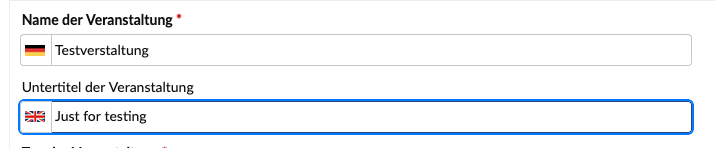](https://books.rz.tu-bs.de/uploads/images/gallery/2026-09/mZc35ylfJ8R7qDv8-embedded-image-zr67t5ia.png)Please note: Content imported from TUConnect cannot be overwritten as usual. We are currently working on importing this content in two languages as well.
## New Features in Courseware Courseware has been enhanced with several useful features that make navigating easier. In terms of content, almost everything remains unchanged. ### Linking Learning Materials You can now access all of the course's learning materials directly through Courseware's table of contents. To do so, click the table of contents icon, select the “Learning materials” tab, and view all available materials at a glance. This saves you from having to go through the Courseware overview page when switching between learning materials. [](https://books.rz.tu-bs.de/uploads/images/gallery/2026-09/S7oCQt3wzfKWVYwg-bildschirmfoto-2026-09-08-um-16-01-40.png) You can now link to other learning materials in the same course directly within your content. This is especially useful if you create materials on different topics as individual Coursewares and then want to link them together. To use this feature, insert a link block into the courseware and select “Learning materials for the course” as the “Link type.” [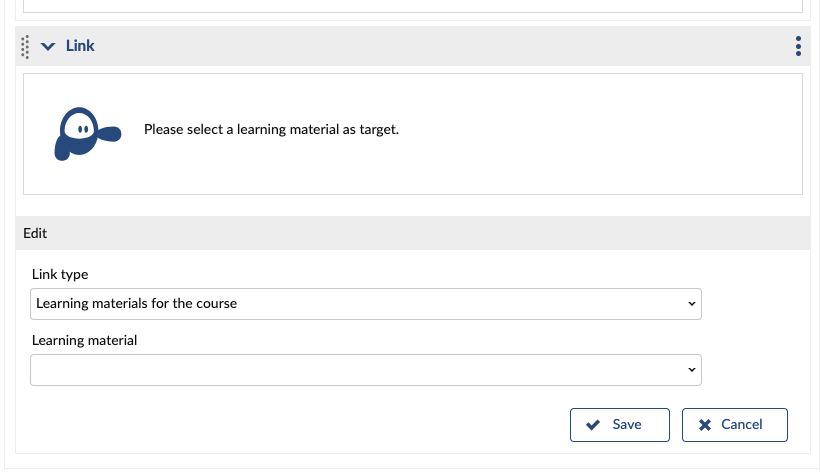](https://books.rz.tu-bs.de/uploads/images/gallery/2026-09/tgv96pHdUdDyy3GN-bildschirmfoto-2026-09-09-um-09-52-08.png) ### Visibility Settings and Editing Permissions The management of permissions and visibility settings has been redesigned and is now more intuitive. You can now find them on the learning materials overview page in “Courseware” under the “Actions” main menu (indicated by the three dots). [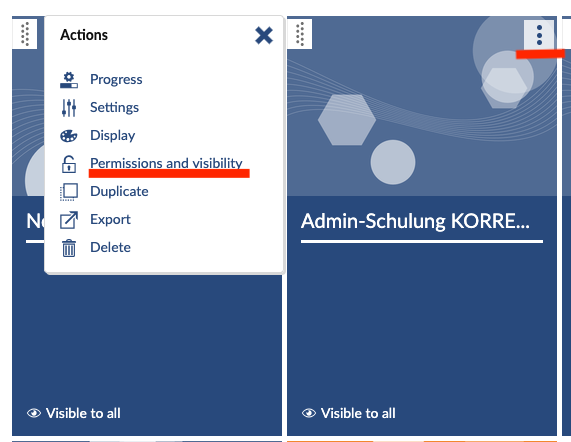](https://books.rz.tu-bs.de/uploads/images/gallery/2026-09/HHh3Q1oYkWL0X5hW-bildschirmfoto-2026-09-09-um-09-52-36.png) In the “Permissions and visibility” menu, you can specify who is allowed to view and edit the Courseware. If you choose “Selected students” or “Groups” in the window, you can select the relevant individuals or groups in the next step. “All students” here refers to all students enrolled in the course. [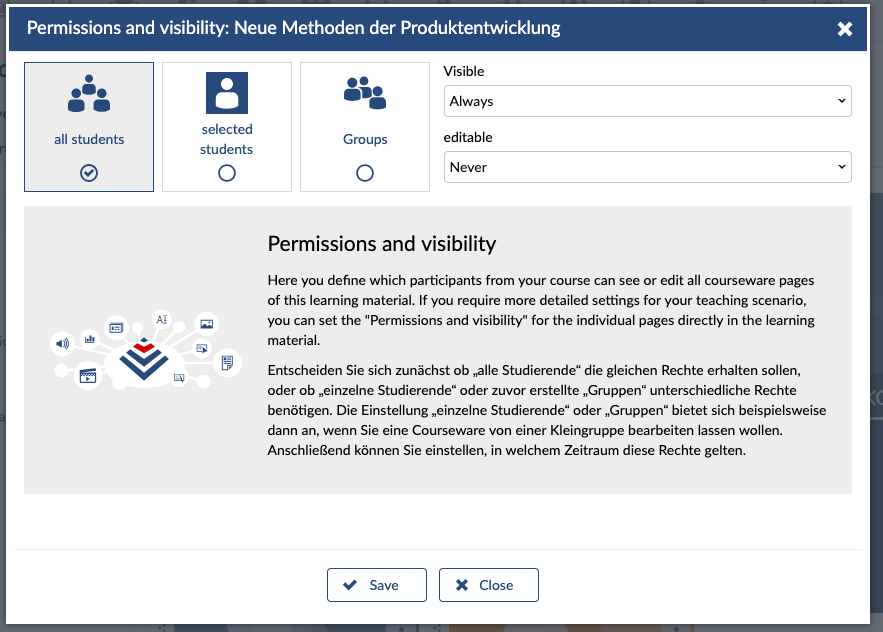](https://books.rz.tu-bs.de/uploads/images/gallery/2026-09/HrE0TG1NmipRJwEl-bildschirmfoto-2026-09-09-um-09-53-06.png) ### Blubber Block in Courseware You can now insert a Blubber block into your Courseware to start a new discussion directly within your learning materials. The course's Blubber and the Blubber block in Courseware can be used simultaneously, but the discussions take place separately. [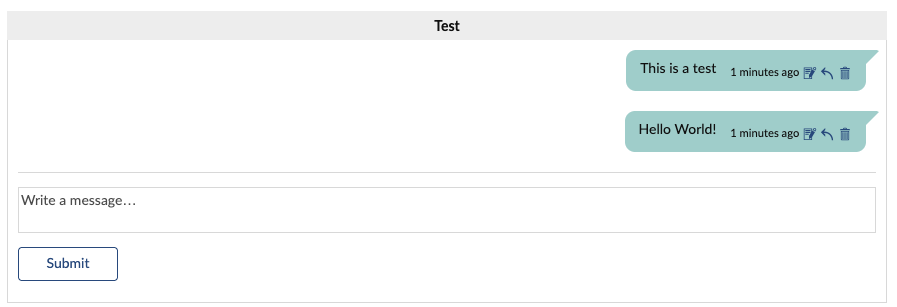](https://books.rz.tu-bs.de/uploads/images/gallery/2026-09/88RLfOfv2u4EKvNc-bildschirmfoto-2026-09-09-um-10-10-56.png)There are currently still some issues here: If you mention someone using @ in the Courseware feed, they will receive a notification, but the link in that notification currently still points to the course feed, not the Courseware feed. We are working on resolving this issue.
### Learning Modules Block in Courseware With the learning module block, you can now create simple educational games—such as memory games, fill-in-the-blank exercises, or interactive videos—directly within the courseware. You can find the learning module blocks in the courseware's block selection under the prefix “LMB.” [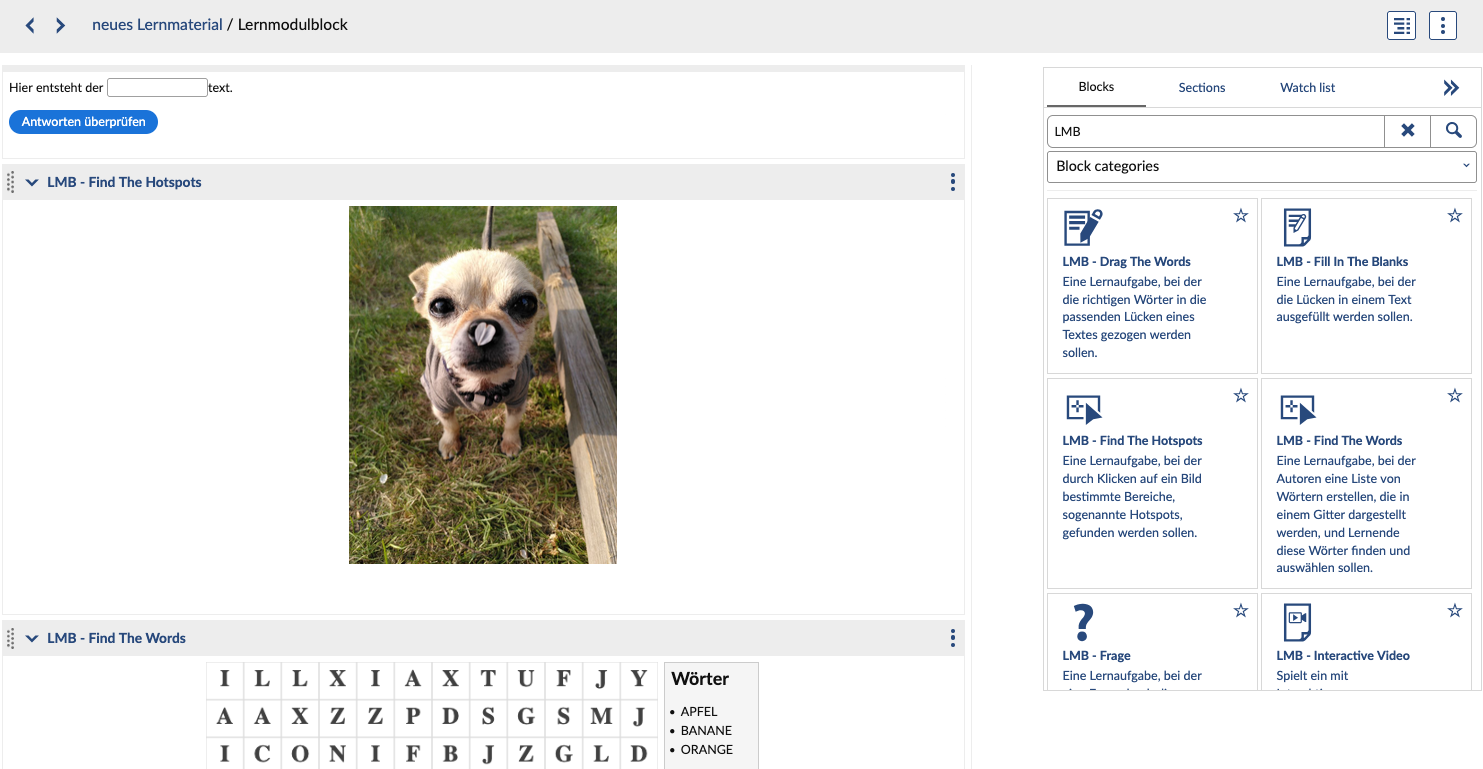](https://books.rz.tu-bs.de/uploads/images/gallery/2026-10/lp9ox0Y5qvVfLmD9-bildschirmfoto-2026-10-01-um-14-08-26.png)Learning modules can now be created in the “Learning Modules” tab in two ways: one is via the “Stud.IP H5P Editor” (where Stud.IP creates its own modules similar to H5P), and the other is via the “Editor” (where H5P modules are created). However, these learning modules cannot be integrated into the courseware and can only be used within the tab itself.
Learning modules must be re-embedded into Courseware because the URL changed after the update.
### Peer Review in Courseware The new peer review feature allows participants to evaluate each other’s assignments. To activate this feature, go to “Tasks” in the “Courseware” menu on the left and create an assignment. The wizard will guide you through the necessary steps. Once the assignment has been created, click on its title in the “Tasks” menu. You will then see which students the assignment has been assigned to. Below that or on the left side of the menu, you can enable the peer review process and configure additional settings for it. [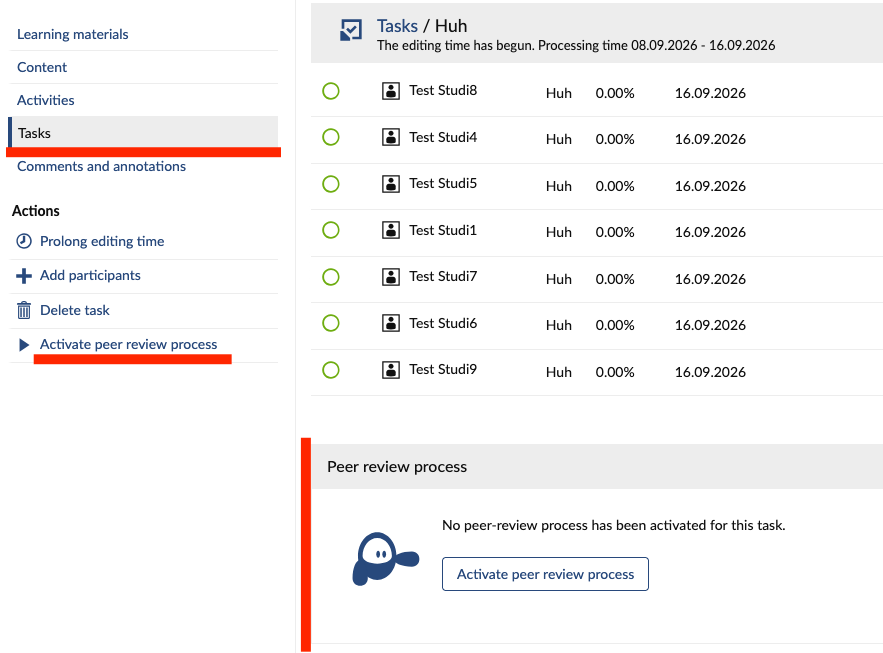](https://books.rz.tu-bs.de/uploads/images/gallery/2026-09/KanmIu4xWuFkONHf-bildschirmfoto-2026-09-09-um-10-26-41.png)  The review phase begins automatically one day after the submission deadline. The time periods for assignments and reviews can each be set in full days. Reviews become visible to the respective person one day after the end of the review period.Once the review period has begun, manual pairings can no longer be changed. Reviews can be changed as often as desired during the review period.
## ViPS is now Aufgaben ViPS has been renamed and is now called “Aufgaben.” In your course, you’ll find this feature under the “Tasks and examinations” tile. [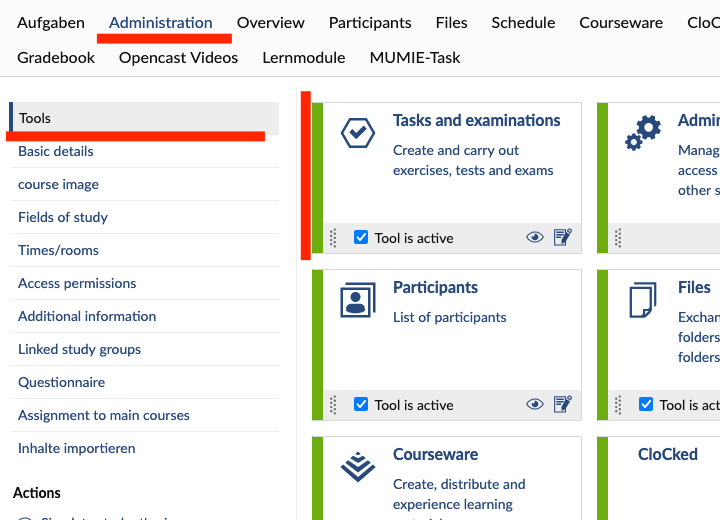](https://books.rz.tu-bs.de/uploads/images/gallery/2026-09/liv8VsfBefr4QaPZ-bildschirmfoto-2026-09-09-um-10-39-12.png) The range of features has remained the same, so you can continue to create and manage online assignments, test questions, and entire practice exams as usual.Important: Stud.IP is not approved as an exam system at TU Braunschweig
You can easily manage submissions and results and use various assignment types (multiple choice, free text, fill-in-the-blank, etc.). Assignments can be compiled into assignment sheets, and closed-ended assignment formats are graded automatically. When creating an assignment sheet, you will now find the assignments in the table of contents, similar to Courseware and the Wiki. ## New Forum The forum has been completely redesigned in Stud.IP 6. You can now organize topics more efficiently and use categories. In addition to the new tile layout, the classic list view is still available. A topic serves as a parent folder for multiple discussions, and multiple topics can optionally be grouped into categories. The topic overview in the left sidebar also serves as the forum’s home. This allows you to keep track of everything at a glance. To start a new discussion, simply click “+ Start new discussion.” [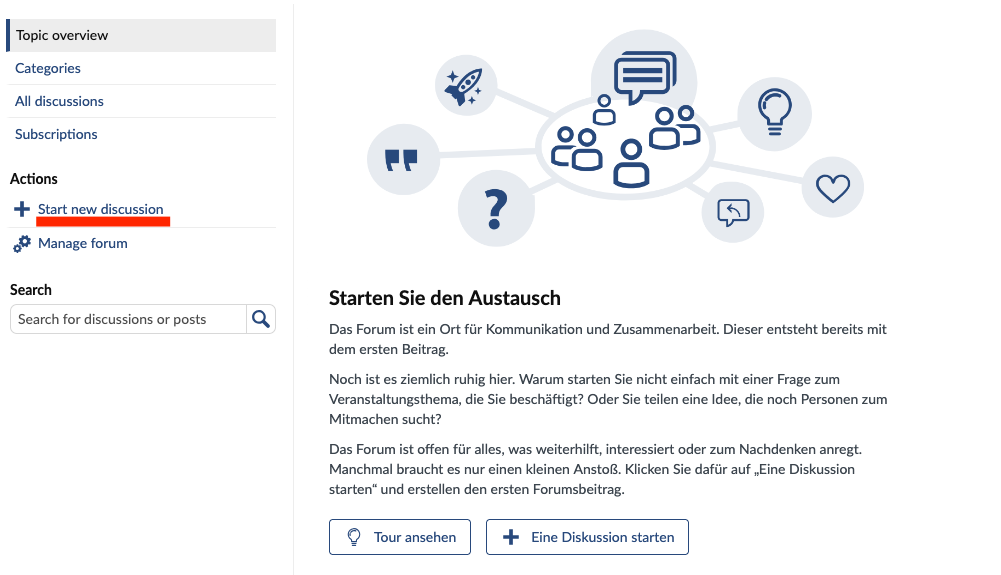](https://books.rz.tu-bs.de/uploads/images/gallery/2026-09/LdtBstiAmPQXScUP-bildschirmfoto-2026-09-09-um-13-43-38.png) ## Etherpads The current version of Etherpad will be shut down in the coming months. Since the content cannot be transferred automatically, you must migrate your Etherpads to the new version yourself. This is the only way you will be able to continue accessing them after the 2026/27 winter semester. You can identify the old version by the fact that it is labeled “Etherpad (alt)” in the course. [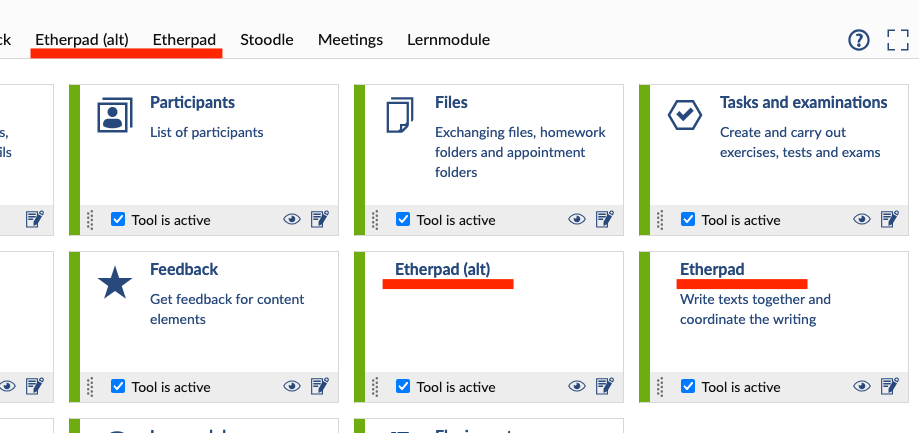](https://books.rz.tu-bs.de/uploads/images/gallery/2026-10/b4eGKhRGU2OdOham-bildschirmfoto-2026-10-01-um-13-50-21.png)After the winter semester 2026/27, Etherpads will only be available to users who are logged into Stud.IP. If you would like to share content with external users, we recommend setting up document sharing via Nextcloud or using HedgeDoc in the Academic Cloud instead.
If you have any questions about Etherpad, please feel free to contact [IT Service Desk.](https://www.tu-braunschweig.de/en/it/it-service-desk)
## PDF Tools in the Files Section You can correct, annotate, and comment on PDF files directly in the file section. The edited version is saved as a new version, so previous versions are preserved. Simply click the name of the PDF file and then select “PDF tools.” [](https://books.rz.tu-bs.de/uploads/images/gallery/2026-09/DYPEKcMapKxjE7Fu-bildschirmfoto-2026-09-09-um-11-08-44.png)Important: This feature is currently not working and is being addressed by our service provider.
## Study Groups reimagined Study groups have been significantly revised in Stud.IP 6 and now offer greater flexibility. The creation wizard has been revised, and you can now also enter the associated course, degree programs, keywords, and an avatar there.[This article explains how to create study groups.](https://books.rz.tu-bs.de/books/studip/page/en-study-groups-in-studip)
Study groups are assigned an expiration date, which may also be set to indefinite by leaving the expiry date empty. The field will then switch to „Unrestricted“. By default, the expiration date is set to the end of the next semester. You will be notified four weeks before the expiration date so that you can change it if necessary. After the expiration date, the group is automatically deleted. ### Attaching Study Groups to Courses You can attach study groups to one or more courses to indicate that the group is working on the course content of a specific lecture. A course can have multiple study groups, and a study group can be assigned to multiple courses. To link a course to a study group, both the course administrators and the study group founders must give their consent. In your course, open “Administration” and select “Linked study groups” from the left-hand menu to add study groups. In the study group, you’ll find this feature in the same location under “Linked courses.” [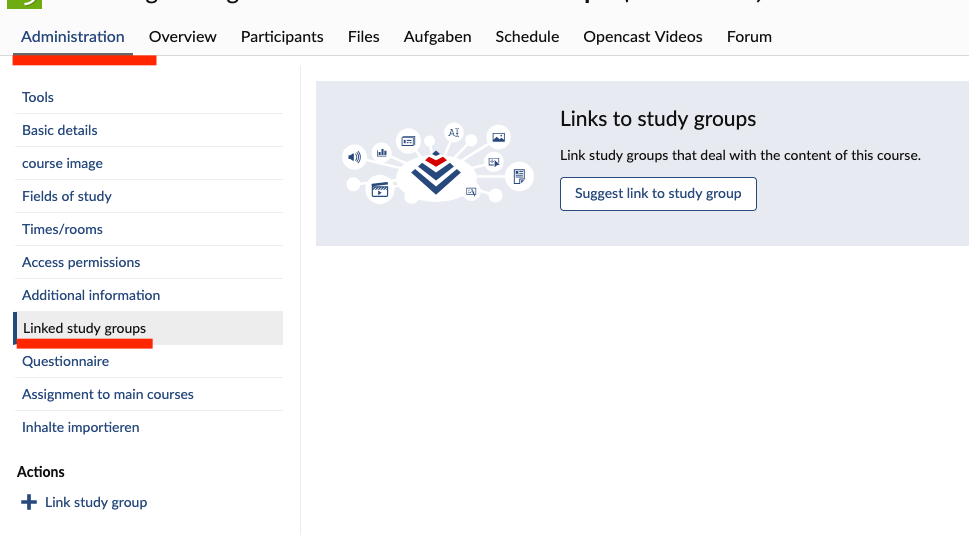](https://books.rz.tu-bs.de/uploads/images/gallery/2026-09/KytjuCh8qSfBcK5r-bildschirmfoto-2026-09-09-um-11-59-53.png) ## PerLe and CloCked PerLe was shut down permanently on September 30 due to an incompatibility with Stud.IP 6. As a replacement, we are working on scenarios using Blubber and Courseware. CloCked will operate on a limited basis during the Winter Semester 2026/27 and will be shut down completely by the Summer Semester 2027. Assignments and the peer review feature in Courseware cover most of the previous use cases for CloCked. ## Opencast [For information about the changes in Opencast, please click here.](https://books.rz.tu-bs.de/books/studip/page/en-what-changes-with-regard-to-videos-will-apply-in-the-upcoming-version-of-studip) ## Other Changes The login page has been redesigned and now includes an FAQ to help users choose the correct login option. Important system announcements can now be read without logging in. By default, students can no longer upload files to the main folder of a course in the file manager. If you would like to allow this type of upload, you can configure this under “Edit folder.” The “Evaluations” feature has been discontinued in Stud.IP 6. As an alternative, you can create evaluations using the “Questionnaire” feature. The wizard for creating office hours has been redesigned and is now more user-friendly. Another new feature is the option to only assign appointments consecutively within a block. The wiki now allows multiple people to edit entries simultaneously. The previous warning messages regarding other users and potential data loss have therefore been removed.## Stud.IP Support Whether you have questions about registration procedures or changing course times, our support team is happy to help with any questions you may have about Stud.IP via email or phone!
📧 Email:
Before resetting your password, please check that you are logging in via the correct login link. This often solves the problem.
1. Students, teachers, and guests who log in via [TUBS-ID](https://books.rz.tu-bs.de/books/benutzerkonto/page/tubs-id-ihr-account-am-gauss-it-zentrum) can have a [new password set by GITZ](https://books.rz.tu-bs.de/books/benutzerkonto/page/passwort-vergessen). The password will then change for all services for which you use the TUBS ID. If you have not provided your mobile phone number, please [contact IT Service Desk](https://www.tu-braunschweig.de/en/it/it-service-desk). 2. Administrators and external accounts without a TUBS ID, as well as test accounts, can have their passwords reset by sending an [email to Stud.IP Support](mailto:studip@tu-braunschweig.de). The password for these accounts is unrelated to all other TU services. #### **What should I do if Stud.IP is unavailable?** Stud.IP generally runs very reliably. However, if the system experiences problems, you can find further information about the outage on the [GITZ status page](https://status.rz.tu-braunschweig.de/). This does not apply if the error has just occurred or if the problem is not related to the system itself. If you cannot find a corresponding entry on the status page, please first check whether you can access Stud.IP using a different browser or device. If the problem only occurs with a specific browser or on a specific device, please clear your browser's cache. This often solves connection problems. Do not hesitate to contact Stud.IP Support if you are unsure whether the problem is actually only occurring for you and there is no indication of a malfunction on the status page. #### **Stud.IP has switched to a black-and-white color scheme** Stud.IP offers a high-contrast mode. This allows people with visual impairments or color blindness to use the system without any problems. If you see Stud.IP in black and white, you are in this mode. To activate this mode, click on “Activate high contrast” on the login page. In the same place, you can deactivate it again by clicking on “Activate normal contrast.” [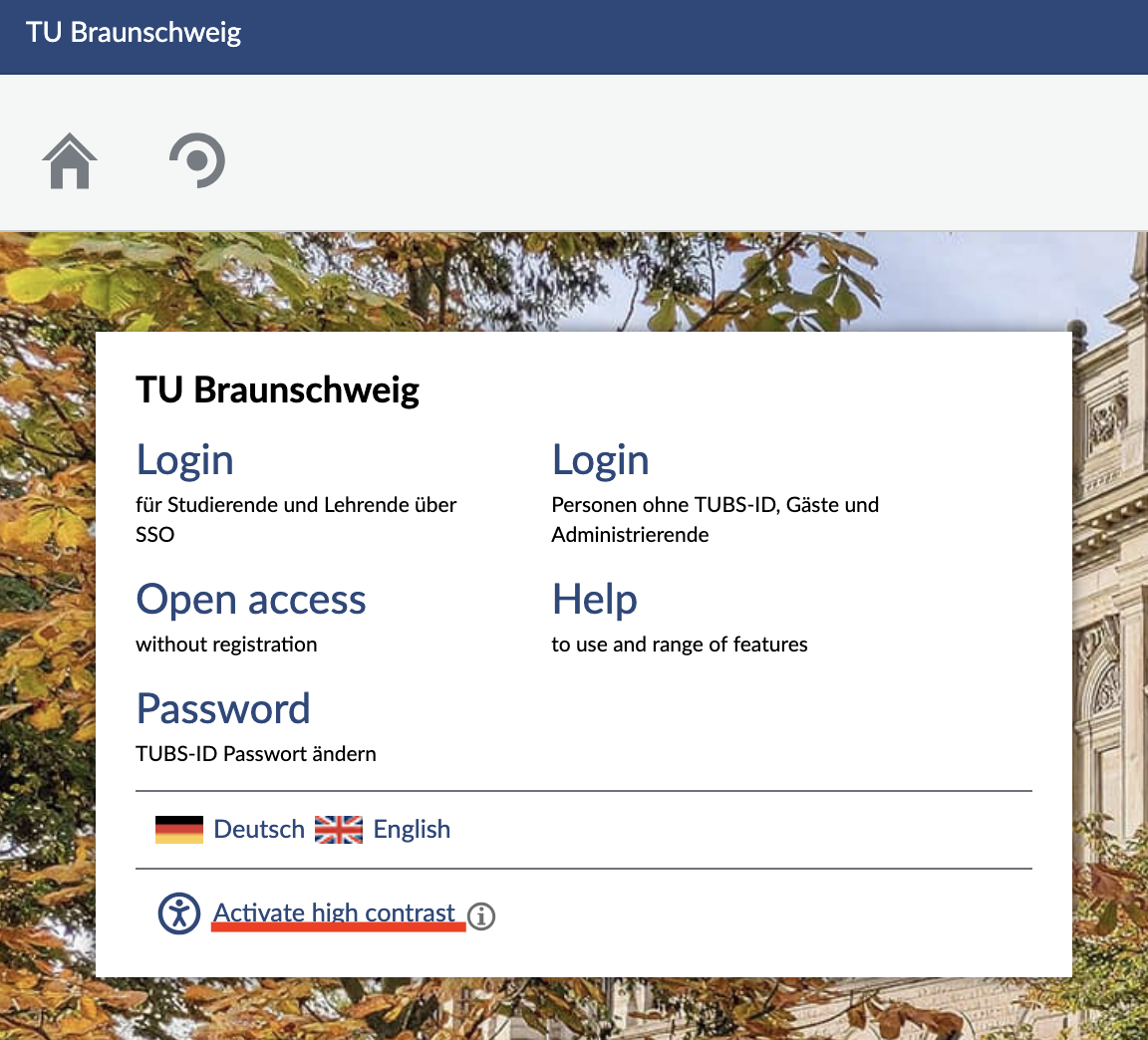 ](https://books.rz.tu-bs.de/uploads/images/gallery/2026-03/nzzq5EtEBljHJZyV-bildschirmfoto-2026-03-04-um-11-20-41.png)[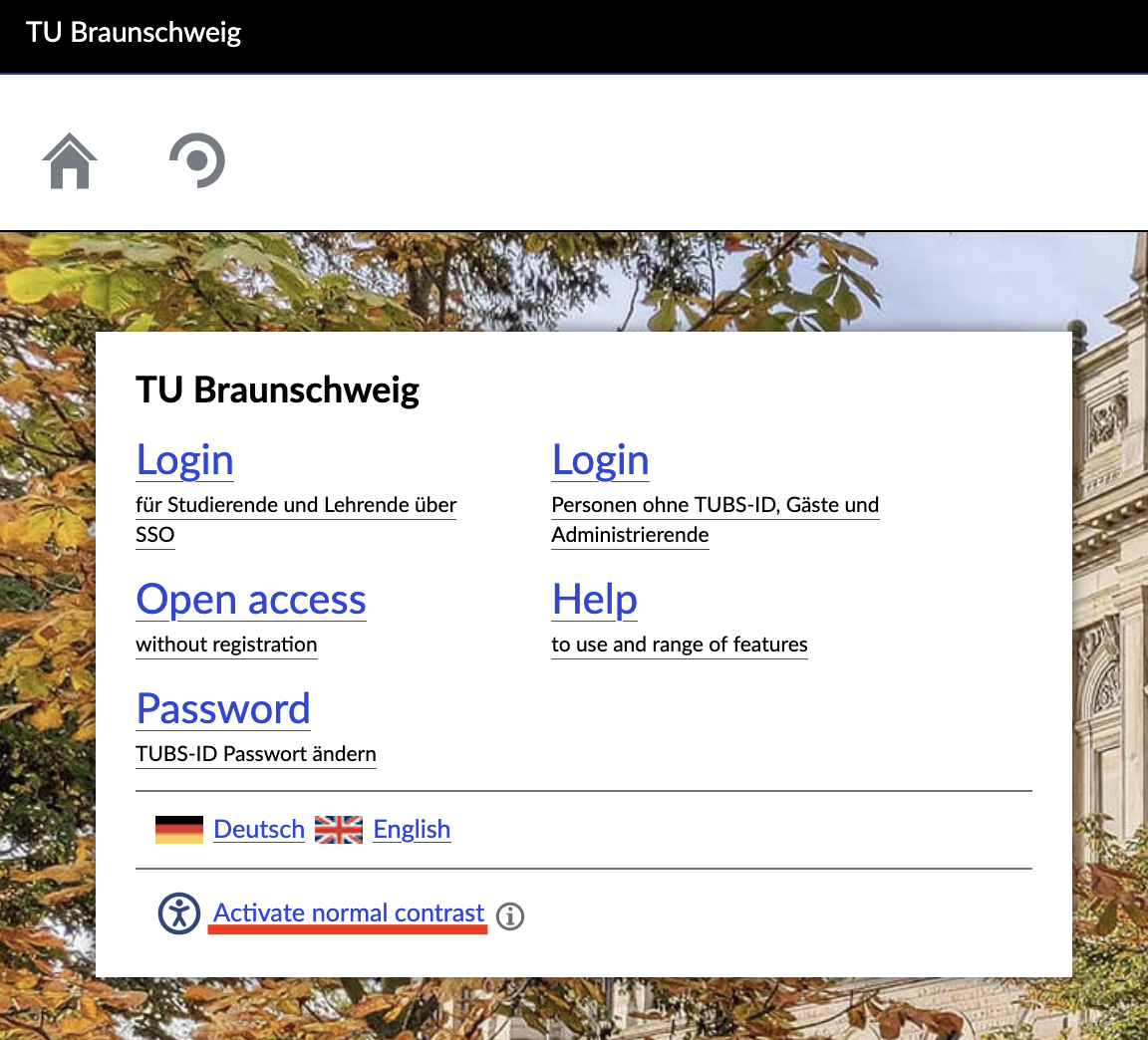](https://books.rz.tu-bs.de/uploads/images/gallery/2026-03/TFVmke1Do9AffciU-bildschirmfoto-2026-03-04-um-11-20-51.png) If you are already logged in, you can change this setting via the “Profile” button. Select the “Settings” option in the upper selection of “Profile” and then ‘Accessibility’ on the left-hand side. The option “Activate high-contrast colour scheme” opens, which is already selected. Remove the check mark and click on “Save.” The color scheme will then change back to blue and white. [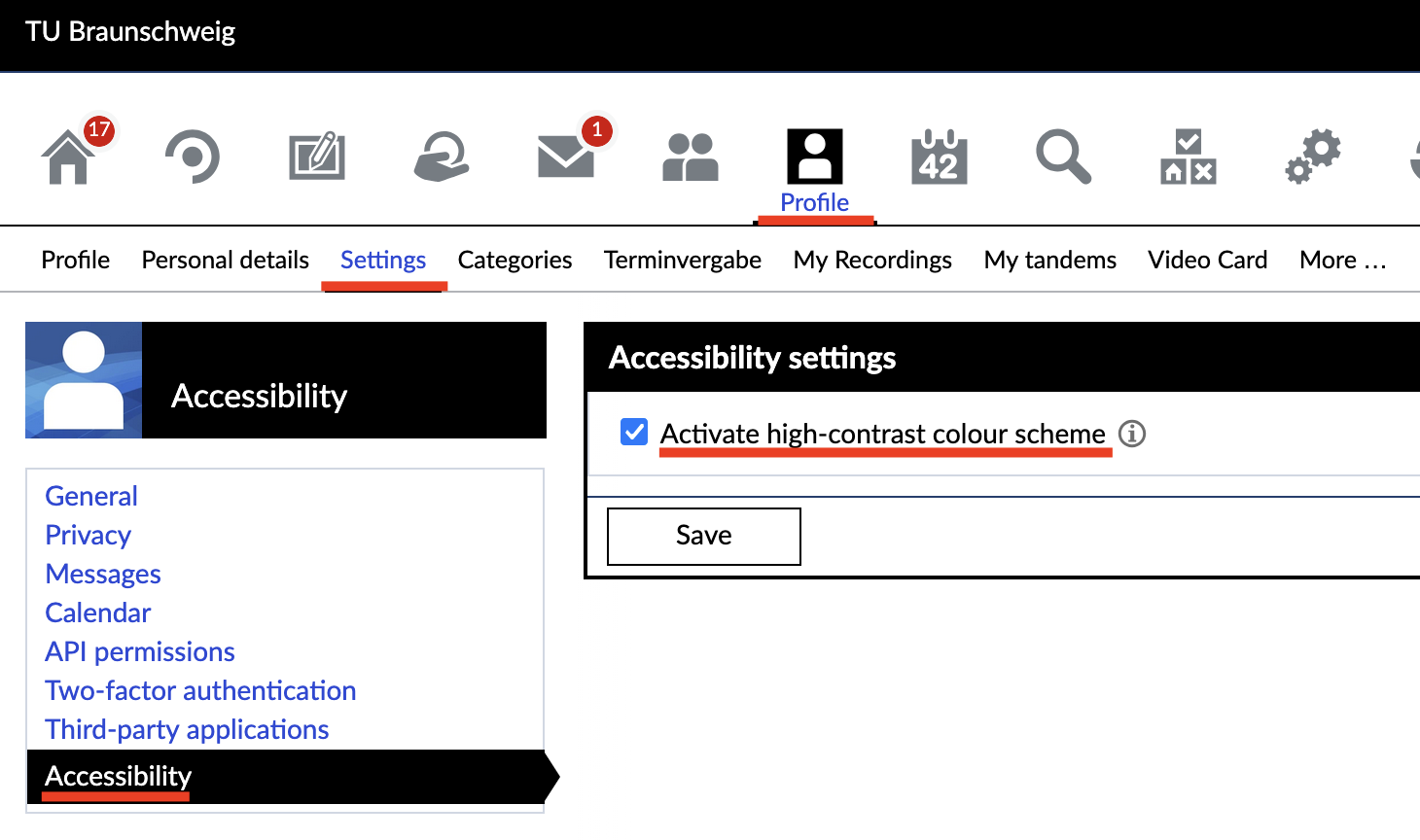](https://books.rz.tu-bs.de/uploads/images/gallery/2026-03/lEgl8HFu1d3Q4acc-bildschirmfoto-2026-03-04-um-11-29-09.png) #### **When accessing Stud.IP, an anime image appears briefly before the login page opens. Is the connection still secure?**  Yes, the image is part of the Anubis web firewall. This helps to keep bots from accessing the network and contributes to our IT security.Sometimes the image may not disappear immediately, and the browser may get stuck on Anubis. If that happens, please reload the page. If that doesn't work, try using a different browser or try again later.
# [EN] Announcements and banners [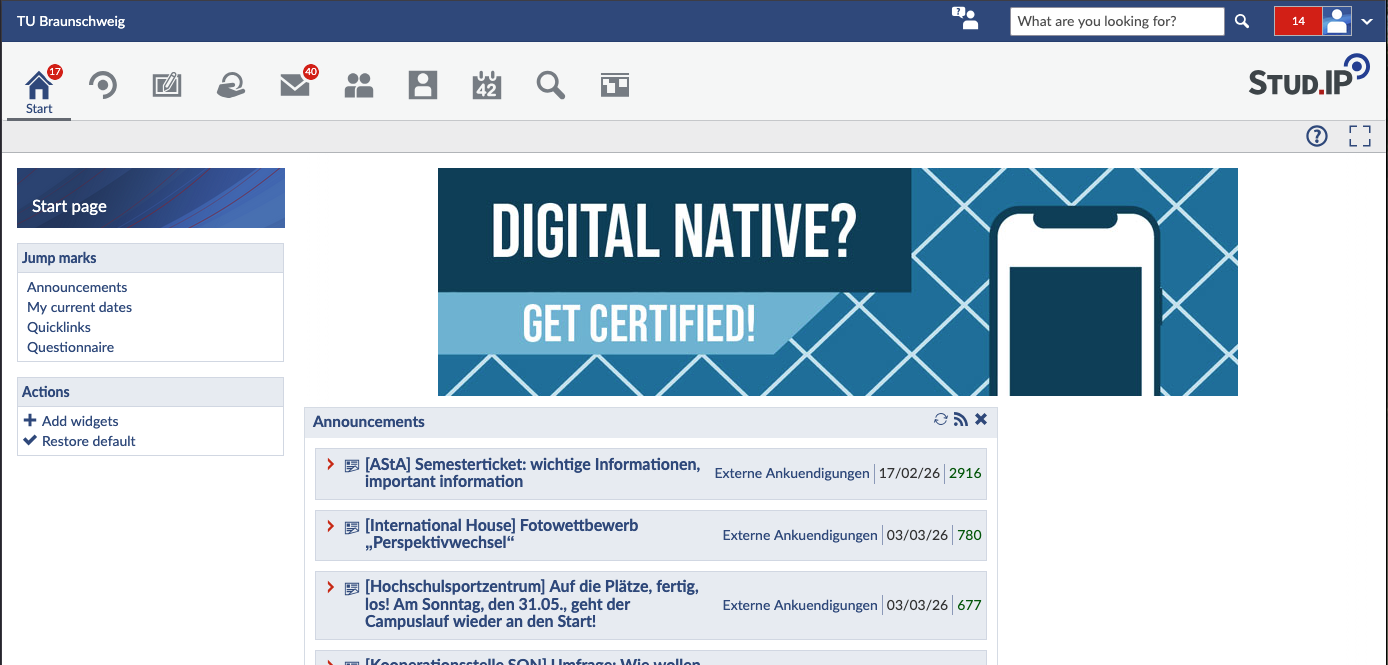](https://books.rz.tu-bs.de/uploads/images/gallery/2026-03/IxHiexrG2CmBjxsQ-bildschirmfoto-2026-03-04-um-16-17-57.png) On the Stud.IP start page, you can publish announcements, for example to draw attention to events. ### Announcements Send an email or support request to [Stud.IP Support](mailto:studip@tu-braunschweig.de) with the following information: - **Title** of the announcement - **Brief description** or announcement text - **Duration** (start and end date) in which the announcement should be posted - An **English/German translation** of the announcement's title and text Stud.IP Support will review your request and take care of the publication. #### Rules for announcements **1. Only one active announcement per institution** - The institution is indicated in square brackets in the title. - At the beginning of the semester, each institution may only run one announcement at a time. - If there are several topics, combine them in one post or stagger them over time (e.g., announcement 2 only starts when announcement 1 has expired). **2. Target group** - The announcement must be relevant to a larger group of students and/or employees or allow for broad participation. - Remaining places available in seminars are not permitted. **3. Content relevance** - A clear connection to studying or the university is required. - Commercial offers will not be published. **4. Organizer ** - Only university members or university-related initiatives may post announcements. - External companies are excluded. **5. Number of announcements per event** - For larger events (e.g., fairs, conferences), only one announcement is permitted on the home page. - Individual workshops or lectures can be mentioned in the text or published separately on the bulletin board under “Events.” **6. Political announcements** - No political announcements will be published on the home page. - Alternatively, you can use the bulletin board. **7. Job offers ** - Job offers are not permitted as announcements. - Please use external job portals (e.g., the TU Braunschweig job market) for this purpose. **8. Links ** - Only links to your own institute pages or internal Stud.IP modules (e.g., surveys, events) are permitted. - External social media links (Facebook, Twitter, etc.) will not be approved.In case of uncertainty, Stud.IP Support will make the final decision as to whether your announcement complies with the guidelines.
### Banners Send an email or support request to [Stud.IP Support](mailto:studip@tu-braunschweig.de) with the following information: - **Description/name** of the banner - **Mouseover alternative text** - **Link type**: URL, course, institution, user, or (in exceptional cases) no link - **Link destination**: - URL (only TU or institute/event websites) - Stud.IP internal target - **Duration** (start and end date) of the banner placement #### Rules for banners - The general Stud.IP announcement rules (see above) also apply to banners. - **Multiple banners** are possible at the same time; prioritization is determined by the support team. - Permitted file types: .jpeg, .jpg, .png, .gif. - **Maximum dimensions:** - Width ≤ 1000 px - Height ≤ 200 px - If your banner is larger, please scale it down accordingly. #### Design tips - Make sure the font is large enough so that text remains legible on mobile devices. - Ideally, a banner should have a logo and a maximum of two lines of text. - You have complete freedom in your choice of colors and design. # Studierende / Students # [DE] Erste Hilfe für Erstsemester Du bist neu an der Uni und weißt noch nicht genau, wie Stud.IP funktioniert? Keine Sorge: Hier findest du die wichtigsten Informationen auf einen Blick für einen guten Start ins Studium. ### Erste Schritte Du findest Stud.IP unter der URL [https://studip.tu-braunschweig.de ](https://studip.tu-braunschweig.de) Dort kannst du dich über das Feld oben links mit deiner TUBS-ID (y-Nummer) oder mit der Kennung einer anderen niedersächsischen Universität anmelden.Wenn du dich mit einer anderen Kennung einloggen möchtest, [informiere dich bitte auf dieser Seite](https://books.rz.tu-bs.de/books/studip/page/de-haufig-gestellte-fragen-faq), welchen Login für dich der richtige ist.
Auf der Startseite kannst du die Sprache zwischen Deutsch und Englisch umstellen. Diese Einstellung wird für den Account übernommen, mit dem du dich einloggst. Du kannst die Sprache später auch jederzeit in den Einstellungen ändern. [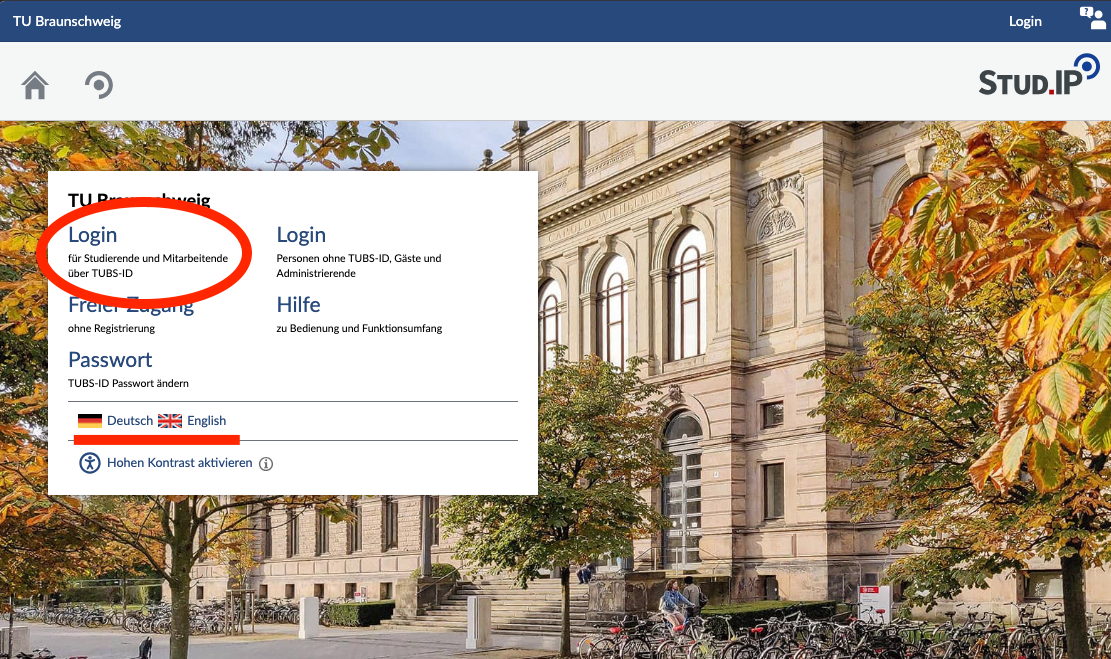](https://books.rz.tu-bs.de/uploads/images/gallery/2026-07/hApWKojdh5mVISLX-studipstarteitede.png) Beim ersten Einloggen bietet dir Stud.IP eine kurze Tour an. Sie hilft dir dabei, dich im System zurechtzufinden. Nimm dir dafür gern einen Moment Zeit. Du kannst die Tour aber auch wegklicken und später erneut starten, indem du auf das Fragezeichen rechts oben unter dem Stud.IP Logo anklickst. [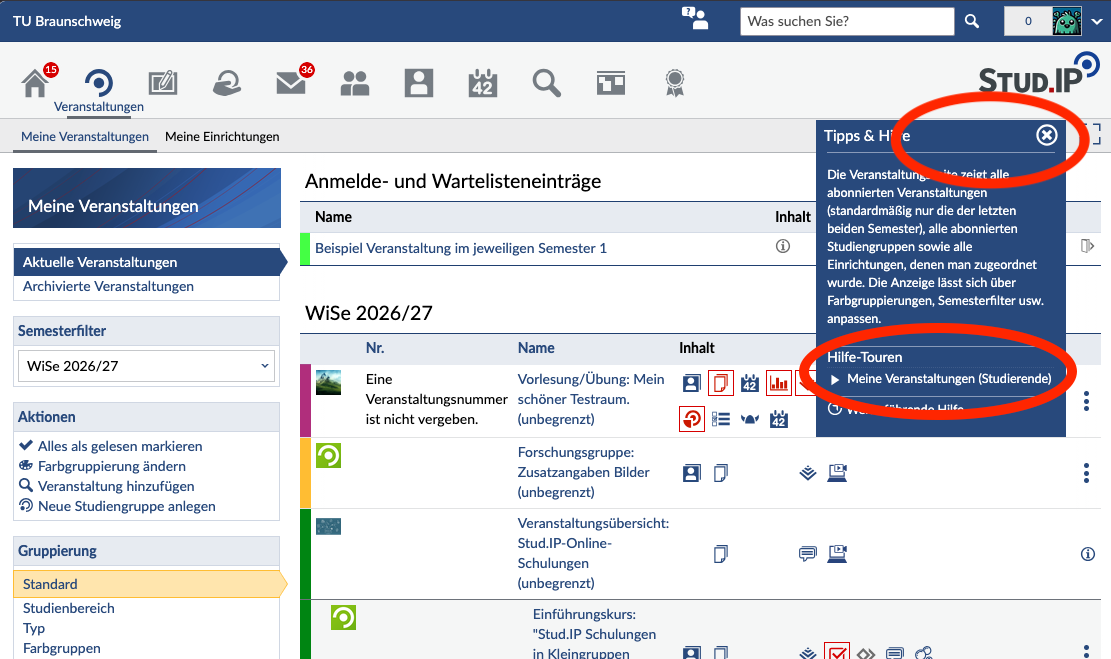](https://books.rz.tu-bs.de/uploads/images/gallery/2026-07/d0T1tORYSOYdSEPz-tourdeutsch1.png) [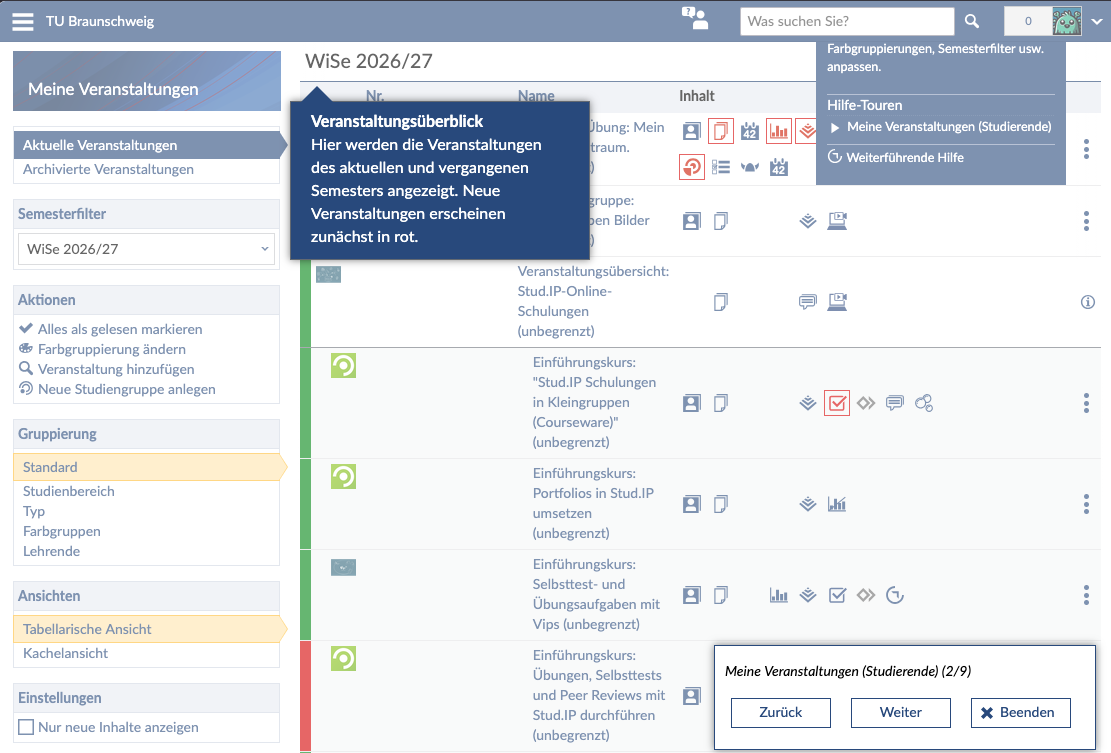](https://books.rz.tu-bs.de/uploads/images/gallery/2026-07/bnaS6Z8rwzCY8a18-tourdeutsch2.png) --- ### Veranstaltungen finden Klicke oben in der Leiste auf das Lupensymbol für „Suche“ oder benutze direkt das Suchfeld oben rechts im blauen Rand. Gib dann den Namen oder die Nummer der Veranstaltung in das Suchfeld ein. Wähle anschließend die passende Veranstaltung aus, indem du auf den Titel klickst. [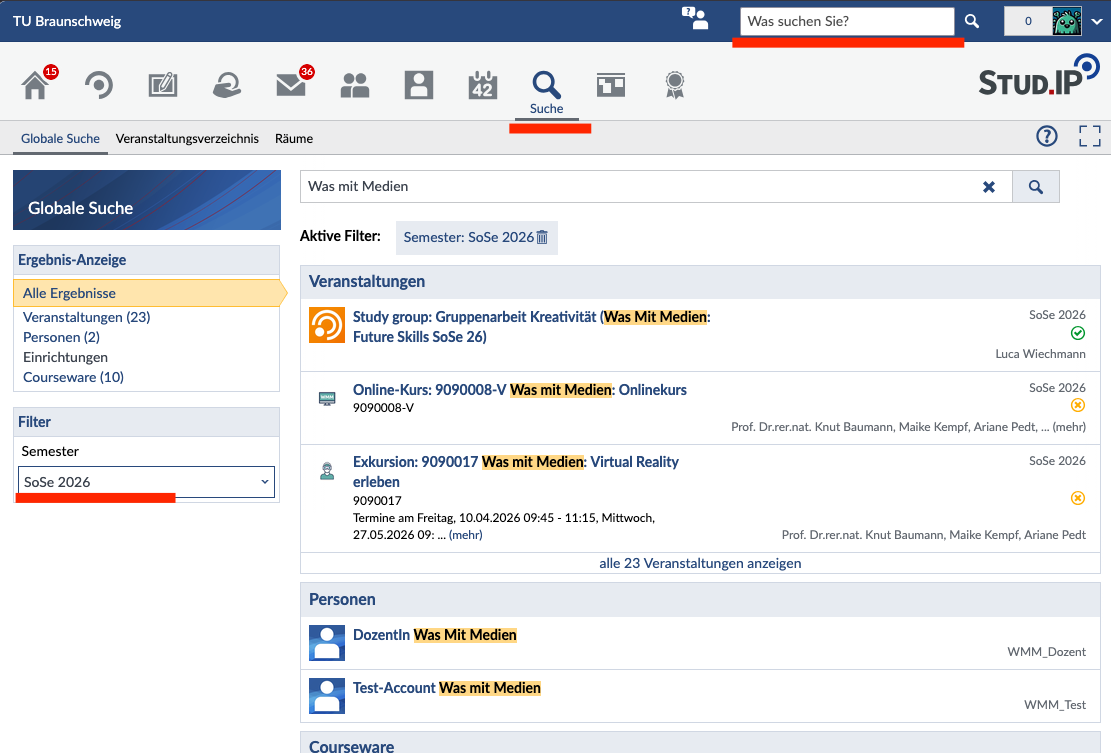](https://books.rz.tu-bs.de/uploads/images/gallery/2026-07/ByYTjvoKg1m0OzeZ-studipsuchede.png) Auf der rechten Seite der Veranstaltungsseite findest du dann die Infobox „Aktionen“. Dort kannst du dich über „Zugang zur Veranstaltung“ in die Veranstaltung eintragen. [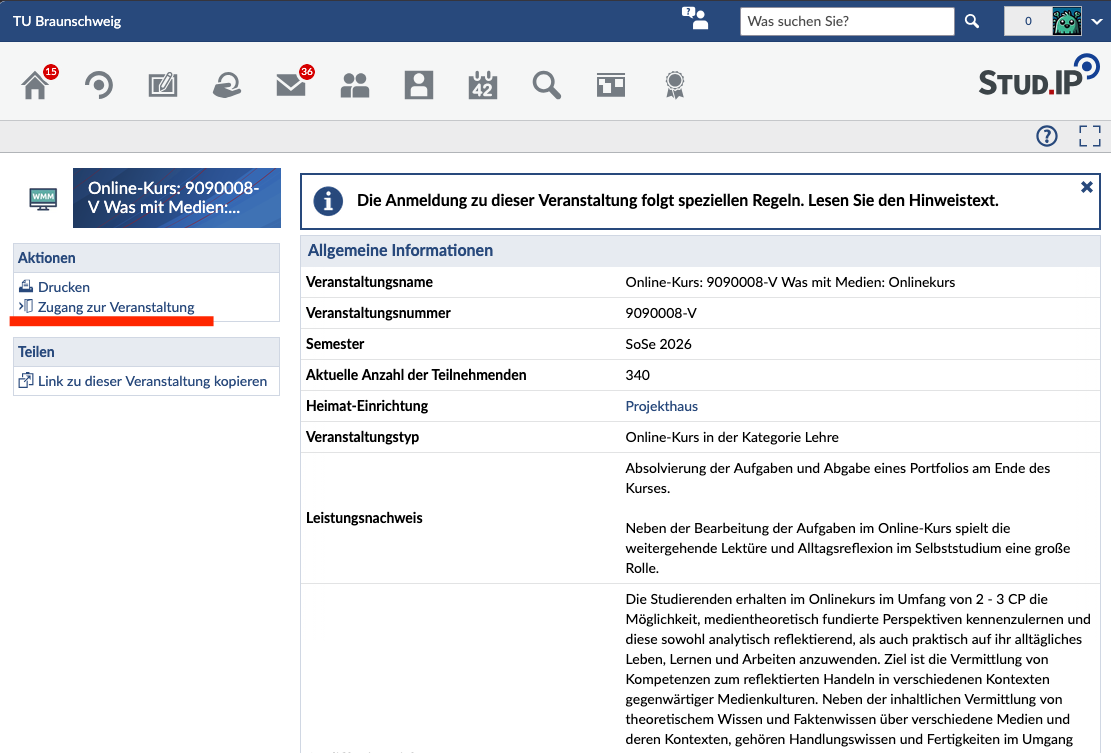](https://books.rz.tu-bs.de/uploads/images/gallery/2026-07/0anq5dIwCLshkXQg-studipveranstaltunde.png)In [TUconnect](https://connect.tu-braunschweig.de/qisserver/pages/cm/exa/coursecatalog/showCourseCatalog.xhtml?_flowId=showCourseCatalog-flow&_flowExecutionKey=e1s1 "Link zum Vorlesungsverzeichnis in TUconnect") kannst du dir im Vorlesungsverzeichnis alle Veranstaltungen deines Studiengangs anzeigen lassen. Auf der Detailseite der Lehrveranstaltung findest du auch einen Link zur Veranstaltung in Stud.IP.
Die Anmeldung für deine Veranstaltung erfolgt in Stud.IP. Auf der Startseite einer Veranstaltung findest du unter „Anmelderegeln“ die Zugangsbedingungen, den Anmeldezeitraum und den Ablauf der Anmeldung. Wenn die Veranstaltung gesperrt ist, haben die Lehrenden (noch) kein Anmeldeverfahren festgelegt. [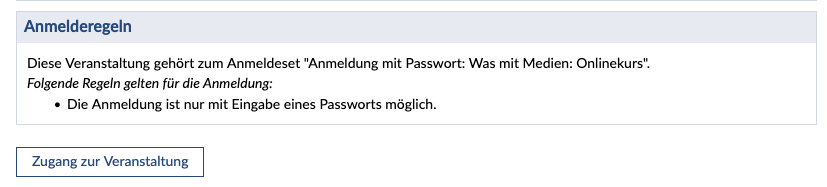](https://books.rz.tu-bs.de/uploads/images/gallery/2026-07/2XvHC6mQjscWcZDr-anmelderegelnde.png) Hast du den Anmeldezeitraum verpasst und musst dringend an der Veranstaltung teilnehmen, melde dich bitte direkt bei den zuständigen Lehrenden. ### Studiengang zuordnen Deine Studiendaten werden automatisch aus TUconnect übernommen. Du musst sie nicht selbst eintragen. Zu Semesterbeginn kann es trotzdem vorkommen, dass deine Daten nicht rechtzeitig zum Anmeldebeginn aktualisiert sind. Das passiert zum Beispiel, wenn deine Rückmeldung erst spät bearbeitet wurde.Wichtig: Dein Stud.IP-Account wird erstmals erstellt, wenn du dich einmal eingeloggt hast. Erst dann kann das nächtliche Update deine Informationen übertragen.
Bitte prüfe deshalb rechtzeitig, ob deine Studiendaten aktuell sind. Einige Veranstaltungen sind nur für bestimmte Studiengänge zugänglich. Wenn dein Studiengang oder dein Fachsemester ein paar Tage vor der Anmeldung noch nicht aktualisiert ist, melde dich bitte mit deiner aktuellen Immatrikulationsbescheinigung beim Stud.IP Support (
Stud.IP-Nachrichten ersetzen dein E-Mail-Postfach nicht. Wichtige Informationen, zum Beispiel vom Immatrikulationsamt oder von der Bibliothek, werden an deine offizielle TU-E-Mailadresse geschickt. Außerdem antworten einige Lehrende auf deine Nachrichten per E-Mail. Diese Antworten landen dann ebenfalls nur in deinem E-Mail-Postfach. Viele Einrichtungen lesen Nachrichten in Stud.IP nicht und sind deshalb nur per E-Mail erreichbar. Daher ist es wichtig, dass du regelmäßig deine E-Mails liest. Weitere Informationen zu E-Mails findest du hier: [https://books.rz.tu-bs.de/books/e-mail](https://books.rz.tu-bs.de/books/e-mail)
## Kalender abonnieren Hinter dem Reiter „Planer“ im oberen Menü findest du deinen **Stundenplan**. Dort kannst du sehen, wie deine Veranstaltungen in diesem Semester liegen. Eigene Termine kannst du ebenfalls in diese Wochenübersicht hinzufügen. Klicke dafür links auf „Neuer Termin“. [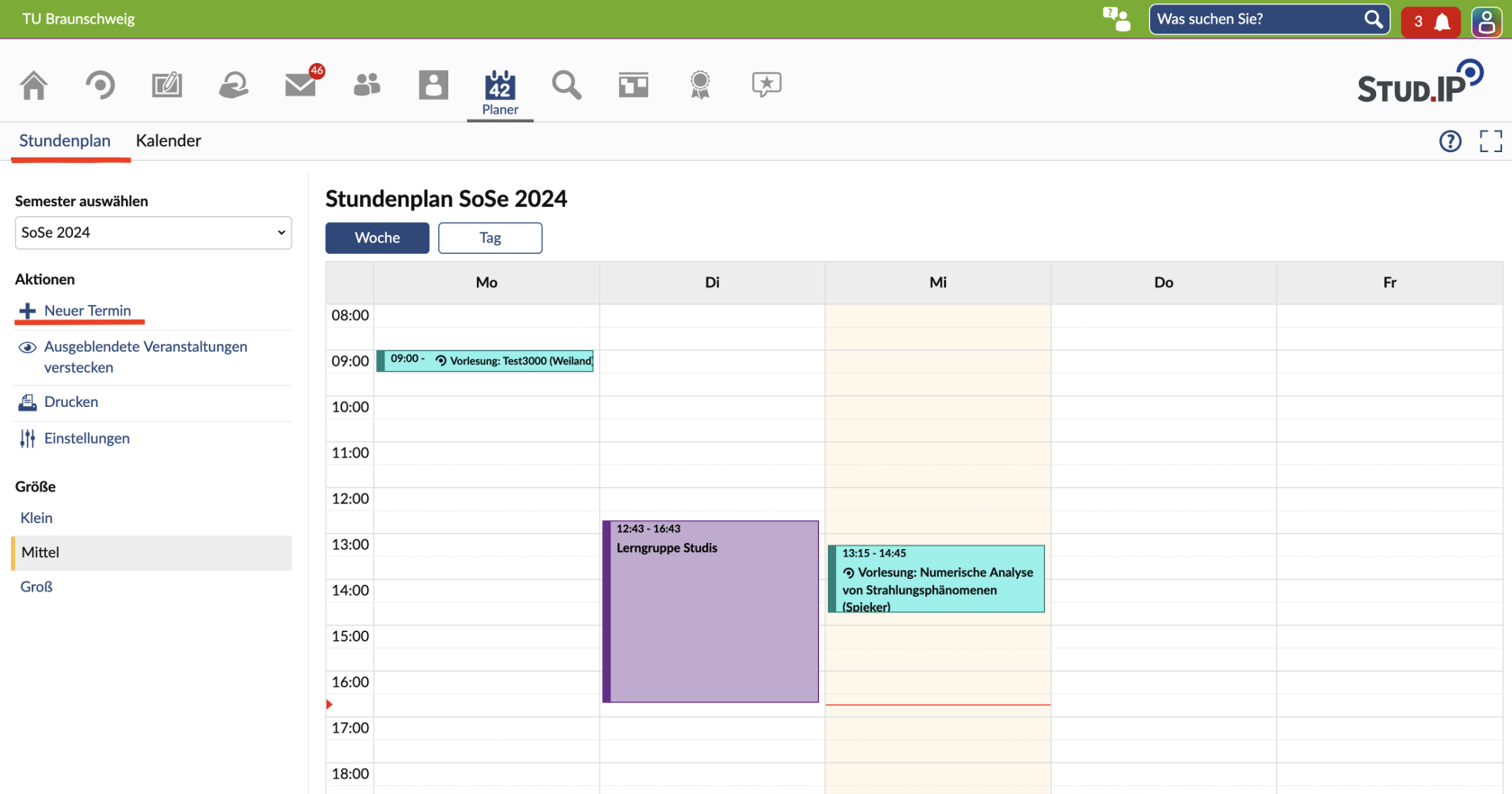](https://books.rz.tu-bs.de/uploads/images/gallery/2026-07/xgiTx98wArryQDBr-image008.png) Im **Kalender** siehst du die genauen Tage und Zeiten, an denen deine Veranstaltungen stattfinden. Einen Link, mit dem du deinen Kalender in eine externe Kalender-App einbinden kannst, erstellst du mit einem Klick auf „Kalender teilen“ und dann „Link zu diesem Kalender“. So behältst du deine Semesterplanung gut im Blick und erkennst schnell, welche Termine wann stattfinden und welche ausfallen. [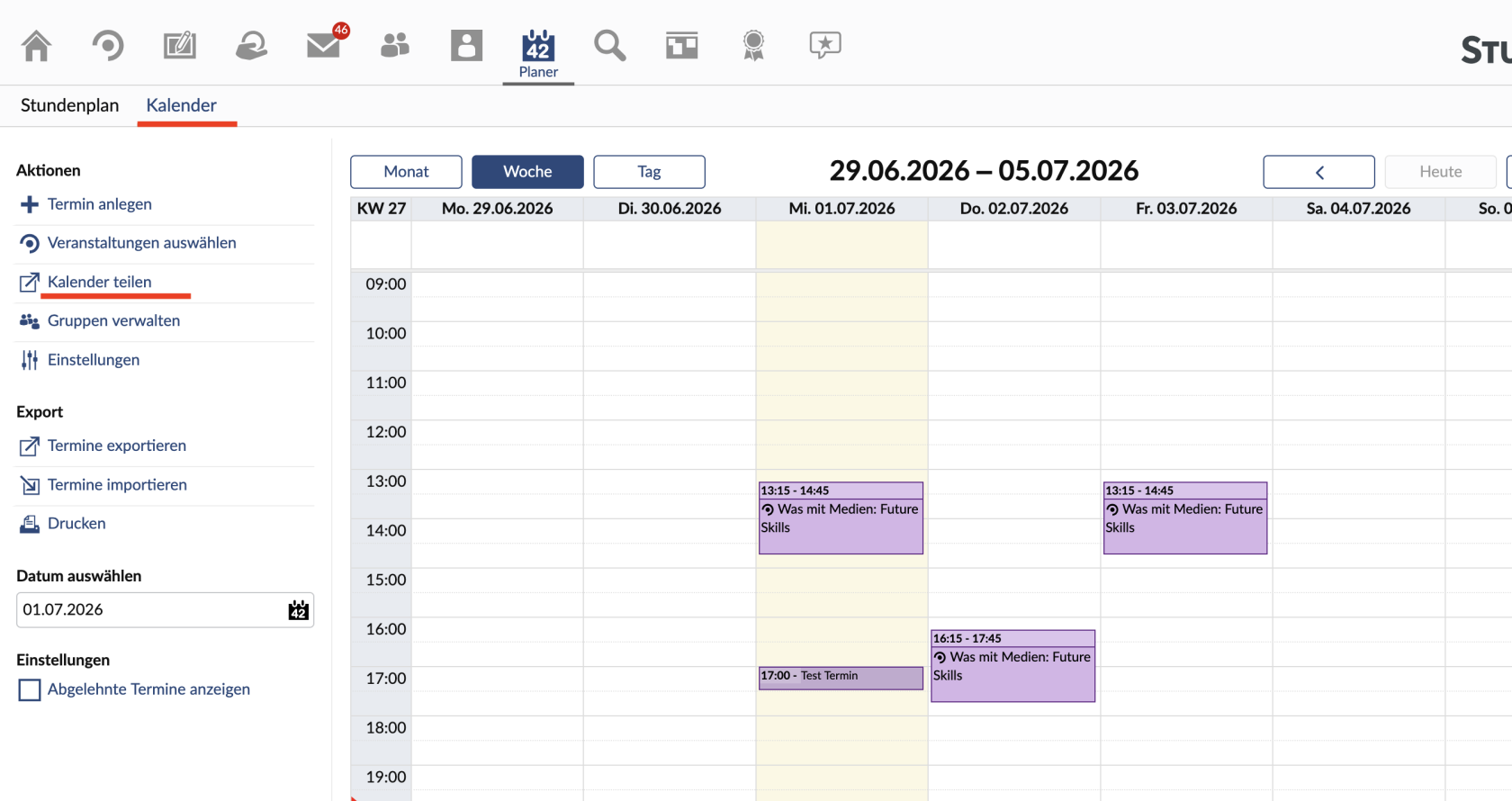](https://books.rz.tu-bs.de/uploads/images/gallery/2026-07/n2ewe0EuiQykFOEW-image009.png) ## Blubber Blubber ist die Chatfunktion in Stud.IP. Dort kannst du mit anderen Nutzenden „blubbern“. Unter dem Reiter Community findest du den globalen Blubber. Darauf können alle Mitglieder der TU Braunschweig zugreifen. Dort kannst du dich über Themen austauschen, die dich interessieren, auf Umfragen hinweisen, oder Fragen zum Studium in Braunschweig stellen. Im Menü links kannst du außerdem zwischen dem globalen Blubber und den Blubbern deiner Veranstaltungen wechseln. Die Beiträge dort sind nur innerhalb der jeweiligen Veranstaltung sichtbar und können für die Lehre benutzt werden. Ob Blubber in einer Veranstaltung verfügbar ist, entscheiden die Lehrenden. [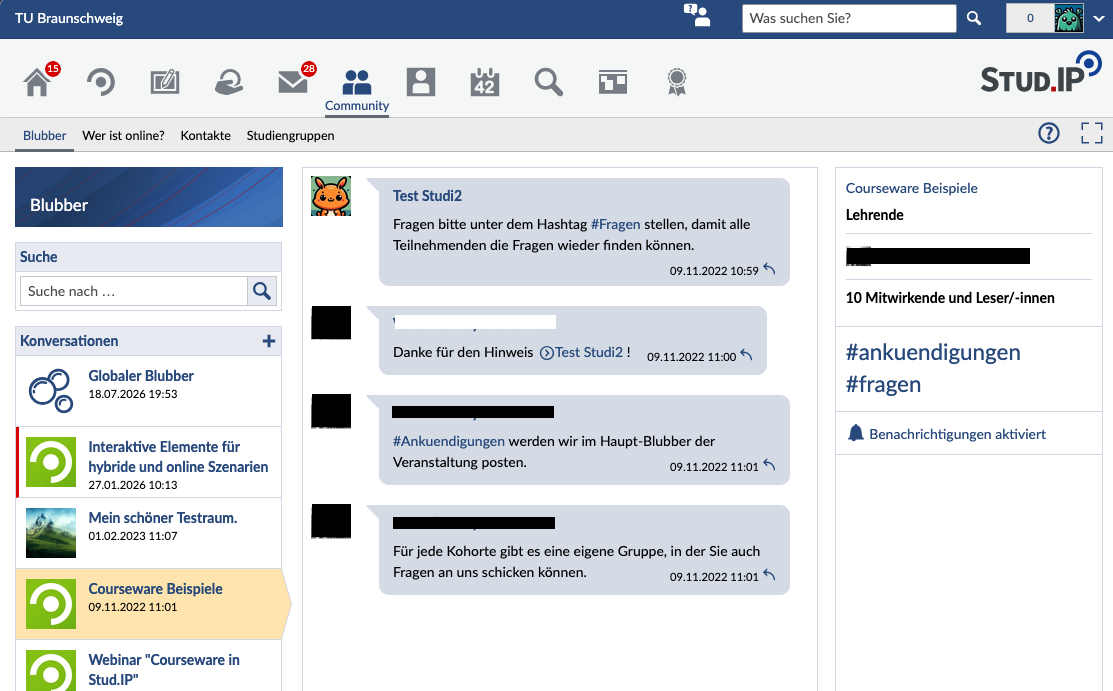](https://books.rz.tu-bs.de/uploads/images/gallery/2026-07/tqS4kXytmMIGjcGO-image010.png) Neue Nachrichten erscheinen sofort, ohne dass du die Seite neu laden musst. Neben kurzen Texten kannst du auch Bilder, Videos und andere Dateien teilen. Klicke dafür auf den Upload-Button oder ziehe die Datei per Drag&Drop auf das Chatfenster.Bitte beachte, dass Beiträge, die gegen die Werte der TU Braunschweig verstoßen, nicht geduldet werden. Solche Inhalte werden kommentarlos entfernen.
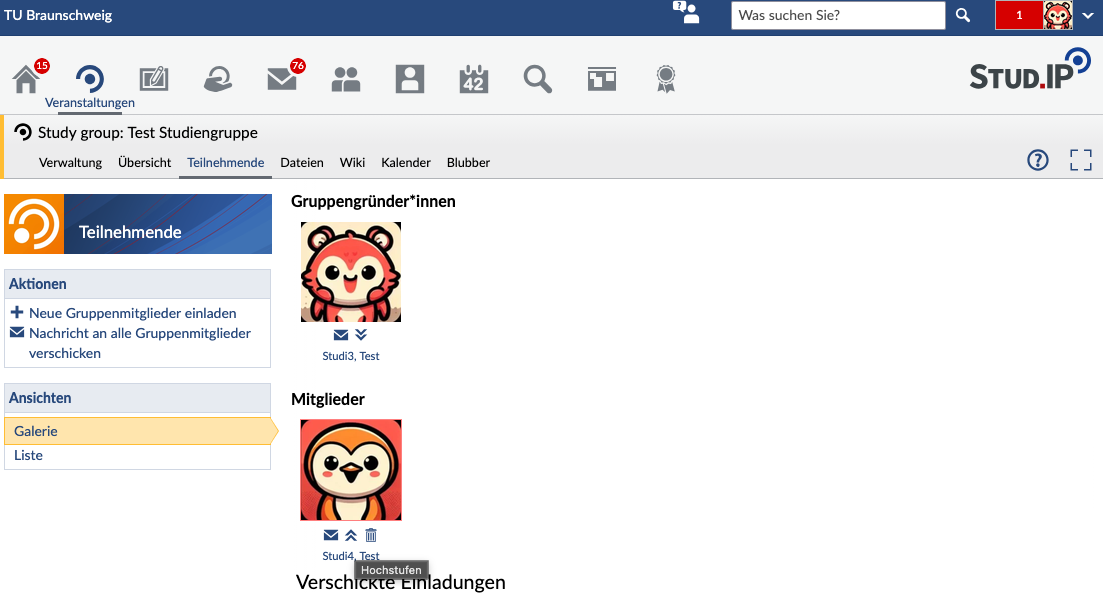
## Ankündigungen Ankündigungen findest du nach deinem Login auf der Startseite von Stud.IP. Dort stehen neben wichtigen Informationen zur Plattform auch Hinweise zu Veranstaltungen und Angeboten von uni-nahen Einrichtungen. Auf der Startseite findest du außerdem Werbebanner, die ebenfalls von uni-nahen Einrichtungen platziert wurden. Ankündigungen und Werbebanner unterliegen festen Regeln. [Diese haben wir hier erfasst für dich zusammengestellt](https://books.rz.tu-bs.de/books/studip/page/de-ankundigungen-und-banner). [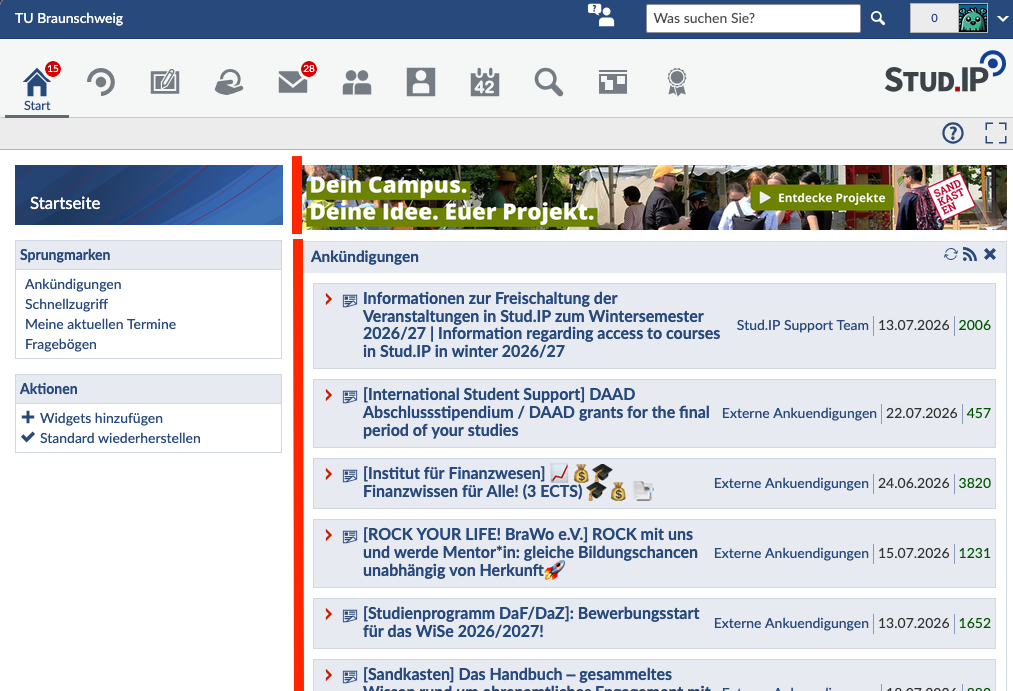](https://books.rz.tu-bs.de/uploads/images/gallery/2026-07/vJVAlPzaWH8f0nDT-image011.png) ## Das Schwarze Brett Das schwarze Brett ist für alle Angehörigen der TU Braunschweig offen. Dort kannst du Dinge kaufen, verkaufen und verschenken, zum Beispiel Bücher, Technik, Konzerttickets oder Möbel. Außerdem findest du dort Fahrgemeinschaften, Lerngruppen und Wohnungsangebote. Du kannst auch an Umfragen teilnehmen oder dich für Ideen rund um deine Abschlussarbeit inspirieren lassen. Wichtig: Bitte halte dich an die Regeln, die direkt im Schwarzen Brett zu finden sind. [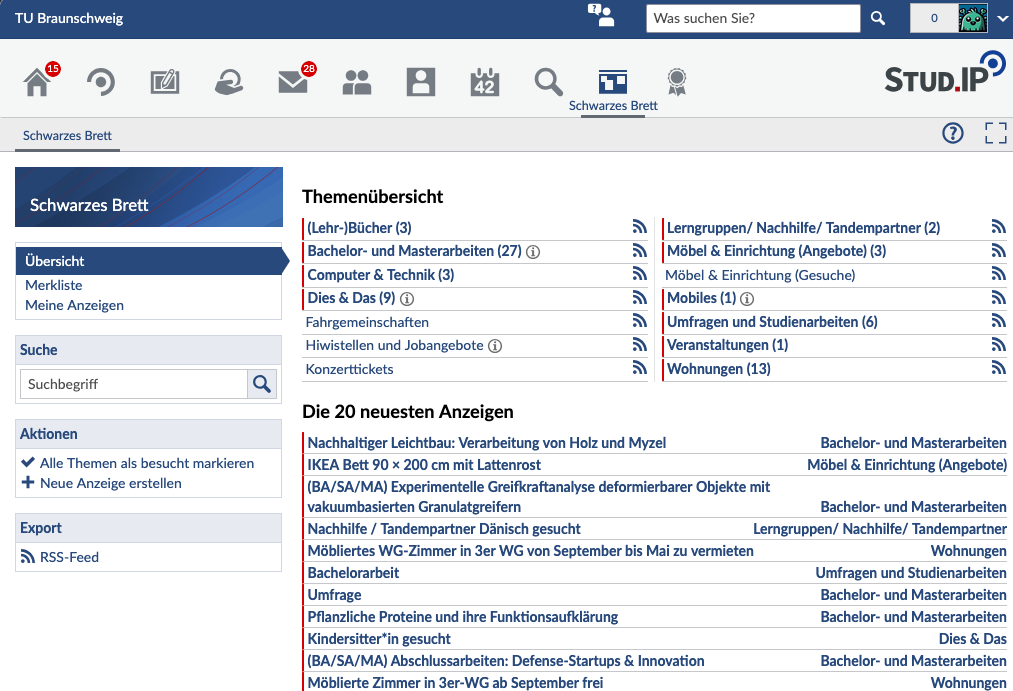](https://books.rz.tu-bs.de/uploads/images/gallery/2026-07/QwWtMDNfCnU3MqJ8-image012.png) ## Sprechstunden Lehrenden können auf ihrem Stud.IP Profil Sprechstunden anbieten. Viele nutzen diese Funktion bereits. Wenn du einen Sprechstundentermin vereinbaren möchtest, kannst du das im Profil der Lehrperson unter „Terminvergabe“ tun. Wird dieser Reiter nicht angezeigt, nutzt die Lehrperson die Funktion nicht. [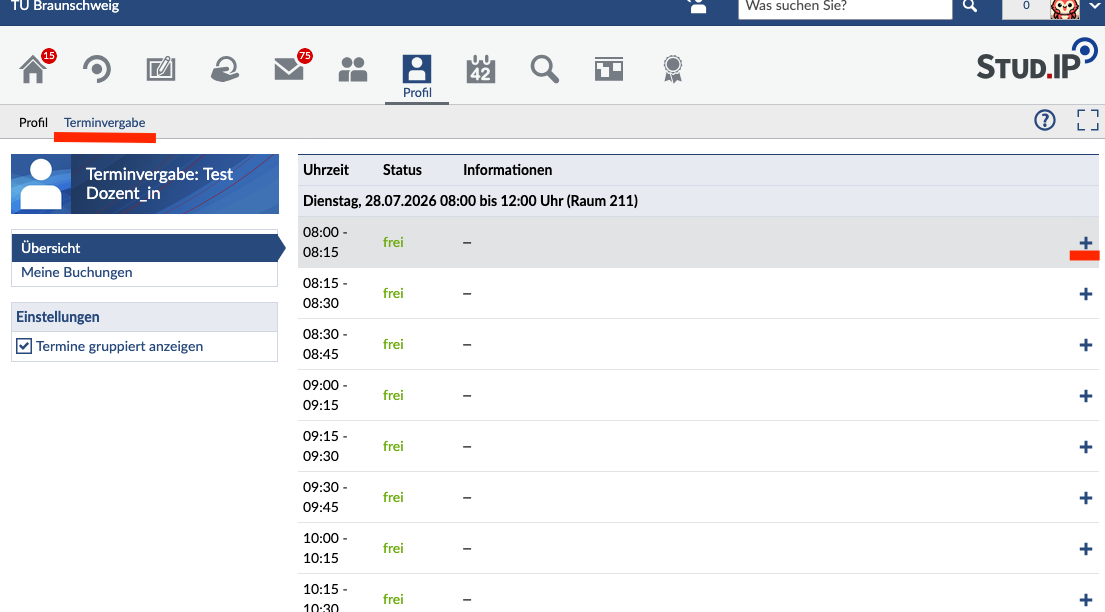](https://books.rz.tu-bs.de/uploads/images/gallery/2026-07/auxoQyzWODG9nlhk-image013.png) Du kannst einen neuen Termin buchen, indem du rechts auf das + klickst. In dem sich öffnenden Fenster trägst du dann den Grund ein, warum du die Sprechstunde buchen möchtest. [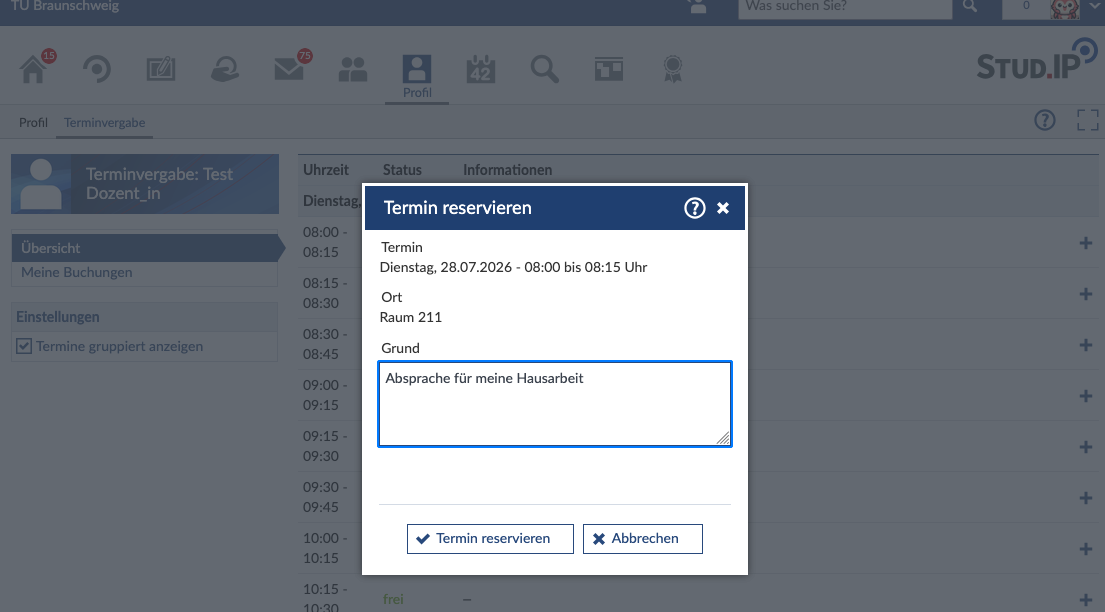](https://books.rz.tu-bs.de/uploads/images/gallery/2026-07/f74E8VZ9OBQST4cq-image014.png) Nachdem du auf „Termin reservieren“ geklickt hast, ist der Termin für dich gebucht und steht anderen Studierenden nicht mehr zur Verfügung. Nur wenn die Lehrperson ausdrücklich angegeben hat, dass mehrere Personen gleichzeitig an einem Termin teilnehmen können, ist das anders. Du kannst du Termin jederzeit wieder löschen, indem du auf die Mülltonne klickst. [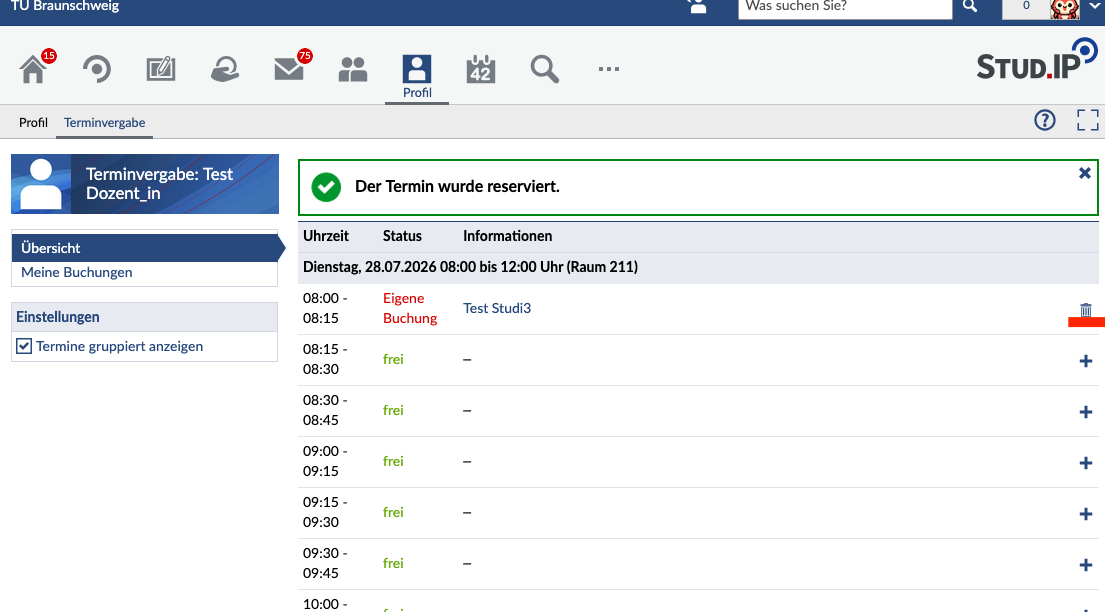](https://books.rz.tu-bs.de/uploads/images/gallery/2026-07/TxvmNY95poPX86Id-image015.png) # [DE] Studiengruppen in Stud.IP Studiengruppen ähneln Veranstaltungen, können aber auch von euch Studierenden erstellt und verwaltet werden. So könnt ihr euch für Projektarbeiten, Tutorien oder Arbeitsgruppen organisieren und austauschen. Es gibt öffentliche („offen für alle“ und „auf Anfrage“) und unsichtbare Studiengruppen. Wie in normalen Veranstaltungen findest du dort auch verschiedene Werkzeuge, zum Beispiel für Videokonferenzen, Dateiablage, Wiki, Forum und die gemeinsame Terminabstimmung. ### Studiengruppe anlegen **Du kannst eine Studiengruppe auf der Seite „Veranstaltungen“ anlegen. Klicke dafür im linken Menü unter „Aktionen“ auf „Neue Studiengruppe anlegen“. ** ** ** [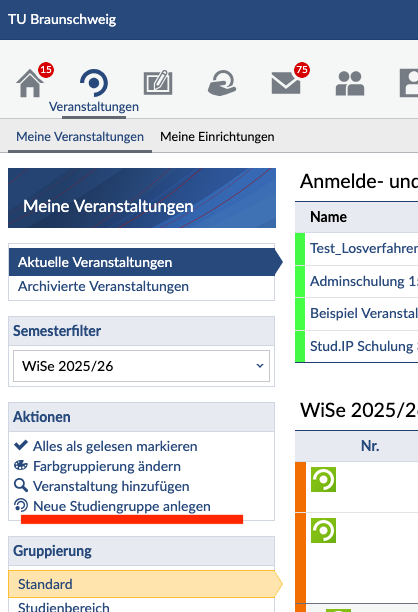](https://books.rz.tu-bs.de/uploads/images/gallery/2026-07/hLzU60qIK6r3ScDi-image016.png) Im nächsten Fenster gibst du den Namen deiner Studiengruppe an und legst fest, ob sie offen für alle, auf Anfrage oder unsichtbar sein soll. Klicke dann auf „Weiter“ und bestätige anschließend noch einmal, dass die Studiengruppe angelegt werden soll. Danach kannst du sie einrichten. Deine Studiengruppe erscheint auf der Seite „Veranstaltungen“ in dem Semester, in dem du sie angelegt hast. [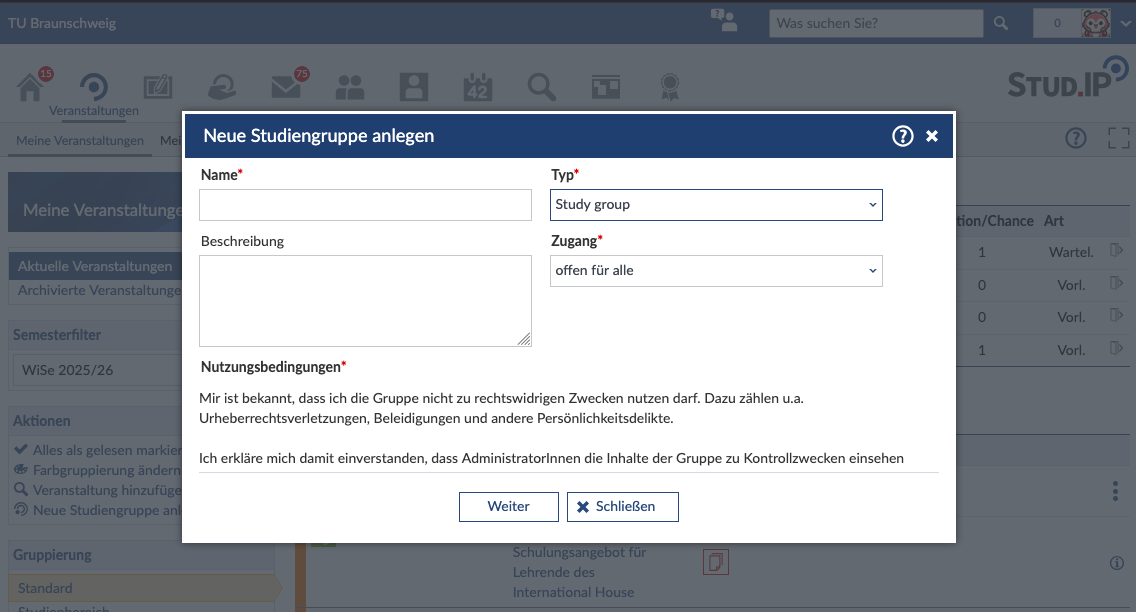](https://books.rz.tu-bs.de/uploads/images/gallery/2026-07/Pum6JyQEOoCljKyP-image017.png) ### **Weitere Personen einladen** Du kannst weitere Personen einladen, indem du auf „Teilnehmende“ klickst und links im Menü „Neue Gruppenmitglieder einladen“ auswählst. In dem sich öffnenden Menü kannst du dann nach den Accounts suchen, die du hinzufügen möchtest. [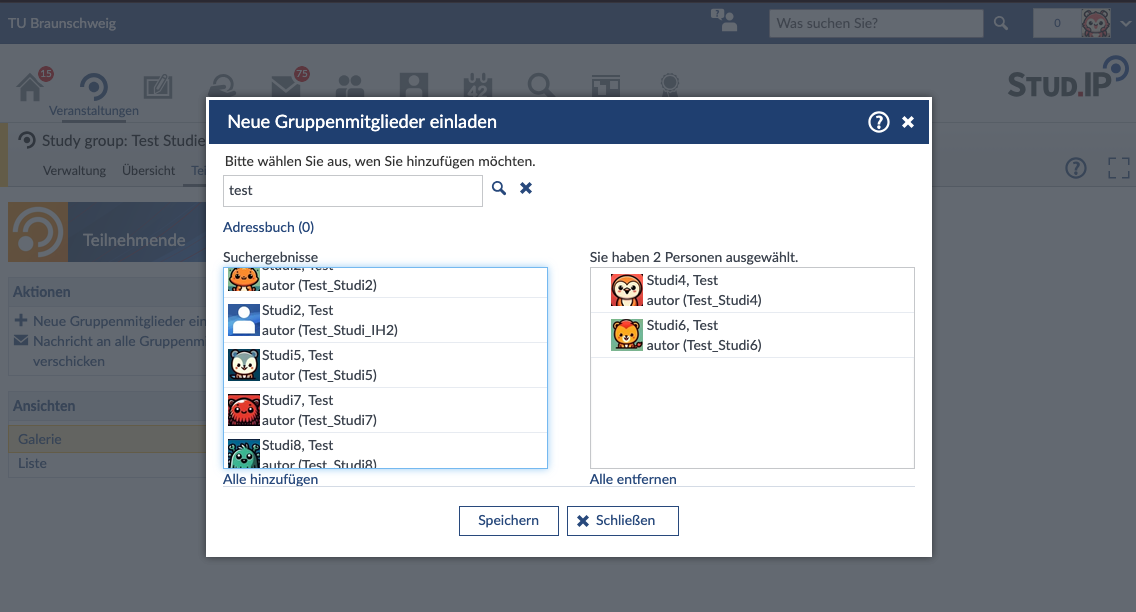](https://books.rz.tu-bs.de/uploads/images/gallery/2026-07/GIkOi72QM5GYmaYO-image018.png) Die eingeladenen Personen erhalten anschließend einen Link per Stud.IP-Nachricht. Erst wenn sie auf den Link klicken, werden sie der Studiengruppe hinzugefügt. [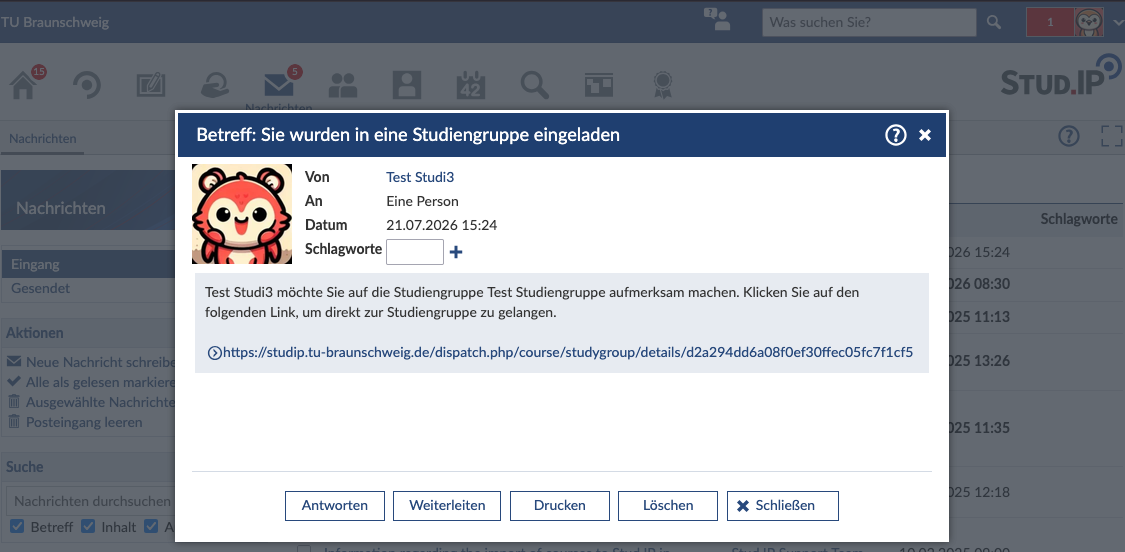](https://books.rz.tu-bs.de/uploads/images/gallery/2026-07/pEBjnYXIVkYxG7R7-image019.png) ### Wie lange ist meine Studiengruppe gültig? Studiengruppen bleiben bestehen, bis du sie löschst oder dein Account gelöscht wird. Wenn die Studiengruppe auch nach deiner Exmatrikulation weiter genutzt werden soll, solltest du eine andere Person aus der Gruppe hochstufen. Das geht auf der Seite „Teilnehmende“ über die Pfeil-Symbole. Zuerst werden Mitglieder zu Moderator\*innen und mit einem weiteren Klick zu Gruppengründer\*innen.Wenn dein Account gelöscht wird, werden aus datenschutzrechtlichen Gründen auch alle von dir hochgeladenen Dateien gelöscht.
[](https://books.rz.tu-bs.de/uploads/images/gallery/2026-07/Sar5h1GluqmDbCTf-image020.png) # [EN] Getting started New to university and not quite sure how Stud.IP works? Don't worry: You'll find the most important information here at a glance to help you get off to a good start in your studies. ### Getting Started You can find Stud.IP at the following URL [https://studip.tu-braunschweig.de](https://studip.tu-braunschweig.de) You can log in there using the field in the upper-left corner with your TUBS ID (y-number) or with the login credentials from another university in Lower Saxony.To log in with a different ID, [please check this page](https://books.rz.tu-bs.de/books/studip/page/en-frequently-asked-questions-faq) to find out which login you need to use.
On the landing page, you can switch the language to English. This setting also applies to the account you log in to. You can change the language at any time later in the settings. [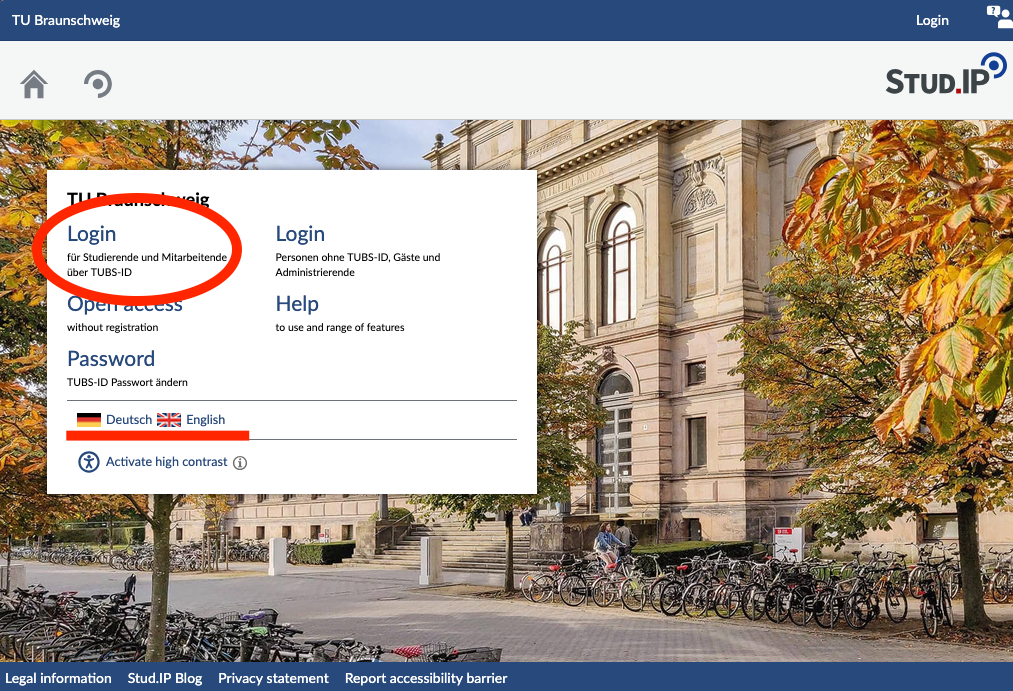](https://books.rz.tu-bs.de/uploads/images/gallery/2026-07/7m8WSLz2YtV9IHF4-landingpagestudip.png) When you log in for the first time, Stud.IP offers you a short tour. It will help you find your way around the system. Please take a moment to go through it. You can also close the tour and start it again later by clicking on the question mark in the upper right corner, below the Stud.IP logo. [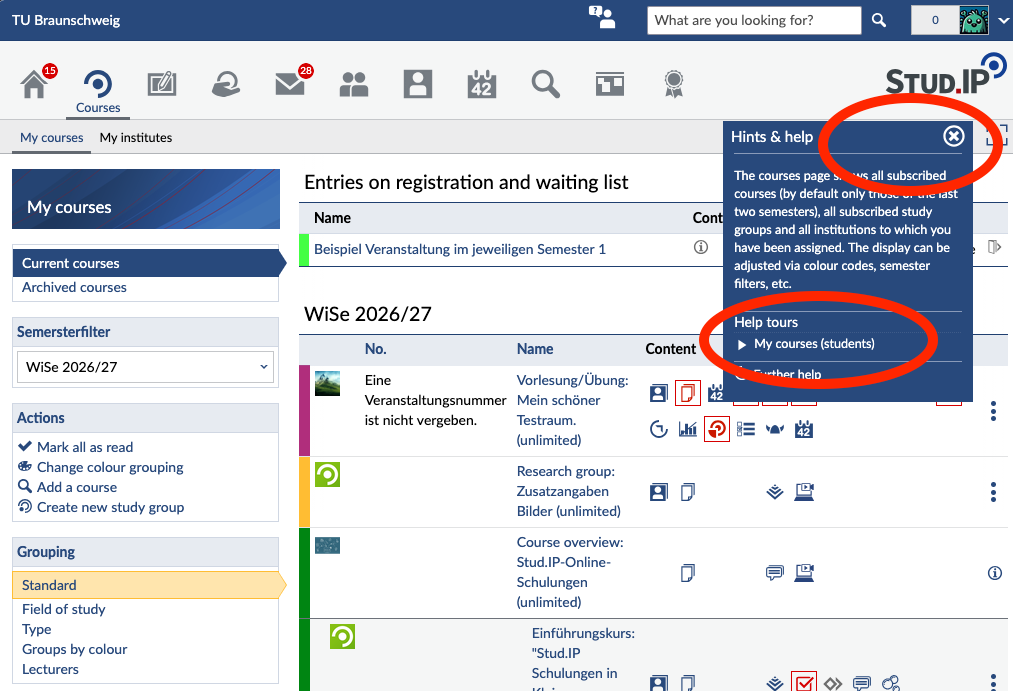](https://books.rz.tu-bs.de/uploads/images/gallery/2026-07/FmwLx64O3lp22oUk-studiptourengl1.png) [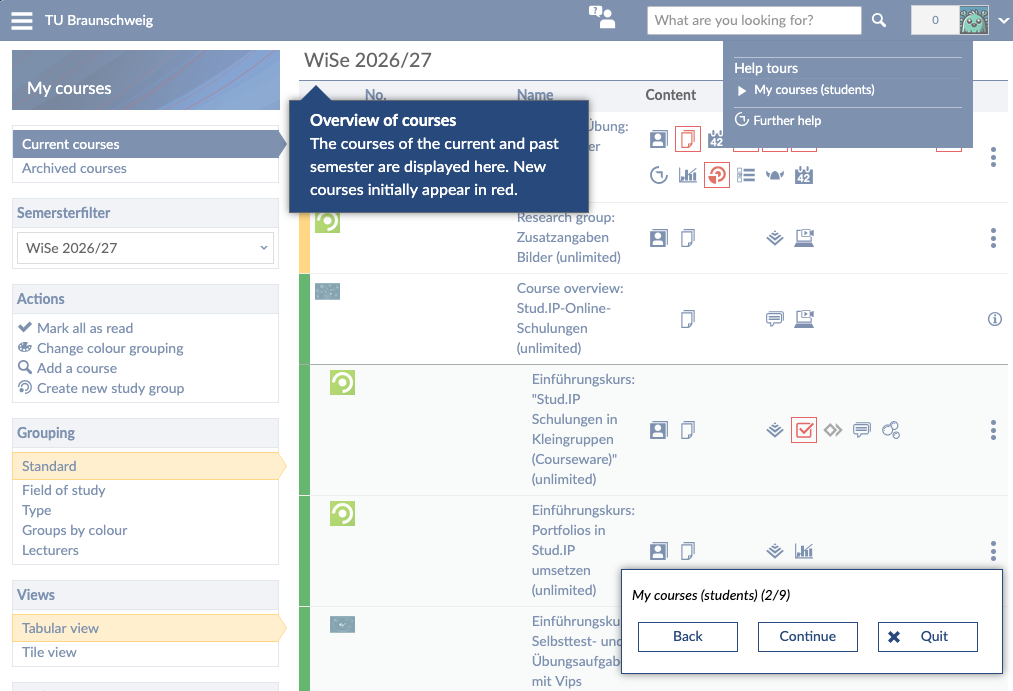](https://books.rz.tu-bs.de/uploads/images/gallery/2026-07/TU1r4qbST1M31Bfn-studiptourengl2-png.png) ### Finding Courses Click the magnifying glass icon for “Search” in the top bar. Then enter the name or number of the course in the search field. Finally, select the correct course by clicking on its title. [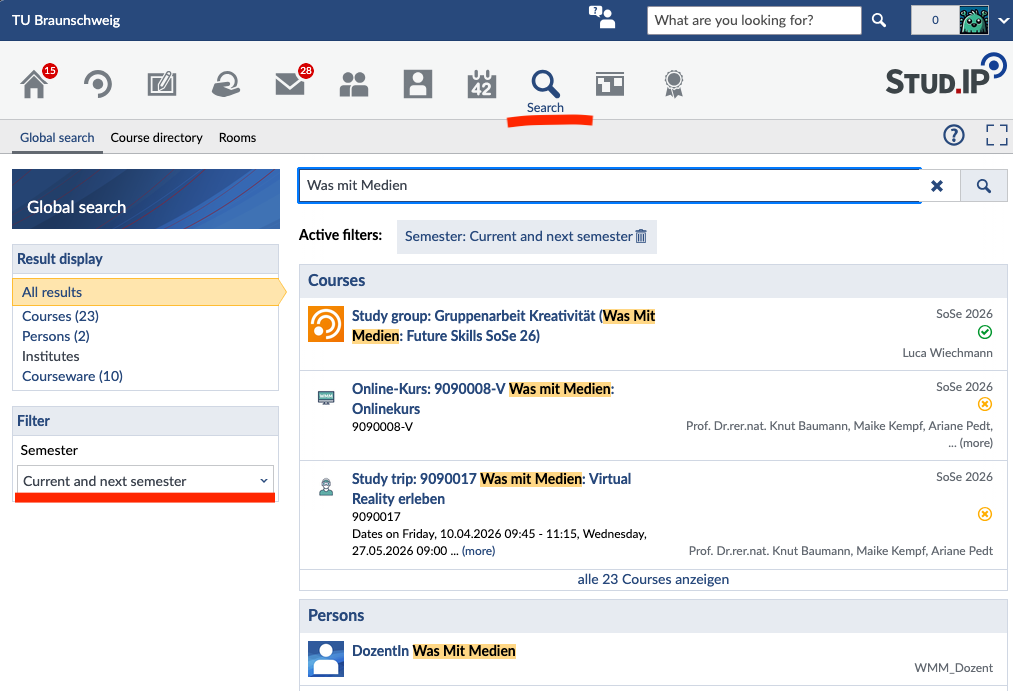](https://books.rz.tu-bs.de/uploads/images/gallery/2026-07/uzOHDmT4yzX6O6GS-image024.png) On the right-hand side, you'll find the “Actions” info box. There, you can sign up for the course by clicking “Go to Course.” [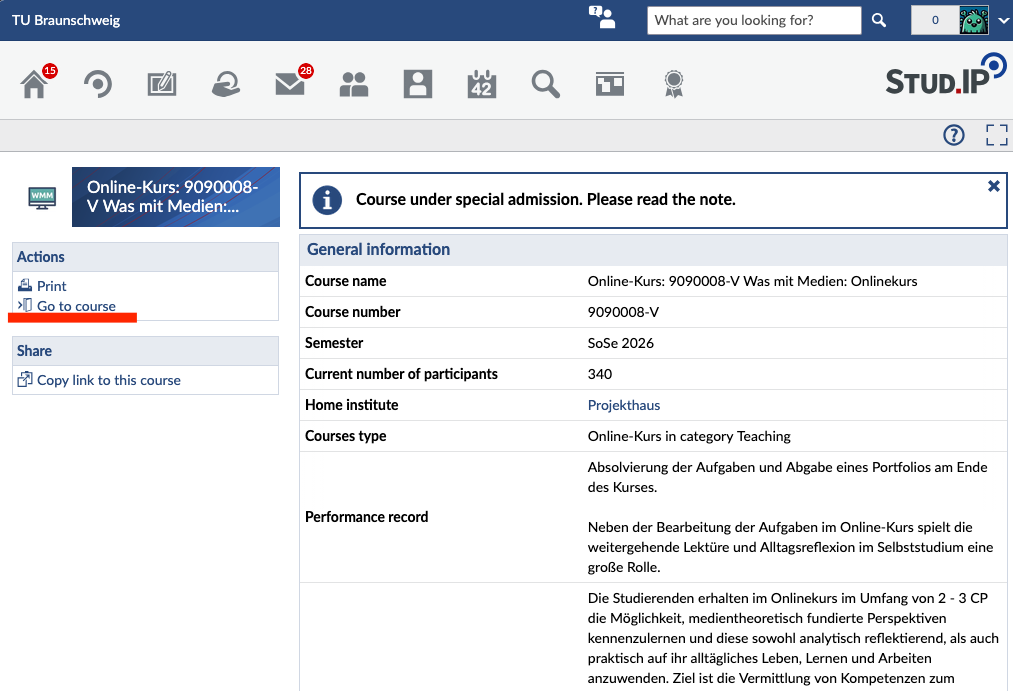](https://books.rz.tu-bs.de/uploads/images/gallery/2026-07/hzuIRqmWZx1zvZI2-image025.png)In TUconnect, you can view all the courses in your degree program in the course catalog. On the course details page, you'll also find a link to the course in Stud.IP.
Registration for your course takes place in Stud.IP. On the course homepage, you will find the admission requirements, the registration period, and the registration process under “Admission settings.” If the course is locked, the instructors have not (yet) established a registration procedure. [](https://books.rz.tu-bs.de/uploads/images/gallery/2026-07/hHnHNwe8gwr4msLT-image026.png) If you missed the registration period but urgently need to attend the course, please contact the instructors directly. ### Assigning a Degree Program Your academic data is automatically imported from TUconnect. You do not need to enter it yourself. At the start of the semester, however, it’s possible that your information isn’t updated in time for the start of registration. This can happen, for example, if your re-enrolment was processed late.Important: Your Stud.IP account is first created after your first login. The nightly update can only transfer your information after that.
Please make sure to check in advance whether your academic information is up to date. Some courses are only open to students in certain degree programs. If your degree program or semester has not yet been updated a few days before registration, please contact Stud.IP Support (
Stud.IP messages do not replace your email inbox. Important information—for example, from the Office of Student Registration or the library—is always sent to your official TU email address. In addition, some instructors will respond to your messages via email. These responses will also only appear in your email inbox. Many departments do not check messages in Stud.IP and can therefore only be reached via email. Therefore, it is important that you check your email regularly. You can find more information about emails here: [https://books.rz.tu-bs.de/books/e-mail](https://books.rz.tu-bs.de/books/e-mail)
## Subscribing to the Calendar Your **timetable** is located under the “Planner” tab in the top menu. There you can see your schedule for this semester. You can also add your own events to this weekly overview. To do so, click “New entry” on the left. [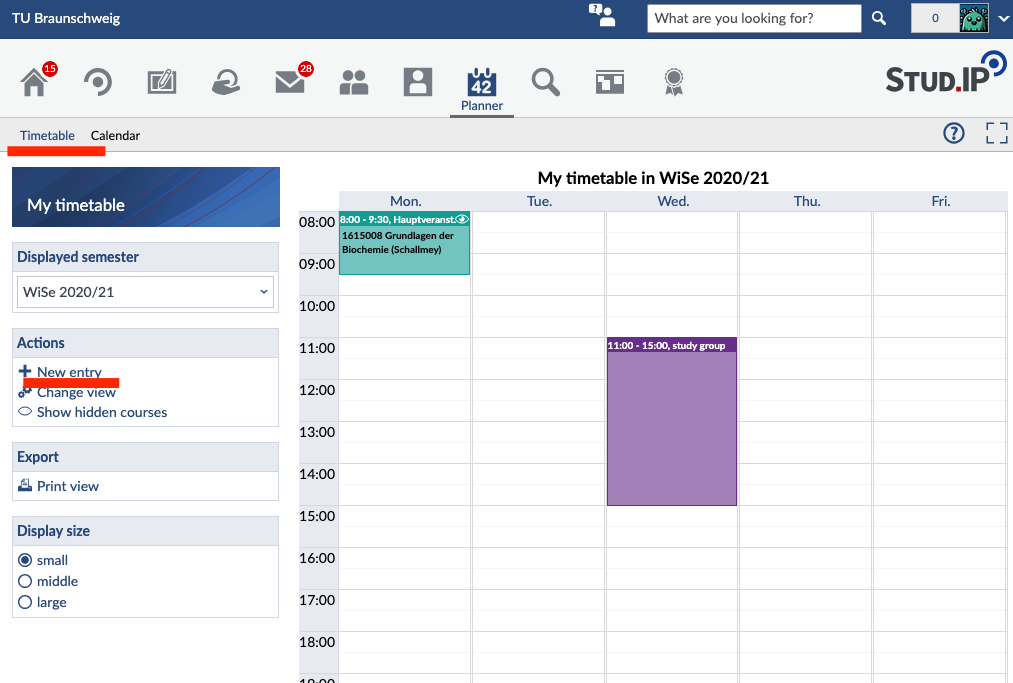](https://books.rz.tu-bs.de/uploads/images/gallery/2026-07/1R0nTnvpkhDIImCe-image028.png) In the **cale**ndar, you can view the exact dates and times of your events. To create a link that lets you sync your calendar with an external calendar app, click “Share calendar” and then “Link to this calendar.” This way, you can keep track of your semester schedule and quickly see which dates are scheduled and which ones have been canceled. [](https://books.rz.tu-bs.de/uploads/images/gallery/2026-07/n2ewe0EuiQykFOEW-image009.png) ## Blubber Blubber is the chat feature in Stud.IP. You can use it to “blubber” (think: to babble) with other users. Under the „Community“ tab, you’ll find the Global Blubber. All members of TU Braunschweig can access it. You can use it to discuss topics that interest you, share polls, or ask questions about studying in Braunschweig. In the menu on the left, you can also switch between the global Blubber and the Blubbers of your courses. The posts there are only visible within the respective course and can be used for teaching purposes. Teaching staff decides whether Blubber is available in a course. [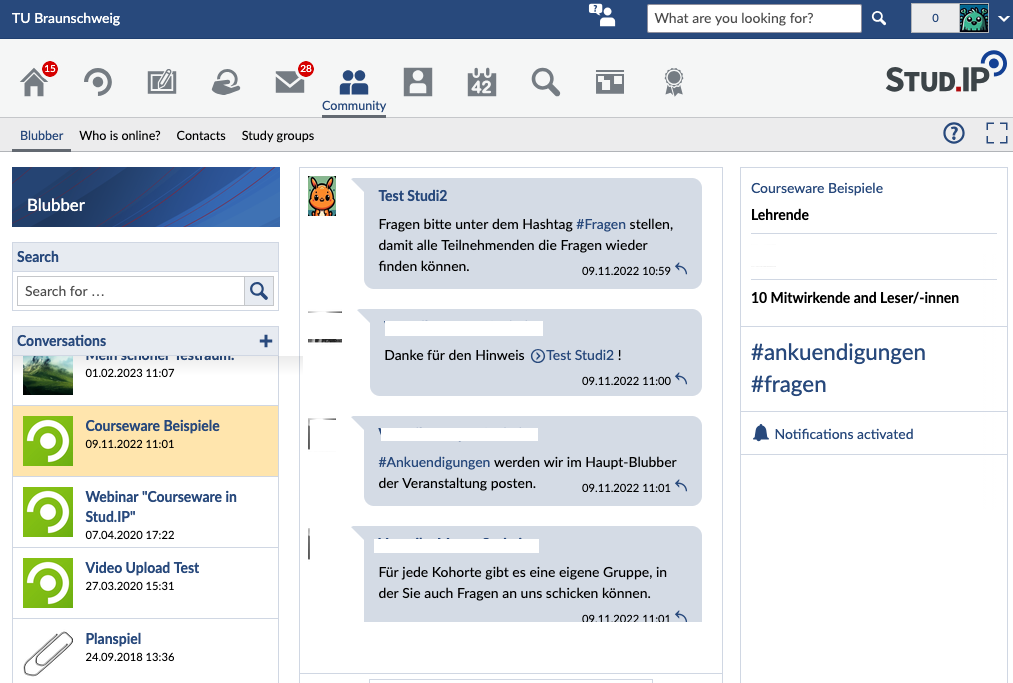](https://books.rz.tu-bs.de/uploads/images/gallery/2026-07/LK5LsLM83HVE9cRt-image029.png) New messages appear instantly without you having to refresh the page. In addition to short texts, you can also share images, videos, and other files. To do so, click the upload button or drag and drop the file into the chat window.Please note that posts that violate the values of TU Braunschweig will not be tolerated. Such content will be removed without comment.
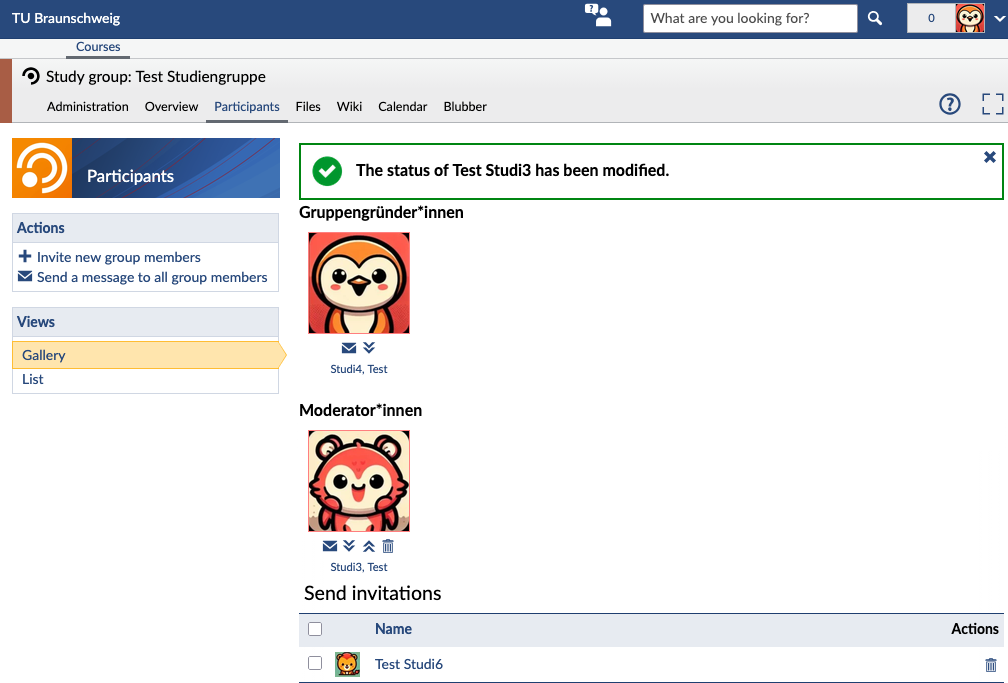
## Announcements Announcements can be found on the Stud.IP start page after you log in. In addition to important information about the platform, you’ll find information about events and offers from university-affiliated organizations. The start page also features advertising banners placed by university-affiliated organizations. Announcements and advertising banners are subject to set rules. [We’ve compiled these rules for you here.](https://books.rz.tu-bs.de/books/studip/page/en-announcements-and-banners) [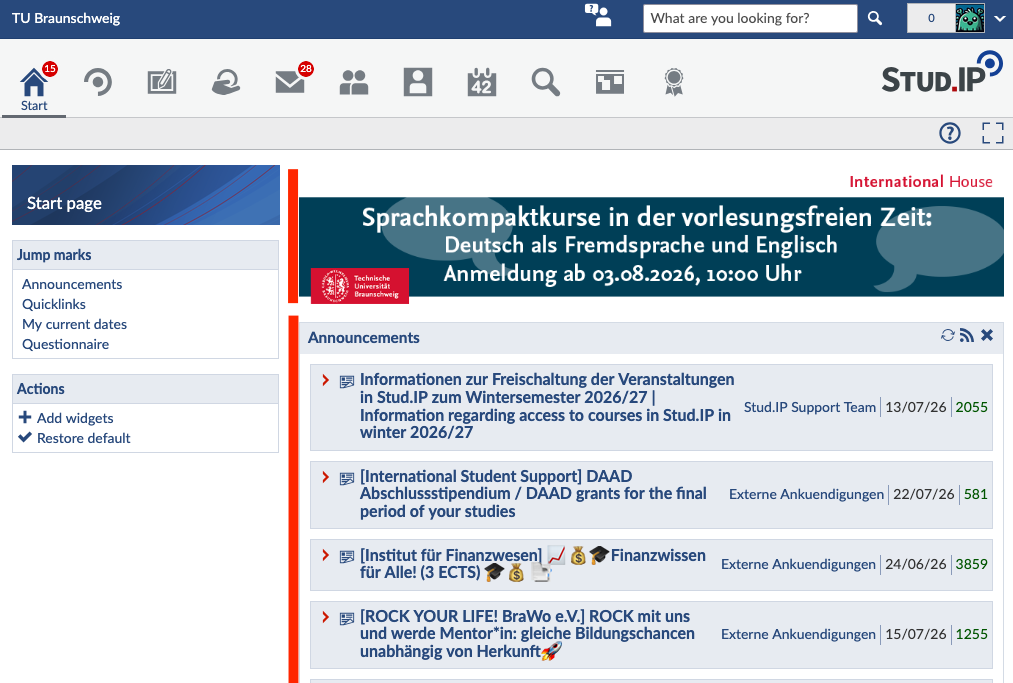](https://books.rz.tu-bs.de/uploads/images/gallery/2026-07/W4jqILqlO0NNY3RZ-image030.png) ## Notice Board The notice board is open to everyone at TU Braunschweig. You can use it to buy, sell, or give away items such as books, electronics, concert tickets, or furniture. You’ll also find carpool opportunities, study groups, and housing listings there. Additionally, you can participate in surveys or find inspiration for your thesis. Important: Please follow the rules posted directly on the notice board. [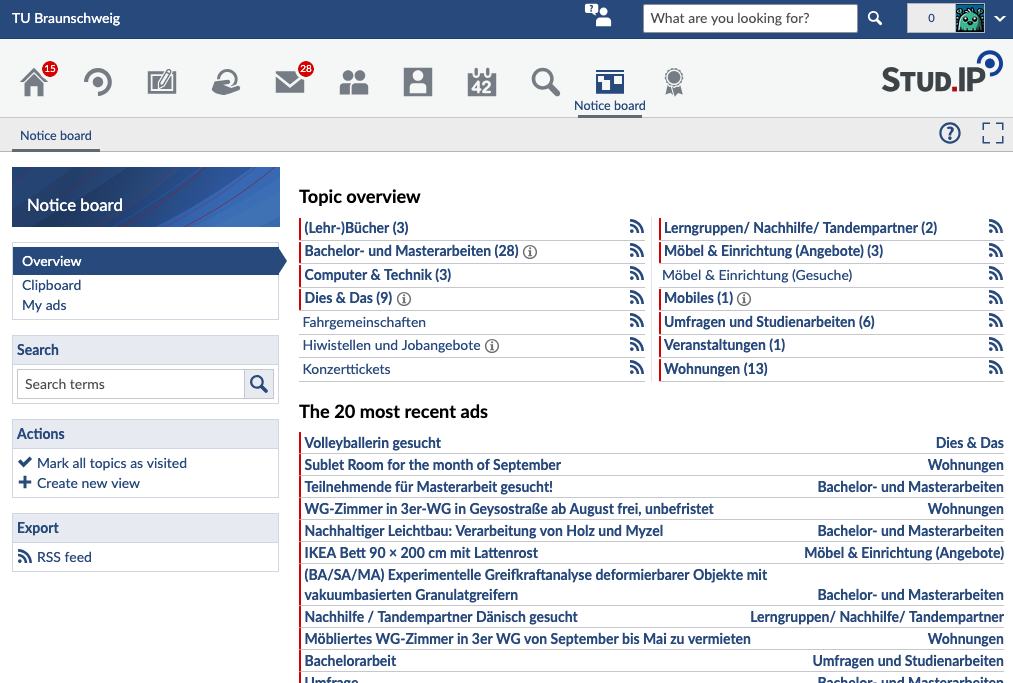](https://books.rz.tu-bs.de/uploads/images/gallery/2026-07/elOIRiSAjq0s0ywI-image031.png) ## Office Hours Teaching staff can offer office hours on their Stud.IP profile. Many are already using this feature. If you’d like to schedule an office hour appointment, you can do so on the teaching staff member’s profile under “Terminvergabe“. If this tab isn’t displayed, the teaching staff member isn’t using this feature. [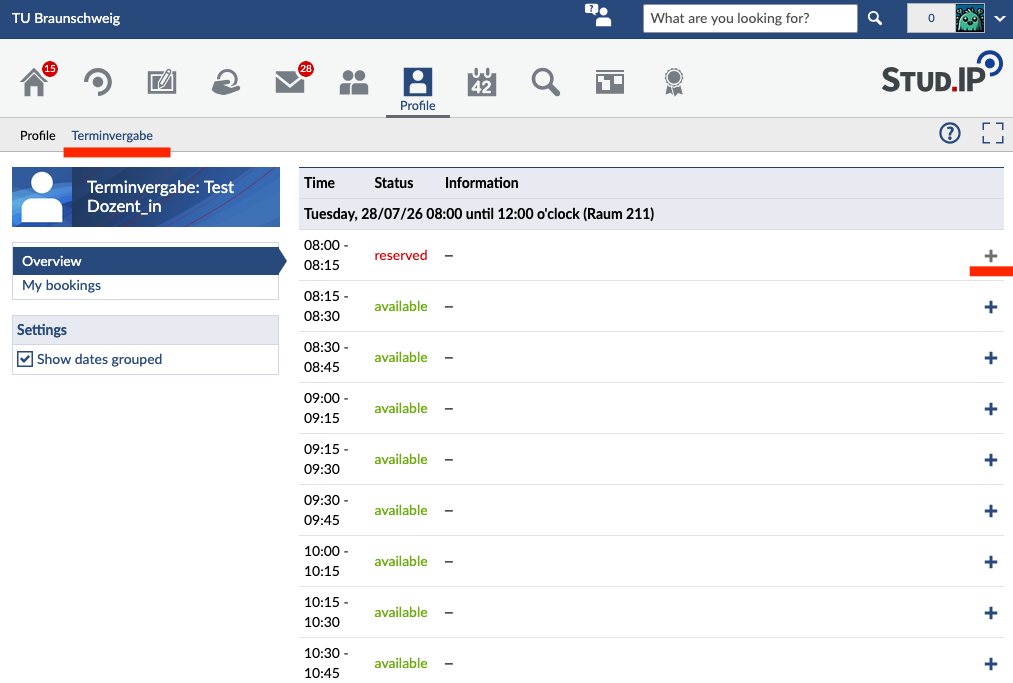](https://books.rz.tu-bs.de/uploads/images/gallery/2026-07/9ZFdY7GxxQmCKmV9-image032.png) You can book a new appointment by clicking the + on the right. Enter the reason you'd like to book the appointment in the pop-up window. [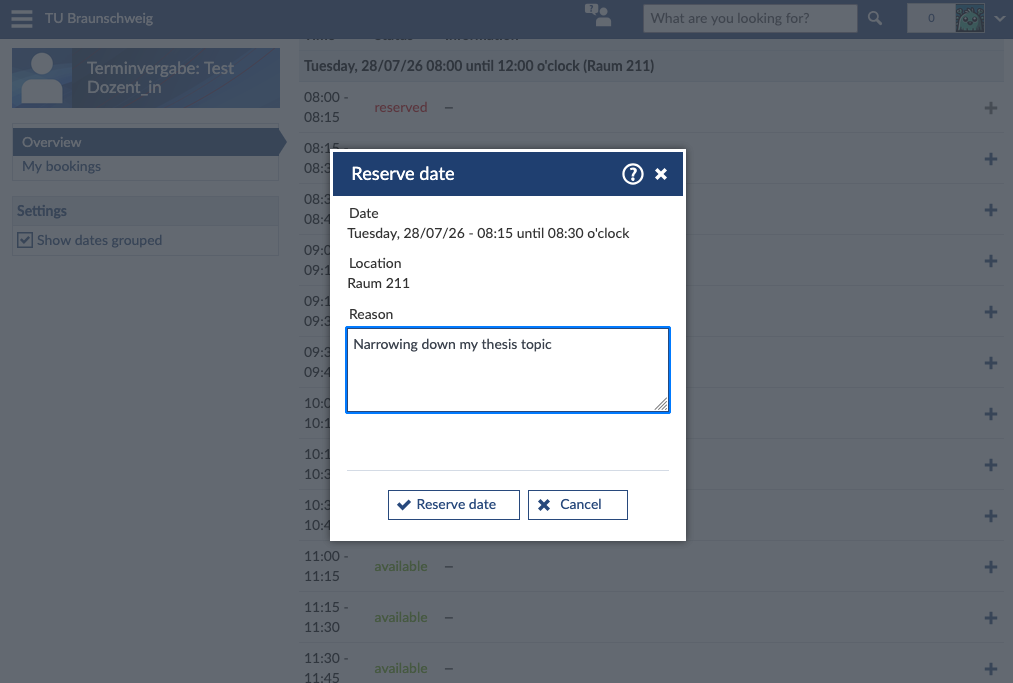](https://books.rz.tu-bs.de/uploads/images/gallery/2026-07/B2Qzu1TFKrUS8zLw-image033.png) Once you've clicked “Reserve Appointment,” the appointment is booked for you and is no longer available to other students. However, this does not apply if the teaching staff has explicitly stated that multiple people can participate in an appointment at the same time. You can delete the appointment at any time by clicking the trash can icon next to your booking. # [EN] Study Groups in Stud.IP Study groups are similar to courses, but they are created and managed by the students themselves. This allows you to organize and collaborate on projects, tutorials, or group work. There are public study groups (“open to all” and “by request”) and invisible study groups. Similar to regular courses, various tools are available, such as video conferencing, file storage, a wiki, a forum, and a shared calendar for coordinating schedules. ### Creating a Study Group You can create a study group on the „Courses“ page. To do so, click “Create new study group” under “Actions” in the left-hand menu. ** ** [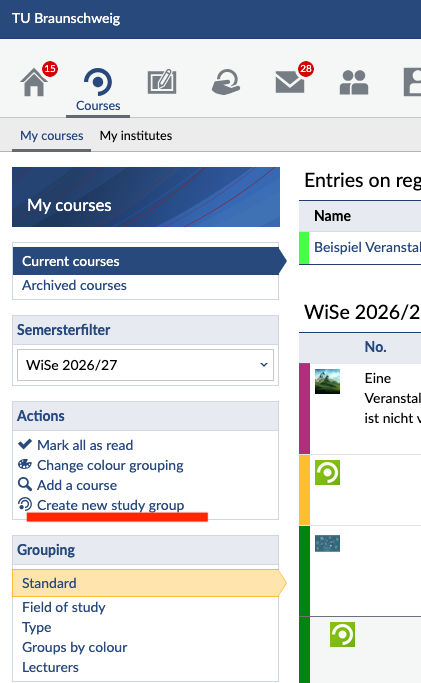](https://books.rz.tu-bs.de/uploads/images/gallery/2026-07/eNjX1tcxWy3flodb-image035.png) In the next menu, enter your study group’s name and specify whether it should be open to everyone, available upon request, or invisible. Then click “Continue” and confirm once more that you want to create the study group. After that, you can set it up. Your study group will appear on the “Courses” page for the semester in which you created it. [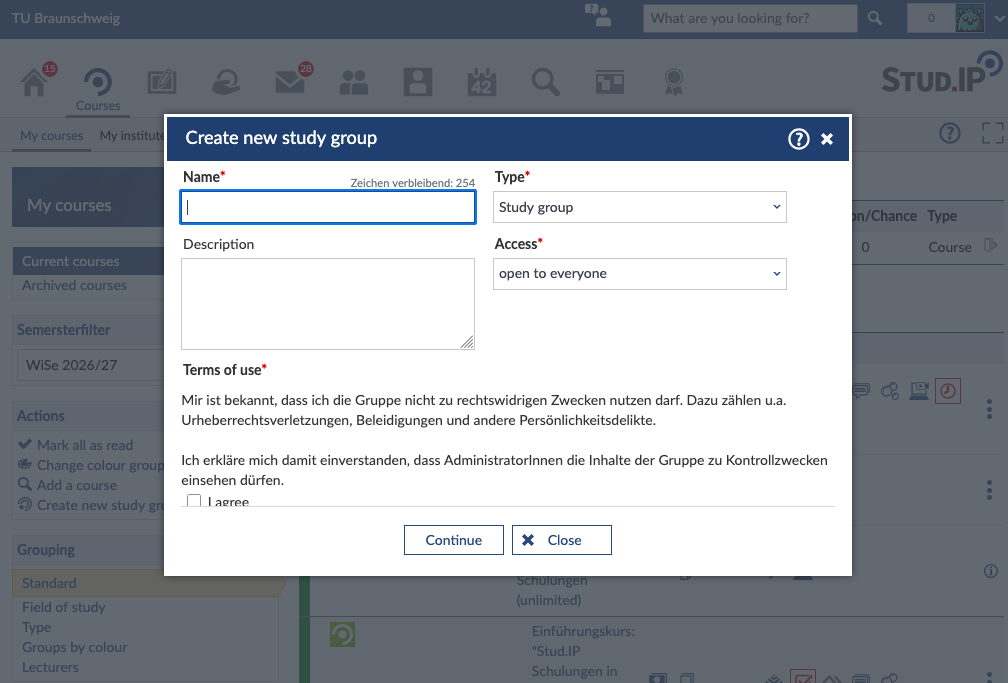](https://books.rz.tu-bs.de/uploads/images/gallery/2026-07/M26KBrdMHHeUlWpH-image036.png) ### **Inviting People ** You can invite more people by clicking “Participants” and selecting “Invite new group members” from the menu on the left. In the menu that opens, you can then search for the accounts you want to add. [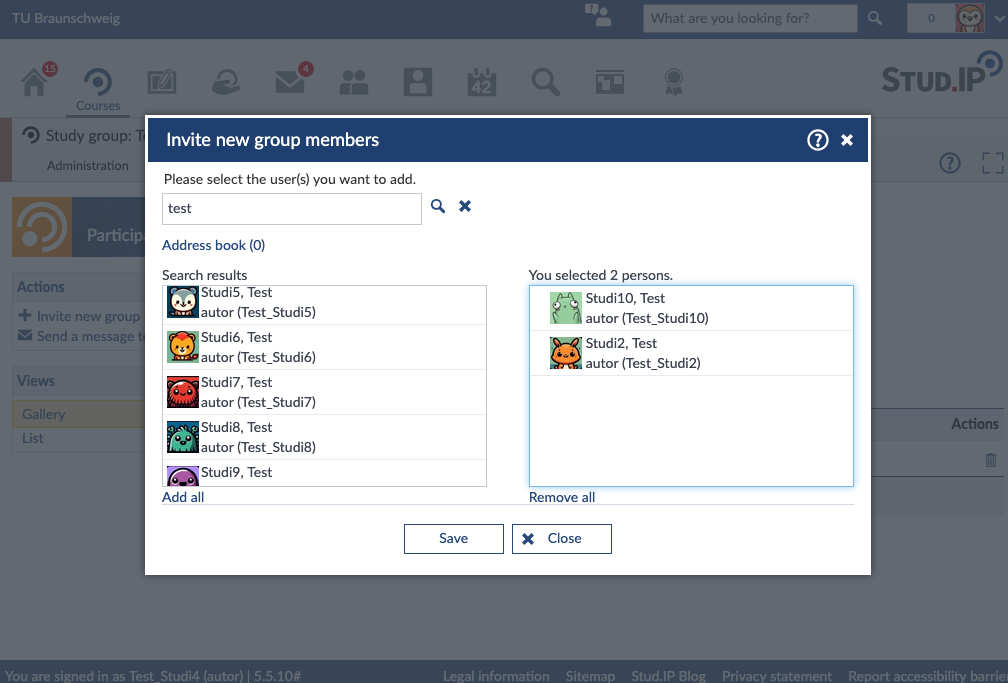](https://books.rz.tu-bs.de/uploads/images/gallery/2026-07/dJ0u2fcWpiVb64yJ-image037.png) The people you invite will then receive a link via a Stud.IP message. They will be added to the study group only after they click on the link. [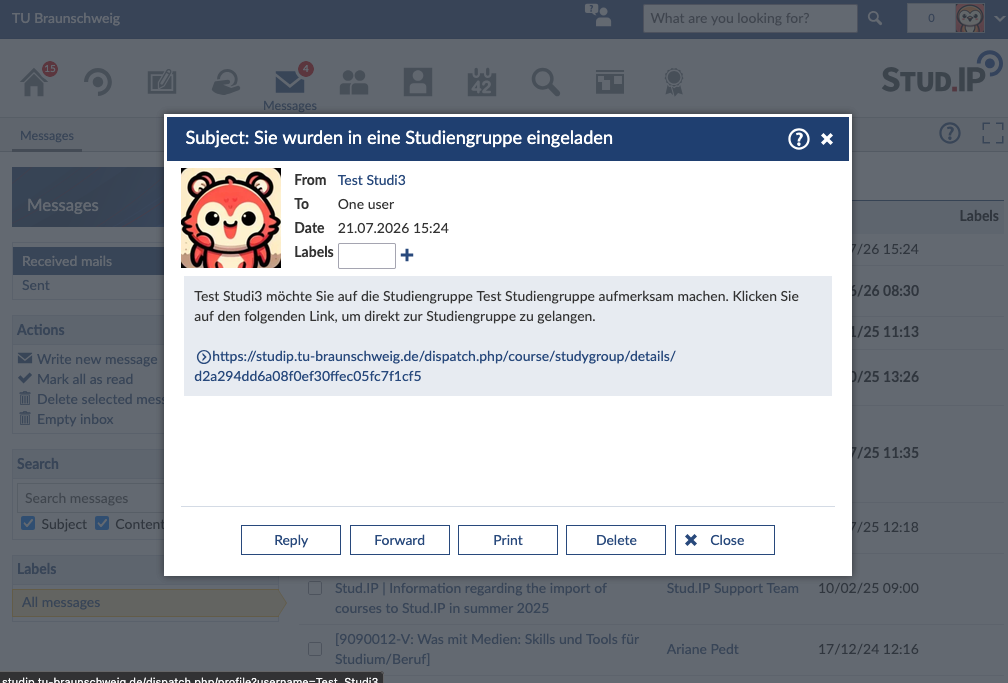](https://books.rz.tu-bs.de/uploads/images/gallery/2026-07/uBiL8QSMjjGW2988-image038.png) ### How long will my study group remain active? Study groups remain active until you delete them or your account is deleted. If you want the study group to continue to be used even after you withdraw from the university, you should appoint another person from the group as a Gruppengründer\*in (group founder). You can do this on the “Participants” page using the arrow icons. First, members are promoted to moderators, and with another click, they become group founders.When your account is deleted, your data will be deleted for data protection reasons,including all files you have uploaded.
[](https://books.rz.tu-bs.de/uploads/images/gallery/2026-07/Kdy4bb8uVbkxkcYi-image039.png) # Videos (Opencast) Opencast, das Video-Management-System der TU Braunschweig | Opencast, the video management system of TU Braunschweig # [DE] Allgemeine Informationen Das Videomanagement-System Opencast steht allen Lehrenden und Studierenden an der TU Braunschweig zur Verfügung und kann aus Stud.IP heraus zum Upload und Download von Videodateien, zur Vorlesungsaufzeichnung und zur Aufzeichnung von Videokonferenzen in BigBlueButton verwendet werden. Sie erreichen Stud.IP unter [https://studip.tu-braunschweig.de/](https://studip.tu-braunschweig.de/). Hier können Sie sich mit Ihrer **TUBS-ID** einloggen, mit der Sie auch auf andere Dienste der TU Braunschweig zugreifen. # [DE] Häufig gestellte Fragen (FAQ) ### Wo finde ich meine Videos? In der **aktuellen Version von Stud.IP** finden Sie Ihre Videos unter "Profil > Meine Aufzeichnungen": [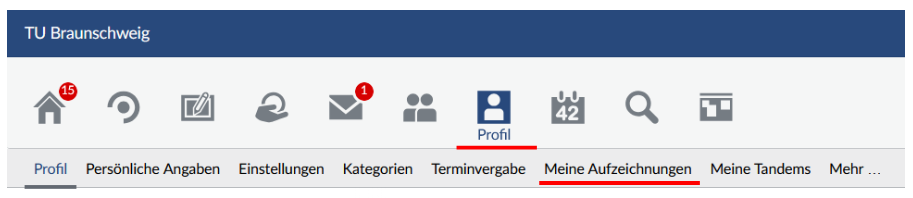](https://books.rz.tu-bs.de/uploads/images/gallery/2026-09/D2DAh0288vx1Iapz-stud-ip-5-5-meine-aufzeichnungen.png) In der **kommenden Version von Stud.IP** finden Sie Ihre Videos unter "Arbeitsplatz > Opencast Videos": [](https://books.rz.tu-bs.de/uploads/images/gallery/2026-09/0UthwnJgz765bCZh-stud-ip-6-1-opencast-videos-de.png) ### Wie kann ich Videos in meinen Lehrveranstaltungen nutzen? Klicken Sie in der Stud.IP-Iconleiste auf "Veranstaltungen", wählen Sie Ihre gewünschte Veranstaltung aus und klicken Sie dann auf "Verwaltung". Standardmäßig ist anschließend der Bereich "Werkzeuge" ausgewählt: [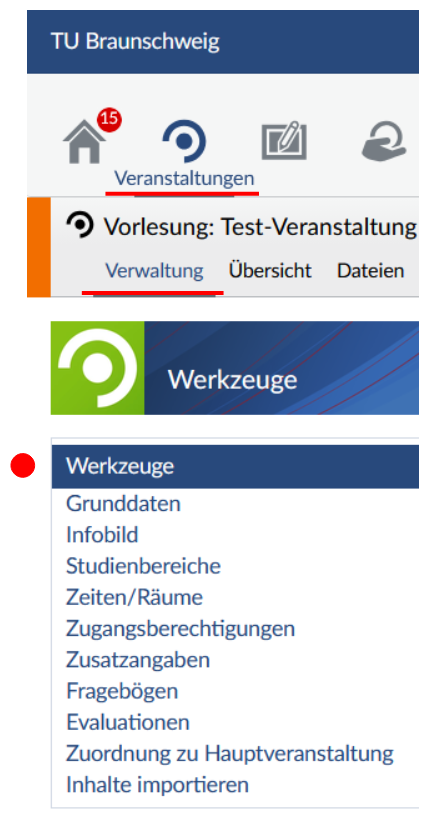](https://books.rz.tu-bs.de/uploads/images/gallery/2026-09/egQHGvvYj730tQg9-stud-ip-5-5-veranstaltungen-verwaltung.png) Suchen Sie nun das Werkzeug "Opencast" und aktivieren Sie es durch Klick in das quadratische Kästchen: [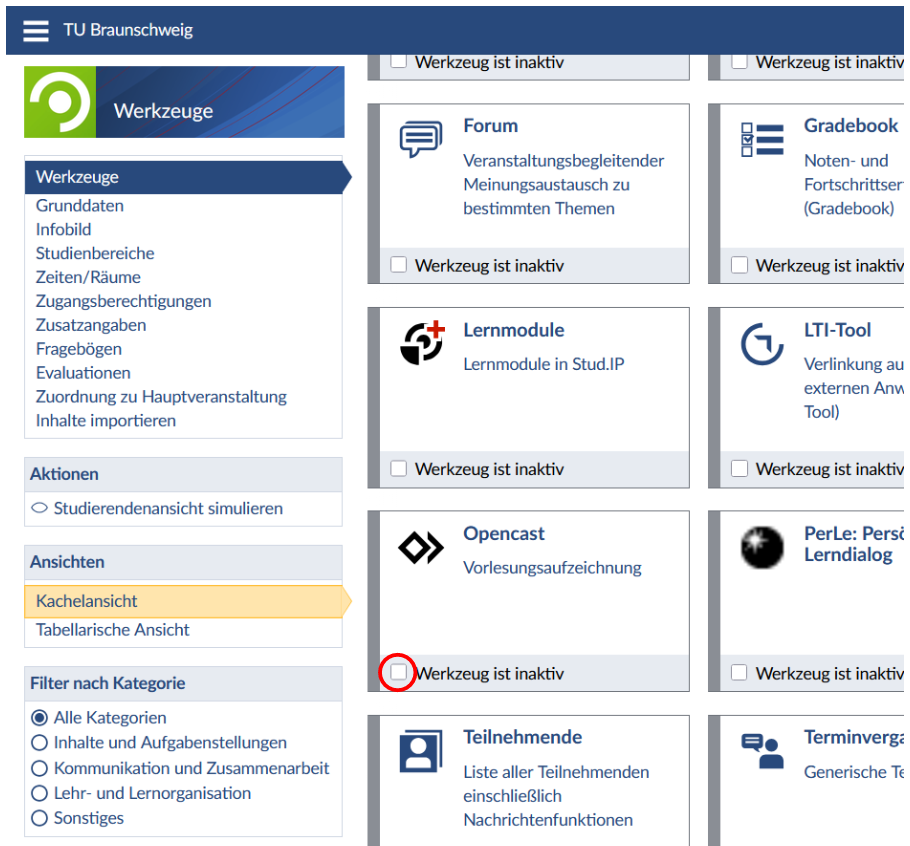](https://books.rz.tu-bs.de/uploads/images/gallery/2026-09/FThjSc2UHOBHpOEP-stud-ip-5-5-plugin-opencast.png) Anschließend steht Ihnen unterhalb des Veranstaltungsnamens der Reiter "Opencast (versteckt)" (aktuelle Stud.IP-Version) bzw. "Opencast Videos" (kommende Stud.IP-Version) zur Verfügung: [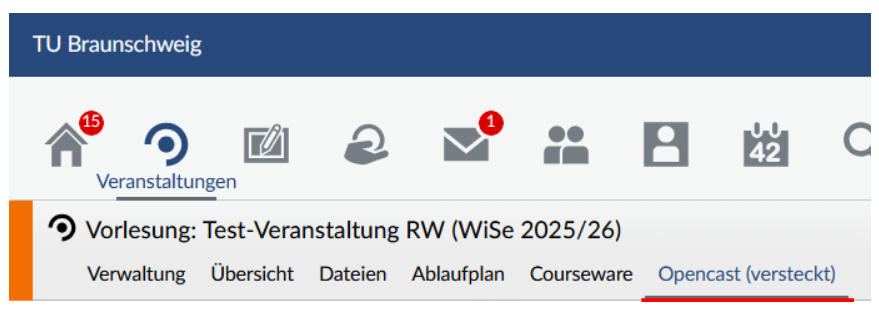](https://books.rz.tu-bs.de/uploads/images/gallery/2026-09/nq6FHR4ZdK1vFdlb-stud-ip-5-5-vorlesungsreiter-opencast.png) # [DE] Was ändert sich in der kommenden Stud.IP-Version in Bezug auf Videos? ### Wiedergabelisten Videos werden in der künftigen Stud.IP-Version in Wiedergabelisten organisiert, was die Navigation und Übersichtlichkeit in einer Lehrveranstaltung deutlich verbessert. In der **aktuellen Stud.IP-Version** werden Videos einer Opencast-**Serie** zugewiesen. Eine solche Opencast-Serie kann mit mehreren Lehrveranstaltungen in Stud.IP verknüpft werden. Videos gehören dauerhaft zu einer Opencast-Serie, womit sich Rechte und Veröffentlichung / Sichtbarkeit von Videos stark an dieser Zuordnung orientieren. Aus diesem Grund muss ein Video bisher mehrfach hochgeladen werden, wenn es mehr als einer Serie zugeordnet werden soll. In der **kommenden Stud.IP-Version** werden Videos über **Wiedergabelisten** innerhalb einer Stud.IP-Veranstaltung zusammengestellt. Ein Video kann in mehreren Wiedergabelisten erscheinen, ohne in Opencast verschoben oder dupliziert zu werden. **Sie brauchen also ein Video nur noch einmal hochzuladen und können es beliebig vielen Wiedergabelisten zuordnen.** Reihenfolge, Sichtbarkeit und Freigabe lassen sich pro Wiedergabeliste verwalten. Somit sind **Serien** in der aktuellen Stud.IP-Version **Opencast-seitige, eher feste Container,** während es sich bei den **Wiedergabelisten** in der kommenden Stud.IP-Version um **Stud.IP-seitige, flexiblere Zusammenstellungen von Videos** handelt. ### Wiedergabelisten erstellen und Videos hinzufügen Navigieren Sie in Stud.IP zu Ihrer gewünschten Veranstaltung und klicken Sie auf den Reiter "Opencast Videos": [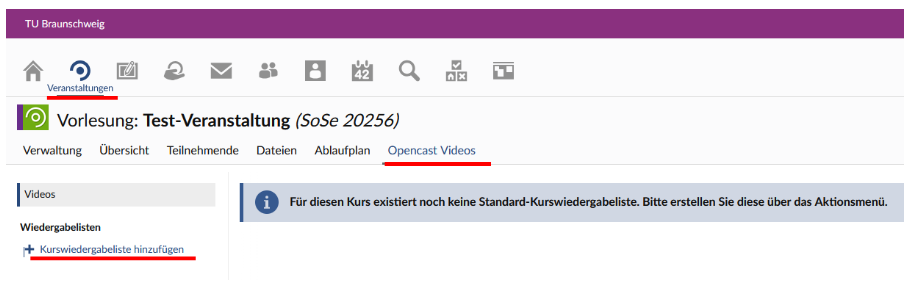](https://books.rz.tu-bs.de/uploads/images/gallery/2026-09/kgD005hF6hOJRPnc-stud-ip-6-1-kurswiedergabeliste-hinzufuegen.png) Durch einen Klick auf "+Kurswiedergabeliste hinzufügen" können Sie in dem sich öffnenden Dialogfenster eine neue Wiedergabeliste erstellen oder eine bestehende kopieren. **Hinweis:** Es ist sinnvoll, in den Namen der Wiedergabeliste den Veranstaltungsnamen und das Semester aufzunehmen, da Sie später beim Zuweisen einzelner Videos zu Wiedergabelisten alle Ihre Wiedergabelisten zur Auswahl angezeigt bekommen und somit eine eindeutige Zuordnung möglich ist. [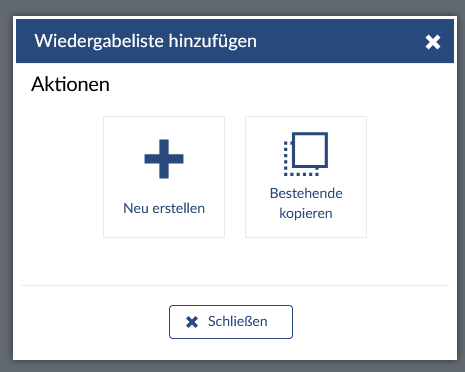](https://books.rz.tu-bs.de/uploads/images/gallery/2026-09/uwlkx6cdmdiDubrv-stud-ip-6-1-wiedergabeliste-hinzufuegen.png) Eine neue Wiedergabeliste "Wiedergabeliste 1" wurde erstellt. Nun können Sie durch Klick auf "Videos hinzufügen" die Wiedergabeliste mit Videos füllen: [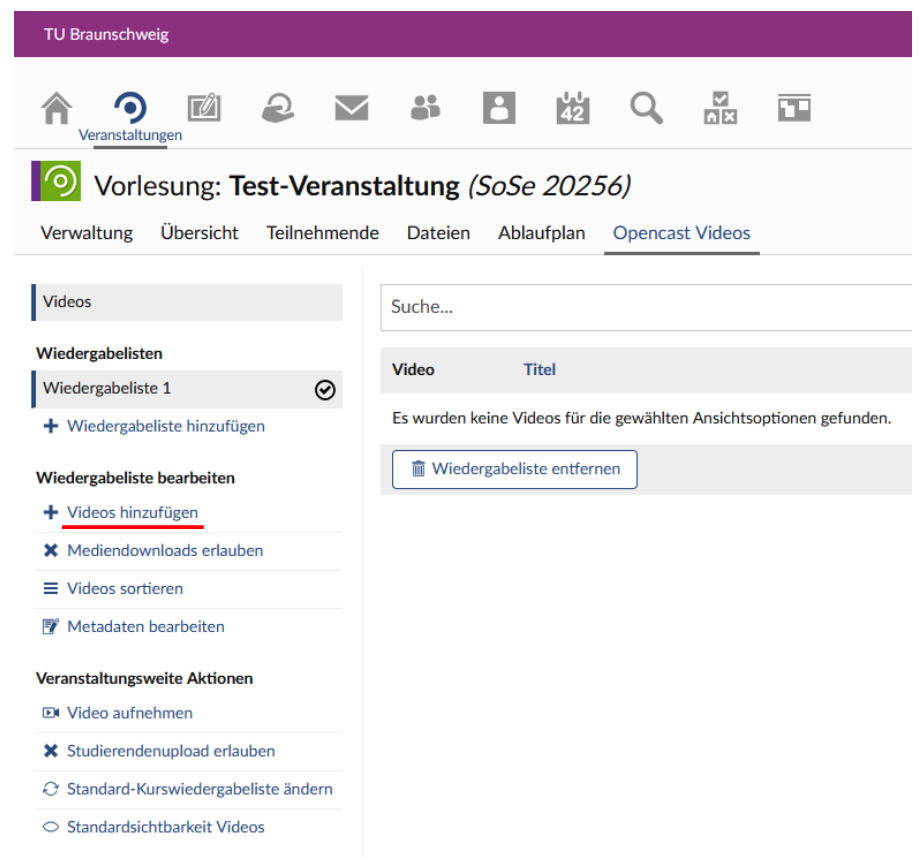](https://books.rz.tu-bs.de/uploads/images/gallery/2026-09/UW5qypneKldauBS1-stud-ip-6-1-wiedergabeliste-videos-hinzufuegen.png) Im sich daraufhin öffnenden Dialogfenster können Sie nun Videos aus drei unterschiedlichen Quellen hinzufügen: 1. Mein Computer 2. Arbeitsplatz: Ihr "Arbeitsplatz" in Stud.IP, wo sich unter "Opencast Videos" Ihre Videos befinden 3. Meine Veranstaltungen: hier können Sie im sich öffnenden Dialogfenster eine Ihrer Veranstaltungen in Stud.IP auswählen und anschließend aus deren Videos auswählen [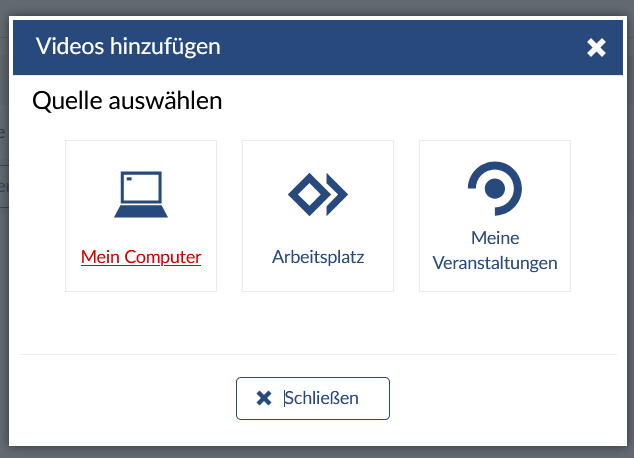](https://books.rz.tu-bs.de/uploads/images/gallery/2026-09/82J1EhCmTwaBQR8n-stud-ip-6-1-videos-hinzufuegen-quelle-auswaehlen-mein-computer.png) Im Folgenden wird nun der **Upload eines Videos von Ihrem Computer** beschrieben (siehe das folgende Bildschirmfoto): 1. Hier können Sie einen beliebigen Titel vergeben 2. Hier können Sie bei Bedarf Datum und Uhrzeit anpassen 3. Hier können Sie die vortragende Person hinzufügen 4. Als Workflow für die Videoverarbeitung wählen Sie durch Klick auf den nach unten gerichteten Pfeil rechts in dem Feld den Workflow "Process mediaupload" aus 5. Hier können Sie Ihr gewünschtes Video von Ihrem PC auswählen 6. Bei den Verarbeitungseinstellungen lassen Sie "Straight to publishing" aktiviert Durch Klick auf "Hochladen" wird das Video anschließend Ihrer Wiedergabeliste hinzugefügt. Die Verarbeitung des Videos bis zu dessen Abspielbarkeit in Stud.IP kann eine Weile in Anspruch nehmen. Laden Sie Ihr Browser-Fenster von Zeit zu Zeit neu, um zu sehen, ob das Video bereits verarbeitet wurde. [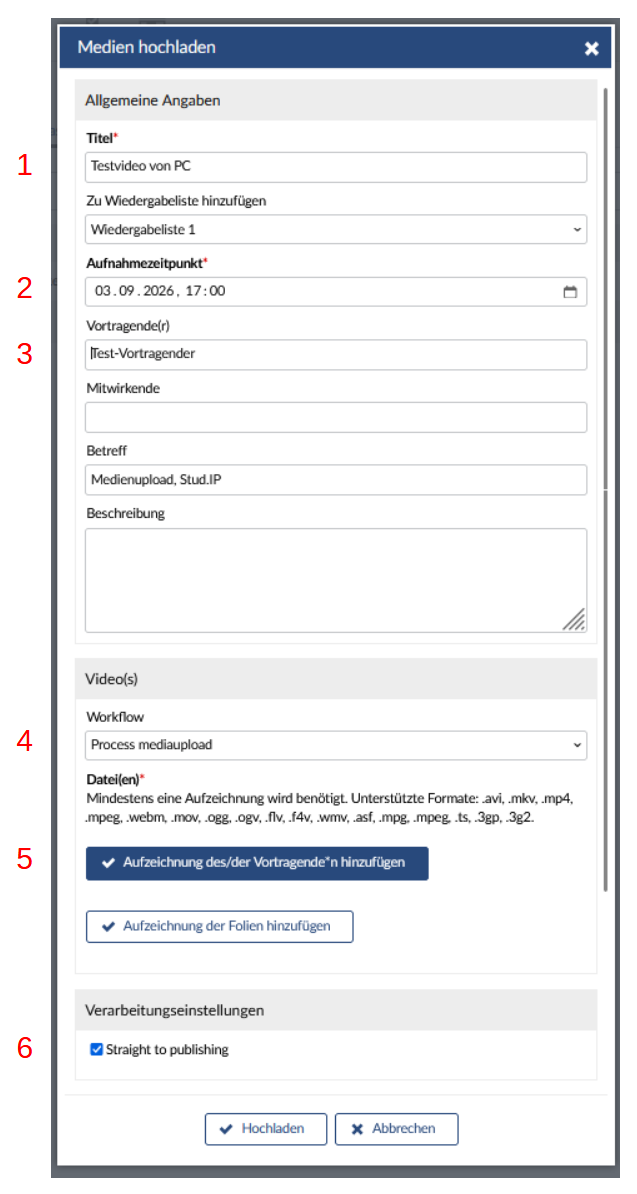](https://books.rz.tu-bs.de/uploads/images/gallery/2026-09/PvCtt1jqprHK6Tpn-stud-ip-6-1-medien-hochladen-1.png) ### Weitere Aktionen für Videos einer Veranstaltung In Ihren Veranstaltungen können Sie unter dem Reiter "Opencast Videos" weitere Aktionen ausführen (siehe das folgende Bildschirmfoto): 1. Sie können **die jeweils aktive Wiedergabeliste bearbeiten** und dabei unterschiedliche Einstellungen für verschiedene Wiedergabelisten vornehmen: 2. Hier können Sie Mediendownloads für jede Wiedergabeliste erlauben oder verbieten 3. Hier können Sie Ihre Videos innerhalb der aktiven Wiedergabeliste sortieren 4. Hier können Sie die Metadaten der aktiven Wiedergabeliste bearbeiten, indem sie ihr Schlagworte zuweisen 5. An **veranstaltungsweiten Aktionen** können Sie unter folgenden Möglichkeiten wählen: 6. Hier können Sie ein Video aufnehmen mit Hilfe des Tools "Opencast Studio". Als Quelle können Sie Ihren Bildschirm, Ihre Kamera oder beide auswählen. Außerdem können sie wählen, ob Sie die Aufnahme mit oder ohne Ton durchführen möchten. 7. Hier können Sie einstellen, ob Studierende Videos in Ihre Veranstaltung hochladen dürfen 8. Hier können Sie die Standard-Kurswiedergabeliste für die Veranstaltung ändern 9. Hier können Sie die Standardsichtbarkeit Ihrer Videos einstellen: - Systemstandard - Videos standardmäßig sichtbar für Studierende - Videos standardmäßig unsichtbar für Studierende [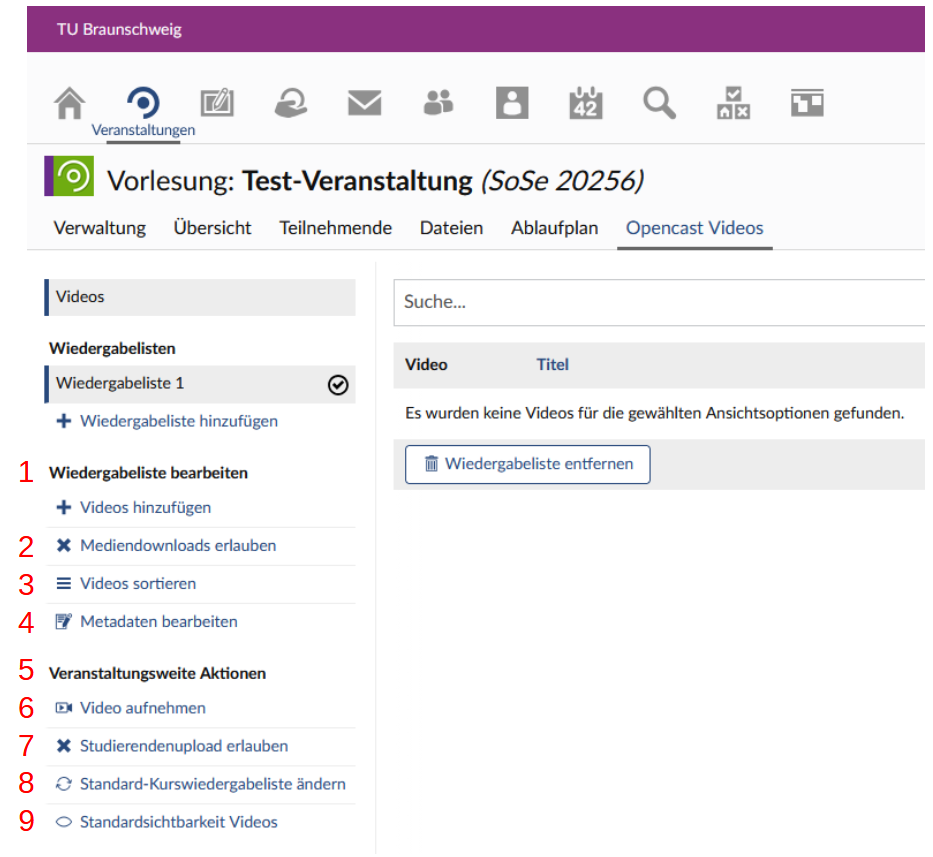](https://books.rz.tu-bs.de/uploads/images/gallery/2026-09/QeZp8O7C4HbaogZr-stud-ip-6-1-videos-aktionen.png) ### Aktionen für Einzel-Videos Durch Klick auf die drei senkrecht übereinander angeordneten drei Punkte rechts in einer Video-Zeile können Sie Aktionen für jedes einzelne Ihrer Videos durchführen (siehe das folgende Bildschirmfoto): 1. Hier können Sie u. a. den Titel, die vortragende Person, die Beschreibung und Schlagworte des Videos ändern. Außerdem können Sie die Sichtbarkeit des Videos in der Veranstaltung einstellen. **Wichtiger Hinweis: die zeitgesteuerte Sichtbarschaltung der Videos ist aktuell fehlerhaft.** Wir bitten Sie, Ihr Video manuell sichtbar oder unsichtbar zu stellen, ohne Zeitstempel. 2. Hier können Sie Ihr Video in einem Schnitteditor bearbeiten 3. Hier können Sie Ihr Video freigeben, indem Sie beispielsweise einzelnen Nutzenden Lese- oder Schreib-Rechte erteilen 4. Hier können Sie Ihr Video herunterladen, ggf. in unterschiedlichen Auflösungen 5. Hier können Sie Ihr Video weiteren Wiedergabelisten hinzufügen [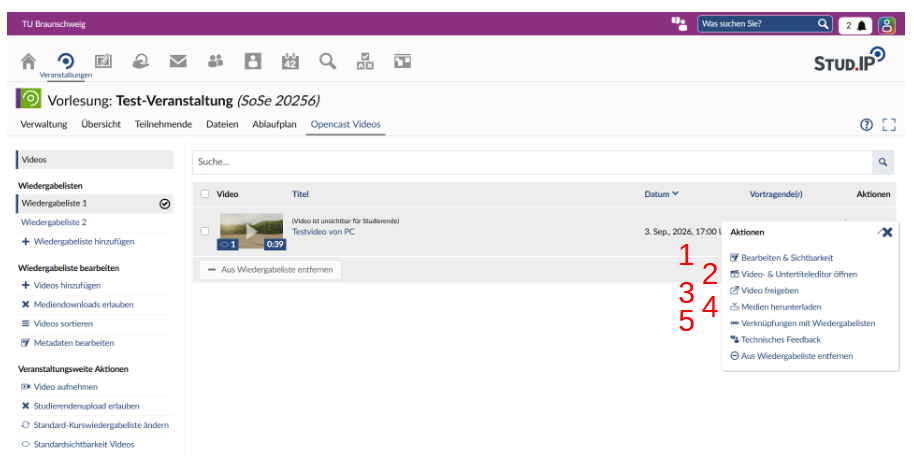](https://books.rz.tu-bs.de/uploads/images/gallery/2026-09/eIlJ3qVH6RqwR3JV-stud-ip-6-1-videos-aktionen-2.png) ### Videokonferenzen innerhalb von Lehrveranstaltungen mit "Meetings" aufzeichnen #### Wie kann ich "Meetings" in meinen Lehrveranstaltungen nutzen? Klicken Sie in der Stud.IP-Iconleiste auf "Veranstaltungen", wählen Sie Ihre gewünschte Veranstaltung aus und klicken Sie dann auf "Verwaltung". Standardmäßig ist anschließend der Bereich "Werkzeuge" ausgewählt. Suchen Sie nun das Werkzeug "Meetings" und aktivieren Sie es durch Klick in das quadratische Kästchen: [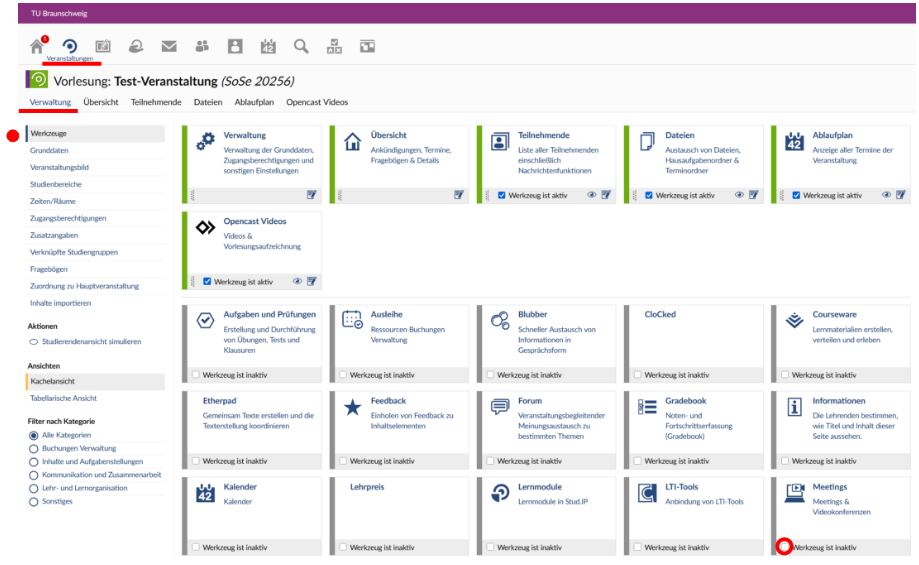](https://books.rz.tu-bs.de/uploads/images/gallery/2026-09/91SIj4XcZeK8L5rz-stud-ip-6-1-veranstaltungen-verwaltung.png) Anschließend steht Ihnen unterhalb des Veranstaltungsnamens der Reiter "Meetings" zur Verfügung: [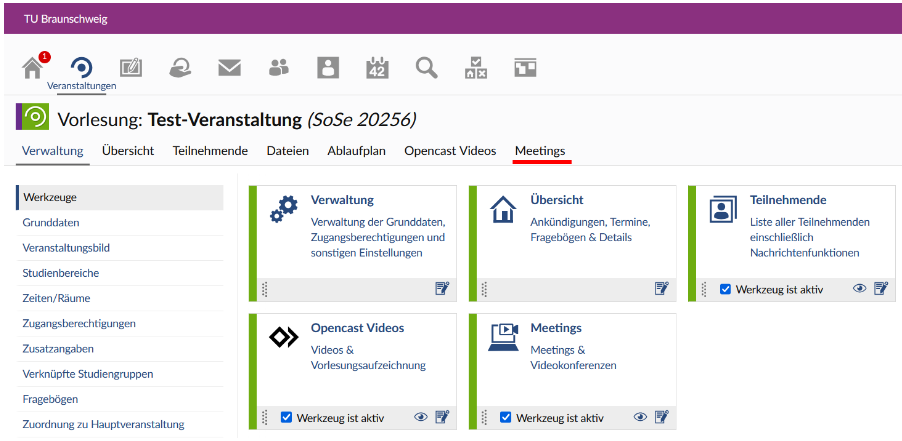](https://books.rz.tu-bs.de/uploads/images/gallery/2026-09/kgnL32mIzO8I5eXo-stud-ip-6-1-veranstaltungsreiter-meetings.png) # [EN] General Information The Opencast video management system is available to all lecturers and students at TU Braunschweig and can be accessed via Stud.IP to upload and download video files, record lectures and record video conferences in BigBlueButton. You can access Stud.IP at [https://studip.tu-braunschweig.de/](https://studip.tu-braunschweig.de/). Here you can log in with your **TUBS**** ID****,** the same ID you use to access other TU Braunschweig services. # [EN] Frequently Asked Questions (FAQ) ### Where do I find my videos? In the **current version of Stud.IP,** you can find your videos under "Profile > My recordings": [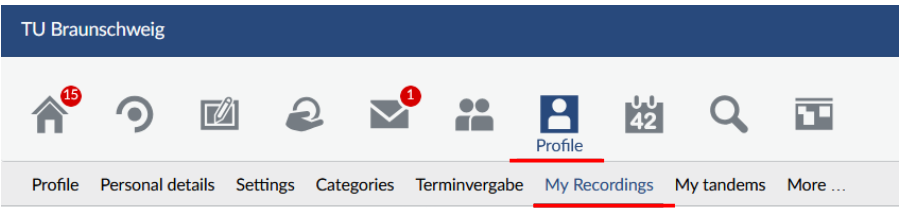](https://books.rz.tu-bs.de/uploads/images/gallery/2026-09/jxjWNgvIcGA04b9C-stud-ip-5-5-my-recordings.png) In the **next version of Stud.IP,** you will find your videos under "Workplace > Opencast Videos": [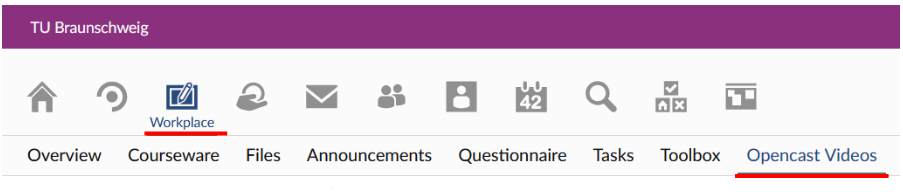](https://books.rz.tu-bs.de/uploads/images/gallery/2026-09/qazScGFmezii3XuP-stud-ip-6-1-opencast-videos-en.png) ### How can I use videos in my courses? Click on "Courses" in the Stud.IP toolbar, select the course you want, and then click on "Administration". By default, the "Tools" section will then be selected: [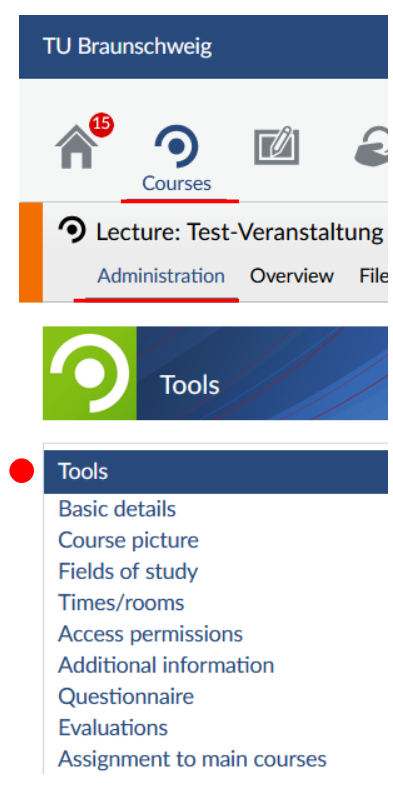](https://books.rz.tu-bs.de/uploads/images/gallery/2026-09/qQCURjW3c77VPG83-stud-ip-5-5-courses-administration.png) Now look for the "Opencast" tool and select it by clicking the square box: [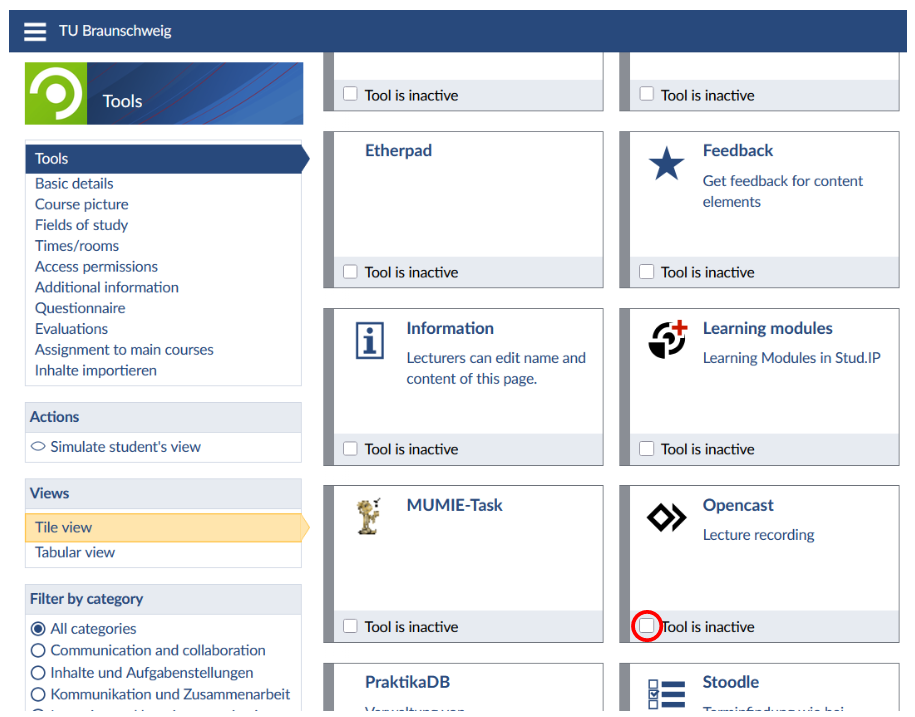](https://books.rz.tu-bs.de/uploads/images/gallery/2026-09/XNsFx8yq175HVplS-stud-ip-5-5-plugin-opencast-en.png) You will then see the "Opencast (hidden)" tab (current Stud.IP version) or "Opencast Videos" tab (upcoming Stud.IP version) below the course name: [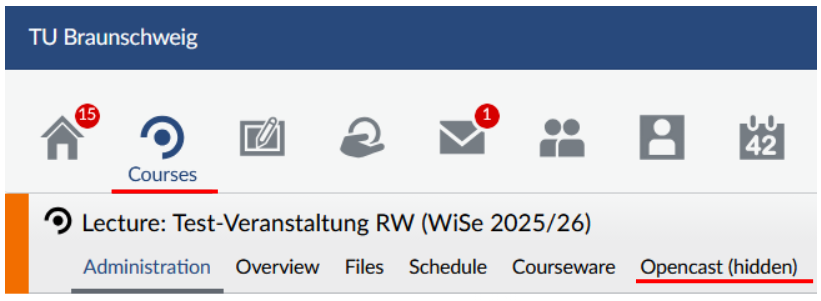](https://books.rz.tu-bs.de/uploads/images/gallery/2026-09/UaEdD796ydxcboIF-stud-ip-5-5-vorlesungsreiter-opencast-en.png) # [EN] What changes with regard to videos will apply in the upcoming version of Stud.IP? ### Playlists In the upcoming version of Stud.IP, videos will be organised into playlists, which will significantly improve navigation and clarity within a course. In the **current version of Stud.IP,** videos are assigned to an Opencast **series.** An Opencast series can be linked to several courses in Stud.IP. Videos are permanently associated with an Opencast series, which means that the permissions and publication / visibility of videos are largely determined by this assignment. For this reason, a video needs, until now, to be uploaded several times if it is to be assigned to more than one series. In the **upcoming version of Stud.IP,** videos will be organised into **playlists** within a Stud.IP course. A video can appear in several playlists without being moved or duplicated in Opencast. **So you only need to upload a video once and can add it to as many playlists as you like.** The order, visibility and sharing settings can be managed for each playlist. Consequently, in the current version of Stud.IP, **series** are **Opencast-based, relatively fixed containers,** whilst **playlists** in the upcoming version of Stud.IP are **Stud.IP-based, more flexible compilations of videos.** ### Create playlists and add videos In Stud.IP, navigate to your chosen course and click on the "Opencast Videos" tab: [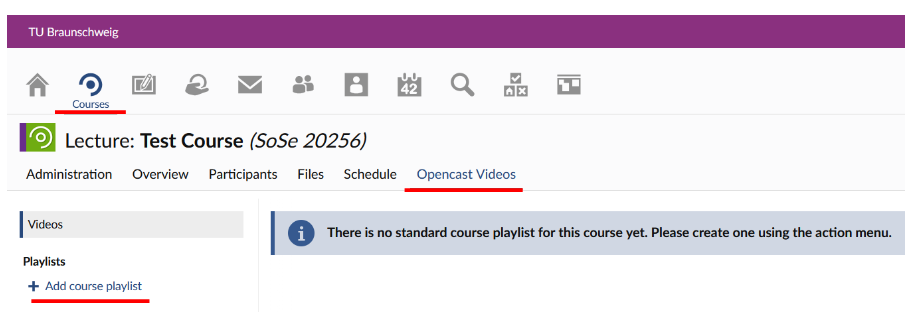](https://books.rz.tu-bs.de/uploads/images/gallery/2026-09/eeCOWgWNEObABQyu-stud-ip-6-1-add-course-playlist.png) By clicking on "+ Add course playlist", you can create a new playlist or copy an existing one in the dialogue box that opens. **Note:** It is a good idea to include the course name and the semester in the playlist name, as this will ensure that, when you later assign individual videos to playlists and all your playlists are displayed for selection, you will be able to assign the playlist unambiguously. [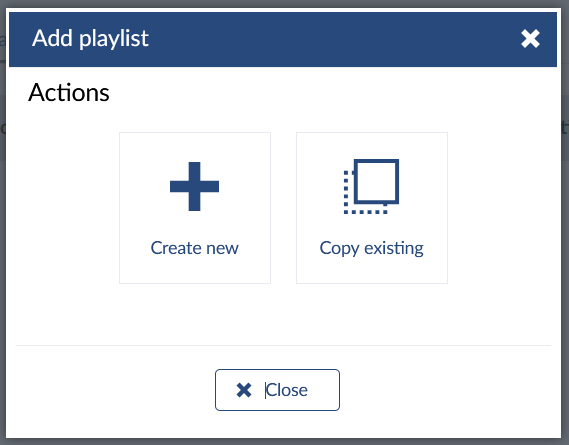](https://books.rz.tu-bs.de/uploads/images/gallery/2026-09/0CdYaLmO1GdDzrA7-stud-ip-6-1-add-playlist.png) A new playlist called "Playlist 1" has been created. You can now add videos to the playlist by clicking on "Add videos": [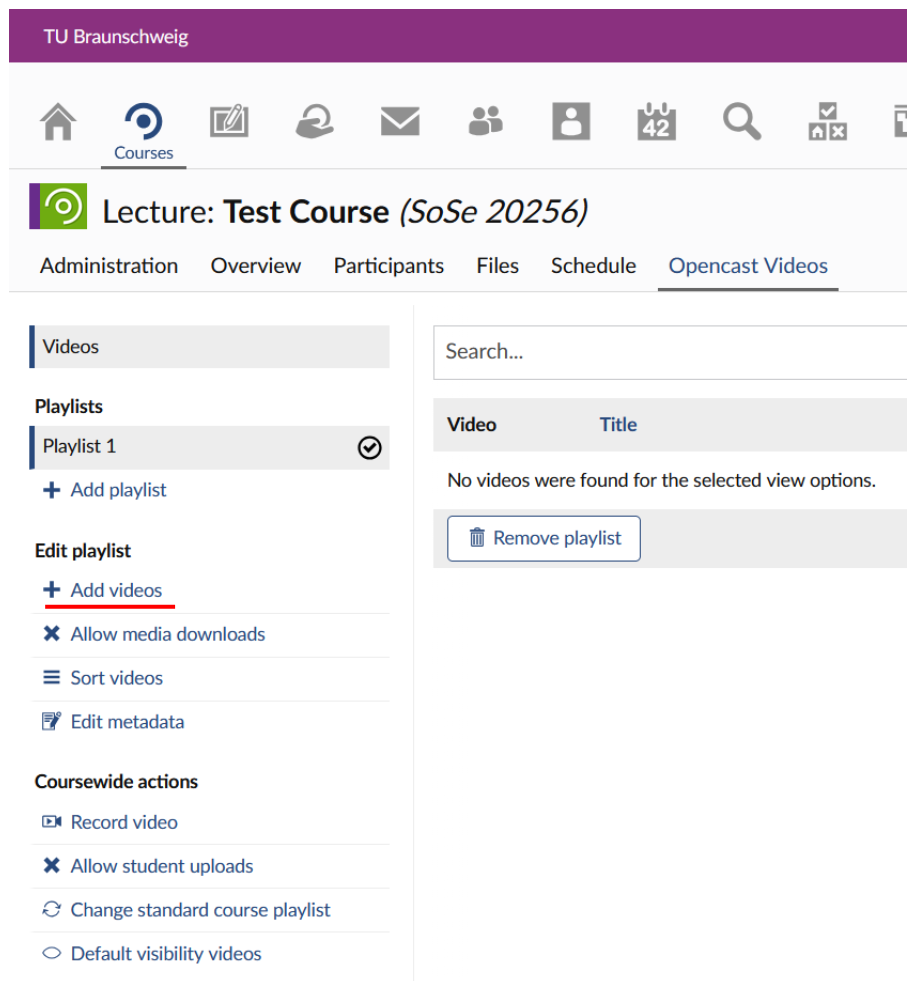](https://books.rz.tu-bs.de/uploads/images/gallery/2026-09/TL9dPspAI4QPwlOZ-stud-ip-6-1-playlist-add-videos.png) In the dialogue box that opens, you can now add videos from three different sources: - My computer - Work place: your "Work Place" in Stud.IP, where your videos are located under "Opencast Videos" - My Courses: here, in the dialogue box that opens, you can select one of your courses in Stud.IP and then choose from its videos [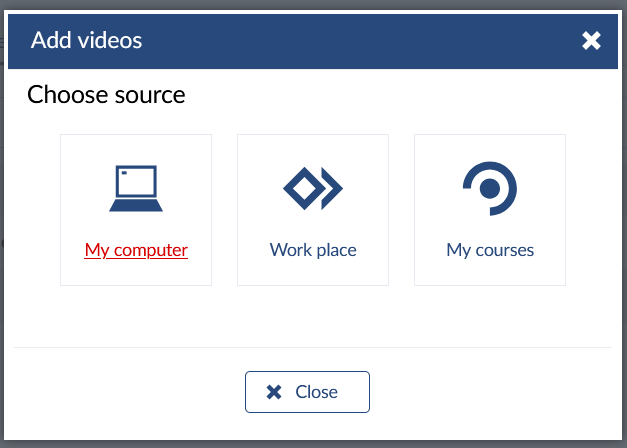](https://books.rz.tu-bs.de/uploads/images/gallery/2026-09/IcQQ1Lnw9bCFwKxf-stud-ip-6-1-add-videos-choose-source.png) The following section describes **how to upload a video from your computer** (see the screenshot below): 1. Here you can enter any title 2. Here you can adjust the date and time if required 3. Here you can add the presenter 4. To select the video processing workflow, click on the down arrow on the right-hand side of the field to choose the "Process mediaupload" workflow 5. Here you can select the video you want from your PC 6. In the processing settings, leave "Straight to publishing" activated Clicking "Upload" will then add the video to your playlist. It may take a while for the video to be processed and made available for playback in Stud.IP. Refresh your browser window from time to time to see if the video has been processed yet. [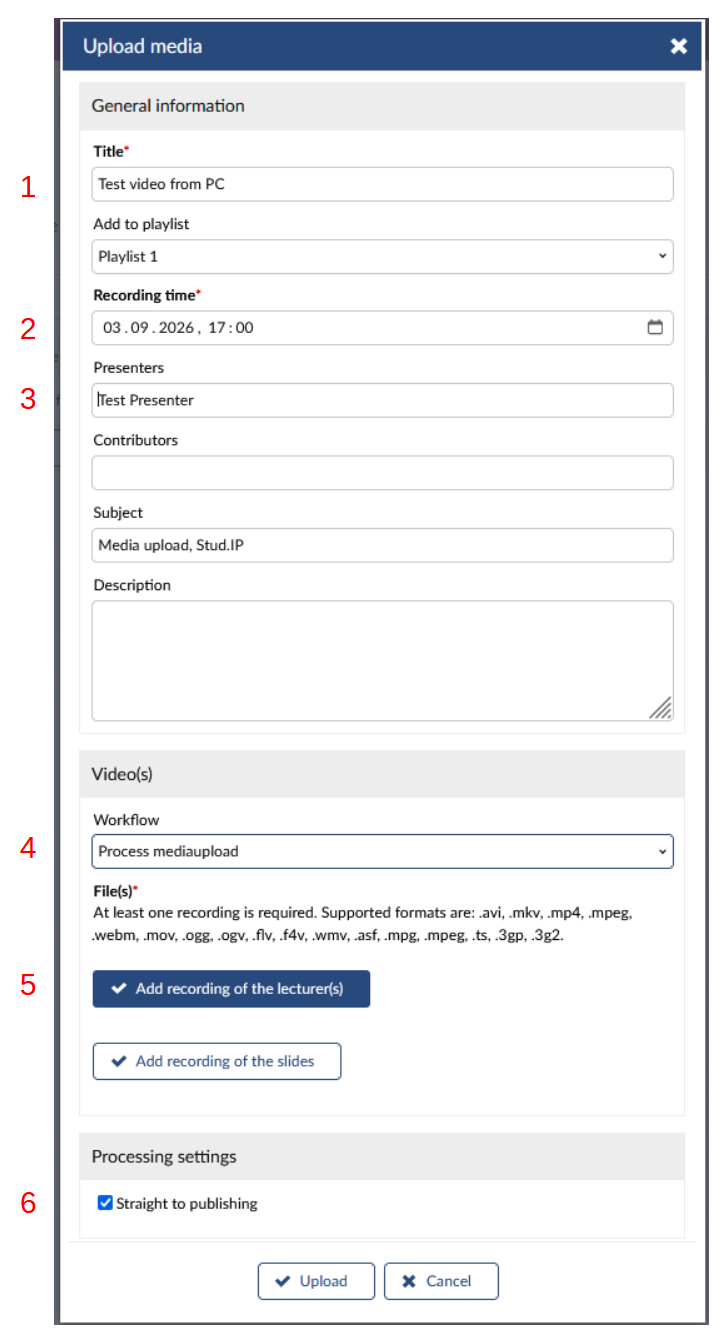](https://books.rz.tu-bs.de/uploads/images/gallery/2026-09/8bTAEoC8XJGZ8F9J-stud-ip-6-1-upload-media-1.png) ### Further actions for course videos In your events, you can carry out further actions under the "Opencast Videos" tab (see the screenshot below): 1. You can **edit the currently active playlist** and configure differing settings for different playlists: 2. Here you can allow or prohibit media downloads for each playlist 3. Here you can sort your videos within the active playlist 4. Here you can edit the metadata of the active playlist by assigning tags to it 5. For **coursewide actions,** you can choose from the following options: 6. Here you can record a video using the "Opencast Studio" tool. You can choose your screen, your camera or both as the source. You can also choose whether to record with or without sound. 7. Here you can set whether students are allowed to upload videos to your course 8. Here you can change the standard course playlist for the course 9. Here you can set the default visibility settings of your videos: - Default system settings - Videos visible to students by default - Videos invisible to students by default [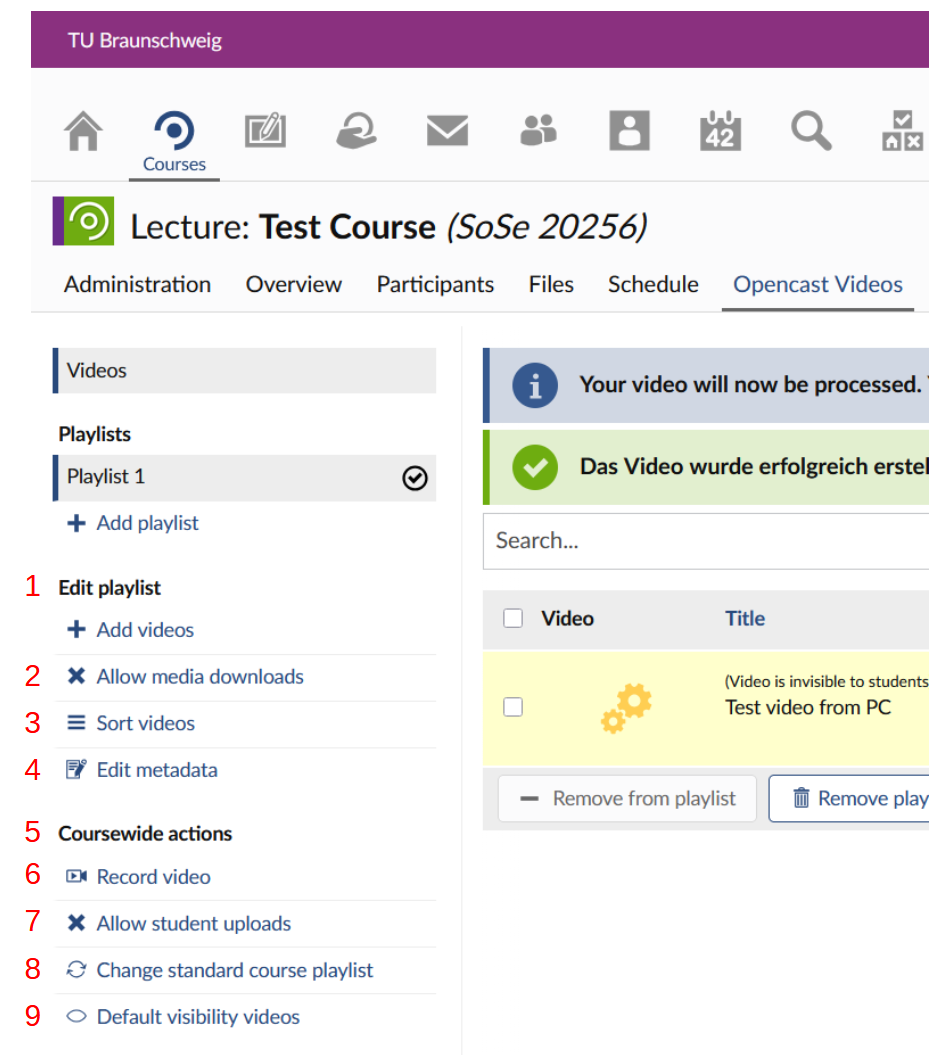](https://books.rz.tu-bs.de/uploads/images/gallery/2026-09/2M0k5QM0Q2stCHST-stud-ip-6-1-videos-actions.png) ### Actions for individual videos By clicking on the three dots arranged vertically one above the other on the right-hand side of a video row, you can carry out actions for each of your individual videos (see the screenshot below): 1. Here you can, amongst other things, edit the title, presenter, description and tags of the video. You can also set the visibility of the video within the course. **Important note: the scheduled visibility feature for videos is currently not working properly.** Please set your video to visible or invisible manually, without timestamp. 2. Here you can edit your video in a video editor 3. Here you can share your video, for example by granting individual users read or write permissions 4. Here you can download your video, in different resolutions if required 5. Here you can add your video to more playlists [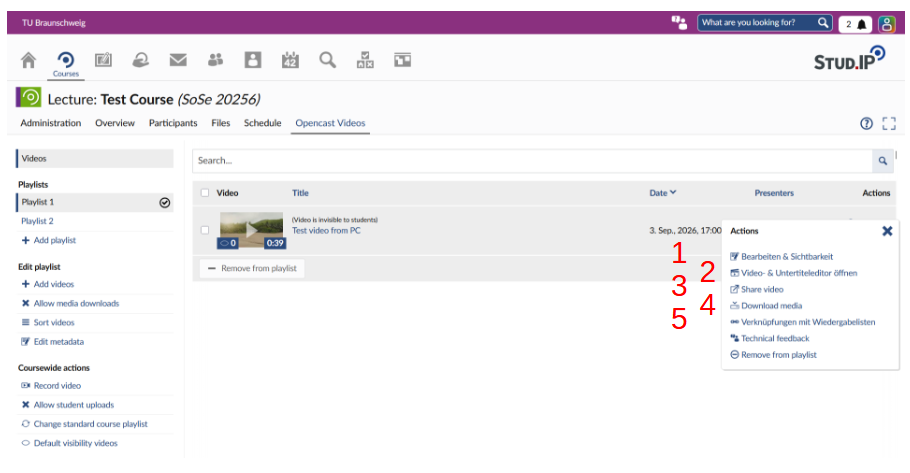](https://books.rz.tu-bs.de/uploads/images/gallery/2026-09/gi9m18BaEC5xE6Ds-stud-ip-6-1-videos-actions-2.png) ### Recording video conferences within courses using ‘Meetings’ #### How can I use ‘Meetings’ in my courses? Click on "Courses" in the Stud.IP toolbar, select the course you want, and then click on "Administration". By default, the "Tools" section will then be selected. Now look for the "Meetings" tool and select it by clicking the square box: [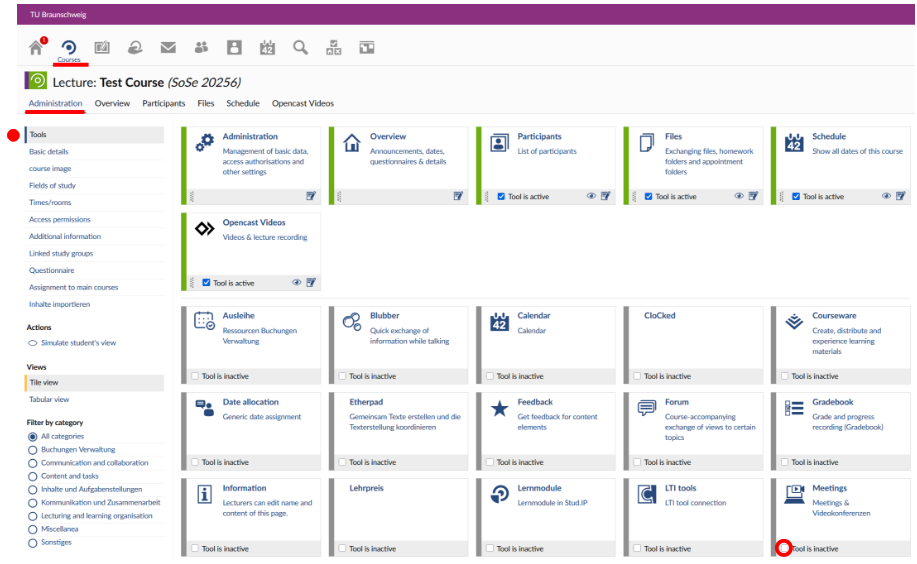](https://books.rz.tu-bs.de/uploads/images/gallery/2026-09/yaEgiC50vpaK5jn3-stud-ip-6-1-courses-administration.png) You will then see the "Meetings" tab below the course name: [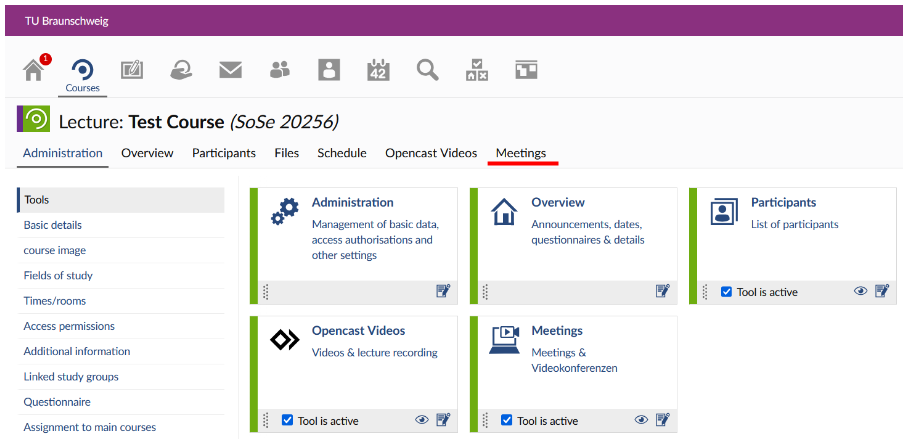](https://books.rz.tu-bs.de/uploads/images/gallery/2026-09/d9kqXiCv23E2crd0-stud-ip-6-1-course-tab-meetings.png)