Wenn du dich mit einer anderen Kennung einloggen möchtest, [informiere dich bitte auf dieser Seite](https://books.rz.tu-bs.de/books/studip/page/de-haufig-gestellte-fragen-faq), welchen Login für dich der richtige ist.
Auf der Startseite kannst du die Sprache zwischen Deutsch und Englisch umstellen. Diese Einstellung wird für den Account übernommen, mit dem du dich einloggst. Du kannst die Sprache später auch jederzeit in den Einstellungen ändern. [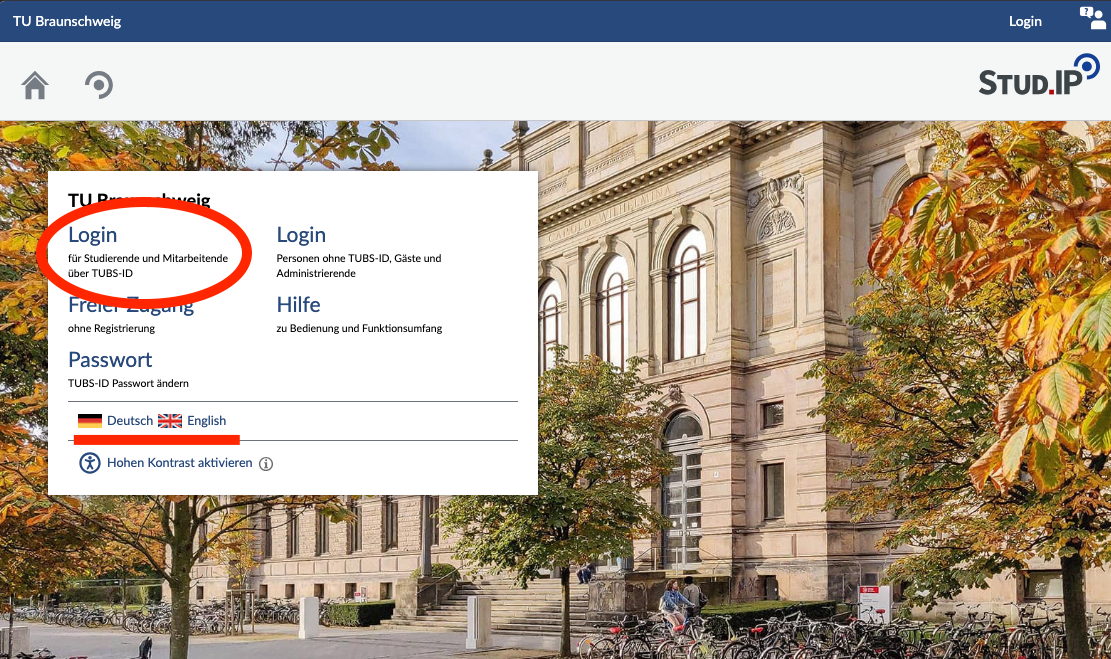](https://books.rz.tu-bs.de/uploads/images/gallery/2026-07/hApWKojdh5mVISLX-studipstarteitede.png) Beim ersten Einloggen bietet dir Stud.IP eine kurze Tour an. Sie hilft dir dabei, dich im System zurechtzufinden. Nimm dir dafür gern einen Moment Zeit. Du kannst die Tour aber auch wegklicken und später erneut starten, indem du auf das Fragezeichen rechts oben unter dem Stud.IP Logo anklickst. [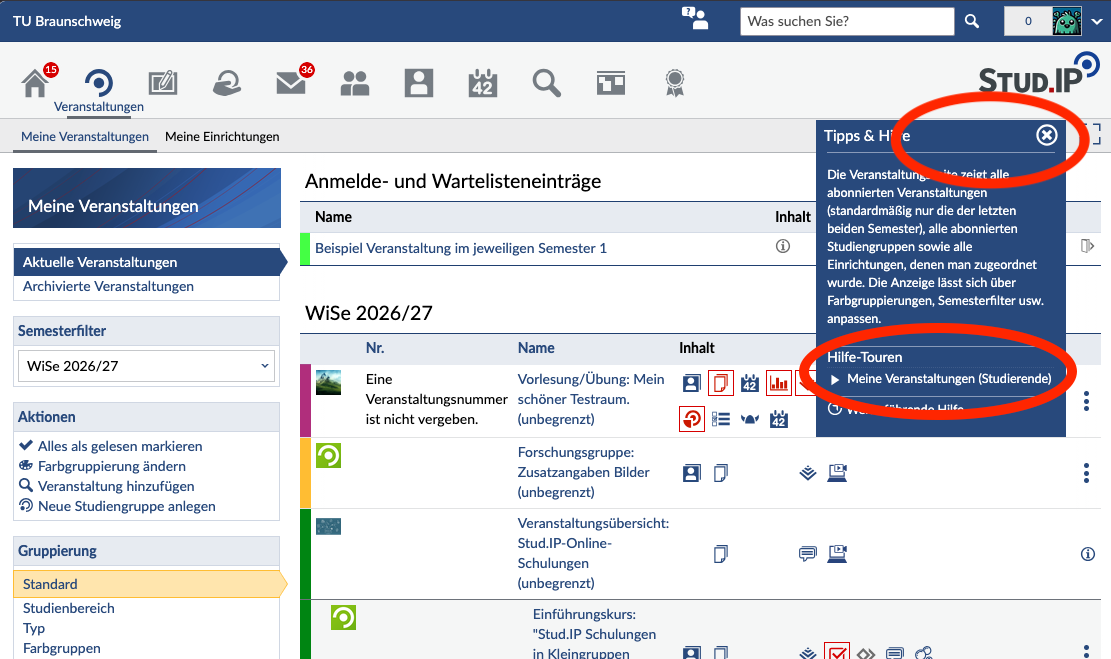](https://books.rz.tu-bs.de/uploads/images/gallery/2026-07/d0T1tORYSOYdSEPz-tourdeutsch1.png) [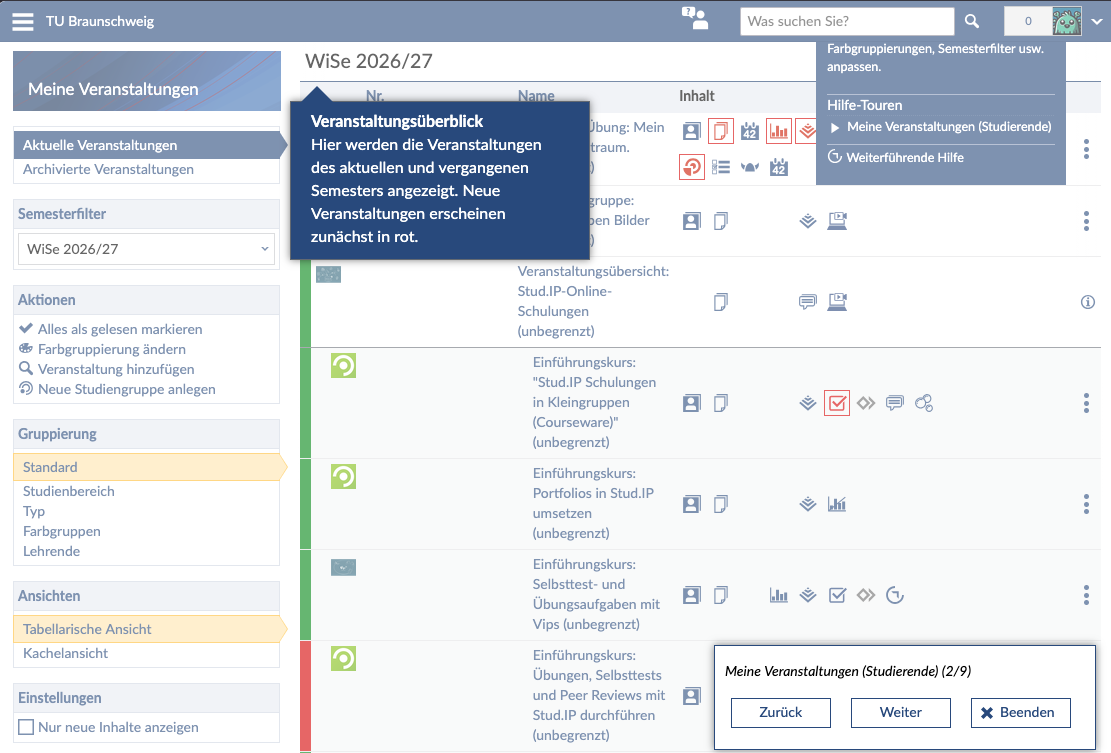](https://books.rz.tu-bs.de/uploads/images/gallery/2026-07/bnaS6Z8rwzCY8a18-tourdeutsch2.png) --- ### Veranstaltungen finden Klicke oben in der Leiste auf das Lupensymbol für „Suche“ oder benutze direkt das Suchfeld oben rechts im blauen Rand. Gib dann den Namen oder die Nummer der Veranstaltung in das Suchfeld ein. Wähle anschließend die passende Veranstaltung aus, indem du auf den Titel klickst. [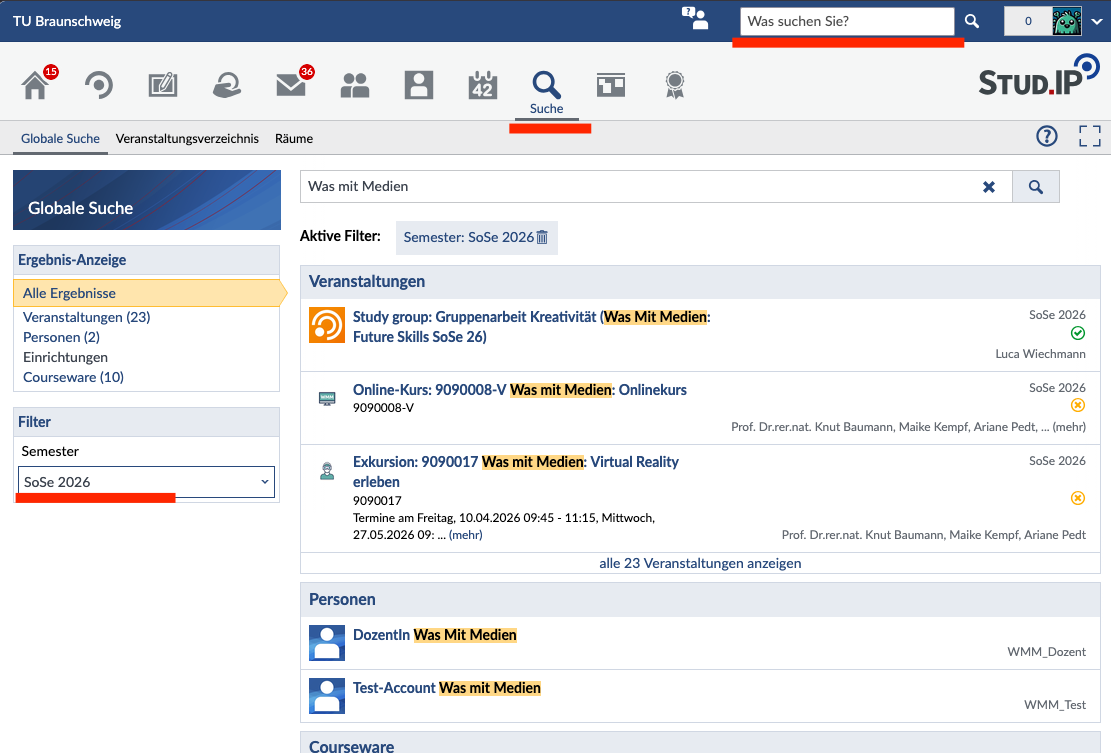](https://books.rz.tu-bs.de/uploads/images/gallery/2026-07/ByYTjvoKg1m0OzeZ-studipsuchede.png) Auf der rechten Seite der Veranstaltungsseite findest du dann die Infobox „Aktionen“. Dort kannst du dich über „Zugang zur Veranstaltung“ in die Veranstaltung eintragen. [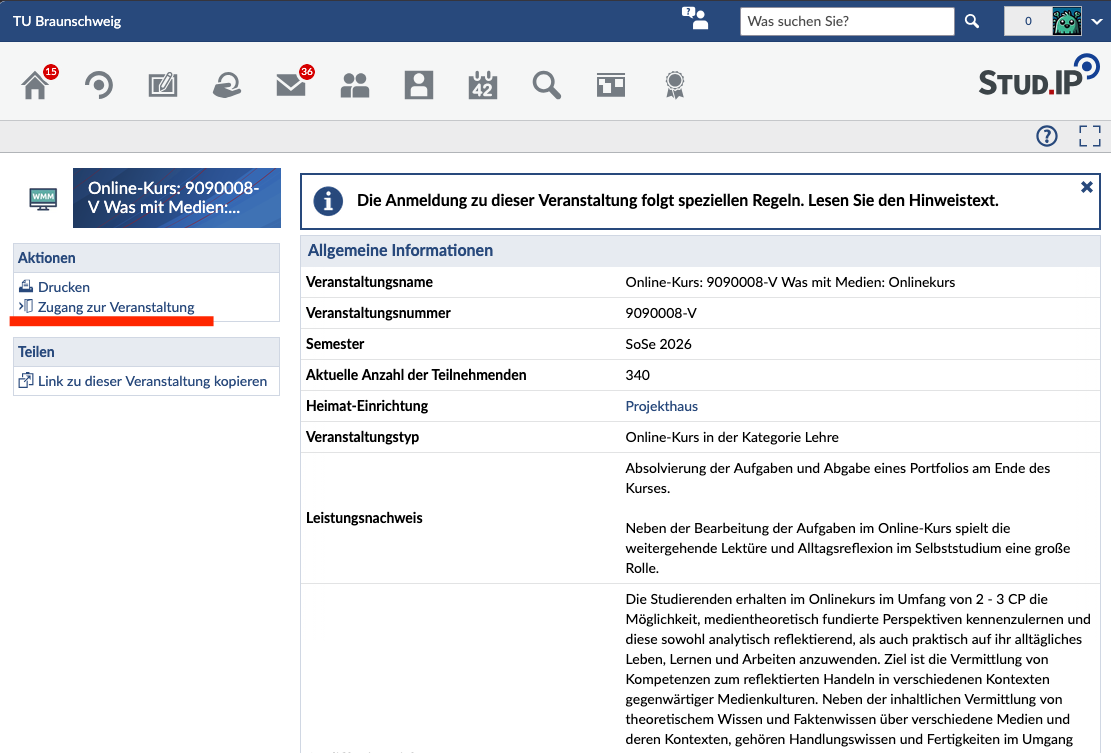](https://books.rz.tu-bs.de/uploads/images/gallery/2026-07/0anq5dIwCLshkXQg-studipveranstaltunde.png)In [TUconnect](https://connect.tu-braunschweig.de/qisserver/pages/cm/exa/coursecatalog/showCourseCatalog.xhtml?_flowId=showCourseCatalog-flow&_flowExecutionKey=e1s1 "Link zum Vorlesungsverzeichnis in TUconnect") kannst du dir im Vorlesungsverzeichnis alle Veranstaltungen deines Studiengangs anzeigen lassen. Auf der Detailseite der Lehrveranstaltung findest du auch einen Link zur Veranstaltung in Stud.IP.
Die Anmeldung für deine Veranstaltung erfolgt in Stud.IP. Auf der Startseite einer Veranstaltung findest du unter „Anmelderegeln“ die Zugangsbedingungen, den Anmeldezeitraum und den Ablauf der Anmeldung. Wenn die Veranstaltung gesperrt ist, haben die Lehrenden (noch) kein Anmeldeverfahren festgelegt. [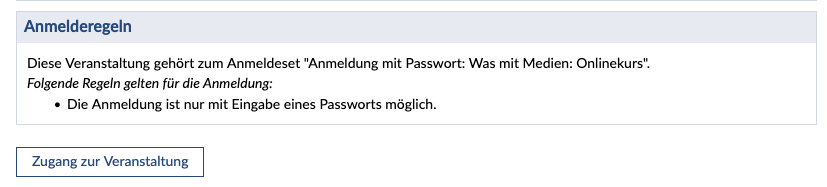](https://books.rz.tu-bs.de/uploads/images/gallery/2026-07/2XvHC6mQjscWcZDr-anmelderegelnde.png) Hast du den Anmeldezeitraum verpasst und musst dringend an der Veranstaltung teilnehmen, melde dich bitte direkt bei den zuständigen Lehrenden. ### Studiengang zuordnen Deine Studiendaten werden automatisch aus TUconnect übernommen. Du musst sie nicht selbst eintragen. Zu Semesterbeginn kann es trotzdem vorkommen, dass deine Daten nicht rechtzeitig zum Anmeldebeginn aktualisiert sind. Das passiert zum Beispiel, wenn deine Rückmeldung erst spät bearbeitet wurde.Wichtig: Dein Stud.IP-Account wird erstmals erstellt, wenn du dich einmal eingeloggt hast. Erst dann kann das nächtliche Update deine Informationen übertragen.
Bitte prüfe deshalb rechtzeitig, ob deine Studiendaten aktuell sind. Einige Veranstaltungen sind nur für bestimmte Studiengänge zugänglich. Wenn dein Studiengang oder dein Fachsemester ein paar Tage vor der Anmeldung noch nicht aktualisiert ist, melde dich bitte mit deiner aktuellen Immatrikulationsbescheinigung beim Stud.IP Support (
Stud.IP-Nachrichten ersetzen dein E-Mail-Postfach nicht. Wichtige Informationen, zum Beispiel vom Immatrikulationsamt oder von der Bibliothek, werden an deine offizielle TU-E-Mailadresse geschickt. Außerdem antworten einige Lehrende auf deine Nachrichten per E-Mail. Diese Antworten landen dann ebenfalls nur in deinem E-Mail-Postfach. Viele Einrichtungen lesen Nachrichten in Stud.IP nicht und sind deshalb nur per E-Mail erreichbar. Daher ist es wichtig, dass du regelmäßig deine E-Mails liest. Weitere Informationen zu E-Mails findest du hier: [https://books.rz.tu-bs.de/books/e-mail](https://books.rz.tu-bs.de/books/e-mail)
## Kalender abonnieren Hinter dem Reiter „Planer“ im oberen Menü findest du deinen **Stundenplan**. Dort kannst du sehen, wie deine Veranstaltungen in diesem Semester liegen. Eigene Termine kannst du ebenfalls in diese Wochenübersicht hinzufügen. Klicke dafür links auf „Neuer Termin“. [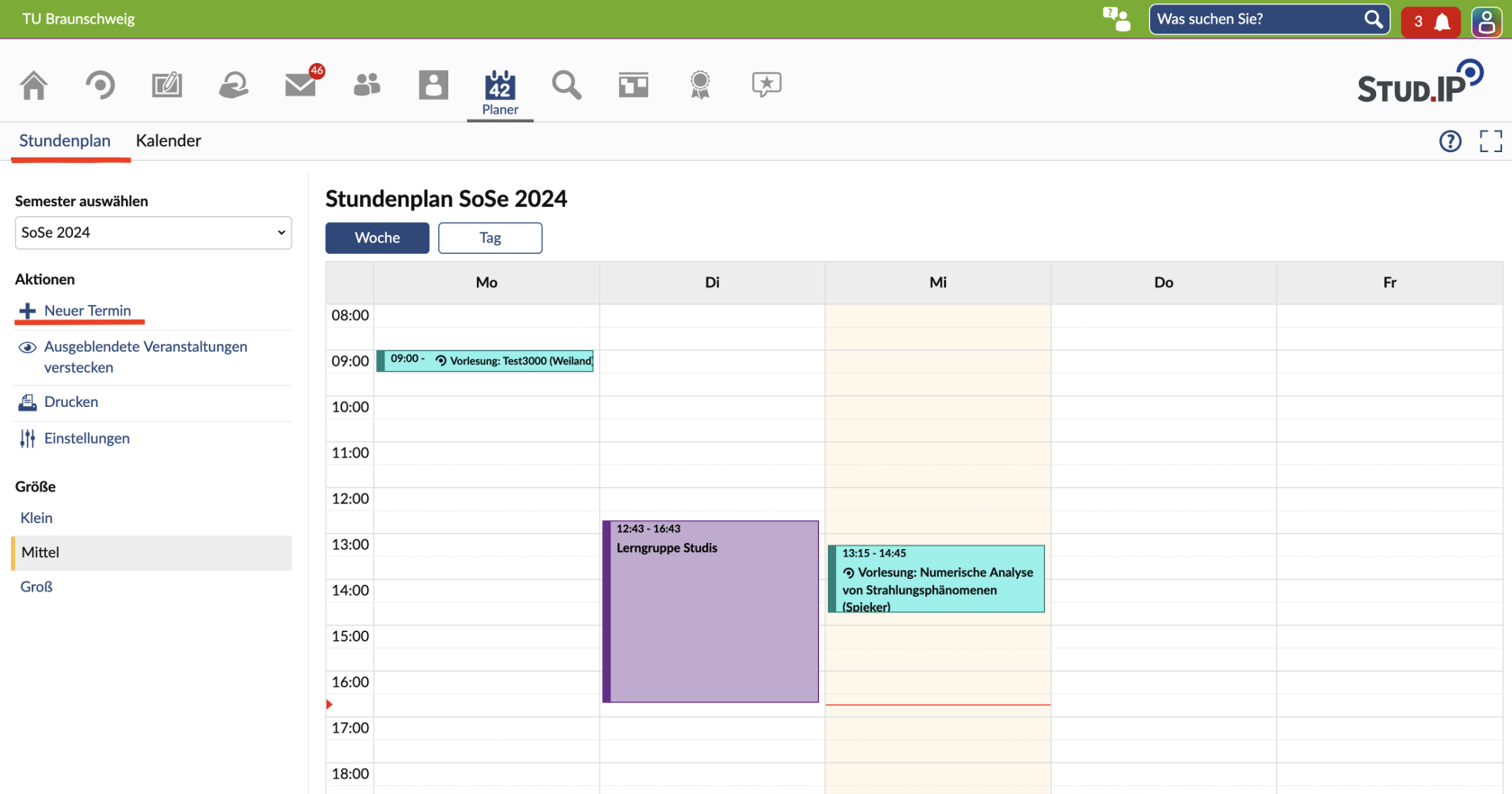](https://books.rz.tu-bs.de/uploads/images/gallery/2026-07/xgiTx98wArryQDBr-image008.png) Im **Kalender** siehst du die genauen Tage und Zeiten, an denen deine Veranstaltungen stattfinden. Einen Link, mit dem du deinen Kalender in eine externe Kalender-App einbinden kannst, erstellst du mit einem Klick auf „Kalender teilen“ und dann „Link zu diesem Kalender“. So behältst du deine Semesterplanung gut im Blick und erkennst schnell, welche Termine wann stattfinden und welche ausfallen. [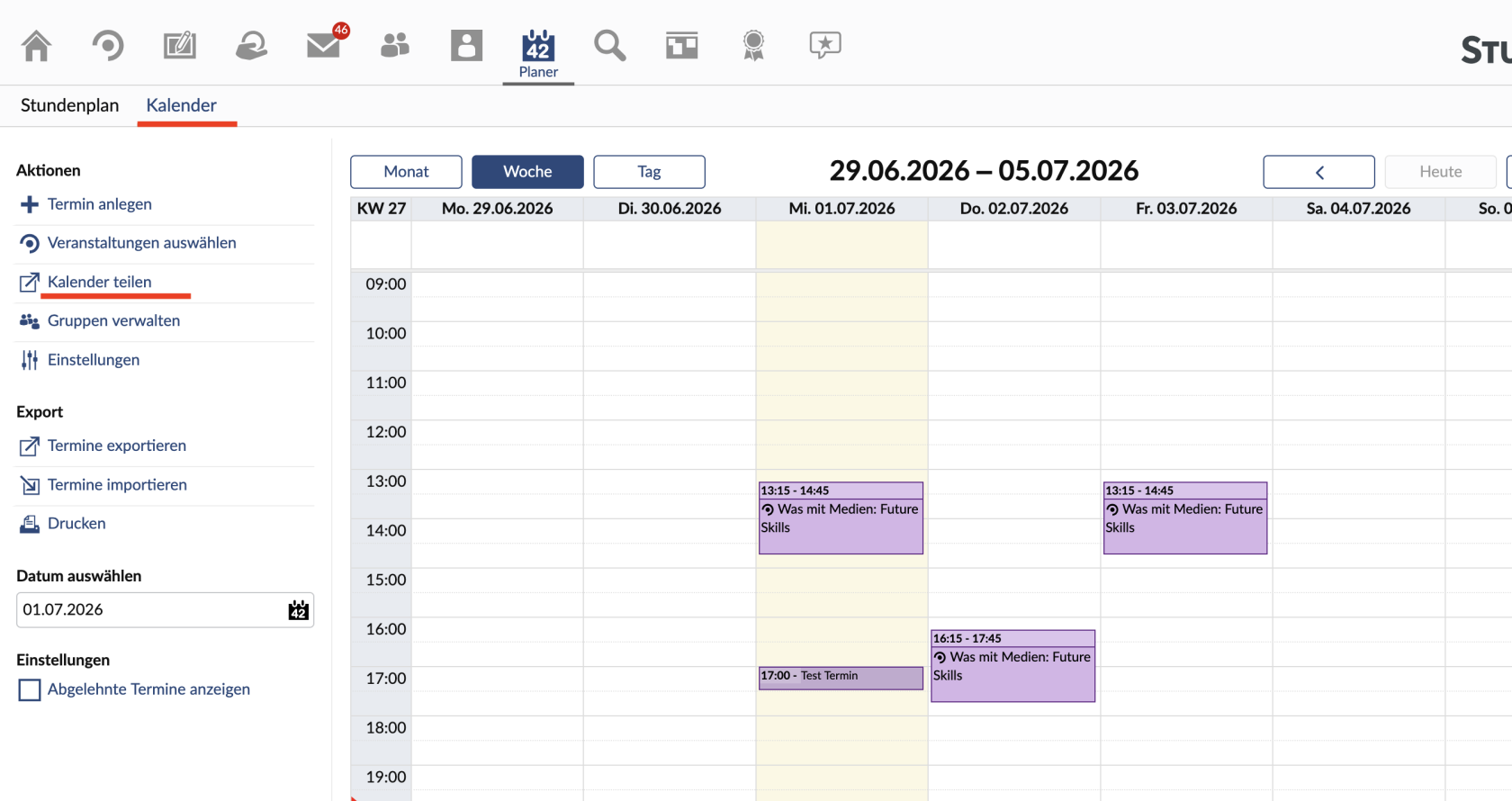](https://books.rz.tu-bs.de/uploads/images/gallery/2026-07/n2ewe0EuiQykFOEW-image009.png) ## Blubber Blubber ist die Chatfunktion in Stud.IP. Dort kannst du mit anderen Nutzenden „blubbern“. Unter dem Reiter Community findest du den globalen Blubber. Darauf können alle Mitglieder der TU Braunschweig zugreifen. Dort kannst du dich über Themen austauschen, die dich interessieren, auf Umfragen hinweisen, oder Fragen zum Studium in Braunschweig stellen. Im Menü links kannst du außerdem zwischen dem globalen Blubber und den Blubbern deiner Veranstaltungen wechseln. Die Beiträge dort sind nur innerhalb der jeweiligen Veranstaltung sichtbar und können für die Lehre benutzt werden. Ob Blubber in einer Veranstaltung verfügbar ist, entscheiden die Lehrenden. [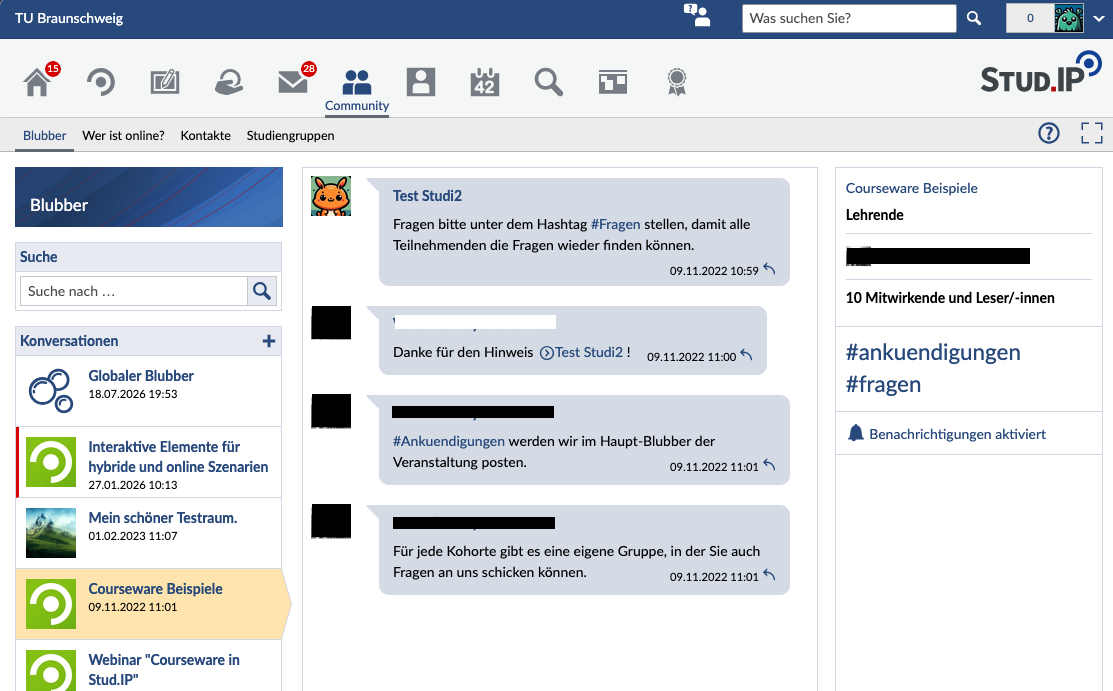](https://books.rz.tu-bs.de/uploads/images/gallery/2026-07/tqS4kXytmMIGjcGO-image010.png) Neue Nachrichten erscheinen sofort, ohne dass du die Seite neu laden musst. Neben kurzen Texten kannst du auch Bilder, Videos und andere Dateien teilen. Klicke dafür auf den Upload-Button oder ziehe die Datei per Drag&Drop auf das Chatfenster.Bitte beachte, dass Beiträge, die gegen die Werte der TU Braunschweig verstoßen, nicht geduldet werden. Solche Inhalte werden kommentarlos entfernen.
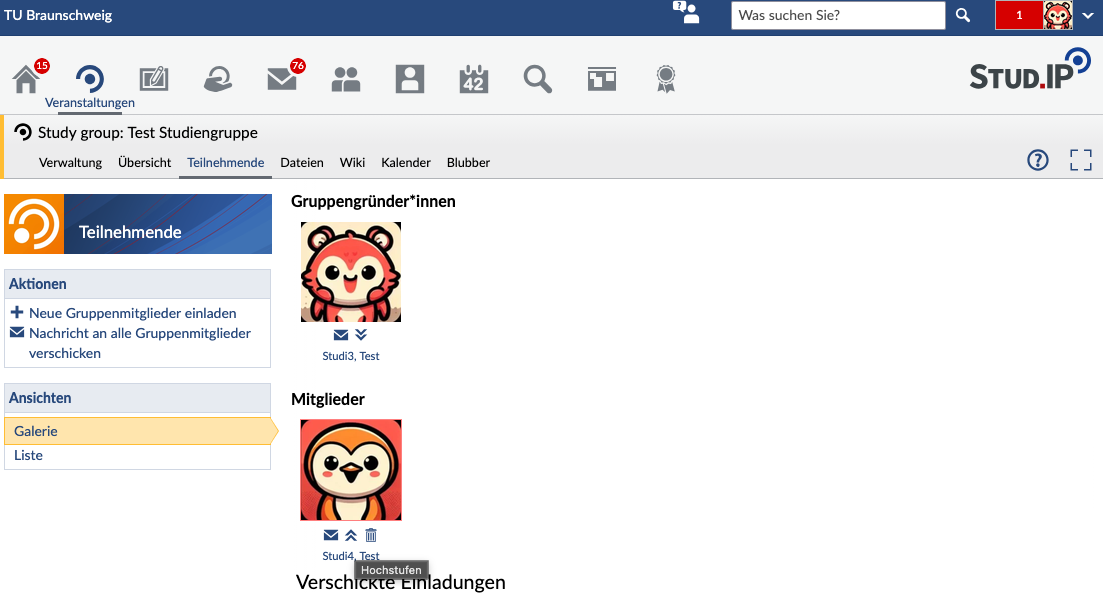
## Ankündigungen Ankündigungen findest du nach deinem Login auf der Startseite von Stud.IP. Dort stehen neben wichtigen Informationen zur Plattform auch Hinweise zu Veranstaltungen und Angeboten von uni-nahen Einrichtungen. Auf der Startseite findest du außerdem Werbebanner, die ebenfalls von uni-nahen Einrichtungen platziert wurden. Ankündigungen und Werbebanner unterliegen festen Regeln. [Diese haben wir hier erfasst für dich zusammengestellt](https://books.rz.tu-bs.de/books/studip/page/de-ankundigungen-und-banner). [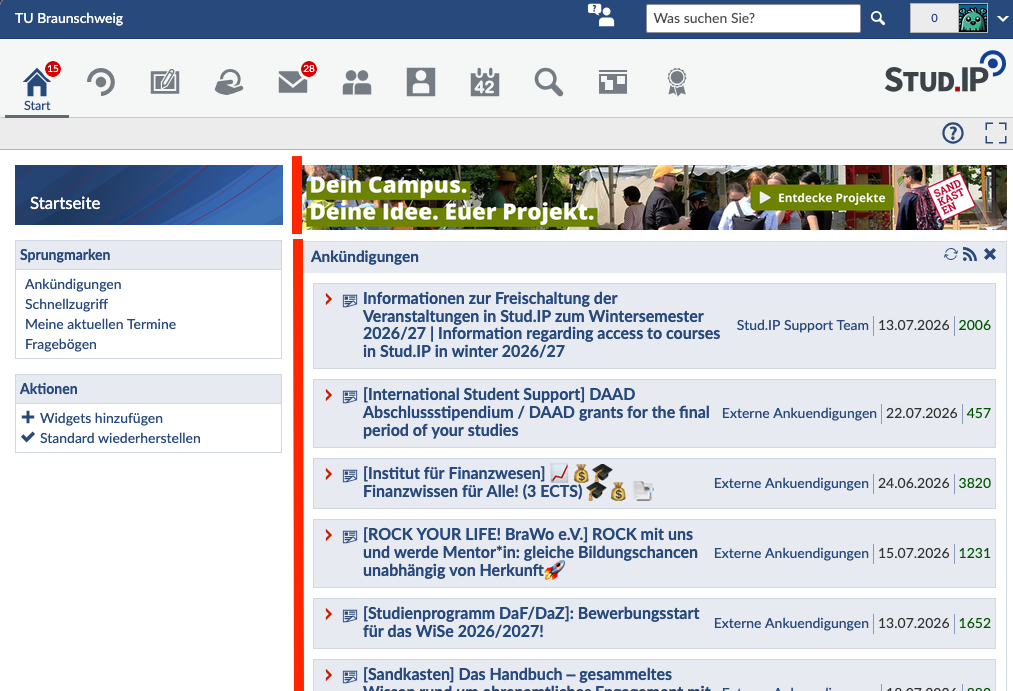](https://books.rz.tu-bs.de/uploads/images/gallery/2026-07/vJVAlPzaWH8f0nDT-image011.png) ## Das Schwarze Brett Das schwarze Brett ist für alle Angehörigen der TU Braunschweig offen. Dort kannst du Dinge kaufen, verkaufen und verschenken, zum Beispiel Bücher, Technik, Konzerttickets oder Möbel. Außerdem findest du dort Fahrgemeinschaften, Lerngruppen und Wohnungsangebote. Du kannst auch an Umfragen teilnehmen oder dich für Ideen rund um deine Abschlussarbeit inspirieren lassen. Wichtig: Bitte halte dich an die Regeln, die direkt im Schwarzen Brett zu finden sind. [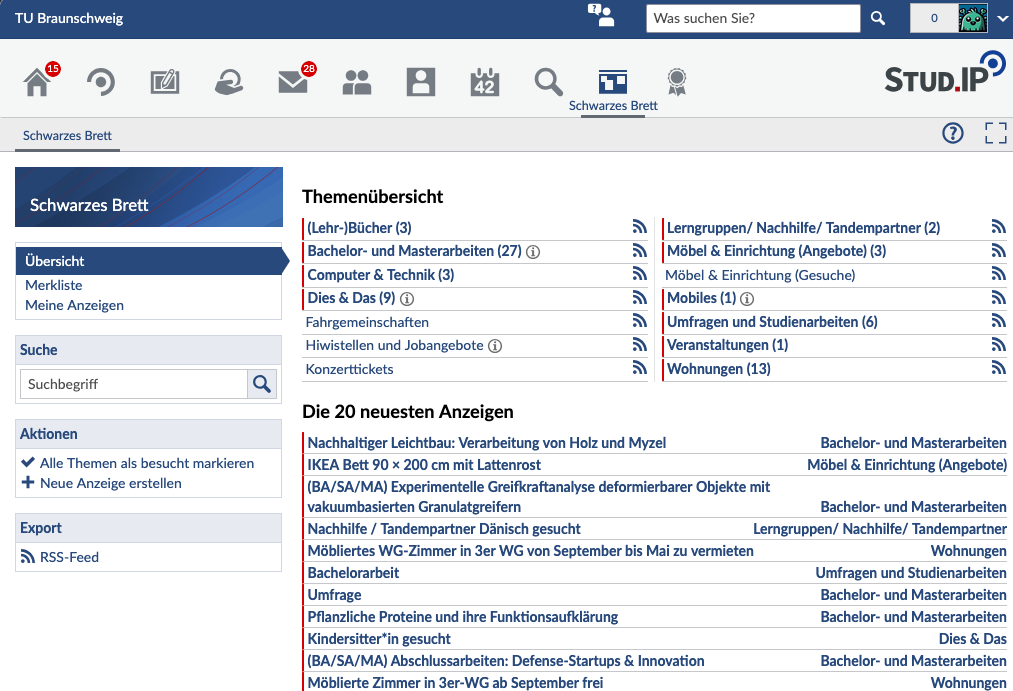](https://books.rz.tu-bs.de/uploads/images/gallery/2026-07/QwWtMDNfCnU3MqJ8-image012.png) ## Sprechstunden Lehrenden können auf ihrem Stud.IP Profil Sprechstunden anbieten. Viele nutzen diese Funktion bereits. Wenn du einen Sprechstundentermin vereinbaren möchtest, kannst du das im Profil der Lehrperson unter „Terminvergabe“ tun. Wird dieser Reiter nicht angezeigt, nutzt die Lehrperson die Funktion nicht. [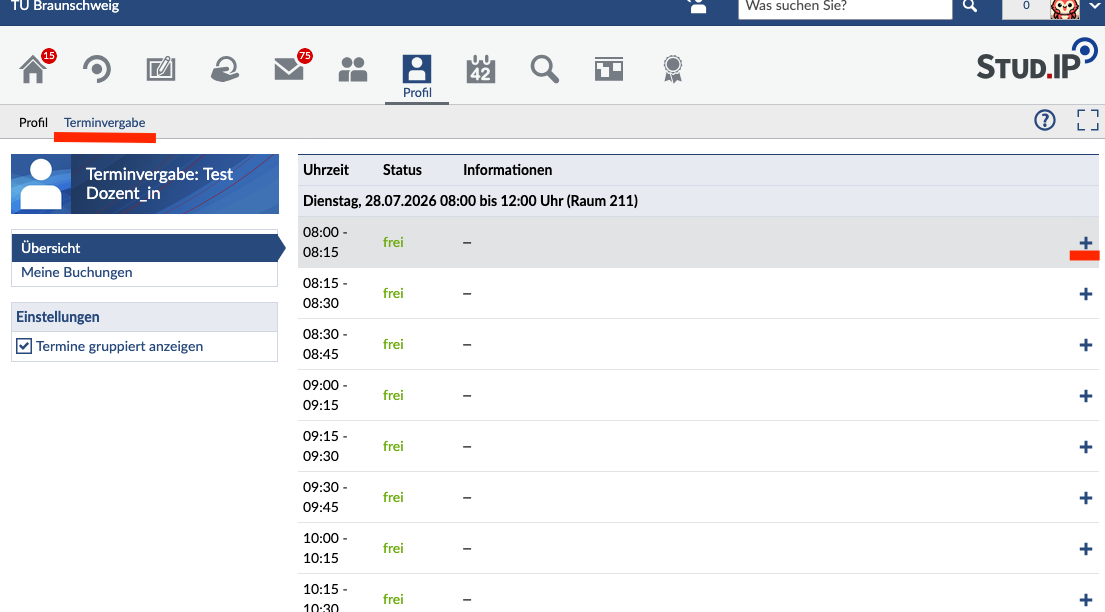](https://books.rz.tu-bs.de/uploads/images/gallery/2026-07/auxoQyzWODG9nlhk-image013.png) Du kannst einen neuen Termin buchen, indem du rechts auf das + klickst. In dem sich öffnenden Fenster trägst du dann den Grund ein, warum du die Sprechstunde buchen möchtest. [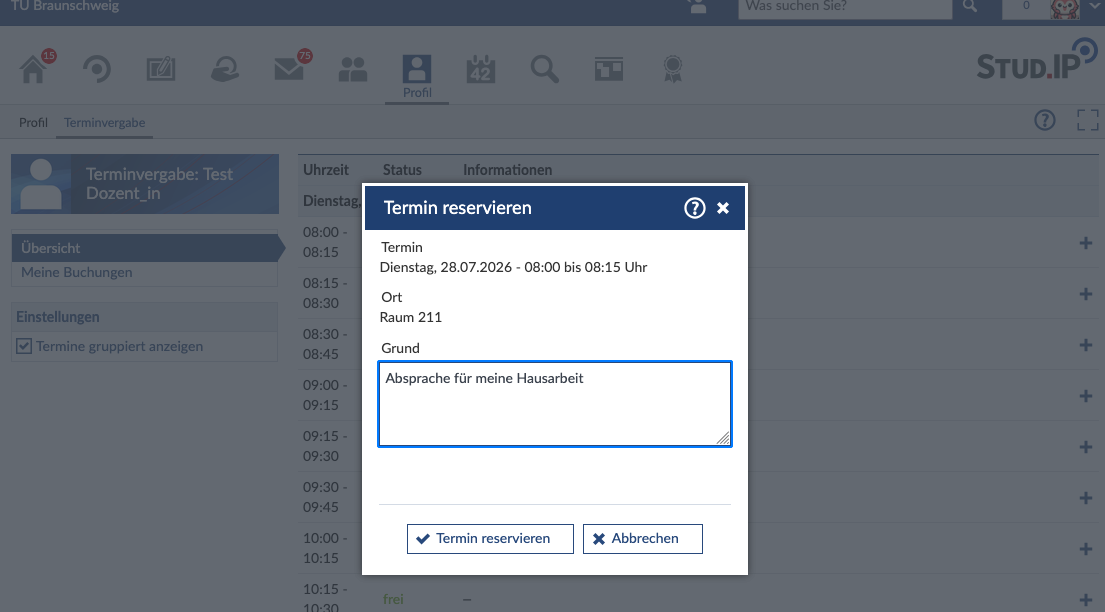](https://books.rz.tu-bs.de/uploads/images/gallery/2026-07/f74E8VZ9OBQST4cq-image014.png) Nachdem du auf „Termin reservieren“ geklickt hast, ist der Termin für dich gebucht und steht anderen Studierenden nicht mehr zur Verfügung. Nur wenn die Lehrperson ausdrücklich angegeben hat, dass mehrere Personen gleichzeitig an einem Termin teilnehmen können, ist das anders. Du kannst du Termin jederzeit wieder löschen, indem du auf die Mülltonne klickst. [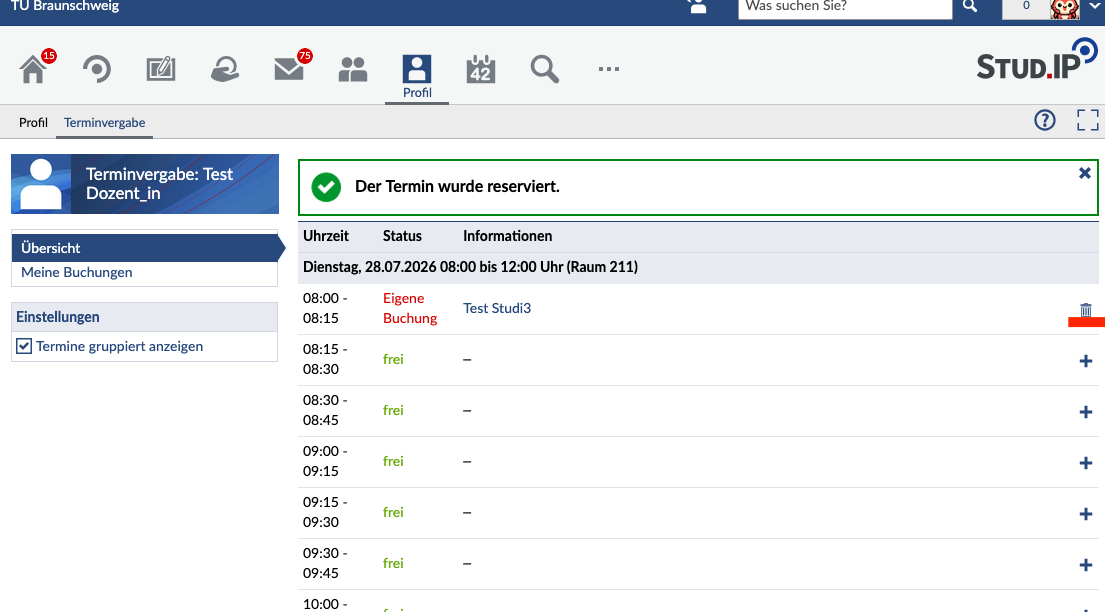](https://books.rz.tu-bs.de/uploads/images/gallery/2026-07/TxvmNY95poPX86Id-image015.png) # [DE] Studiengruppen in Stud.IP Studiengruppen ähneln Veranstaltungen, können aber auch von euch Studierenden erstellt und verwaltet werden. So könnt ihr euch für Projektarbeiten, Tutorien oder Arbeitsgruppen organisieren und austauschen. Es gibt öffentliche („offen für alle“ und „auf Anfrage“) und unsichtbare Studiengruppen. Wie in normalen Veranstaltungen findest du dort auch verschiedene Werkzeuge, zum Beispiel für Videokonferenzen, Dateiablage, Wiki, Forum und die gemeinsame Terminabstimmung. ### Studiengruppe anlegen **Du kannst eine Studiengruppe auf der Seite „Veranstaltungen“ anlegen. Klicke dafür im linken Menü unter „Aktionen“ auf „Neue Studiengruppe anlegen“. ** ** ** [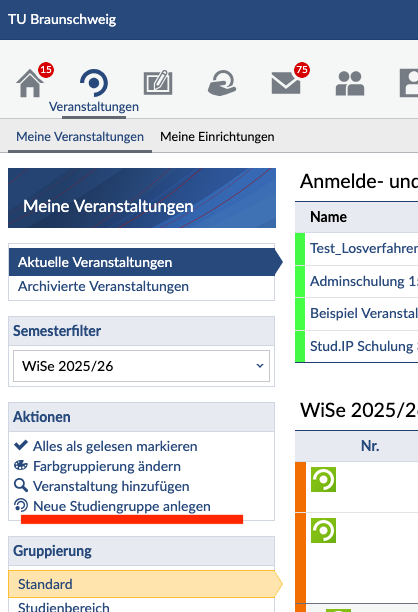](https://books.rz.tu-bs.de/uploads/images/gallery/2026-07/hLzU60qIK6r3ScDi-image016.png) Im nächsten Fenster gibst du den Namen deiner Studiengruppe an und legst fest, ob sie offen für alle, auf Anfrage oder unsichtbar sein soll. Klicke dann auf „Weiter“ und bestätige anschließend noch einmal, dass die Studiengruppe angelegt werden soll. Danach kannst du sie einrichten. Deine Studiengruppe erscheint auf der Seite „Veranstaltungen“ in dem Semester, in dem du sie angelegt hast. [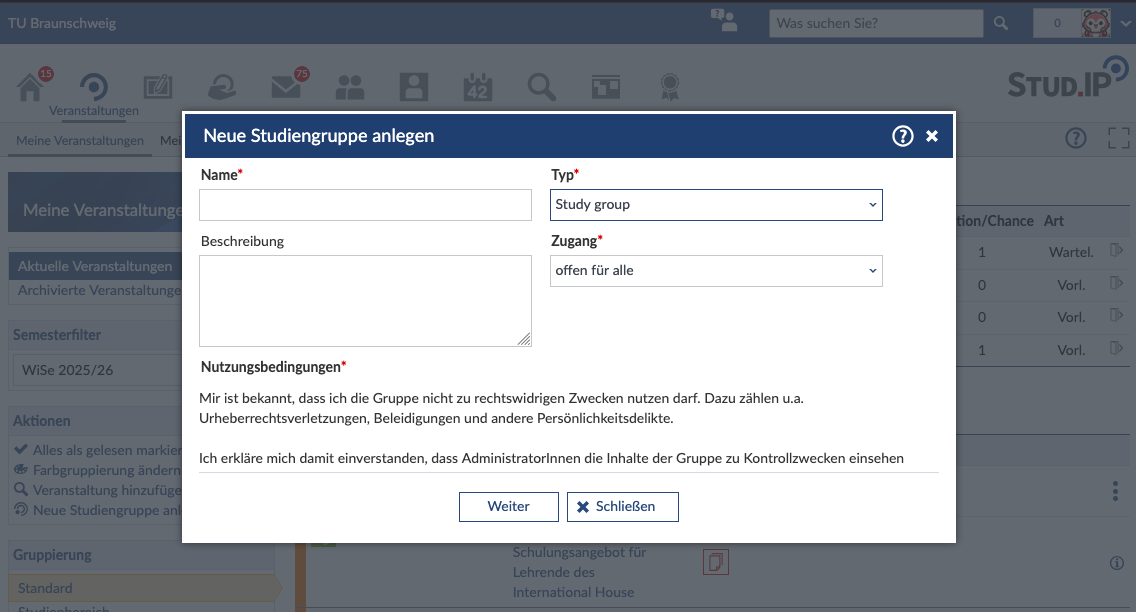](https://books.rz.tu-bs.de/uploads/images/gallery/2026-07/Pum6JyQEOoCljKyP-image017.png) ### **Weitere Personen einladen** Du kannst weitere Personen einladen, indem du auf „Teilnehmende“ klickst und links im Menü „Neue Gruppenmitglieder einladen“ auswählst. In dem sich öffnenden Menü kannst du dann nach den Accounts suchen, die du hinzufügen möchtest. [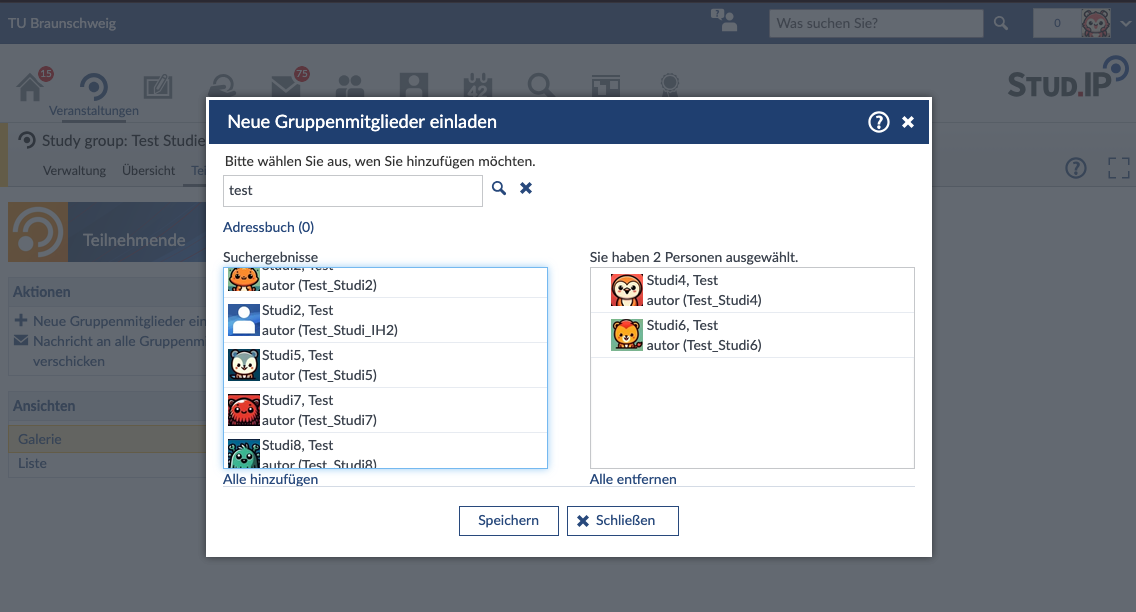](https://books.rz.tu-bs.de/uploads/images/gallery/2026-07/GIkOi72QM5GYmaYO-image018.png) Die eingeladenen Personen erhalten anschließend einen Link per Stud.IP-Nachricht. Erst wenn sie auf den Link klicken, werden sie der Studiengruppe hinzugefügt. [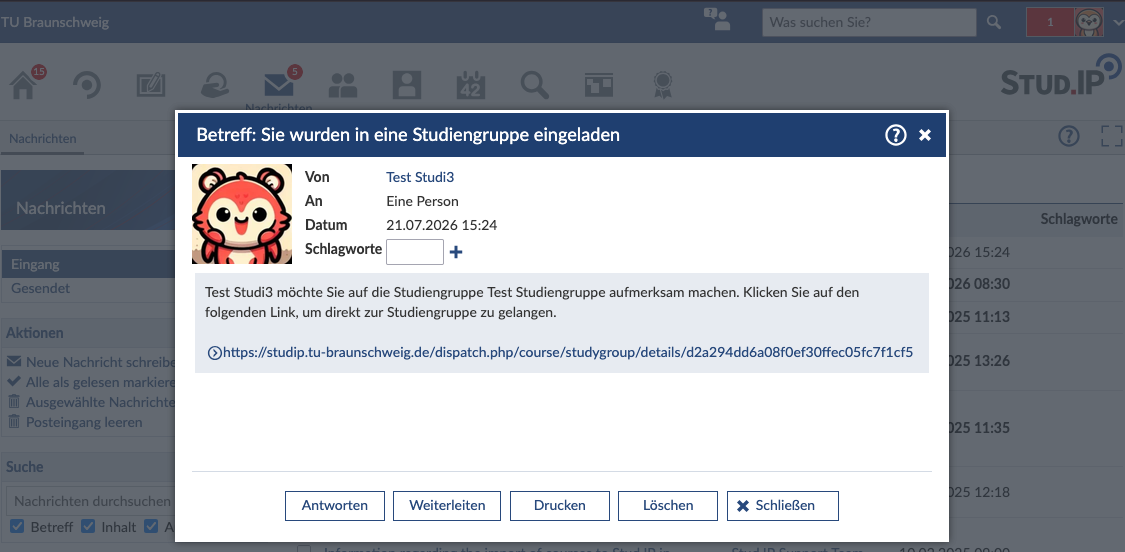](https://books.rz.tu-bs.de/uploads/images/gallery/2026-07/pEBjnYXIVkYxG7R7-image019.png) ### Wie lange ist meine Studiengruppe gültig? Studiengruppen bleiben bestehen, bis du sie löschst oder dein Account gelöscht wird. Wenn die Studiengruppe auch nach deiner Exmatrikulation weiter genutzt werden soll, solltest du eine andere Person aus der Gruppe hochstufen. Das geht auf der Seite „Teilnehmende“ über die Pfeil-Symbole. Zuerst werden Mitglieder zu Moderator\*innen und mit einem weiteren Klick zu Gruppengründer\*innen.Wenn dein Account gelöscht wird, werden aus datenschutzrechtlichen Gründen auch alle von dir hochgeladenen Dateien gelöscht.
[](https://books.rz.tu-bs.de/uploads/images/gallery/2026-07/Sar5h1GluqmDbCTf-image020.png) # [EN] Getting started New to university and not quite sure how Stud.IP works? Don't worry: You'll find the most important information here at a glance to help you get off to a good start in your studies. ### Getting Started You can find Stud.IP at the following URL [https://studip.tu-braunschweig.de](https://studip.tu-braunschweig.de) You can log in there using the field in the upper-left corner with your TUBS ID (y-number) or with the login credentials from another university in Lower Saxony.To log in with a different ID, [please check this page](https://books.rz.tu-bs.de/books/studip/page/en-frequently-asked-questions-faq) to find out which login you need to use.
On the landing page, you can switch the language to English. This setting also applies to the account you log in to. You can change the language at any time later in the settings. [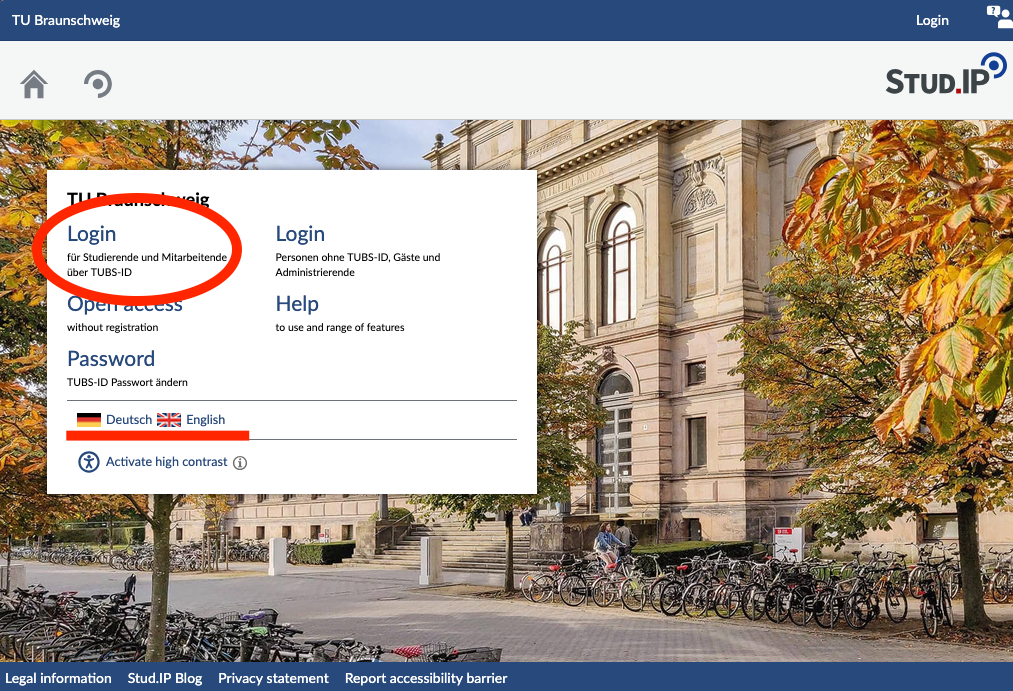](https://books.rz.tu-bs.de/uploads/images/gallery/2026-07/7m8WSLz2YtV9IHF4-landingpagestudip.png) When you log in for the first time, Stud.IP offers you a short tour. It will help you find your way around the system. Please take a moment to go through it. You can also close the tour and start it again later by clicking on the question mark in the upper right corner, below the Stud.IP logo. [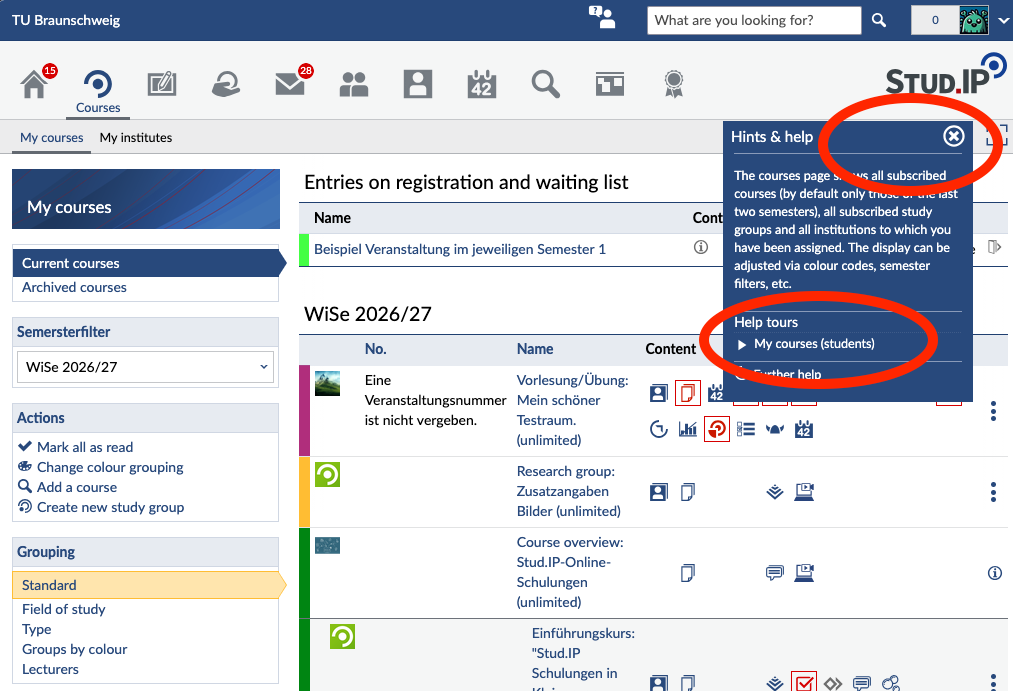](https://books.rz.tu-bs.de/uploads/images/gallery/2026-07/FmwLx64O3lp22oUk-studiptourengl1.png) [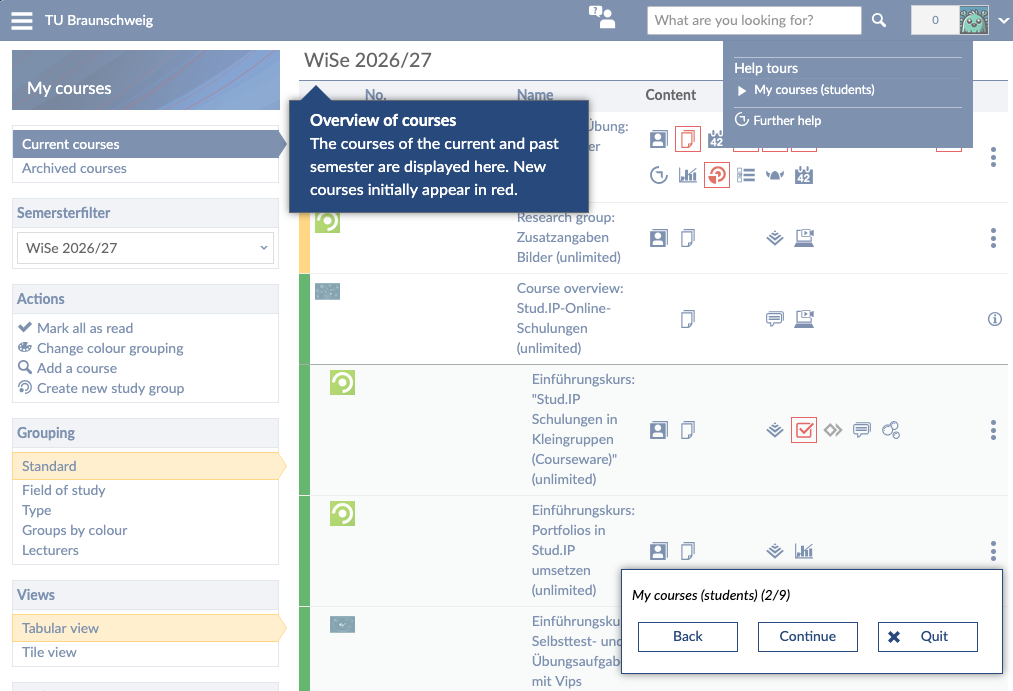](https://books.rz.tu-bs.de/uploads/images/gallery/2026-07/TU1r4qbST1M31Bfn-studiptourengl2-png.png) ### Finding Courses Click the magnifying glass icon for “Search” in the top bar. Then enter the name or number of the course in the search field. Finally, select the correct course by clicking on its title. [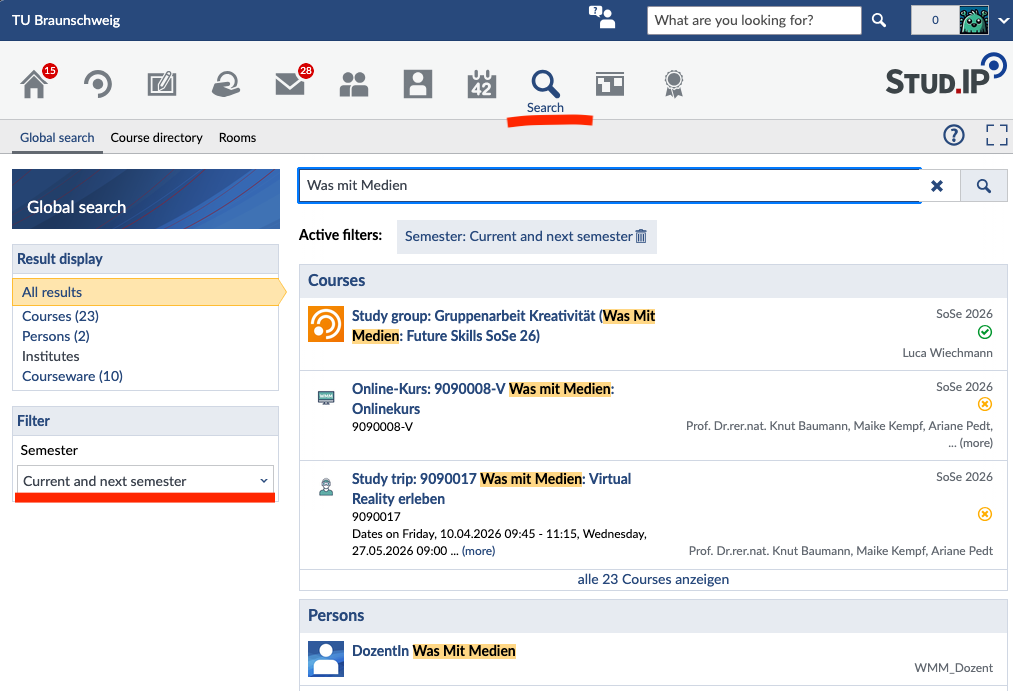](https://books.rz.tu-bs.de/uploads/images/gallery/2026-07/uzOHDmT4yzX6O6GS-image024.png) On the right-hand side, you'll find the “Actions” info box. There, you can sign up for the course by clicking “Go to Course.” [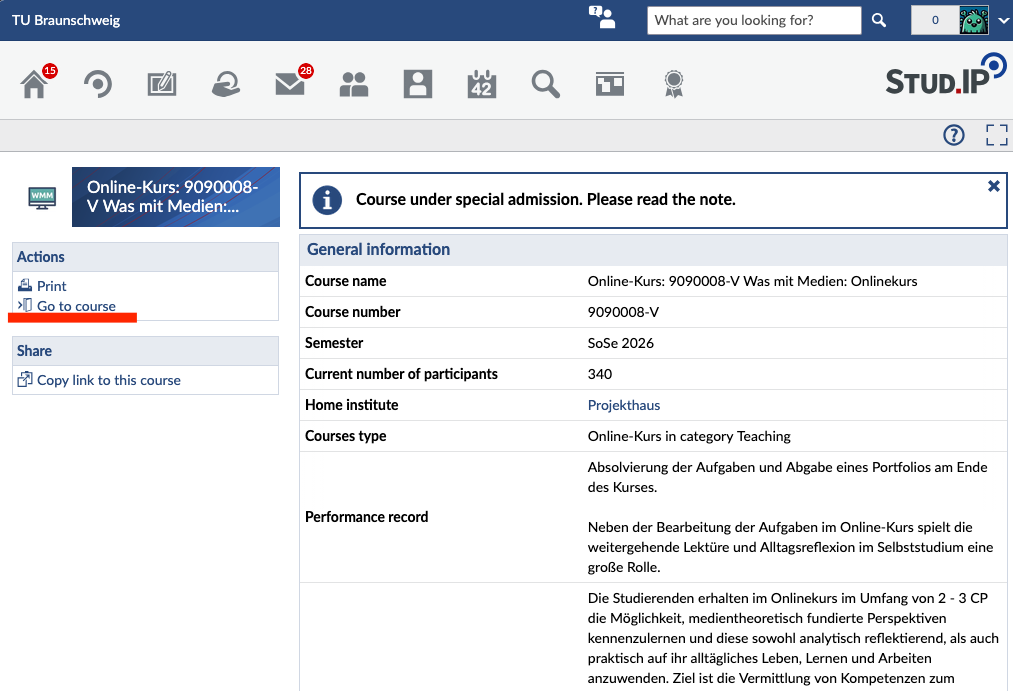](https://books.rz.tu-bs.de/uploads/images/gallery/2026-07/hzuIRqmWZx1zvZI2-image025.png)In TUconnect, you can view all the courses in your degree program in the course catalog. On the course details page, you'll also find a link to the course in Stud.IP.
Registration for your course takes place in Stud.IP. On the course homepage, you will find the admission requirements, the registration period, and the registration process under “Admission settings.” If the course is locked, the instructors have not (yet) established a registration procedure. [](https://books.rz.tu-bs.de/uploads/images/gallery/2026-07/hHnHNwe8gwr4msLT-image026.png) If you missed the registration period but urgently need to attend the course, please contact the instructors directly. ### Assigning a Degree Program Your academic data is automatically imported from TUconnect. You do not need to enter it yourself. At the start of the semester, however, it’s possible that your information isn’t updated in time for the start of registration. This can happen, for example, if your re-enrolment was processed late.Important: Your Stud.IP account is first created after your first login. The nightly update can only transfer your information after that.
Please make sure to check in advance whether your academic information is up to date. Some courses are only open to students in certain degree programs. If your degree program or semester has not yet been updated a few days before registration, please contact Stud.IP Support (
Stud.IP messages do not replace your email inbox. Important information—for example, from the Office of Student Registration or the library—is always sent to your official TU email address. In addition, some instructors will respond to your messages via email. These responses will also only appear in your email inbox. Many departments do not check messages in Stud.IP and can therefore only be reached via email. Therefore, it is important that you check your email regularly. You can find more information about emails here: [https://books.rz.tu-bs.de/books/e-mail](https://books.rz.tu-bs.de/books/e-mail)
## Subscribing to the Calendar Your **timetable** is located under the “Planner” tab in the top menu. There you can see your schedule for this semester. You can also add your own events to this weekly overview. To do so, click “New entry” on the left. [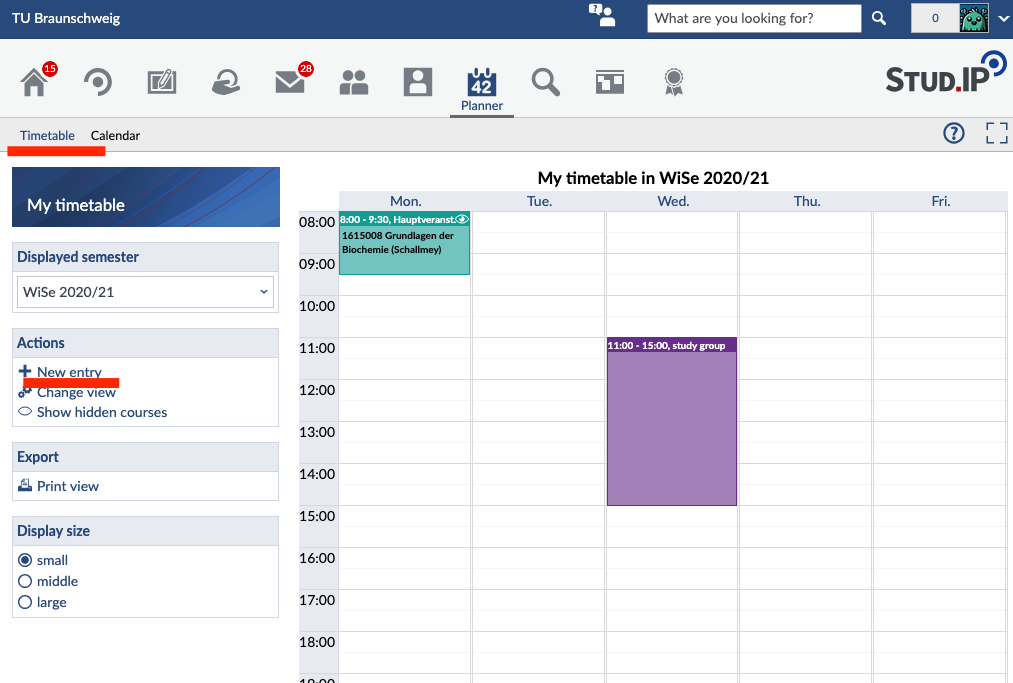](https://books.rz.tu-bs.de/uploads/images/gallery/2026-07/1R0nTnvpkhDIImCe-image028.png) In the **cale**ndar, you can view the exact dates and times of your events. To create a link that lets you sync your calendar with an external calendar app, click “Share calendar” and then “Link to this calendar.” This way, you can keep track of your semester schedule and quickly see which dates are scheduled and which ones have been canceled. [](https://books.rz.tu-bs.de/uploads/images/gallery/2026-07/n2ewe0EuiQykFOEW-image009.png) ## Blubber Blubber is the chat feature in Stud.IP. You can use it to “blubber” (think: to babble) with other users. Under the „Community“ tab, you’ll find the Global Blubber. All members of TU Braunschweig can access it. You can use it to discuss topics that interest you, share polls, or ask questions about studying in Braunschweig. In the menu on the left, you can also switch between the global Blubber and the Blubbers of your courses. The posts there are only visible within the respective course and can be used for teaching purposes. Teaching staff decides whether Blubber is available in a course. [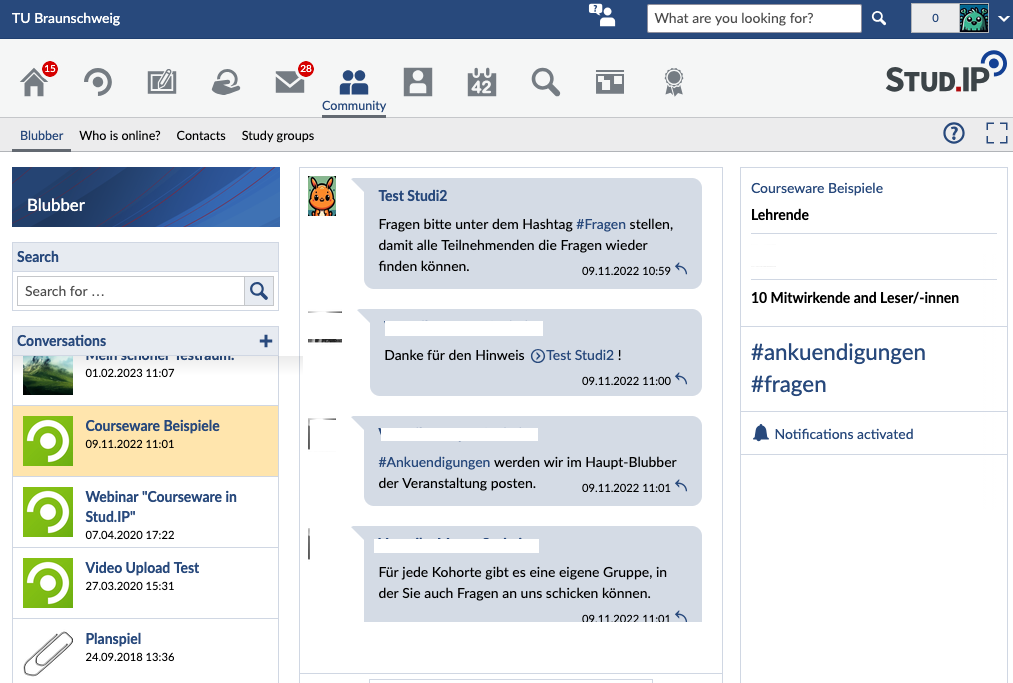](https://books.rz.tu-bs.de/uploads/images/gallery/2026-07/LK5LsLM83HVE9cRt-image029.png) New messages appear instantly without you having to refresh the page. In addition to short texts, you can also share images, videos, and other files. To do so, click the upload button or drag and drop the file into the chat window.Please note that posts that violate the values of TU Braunschweig will not be tolerated. Such content will be removed without comment.
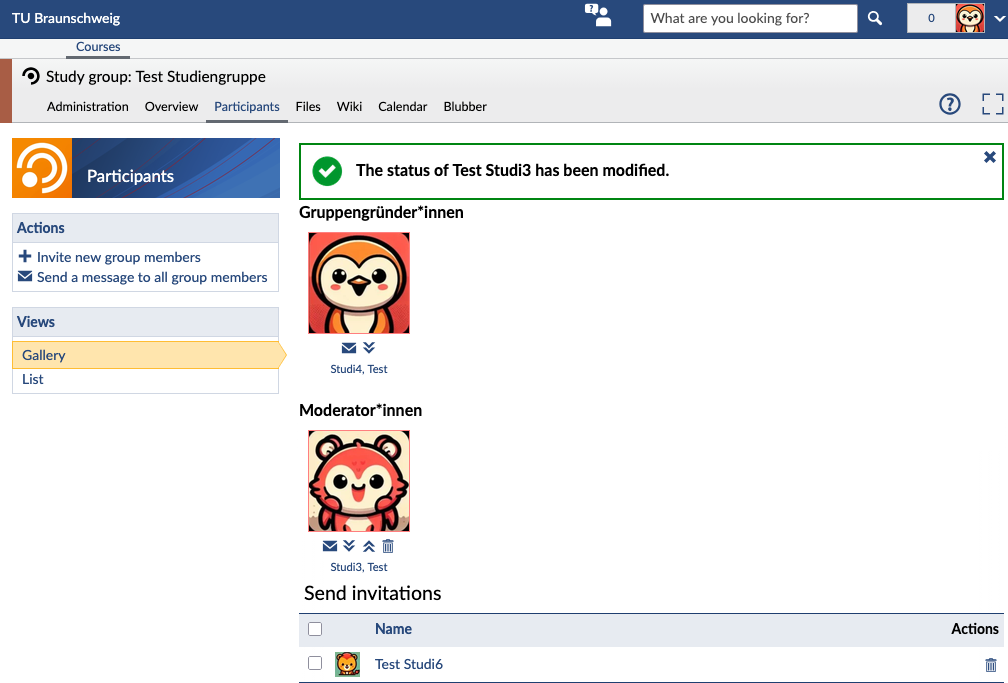
## Announcements Announcements can be found on the Stud.IP start page after you log in. In addition to important information about the platform, you’ll find information about events and offers from university-affiliated organizations. The start page also features advertising banners placed by university-affiliated organizations. Announcements and advertising banners are subject to set rules. [We’ve compiled these rules for you here.](https://books.rz.tu-bs.de/books/studip/page/en-announcements-and-banners) [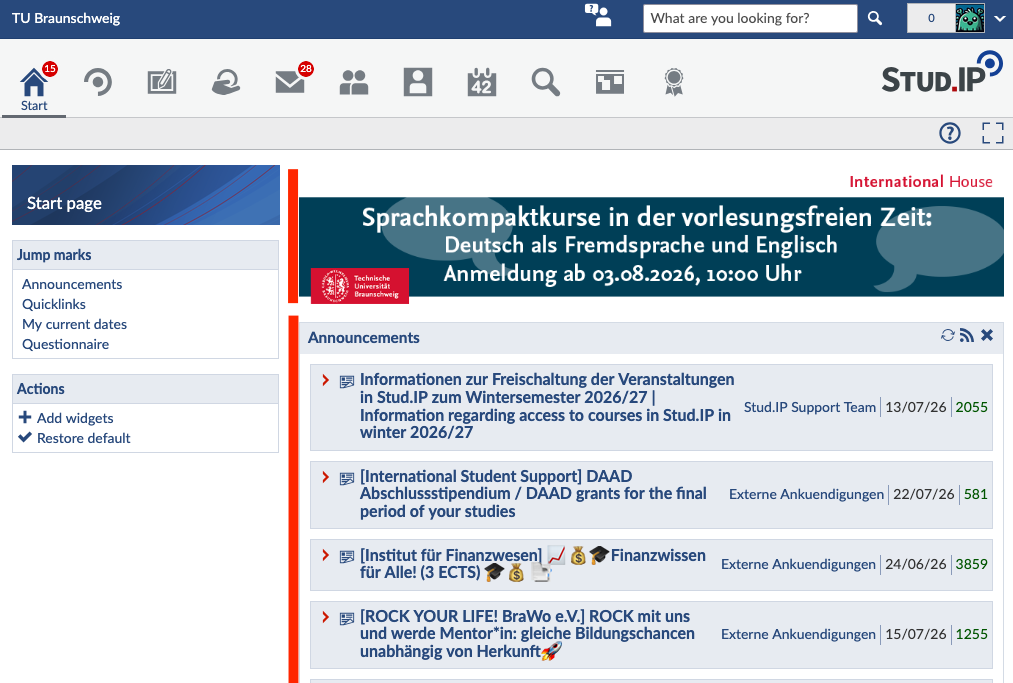](https://books.rz.tu-bs.de/uploads/images/gallery/2026-07/W4jqILqlO0NNY3RZ-image030.png) ## Notice Board The notice board is open to everyone at TU Braunschweig. You can use it to buy, sell, or give away items such as books, electronics, concert tickets, or furniture. You’ll also find carpool opportunities, study groups, and housing listings there. Additionally, you can participate in surveys or find inspiration for your thesis. Important: Please follow the rules posted directly on the notice board. [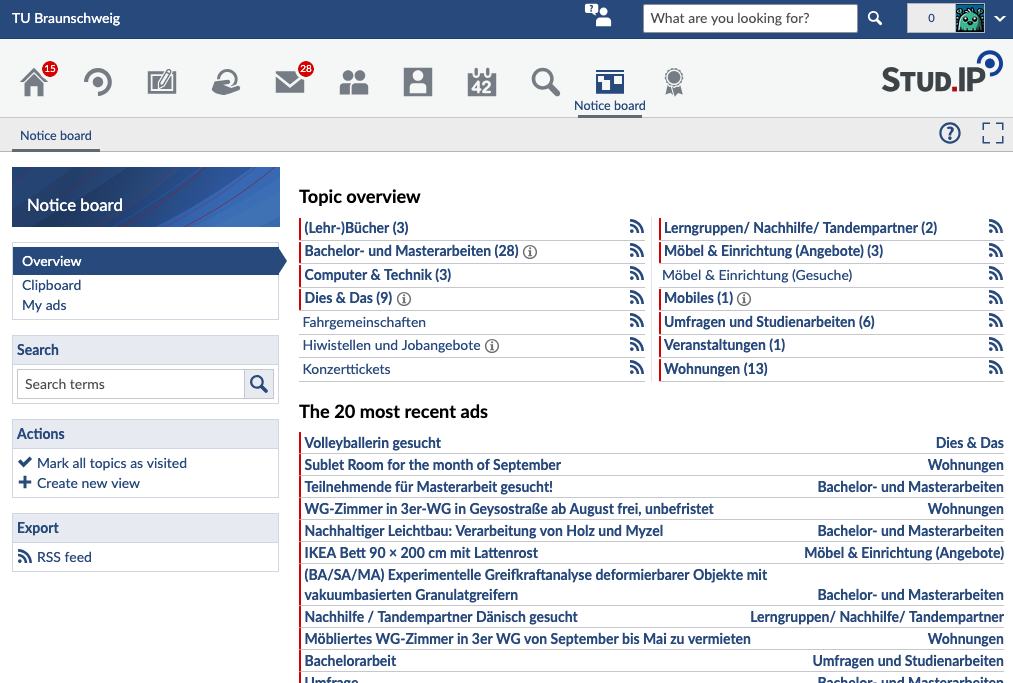](https://books.rz.tu-bs.de/uploads/images/gallery/2026-07/elOIRiSAjq0s0ywI-image031.png) ## Office Hours Teaching staff can offer office hours on their Stud.IP profile. Many are already using this feature. If you’d like to schedule an office hour appointment, you can do so on the teaching staff member’s profile under “Terminvergabe“. If this tab isn’t displayed, the teaching staff member isn’t using this feature. [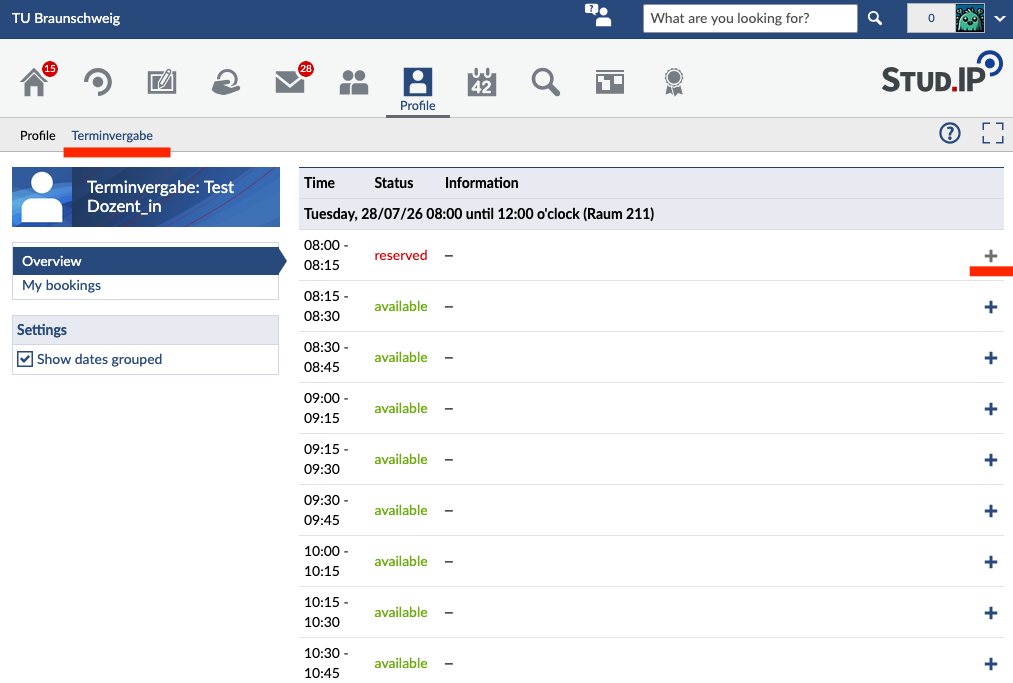](https://books.rz.tu-bs.de/uploads/images/gallery/2026-07/9ZFdY7GxxQmCKmV9-image032.png) You can book a new appointment by clicking the + on the right. Enter the reason you'd like to book the appointment in the pop-up window. [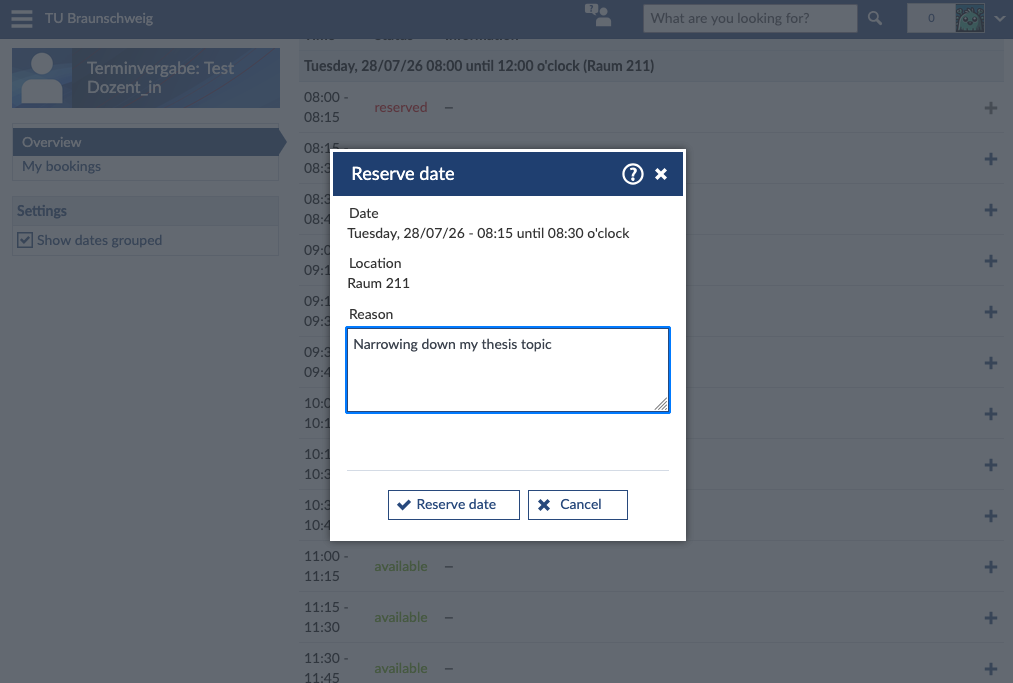](https://books.rz.tu-bs.de/uploads/images/gallery/2026-07/B2Qzu1TFKrUS8zLw-image033.png) Once you've clicked “Reserve Appointment,” the appointment is booked for you and is no longer available to other students. However, this does not apply if the teaching staff has explicitly stated that multiple people can participate in an appointment at the same time. You can delete the appointment at any time by clicking the trash can icon next to your booking. # [EN] Study Groups in Stud.IP Study groups are similar to courses, but they are created and managed by the students themselves. This allows you to organize and collaborate on projects, tutorials, or group work. There are public study groups (“open to all” and “by request”) and invisible study groups. Similar to regular courses, various tools are available, such as video conferencing, file storage, a wiki, a forum, and a shared calendar for coordinating schedules. ### Creating a Study Group You can create a study group on the „Courses“ page. To do so, click “Create new study group” under “Actions” in the left-hand menu. ** ** [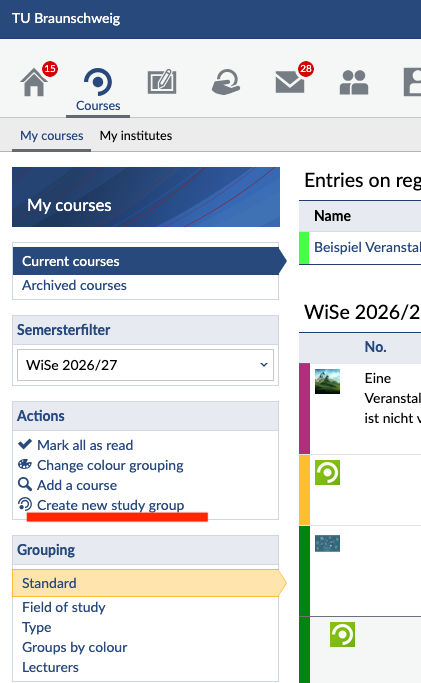](https://books.rz.tu-bs.de/uploads/images/gallery/2026-07/eNjX1tcxWy3flodb-image035.png) In the next menu, enter your study group’s name and specify whether it should be open to everyone, available upon request, or invisible. Then click “Continue” and confirm once more that you want to create the study group. After that, you can set it up. Your study group will appear on the “Courses” page for the semester in which you created it. [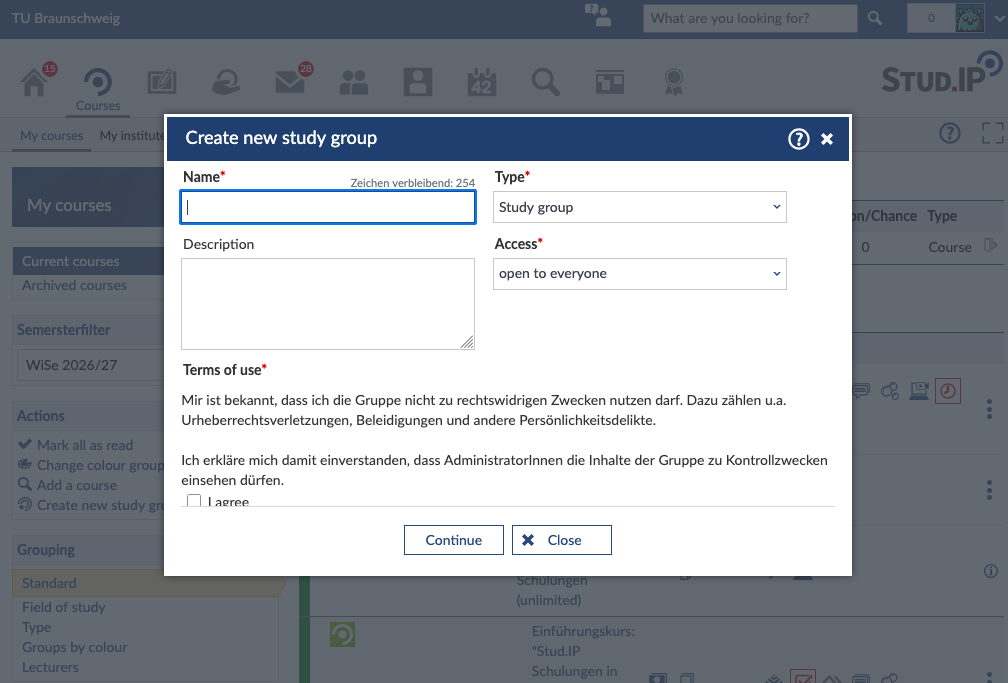](https://books.rz.tu-bs.de/uploads/images/gallery/2026-07/M26KBrdMHHeUlWpH-image036.png) ### **Inviting People ** You can invite more people by clicking “Participants” and selecting “Invite new group members” from the menu on the left. In the menu that opens, you can then search for the accounts you want to add. [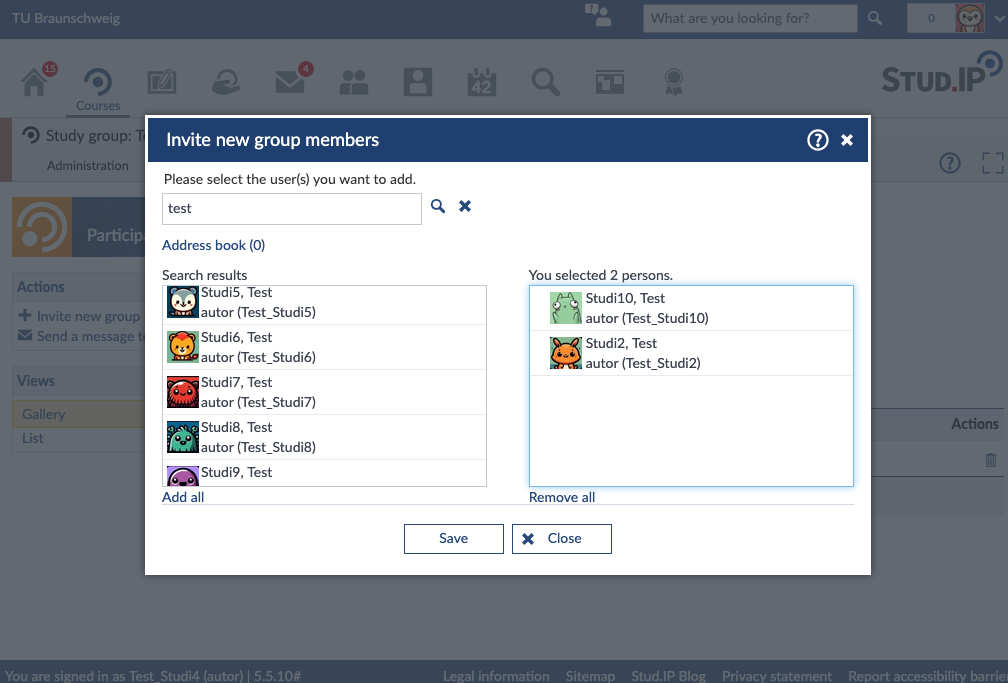](https://books.rz.tu-bs.de/uploads/images/gallery/2026-07/dJ0u2fcWpiVb64yJ-image037.png) The people you invite will then receive a link via a Stud.IP message. They will be added to the study group only after they click on the link. [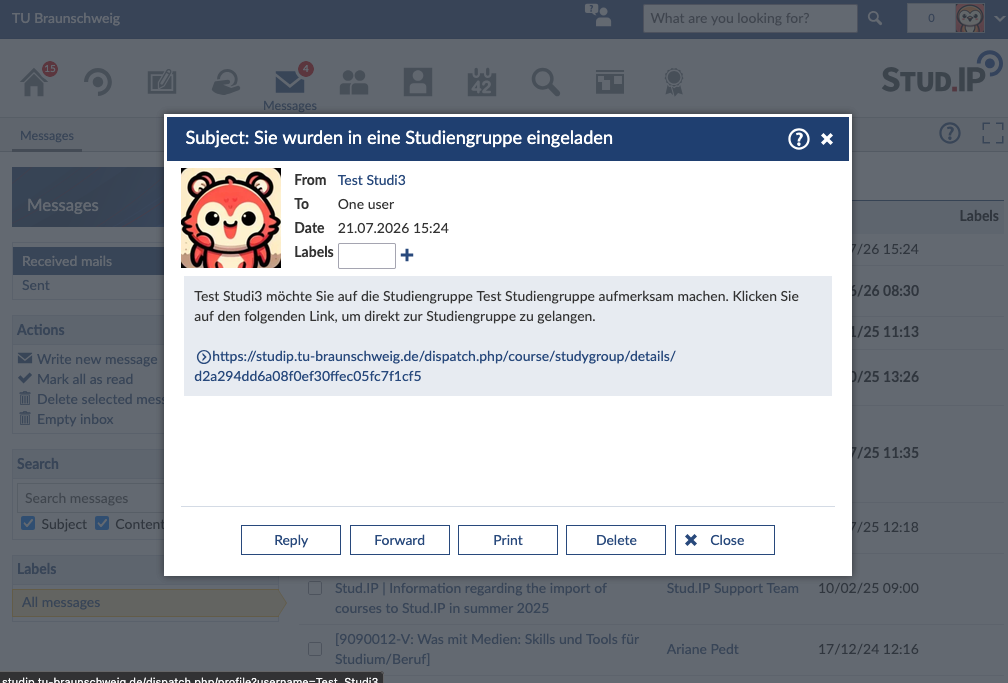](https://books.rz.tu-bs.de/uploads/images/gallery/2026-07/uBiL8QSMjjGW2988-image038.png) ### How long will my study group remain active? Study groups remain active until you delete them or your account is deleted. If you want the study group to continue to be used even after you withdraw from the university, you should appoint another person from the group as a Gruppengründer\*in (group founder). You can do this on the “Participants” page using the arrow icons. First, members are promoted to moderators, and with another click, they become group founders.When your account is deleted, your data will be deleted for data protection reasons,including all files you have uploaded.
[](https://books.rz.tu-bs.de/uploads/images/gallery/2026-07/Kdy4bb8uVbkxkcYi-image039.png)