# 2.1 Anmeldung in SAP ERP

<span style="font-size: 10.0pt; font-family: 'Arial',sans-serif; mso-fareast-font-family: 'Times New Roman'; mso-ansi-language: DE; mso-fareast-language: DE; mso-bidi-language: AR-SA;">Nach der Anmeldung am Rechner ist als nächstes die Chipkarte in das Lesegerät zu stecken. Dann ist das Zertifikat auszuwählen, das SAP verwenden soll. </span>

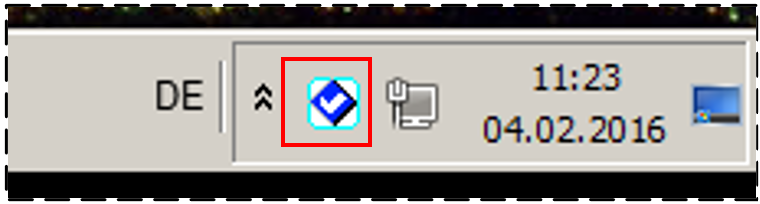
<span style="font-family: 'Arial',sans-serif;">Dazu gibt es unten rechts in der Taskleiste das Symbol </span>[![image.png](https://books.rz.tu-bs.de/uploads/images/gallery/2025-11/scaled-1680-/08dDJ6WStTsmr6Nj-image.png)](https://books.rz.tu-bs.de/uploads/images/gallery/2025-11/08dDJ6WStTsmr6Nj-image.png) <span style="font-family: 'Arial',sans-serif;">(eventuell ist es auch ausgeblendet):</span>

<span style="font-family: 'Arial',sans-serif;">[![image.png](https://books.rz.tu-bs.de/uploads/images/gallery/2025-11/scaled-1680-/z7twUFdF70nRWD6s-image.png)](https://books.rz.tu-bs.de/uploads/images/gallery/2025-11/z7twUFdF70nRWD6s-image.png)</span>

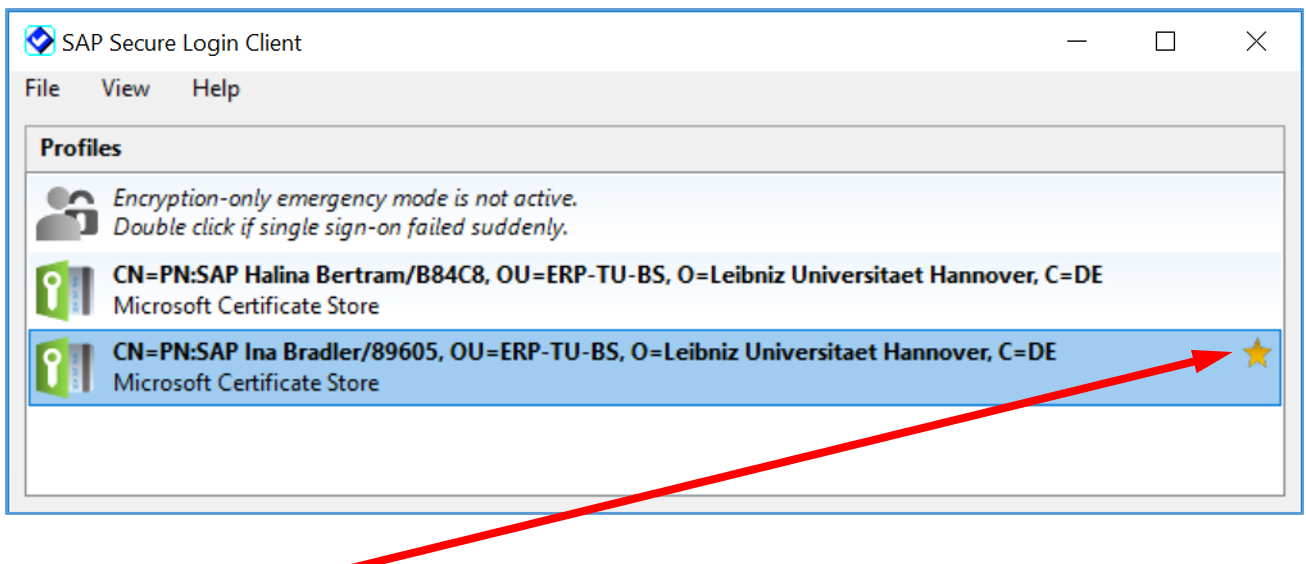
<span style="font-family: 'Arial',sans-serif;">Nach Anklicken erscheint ein Fenster mit einer Reihe von sogenannten Zertifikaten:</span>

<span style="font-family: 'Arial',sans-serif;">[![image.png](https://books.rz.tu-bs.de/uploads/images/gallery/2025-11/scaled-1680-/cyv3iVsDrwfz3PDU-image.png)](https://books.rz.tu-bs.de/uploads/images/gallery/2025-11/cyv3iVsDrwfz3PDU-image.png)</span>

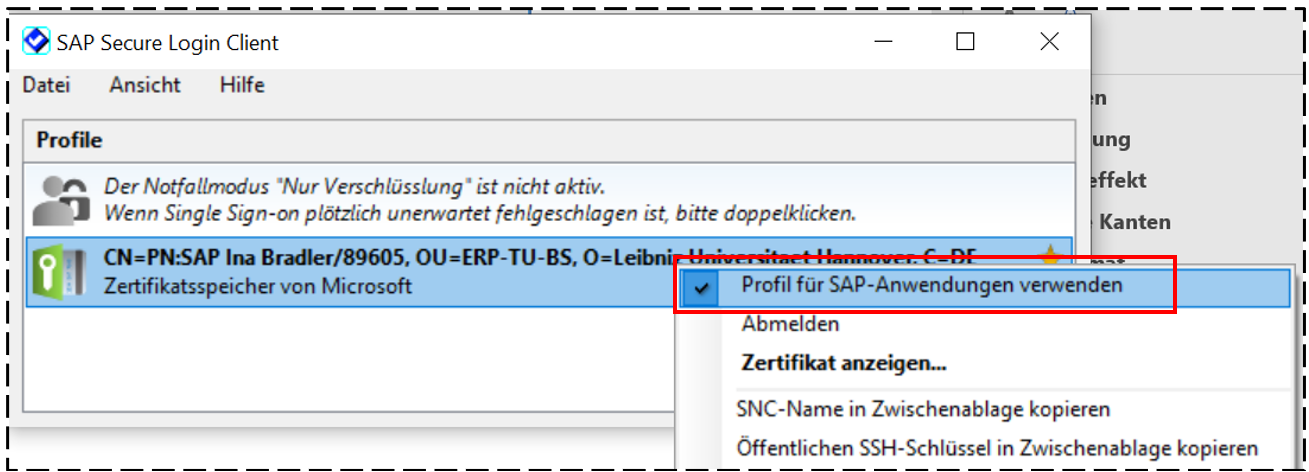
<span style="font-family: 'Arial',sans-serif;">Die Markierung [![image.png](https://books.rz.tu-bs.de/uploads/images/gallery/2025-11/scaled-1680-/1LMpTmfW2sNzc4q7-image.png)](https://books.rz.tu-bs.de/uploads/images/gallery/2025-11/1LMpTmfW2sNzc4q7-image.png)<span style="mso-spacerun: yes;"> </span>bedeutet, dass dieses Zertifikat für SAP verwendet wird. Ist kein Zertifikat markiert oder soll ein anderes Zertifikat verwendet werden, so ist dieses mit der **<u>rechten</u> Maustaste** anzuklicken und aus dem folgenden Menü der Punkt ***Profil für SAP-Anwendung verwenden*** auszuwählen:</span>

<span style="font-family: 'Arial',sans-serif;">[![image.png](https://books.rz.tu-bs.de/uploads/images/gallery/2025-11/scaled-1680-/ejM1MmMos8kt8Exh-image.png)](https://books.rz.tu-bs.de/uploads/images/gallery/2025-11/ejM1MmMos8kt8Exh-image.png)</span>

Diese Einstellung wird im Windows-Profil des gerade am Rechner angemeldeten Benutzers gespeichert.

Auf dem Desktop befindet sich der Icon<span style="mso-no-proof: yes;"><span style="mso-spacerun: yes;"> "SAP-Logon 64": </span></span>![image.png](https://books.rz.tu-bs.de/uploads/images/gallery/2025-11/scaled-1680-/cVToagteZOXAY9gL-image.png)

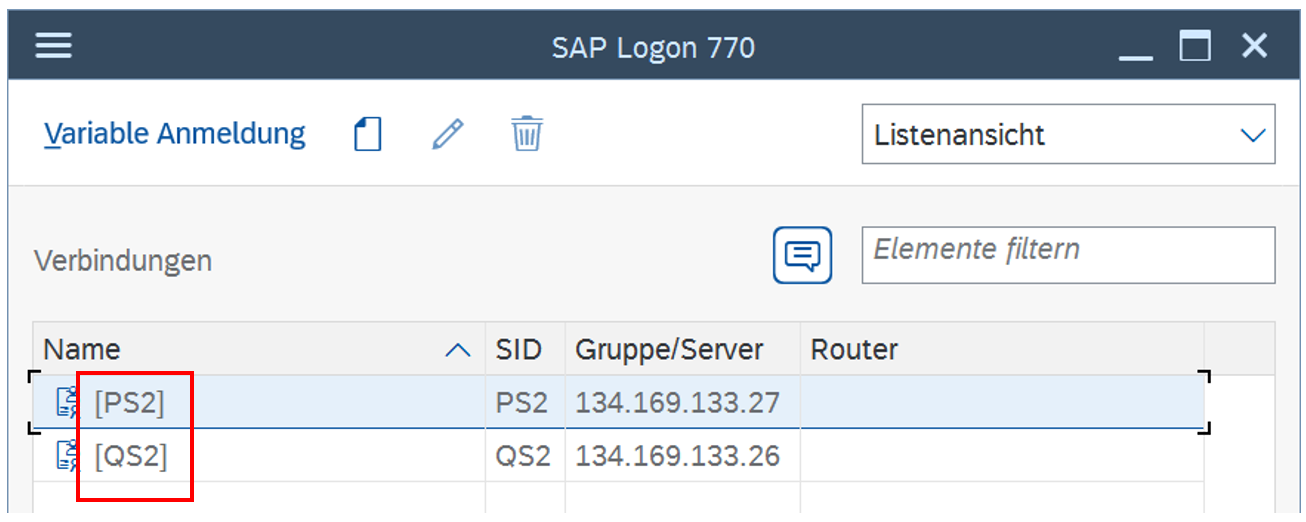
<span style="mso-no-proof: yes;"><span style="mso-spacerun: yes;"> </span></span>Nach Doppelklick darauf werden die SAP-Systeme **PS2** und **QS2** zur Auswahl angeboten:

<span style="font-family: 'Arial',sans-serif;">[![image.png](https://books.rz.tu-bs.de/uploads/images/gallery/2025-11/scaled-1680-/IpiSHZlZmPAHu2cK-image.png)](https://books.rz.tu-bs.de/uploads/images/gallery/2025-11/IpiSHZlZmPAHu2cK-image.png)</span>

**<span style="font-family: 'Arial',sans-serif;">PS2</span>**<span style="font-family: 'Arial',sans-serif;"> ist das Produktivsystem. Es enthält alle echten Daten und ist tagesaktuell.</span><span style="mso-no-proof: yes;"> </span>

**<span style="font-family: 'Arial',sans-serif;">QS2</span>**<span style="font-family: 'Arial',sans-serif;"> ist das sogenannte Qualitätssicherungssystem. Dabei handelt es sich um mehrere Kopien des Produktivsystems zu früheren Zeitpunkten. Es enthält also ebenfalls echte Daten – allerdings nicht tagesaktuell – und ist für Tests und Übungszwecke gedacht.</span>

<span style="font-family: 'Arial',sans-serif;">Für die Schulung nutzen wir das QS2. </span>

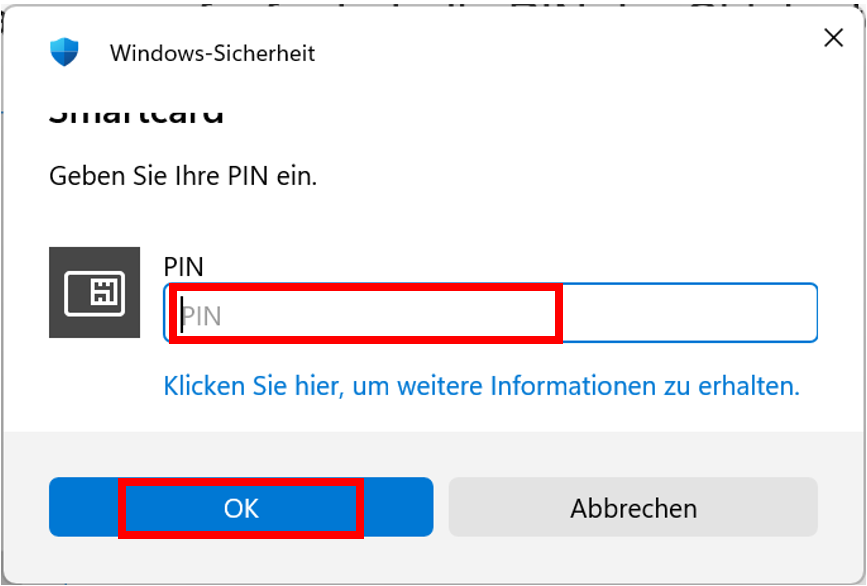
<span style="font-family: 'Arial',sans-serif;">Nach **Doppelklick auf QS2** wird man nun aufgefordert, die PIN der Chipkarte einzugeben:</span>

<span style="font-family: 'Arial',sans-serif;">[![image.png](https://books.rz.tu-bs.de/uploads/images/gallery/2025-11/scaled-1680-/l8bLCCxPPJZs6zdb-image.png)](https://books.rz.tu-bs.de/uploads/images/gallery/2025-11/l8bLCCxPPJZs6zdb-image.png)</span>

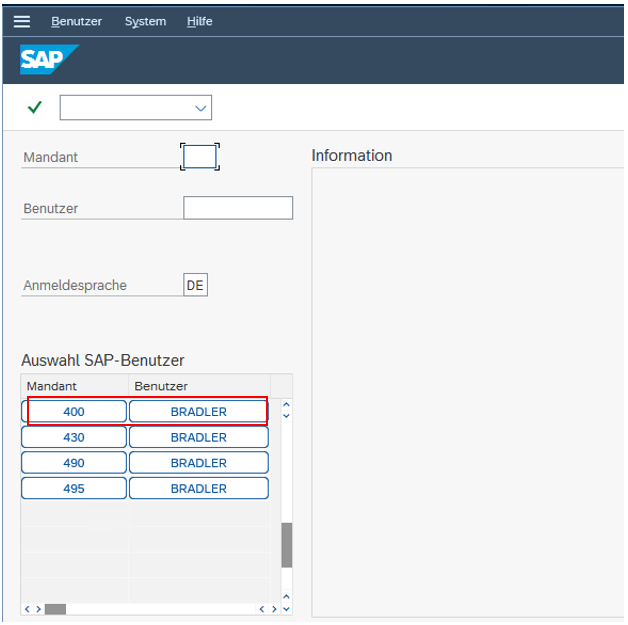
<span style="font-family: 'Arial',sans-serif;">Danach muss ggf. der SAP-Benutzer ausgewählt werden:</span>

[![image.png](https://books.rz.tu-bs.de/uploads/images/gallery/2025-11/scaled-1680-/81jX8308qGjRIB6q-image.png)](https://books.rz.tu-bs.de/uploads/images/gallery/2025-11/81jX8308qGjRIB6q-image.png)

<span style="font-family: 'Arial',sans-serif;">Bei den Mandanten 400, 430, 490 und 495 handelt es sich um Kopien des Produktivsystems zu verschiedenen Zeitpunkten.</span>

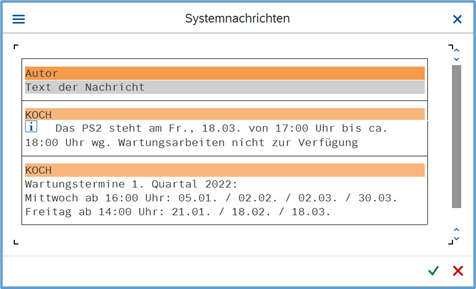
<span style="font-family: 'Arial',sans-serif;">Einmal täglich erscheint zuerst eine Systemnachricht, die über Wartungstermine, Neuerungen o.ä.<span style="mso-spacerun: yes;"> </span>informiert:</span>

[![image.png](https://books.rz.tu-bs.de/uploads/images/gallery/2025-11/scaled-1680-/HGCxo5F8KzrCr0Qs-image.png)](https://books.rz.tu-bs.de/uploads/images/gallery/2025-11/HGCxo5F8KzrCr0Qs-image.png)

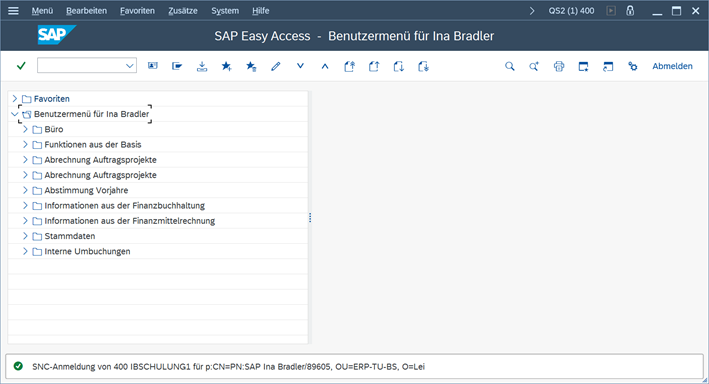
<span style="font-family: 'Arial',sans-serif;">Nach Anklicken von </span>[![image.png](https://books.rz.tu-bs.de/uploads/images/gallery/2025-11/scaled-1680-/jjLLAc6Y9PLt2GyW-image.png)](https://books.rz.tu-bs.de/uploads/images/gallery/2025-11/jjLLAc6Y9PLt2GyW-image.png)<span style="font-family: 'Arial',sans-serif;"><span style="mso-spacerun: yes;"> </span>oder</span> [![image.png](https://books.rz.tu-bs.de/uploads/images/gallery/2025-11/scaled-1680-/O6c9RptLkSy7eUoG-image.png)](https://books.rz.tu-bs.de/uploads/images/gallery/2025-11/O6c9RptLkSy7eUoG-image.png)<span style="font-family: 'Arial',sans-serif;">oder Betätigen von **Enter** erscheint das eigentliche SAP-Menü-Fenster:</span>

[![image.png](https://books.rz.tu-bs.de/uploads/images/gallery/2025-11/scaled-1680-/8KhQ12ukfhUqFXr6-image.png)](https://books.rz.tu-bs.de/uploads/images/gallery/2025-11/8KhQ12ukfhUqFXr6-image.png)

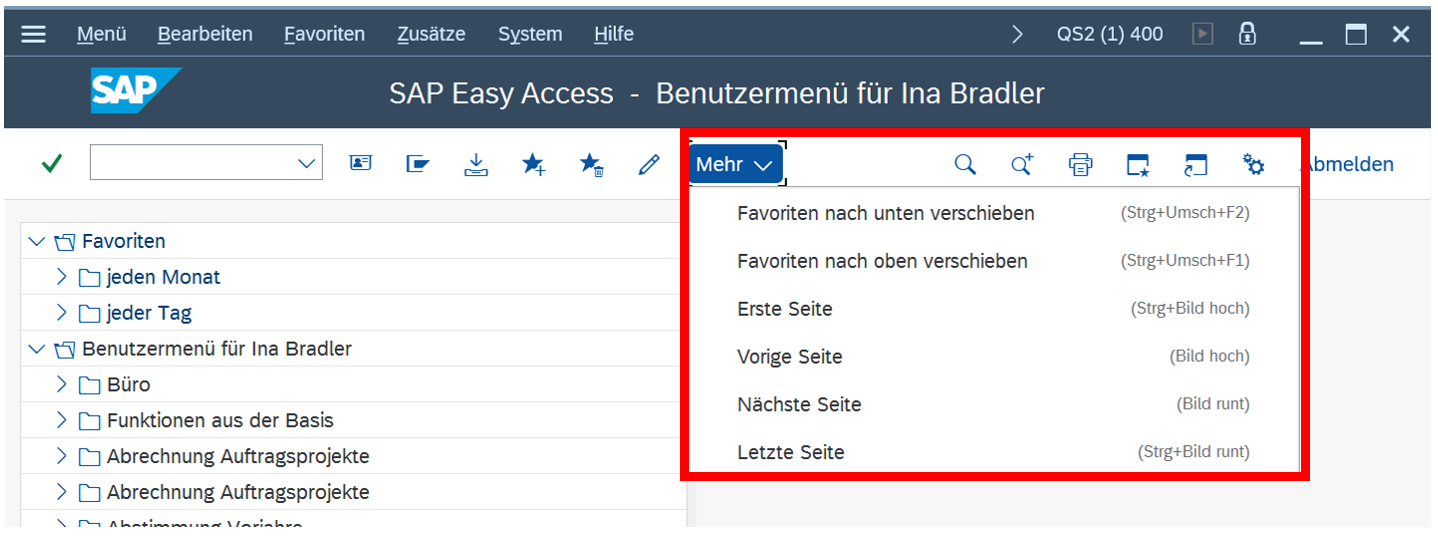
<span style="font-family: 'Arial',sans-serif;">Der Aufbau dieses Fensters entspricht den üblichen Windows-Gepflogenheiten. Wenn das Fenster so schmal ist, dass nicht alle Buttons Platz haben, werden einige Buttons ausgeblendet und sind in einem Menü mit der Bezeichnung</span>[![image.png](https://books.rz.tu-bs.de/uploads/images/gallery/2025-11/scaled-1680-/gbgGUCqFW286hqza-image.png)](https://books.rz.tu-bs.de/uploads/images/gallery/2025-11/gbgGUCqFW286hqza-image.png)<span style="font-family: 'Arial',sans-serif;"><span style="mso-spacerun: yes;"> </span>zu finden:</span>

[![image.png](https://books.rz.tu-bs.de/uploads/images/gallery/2025-11/scaled-1680-/DHjSPSqtdfKBwWEI-image.png)](https://books.rz.tu-bs.de/uploads/images/gallery/2025-11/DHjSPSqtdfKBwWEI-image.png)